
Published 15 October 2026, Updated 15 October 2026
Some appointment types require a payment by credit card. When this is the case, the booking window shows a highlighted notice: Payment is mandatory before scheduling, and also tells you that no ID photo is needed.
What you will see
| Section | Content |
|---|---|
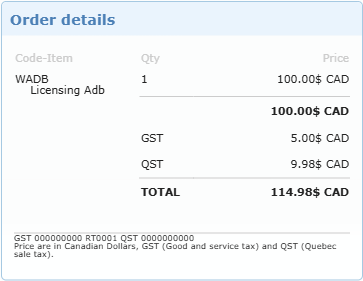
| Order details | The item(s) you will be charged for and the total. |
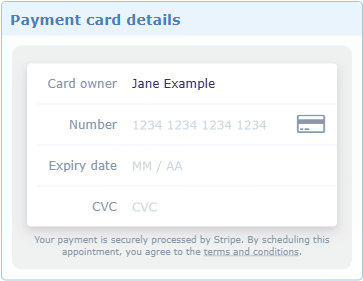
| Payment card details | Card owner, card Number, Expiry date and CVC. A card logo appears as you type the number. |
| Terms | A link to the terms and conditions. Scheduling means you accept them. |
How to pay
- Click an Available time and wait for the booking window.
- Read the Order details and confirm the total.
- Type the Card owner name exactly as printed on the card.
- Enter the card Number, Expiry date and CVC.
- Click Pay and Schedule. A loading indicator is shown while the payment is processed.
- When the payment succeeds the appointment is saved and you receive a confirmation email and a receipt email.
Payments are handled securely by Stripe; card numbers are never stored by AirSupervision.
If payment cannot be made
| Message | Meaning and action |
|---|---|
| Enter the card owner name before scheduling the appointment | Fill in the Card owner field. |
| Card details incomplete or declined | Check the number, expiry date and CVC, or use another card. |
| Card payment is temporarily unavailable | Online payment is currently off. Try later or contact the center. |
| The order details could not be loaded | The price could not be shown. Try again later. |
If the payment fails, no appointment is created.
Rescheduling and payment
Moving an existing appointment does not charge you again. Cancelling an appointment does not refund automatically: see Moving or cancelling an appointment.