
Published 10 October 2026, Updated 10 October 2026
Launching a course
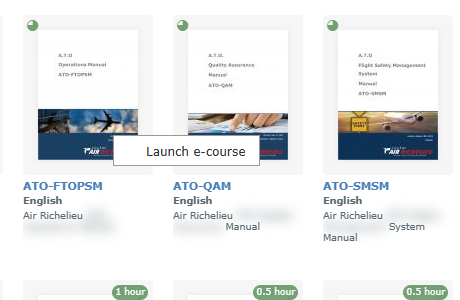
Click a course card (cover, title or description). The course opens in a new browser tab, so the E-Courses page stays open in the first tab.
You can also right-click a card and choose Launch e-course.
Depending on how the course was prepared, what opens in the new tab is different:
| Type of course | What you see |
|---|---|
| Interactive slide course | The course player with its slides, navigation buttons and, sometimes, questions. |
| PowerPoint presentation | The presentation opens in an online viewer. |
| External link | The page of another website or platform chosen by your school. |
| SCORM package | The course in a standard e-learning player. |
Stopping and continuing later
For interactive slide courses and SCORM packages, your school can switch on progress tracking. When it’s on:
- AirSupervision remembers the last slide you reached.
- The next time you launch the course, it starts again at that slide.
- Your progress appears on the course card (◕ Started, ◍ Completed) and in the Status filter.
When tracking is off, the course always starts at the beginning, and no progress circle is displayed.
Tip: close the course tab when you have finished a session. Your position is saved as you move through the slides.
When is a course “Completed”?
A course is shown as completed when you have reached its last slide. The tooltip of the cover picture shows your completion percentage and the number of slides, so you can see how much is left.
Common questions
| Situation | What to do |
|---|---|
| Nothing happens when I click a course | Your browser may block new tabs. Allow pop-ups for AirSupervision and click again. |
| The course starts at the beginning instead of where I stopped | Progress tracking isn’t enabled for this course, or it is a PowerPoint or external-link course. |
| The PowerPoint viewer or the external page doesn’t load | These courses are displayed by another website. Check your internet connection or try again later. |
| A course disappeared from my list | The school may have deactivated it, changed who can see it, or it is being updated and waiting for validation. |