
Published 10 October 2026, Updated 10 October 2026
Step 1 — Write your answer
- Open the report.
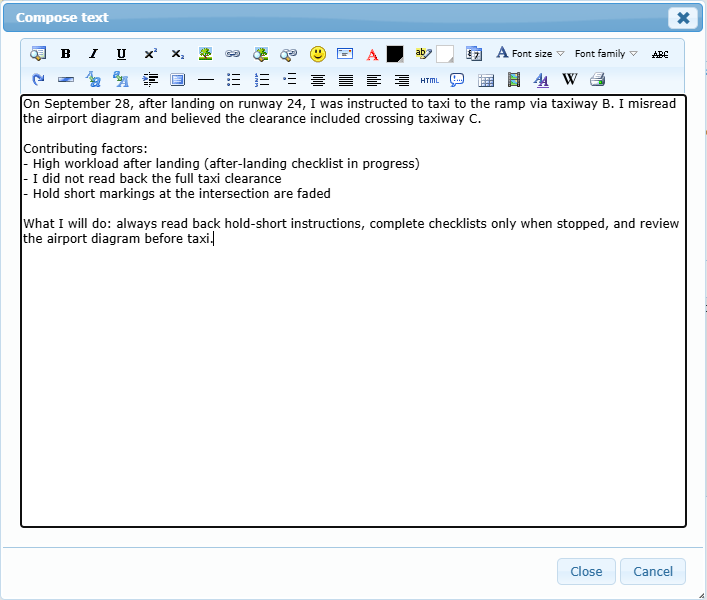
- Click the edit icon at the right of the Answer line. The Compose text window opens with a text editor.
- Replace the grey suggested text (“Storyline has to be related to the event…”) with your answer.
- Click Close to copy your text into the answer area. Cancel closes the window without keeping your changes.
What to write
A good answer is factual, complete and honest. Use this outline:
| Part | Example |
|---|---|
| What happened, in order | “After landing on runway 24, I was cleared to taxi to the ramp via taxiway B…” |
| What you understood at the time | “I believed the clearance included crossing taxiway C.” |
| Contributing factors | Workload, fatigue, weather, unclear instruction, equipment, markings, procedures, time pressure… |
| What you did after the event | “I stopped and contacted ground.” |
| What you will do, or suggest, to avoid it in the future | “Always read back hold-short instructions; review the airport diagram before taxi.” |
Avoid one-line answers such as “Sorry, it won’t happen again”. They do not help to find the causes and the report may be sent back to you for more details.
Step 2 — Save or send the answer
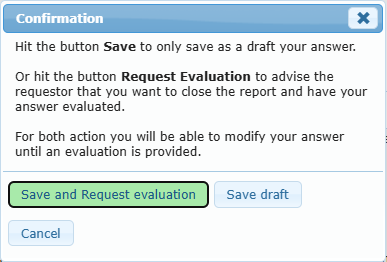
Click Answer at the bottom of the report. A Confirmation window opens:
| Button | What happens | When to use it |
|---|---|---|
| Save draft | Your text is saved but the report is still considered unanswered. Nobody is notified. The answer delay keeps running. | You need more time, or want to finish your answer later. |
| Save and Request evaluation | Your answer is recorded as the official answer, with today’s date. The sender receives a message (and an e-mail when available) asking to evaluate it. Restrictions linked to the unanswered report are removed. | Your answer is complete. |
| Cancel | Closes the window without saving. | You clicked by mistake. |
If your text did not change since your last request, the page shows “Your answer is the same or you have already request an evaluation. No request has been sent!”. If the answer area is empty, the page asks you to check your data.
Important: only Save and Request evaluation counts as an answer. A draft does not stop the answer delay and does not remove restrictions.
Step 3 — Waiting for evaluation
After you request the evaluation, the report shows Answered with the date, and Waiting for evaluation. The Answer button is no longer displayed.
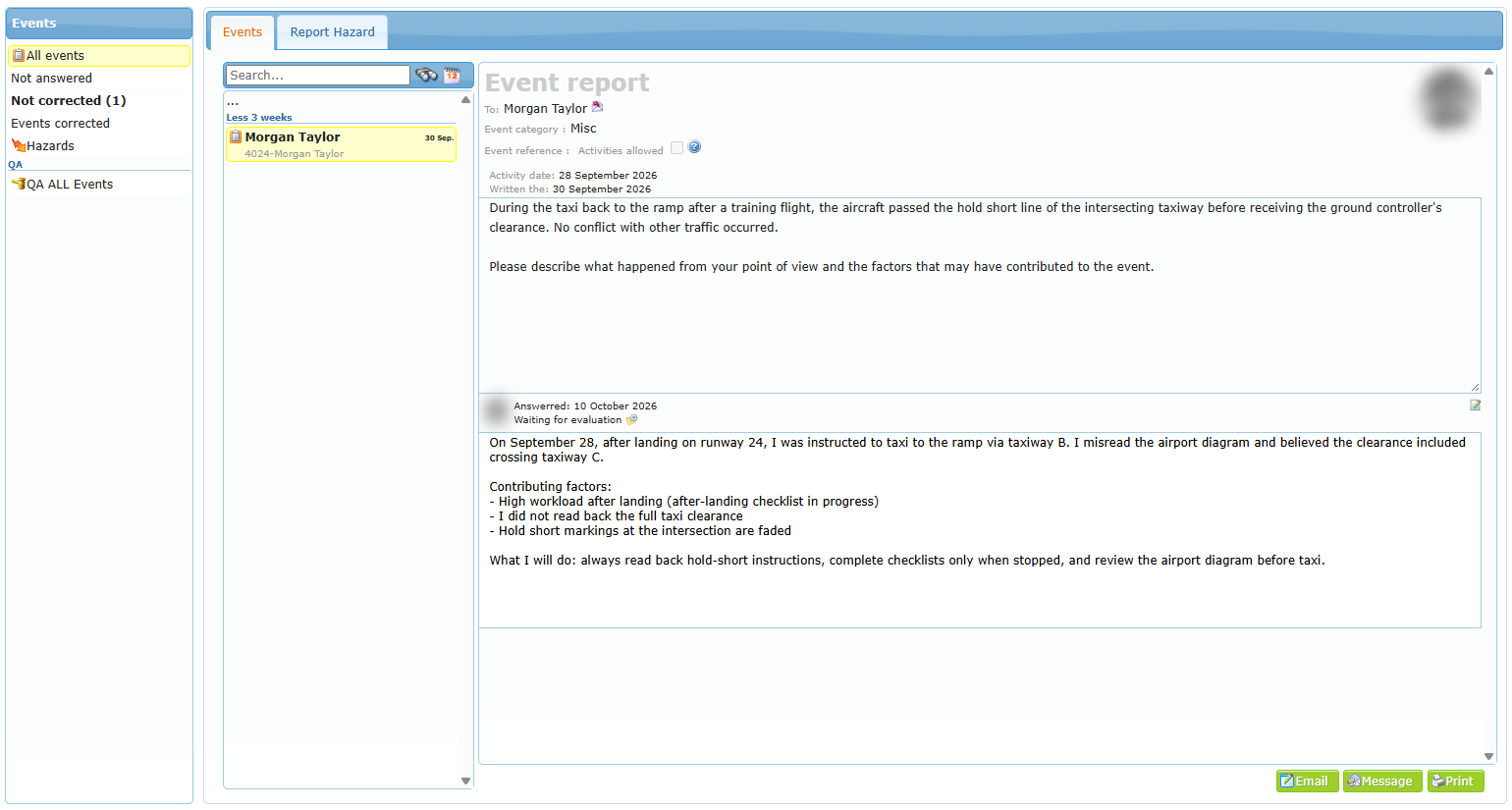
If you need to change your answer after requesting the evaluation, contact the person who sent the report. They can reopen your answer so you can modify it and request a new evaluation. They can also reopen it themselves if they need more information from you; in that case you receive a message and the Answer button comes back.
Step 4 — Evaluation and closing
The sender reads your answer, analyzes the event and writes a correction (the evaluation): the analysis, the causes found and the actions decided. When the report is evaluated:
- the report moves to Events corrected,
- it shows Answered with your answer and Corrected with the date, the name of the evaluator and the evaluation text,
- no further action is required from you, unless an action was assigned to you (see below).
Actions assigned to you
For flight safety (SMS) events, the safety team can assign you a follow-up action with a projected date, for example “Review the taxi clearance procedure with your instructor”. The action appears in the Security SMS part of the report and in the Important reminders pop-up. Do it before the projected date and tell the person in charge so they can close it. An action that is not closed by its projected date counts as overdue and can lock you on the home page like an unanswered report.