
Published 9 October 2026, Updated 9 October 2026
Printouts available
| Printout | Where | Result |
|---|---|---|
| Print lesson | Right-click a done lesson | The completed lesson sheet. Staff can choose Excel XLSX or Acrobat PDF and add the weather reports. |
| Print blank lesson | Right-click any lesson | The empty lesson sheet (PDF). |
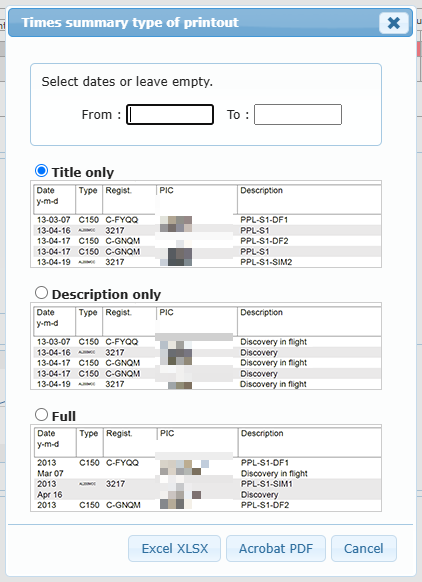
| Print summary | Right-click › Course › Print summary, or the printer icon of the Summary tab | The times summary. Choose the dates and the layout (Title only, Description only or Full), then Excel XLSX or Acrobat PDF. |
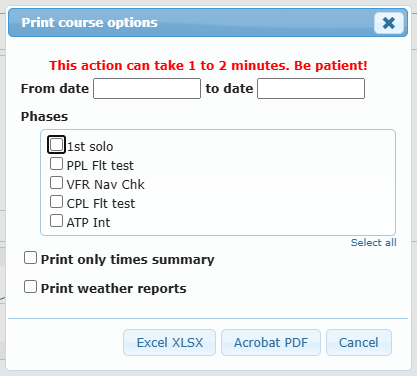
| Print course | Right-click › Course › Print course | The complete training record. Choose dates, phases, Print only times summary and (staff) Print weather reports, then Excel or PDF. It can take 1 to 2 minutes. |
| Print blank course | Right-click › Course › Print blank course | The course content without results: Title only, Description only or Full. |
| Print course sequence | Right-click › Course › Print course sequence | The sequence of lessons of the course (PDF). |
| Print planned dates list / Print list | Planning tab | The planning. |
| Exercises printout | Exercices tab › Print | System style or Transport Canada PTR style. |
| Required exercises | Performances › Required exercices › Print | The required exercises table. |
| Certificates | Details tab › Certificates | The certificate PDF (when requirements are met). |
Help tab
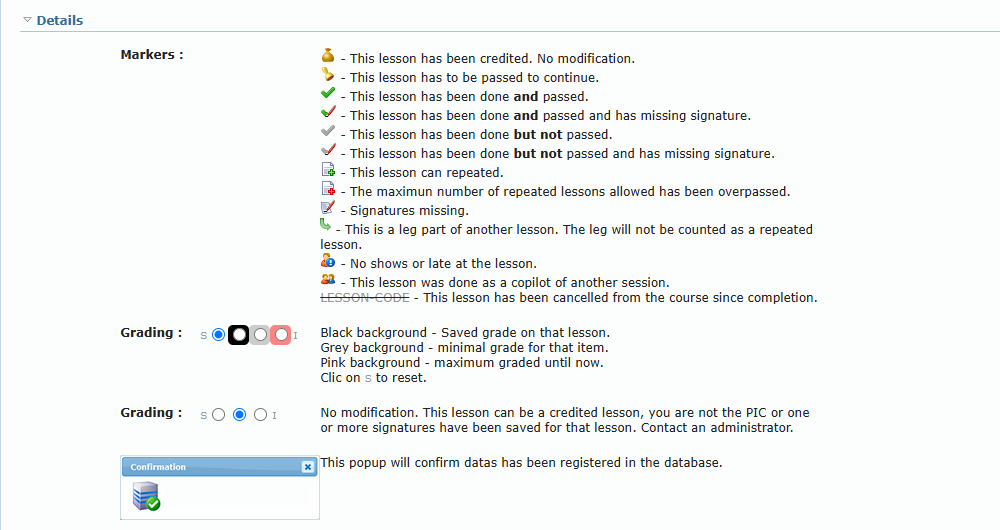
The Help tab of the training record explains every marker of the lesson list and every grading scale used by your school (for example 1 to 4, Attitude, Competent / Not Yet Competent).
Troubleshooting
| Situation | Explanation and solution |
|---|---|
| I cannot see the Save lesson button. | The lesson is already done (use the repeat icon to add a repetition), the course is closed, the course is recorded through Multiple Entries, or you are not allowed to record this lesson. |
| The lesson fields are grey and cannot be changed. | The lesson is signed, credited, done as co-pilot, the course is closed, or you are not its PIC. Use Request correction. |
| A Missing signature window opens when I open the record. | Some lessons are not signed. Use the To Sign filter and sign them, or ask the student or instructor to sign. |
| The Flight Record window is empty. | The flight is not ramped in, was done with another PIC, student, date or aircraft category, or is already used by another lesson. Correct the date, PIC or aircraft, or ask dispatch. |
| “Select the actual PIC before selecting a flight record.” | Choose the PIC in the search results first. |
| “The PIC changed. Select a flight record again.” | The PIC was changed while the window was open. Close it and select the flight again. |
| The save is refused because of a prerequisite. | Check the red boxes in Pre requisite lessons and the yellow ones in Pre requisite exercices. |
| The projected date cannot be changed. | Only staff with planning rights change dates, and not on lessons already done. |
| A certificate shows a warning sign. | Hover it to see the missing lessons or experience. |
| I want to change a lesson already signed. | Use Request correction and explain the change. |