
Published 9 October 2026, Updated 9 October 2026
The Lessons tab is the heart of the training record. The left panel lists the course lessons grouped by phase. The right panel shows the lesson you click.
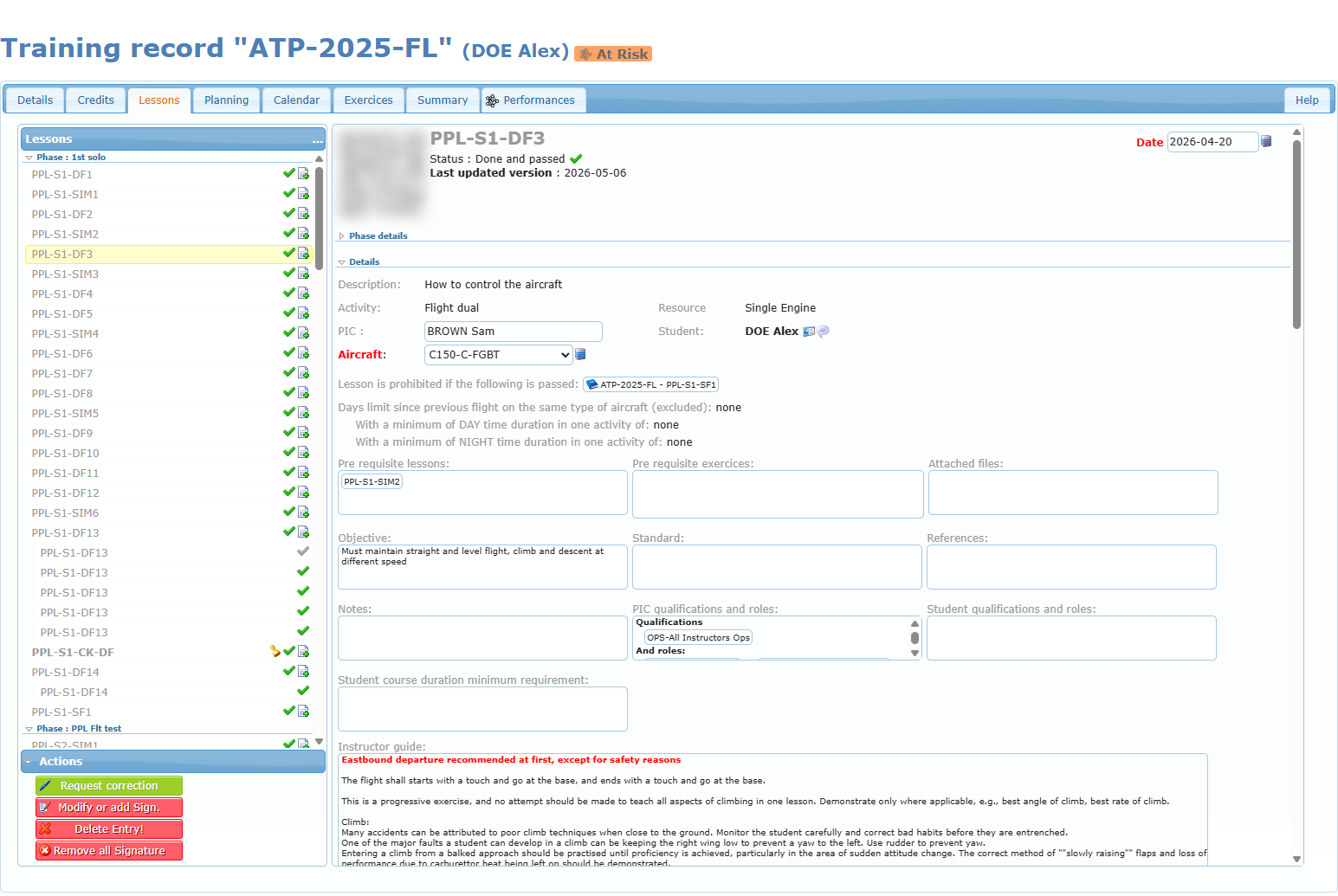
The lesson list
Click a phase title to collapse or expand it. Click a lesson to open it on the right. The selected lesson is highlighted in yellow.
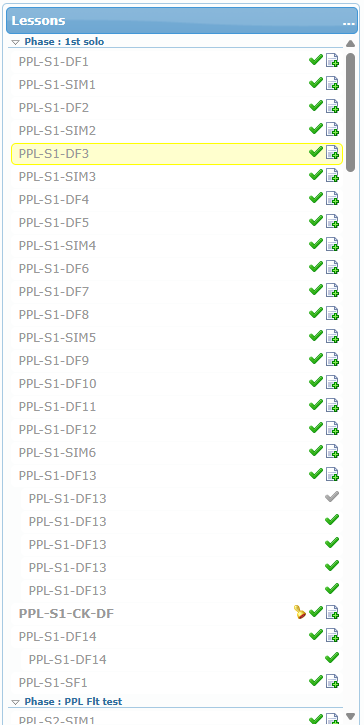
How lessons are displayed
| Display | Meaning |
|---|---|
| Bold title | Mandatory lesson: it must be passed before continuing. |
| Grey title | Lesson already done (or credited). |
| Indented line under a lesson | A repetition of that lesson (each time the lesson was done again). |
| The lesson was removed from the course after you completed it. Your record is kept. |
Lesson icons
| Icon | Meaning |
|---|---|
| Money bag | Credited lesson. No modification possible. |
| Rubber stamp | Mandatory lesson. |
| Green check | Done and passed. |
| Green check with a red pen | Done and passed, but a signature is still missing. |
| Grey check | Done but not passed. |
| Grey check with a red pen | Done, not passed, and a signature is missing. |
| Document with a green + | The lesson can be repeated. Click it to open a new entry of the same lesson. Hover it to see how many repetitions are left. |
| Document with a red + | The maximum number of repetitions has been exceeded. |
| Curved arrow | This entry is a leg of a multi-leg flight. A leg is not counted as a repetition. |
| Two people | The lesson was done as a co-pilot of another student’s session. |
| Moon (faded) | The lesson is expected to be flown at night. |
The Help tab of the page shows the same legend at any time.
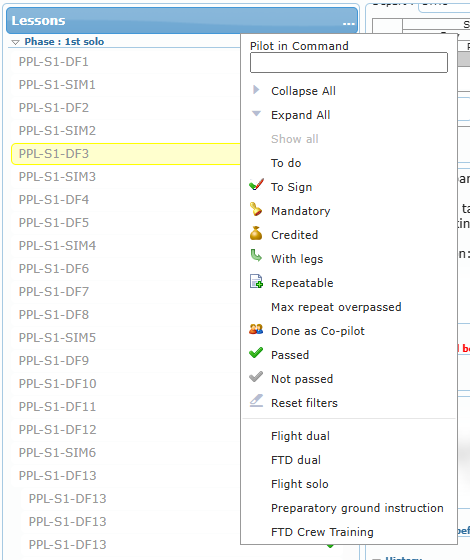
Filtering the list: the “…” menu
Click … at the top right of the Lessons header.
| Entry | Effect |
|---|---|
| Pilot in Command (staff) | Type a name to show only the lessons recorded by that PIC. |
| Collapse All / Expand All | Closes or opens every phase. |
| Show all | Removes the active filter. |
| To do | Lessons not done yet. |
| To Sign | Lessons still waiting for a signature. |
| Mandatory | Mandatory lessons. |
| Credited | Credited lessons. |
| With legs | Multi-leg entries. |
| Repeatable | Lessons that can be repeated. |
| Max repeat overpassed | Lessons repeated more than allowed. |
| Done as Co-pilot | Lessons done as a co-pilot. |
| Passed / Not passed | Done lessons by result. |
| Reset filters | Shows everything again. |
| Activity types (bottom of the menu) | For example Flight dual, FTD dual, Flight solo, Preparatory ground instruction: show only that type of lesson. |
As a student: use To do to see what remains and To Sign to find the lessons you still have to sign.
The right-click menu of a lesson
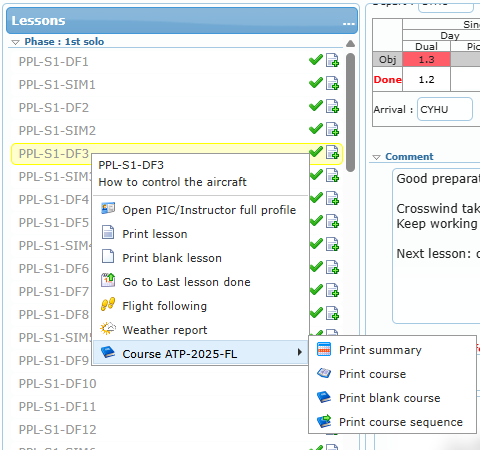
Right-click any lesson in the list. The header of the menu shows the lesson code and description.
| Entry | What it does | When it is shown |
|---|---|---|
| Open PIC/Instructor full profile | Opens the profile of the PIC who recorded the lesson. | Staff, on a done lesson |
| Print lesson | Prints the completed lesson sheet (PDF or Excel for staff). | On a done lesson |
| Print blank lesson | Prints the empty lesson sheet as a PDF (useful as a briefing sheet). | Always |
| Go to Last lesson done | Scrolls to and opens the last lesson recorded. | Always |
| Flight following | Opens the flight tracking link of the aircraft for that day. | When the aircraft has a tracking link |
| Weather report | Shows the weather reports (METAR) recorded for that flight. | On a done lesson |
| History | Shows the history of a co-pilot entry. | Members with history rights |
| Course “name” › Print summary, Print course, Print blank course, Print course sequence | Course printouts (see Printing). | Always |
Hovering a lesson also shows a tooltip with its title and description. Administrators also see technical reference numbers there.
The lesson panel (right side)
The top of the panel shows the lesson code, its Status (None, Done and passed, Done and failed, Credited) and the Last updated version date of the lesson content. The Date field is at the top right.
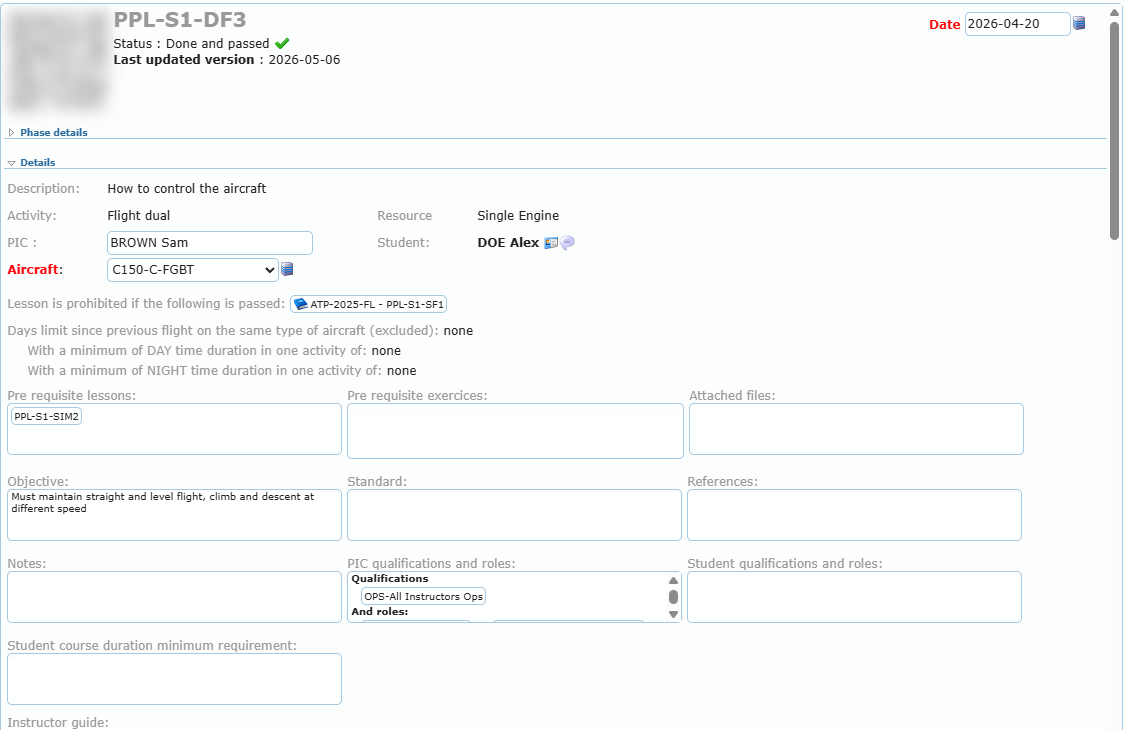
The panel is divided into sections. Click a section title to fold or unfold it.
Phase details (folded by default)
The phase title, objective, standard and comment.
Details
| Field | Meaning |
|---|---|
| Description | What the lesson is about. |
| Activity | The type of activity (for example Flight dual, Flight solo, FTD dual, ground instruction). |
| Resource | The aircraft category or resource type allowed for the lesson. |
| PIC (or INST for crew lessons) | The pilot in command / instructor who gives the lesson. |
| Student (or PIC for crew lessons) | The student. |
| Aircraft / Ressource | The aircraft or simulator used. Shown in red when it is mandatory. |
| Copi | For crew (multi-pilot) lessons: the other student. |
| Recommending Instructor (red) | When the lesson requires a recommendation, the instructor who recommends the student. |
| Lesson is prohibited if the following is passed | This lesson can no longer be done once the listed lesson is passed. |
| Lesson is prohibited if the last same lesson has been passed | A passed lesson of this type cannot be repeated. |
| Days limit since previous flight on the same type of aircraft | Maximum number of days since the student’s last flight on this aircraft type, with the minimum day or night duration of that flight. |
| Validate 1st/2nd/3rd competency if lesson passed | Passing the lesson renews the named competency for the period shown. |
| Pre requisite lessons | Lessons that must be passed first. A red box means it is not passed yet. A blue book icon means the lesson belongs to another course. A money bag means it was credited. Hover a box for details. |
| Pre requisite exercices | Exercises that must have reached a grade in earlier lessons. A yellow exercise has not reached the grade yet. |
| Attached files | Documents attached to the lesson (click to open). |
| Objective, Standard, References, Notes | The lesson content written by the course designers. |
| PIC qualifications and roles / Student qualifications and roles | Qualifications and roles required to do the lesson, and whether memos must be read. |
| Files to upload before authorization | Documents the student must upload before the flight can be authorized. |
| Student course duration minimum requirement | Minimum experience required before this lesson (for example a number of solo hours). |
| “Student” requirements warnings | On a new lesson: what the student is missing or what is expired (for example Missing: …, Expired: …, Having: No previous flight on type). Changing the aircraft refreshes this list. |
| Instructor guide | Teaching notes for instructors. Shown to course responsibles and instructors. |
Click any of these boxes to open it larger in a separate window.
Items
The list of exercises of the lesson with their group, the type of evaluation (for example Discuss, Oral Eval, Dem/Pract) and the grade.
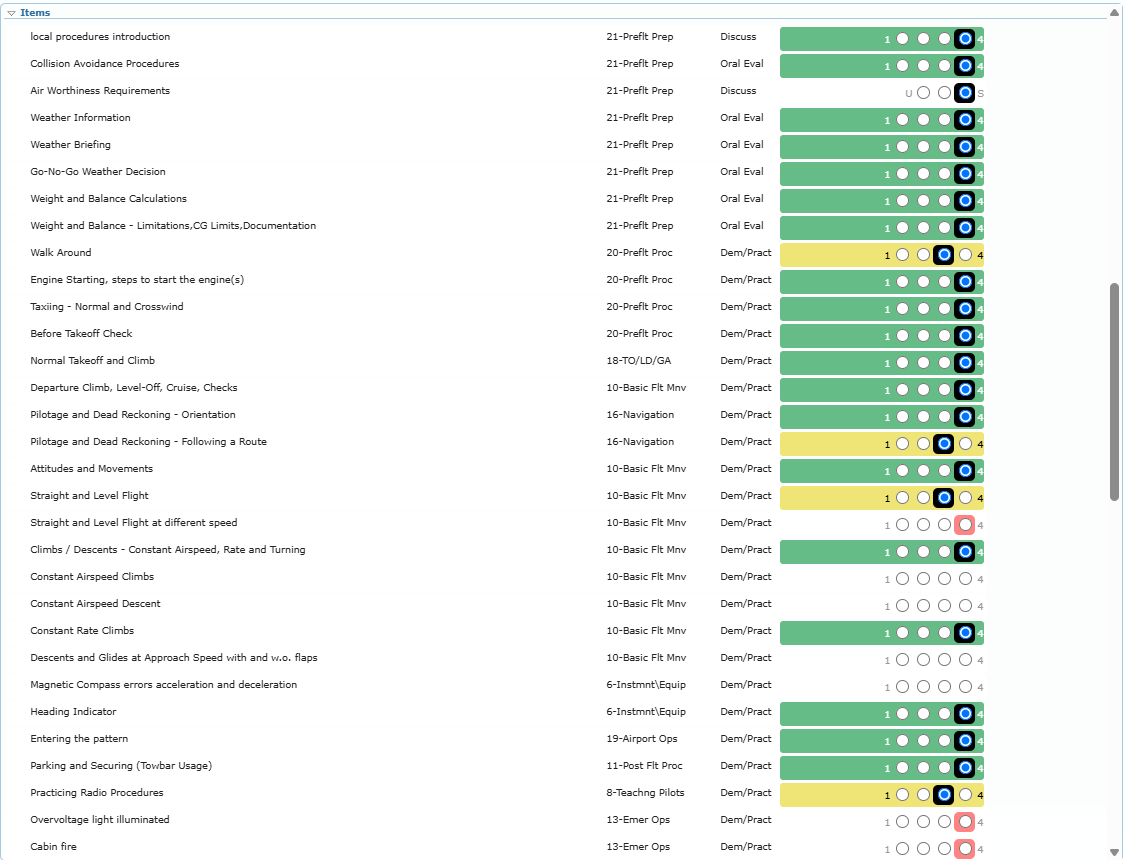
| Display | Meaning |
|---|---|
| Selected button on a black background | The grade saved on this lesson. |
| Coloured row (red, orange, yellow, green) | The grade colour of the scale used (for example 1 = red to 4 = green). |
| Grey button | The minimum grade expected for this item. |
| Pink button | The best grade reached on this item so far in the course. |
| o before the evaluation type | Optional item. |
| Letter or number on each side (1…4, S…I, U…S, I…D) | The two ends of the grading scale. |
Below the items, Additional items lists exercises added by the instructor during the lesson.

Lesson passed / Score
The Lesson passed: Yes / No line shows the result. Some lessons use a Score instead (for example 73 / 100). The result is then calculated automatically from the minimum percentage set in the course.
Duration
The logbook table of the lesson.

| Row | Meaning |
|---|---|
| Obj | The objective duration of the lesson for each column. A red cell is a column that must be filled when recording. |
| Done | The duration actually recorded. |
| Depart / Arrival | The airports of each leg. |
Columns: Single Engine (Day/Night, Dual/Pic), Multi Engine (Day/Night, Dual/Pic/coPi), Instrument (IMC, Hood, FTD, IFR approaches), Cross-Country (Day/Night, Dual/Pic), T/O Land (Day/Night) and VFR FTD. Ground lessons show the Ground table (Theory, PGI or Preparation, Study, Exams).
Comment and Certificates
The instructor’s comment. When the lesson is passed and the course design links certificates to it, PDF icons appear under Certificates. Click one to open the certificate.
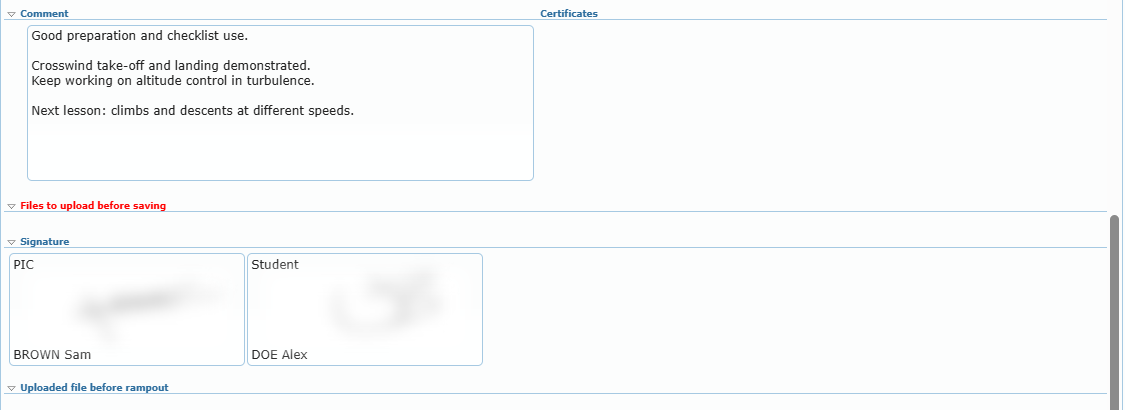
Files to upload before saving
Documents that must be uploaded with the lesson (for example a navigation log). Completed lessons show the uploaded files. Only the trainee, the trainer, the course responsible and members with high rights can open them.
Signature
The PIC (or Instructor) and Student signature boxes with the name of each signer. When someone signed for the PIC on their behalf, the box reads Mandated with that person’s name and licence.
METARs
For flights, course responsibles and administrators see the departure and arrival weather reports with their flight category.
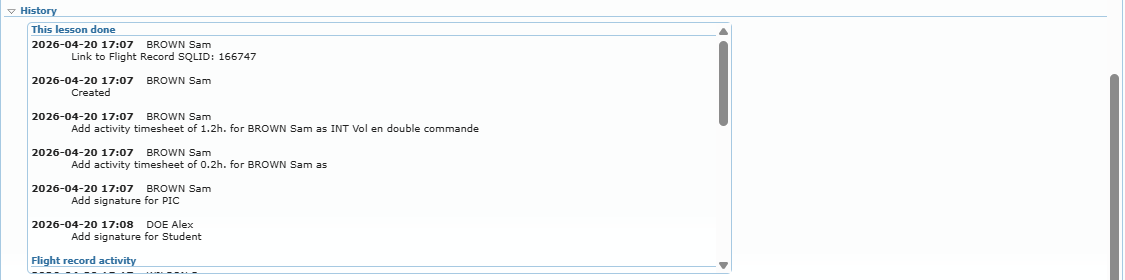
Uploaded file before rampout and History
Members with history rights see the files uploaded before the flight and the full history of the lesson: deleted entries (with Print deleted lesson), changes to this entry and the linked Flight Records activity.
The Actions panel
Under the lesson list, the Actions panel shows the buttons available for the selected lesson. Click the Actions header to fold it.
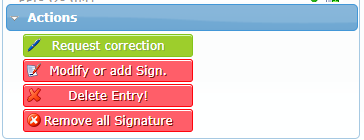
| Button | When it appears |
|---|---|
| Save lesson | On a lesson not done yet, when you are allowed to record it. |
| Save again | When the lesson can still be repeated. |
| Add Sign. / Modify or add Sign. | On a done lesson you can sign or modify. |
| Request correction | For the PIC of the lesson (when the course has correction managers) and administrators. |
| Delete Entry! / Remove all Signature | For correction managers handling an open correction request, and administrators. |
These buttons are explained in Recording a lesson and Signatures, corrections and changes.