
Published 10 October 2026, Updated 10 October 2026
The E-Courses page has two parts:
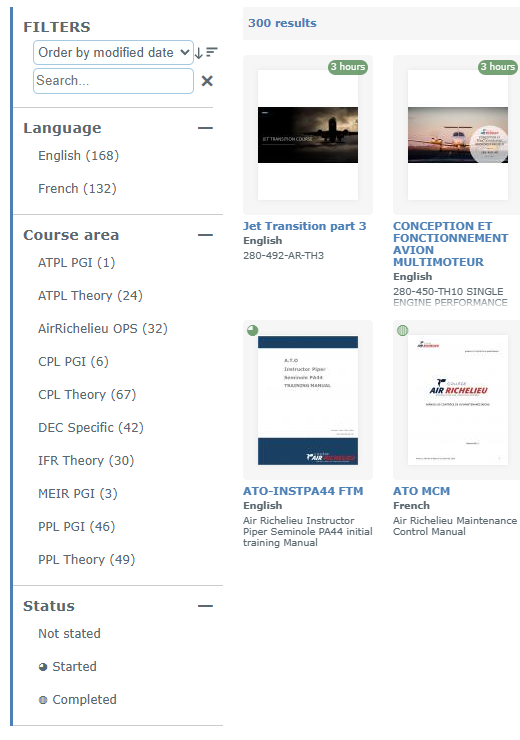
- On the left, the Filters panel: sort order, search box and the Language, Course area and Status filters.
- On the right, the course cards, with the number of results above them (for example “300 results”).
Reading a course card
Each course is displayed as a card.
| Element | Meaning |
|---|---|
| Cover picture | The course thumbnail chosen by the school. |
| Green duration badge (top right, for example “3 hours”) | The estimated time needed to complete the course. No badge means no duration was entered. |
| Small circle (top left) | Your progress: a partly filled circle (◕) means Started, a circle with a dotted centre (◍) means Completed. No circle means you have never opened the course. |
| Title (blue) | The course name. |
| Language (bold) | The language of the course content. |
| Description | A short description of the course. |
When you hold the mouse over the cover picture, a tooltip shows more details: the full title with its version, the course area, the description, the date of your first and last access, the last slide you reached and the percentage of the slides you have completed.
Sorting the list
Use the list at the top of the panel to choose the order:
| Option | Sorts by |
|---|---|
| Order by title | Alphabetical order of the course names |
| Order by date | Date the course was created |
| Order by duration | Estimated duration |
| Order by modified date | Last update of the course (default): the most recently updated courses come first |
Click the small arrow next to the list to switch between descending and ascending order.
Searching by name
Type at least two letters in the Search… box. The list is updated while you type and shows the courses whose title or description contains the text. Click the X next to the box to clear the search.
Filtering by language, course area or status
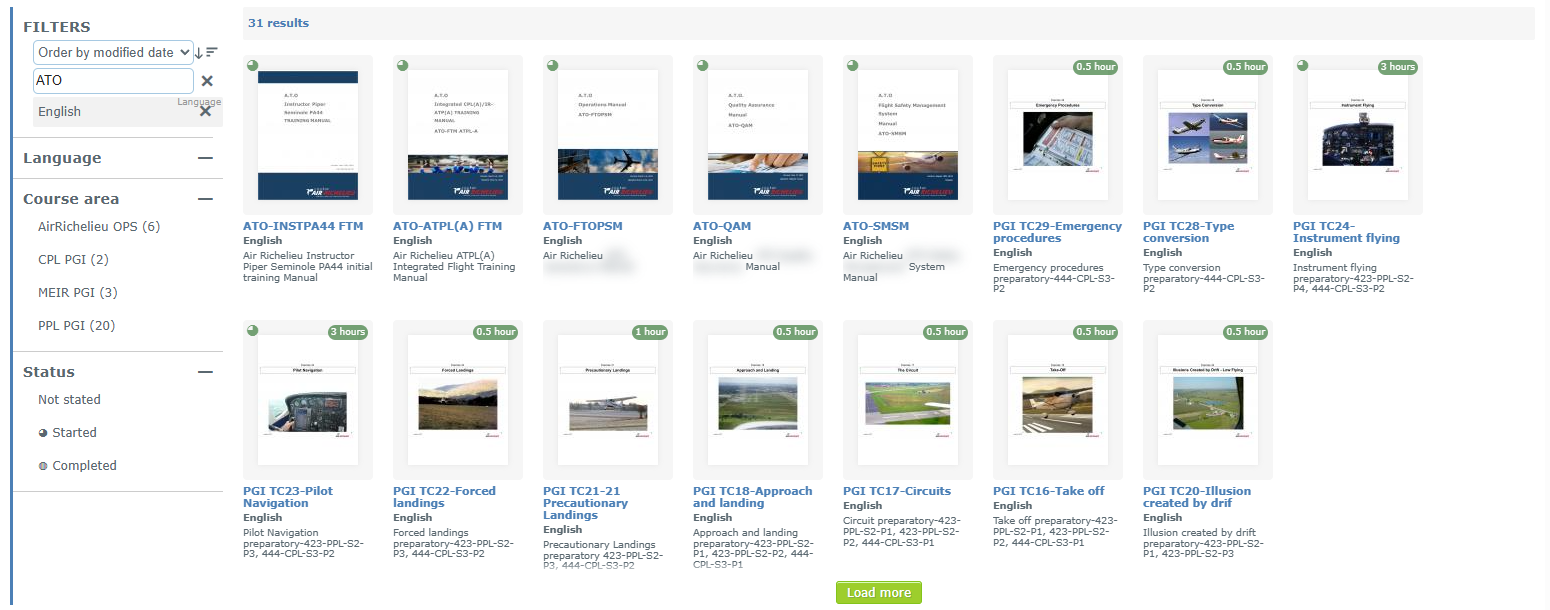
Click a section title (Language, Course area, Status) to open it, and click it again to fold it. Then click an entry to apply the filter.
| Filter | What it does |
|---|---|
| Language | Shows only the courses in the selected language. The number in brackets is the number of courses available in that language. |
| Course area | Shows only the courses of one subject area (for example “PPL PGI” or “CPL Theory”). Course areas are the families of courses created by your school. |
| Status | Not stated = courses you have never opened, Started = courses you have opened but not finished, Completed = courses you have finished. |
Active filters appear as grey labels just under the search box, with the filter type written in small letters. You can combine several filters (for example English + PPL PGI + Started). To remove a filter, click its label.
Example: you are preparing your private pilot exam and want to finish what you started last week. Choose Course area › PPL PGI, then Status › Started: only your unfinished PPL courses remain.
Loading more courses
The page shows the courses in batches. When more courses match your filters, a green Load more button appears below the cards. Click it to display the next batch.
Nothing found?
- Check the active filter labels under the search box and remove the ones you don’t need.
- Clear the search box with the X.
- If a course you expect is still missing, it isn’t open to your role. Contact your school or the person responsible for your training.