
Published 10 October 2026, Updated 10 October 2026
Your organization sets a number of days to answer an event report (for example 7 days). The delay is counted from the Written the date of the report. Once this delay is passed without an official answer (Save and Request evaluation), several things can happen.
Restrictions on activities
| Restriction | Effect | Where you see it |
|---|---|---|
| No scheduling allowed | You can no longer be scheduled for activities (for example flights or lessons) until you answer. | Red bar on your profile, red calendar icon in the report. |
| No activities allowed | You can no longer start an activity: the ramp out of a flight record is refused with the reason “Event not close after … days”. | Red bar on your profile, red table icon in the report. |
These restrictions apply to all members concerned, students and staff alike, unless the sender checked “Activities allowed” on that report. They are removed as soon as you click Save and Request evaluation (or when the report is evaluated or closed).

Example: an event report is written on September 30 and your organization allows 7 days. On October 7 you have not answered. From that day, your instructor can no longer book you on the schedule, and if you try to ramp out from a flight record, it is refused. You answer on October 10 with Save and Request evaluation: the restrictions are removed immediately and you can be scheduled again.
Home page lock
When your organization activates it, members with an overdue event report (not answered within the delay) or an overdue assigned action are locked on the home page: every other page sends you back to the home page. The Event report center stays available, so you can always open the report and answer it.
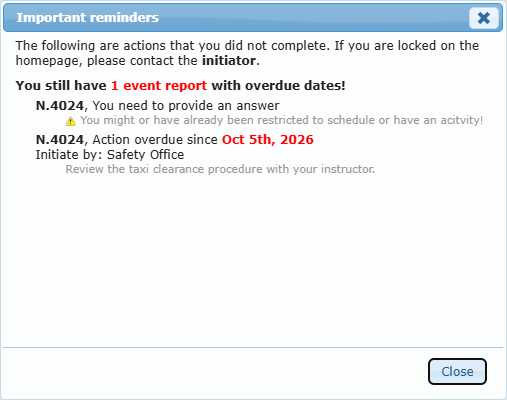
On the home page, the Important reminders pop-up lists what you have to do:
| Line | Meaning |
|---|---|
| N.xxxx, You need to provide an answer | Report number xxxx is waiting for your answer. The grey warning reminds you that you may be restricted from scheduling or activities. Click the number to open the report in a new tab. |
| N.xxxx, Action overdue since <date> | An action assigned to you on this report has passed its projected date. Initiate by shows who asked for it. |
If you believe you are locked by mistake, or you cannot complete an action, contact the initiator of the report, as the pop-up says.
On the mobile version and the app
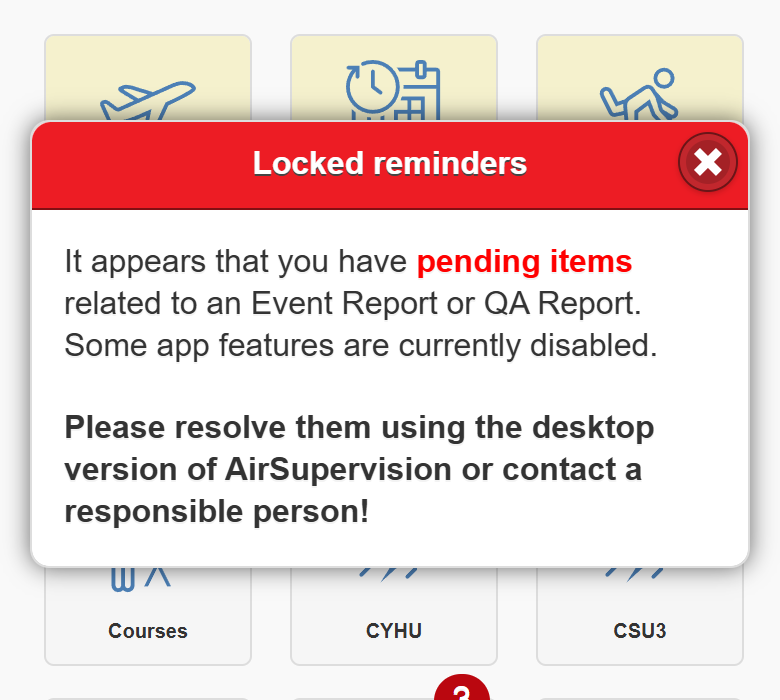
On the mobile version, a Locked reminders pop-up tells you that you have pending items related to an event report or a QA report and that some features are disabled. Answering is done from the desktop version of AirSupervision: open it on a computer (or in your phone’s browser in desktop mode), answer the report, and the mobile features are available again.
Exceptions set in your profile
The lock and the restrictions can be disabled for some members:
- On the report: the sender can check Activities allowed, so this report never restricts your activities.
- In your profile: an administrator can grant the option “Can never be locked for overdue events (SMS, QA)”. With it, you are never locked on the home page for overdue event or QA reports. You still have to answer them, and the scheduling and activity restrictions above still apply unless Activities allowed is checked on the report.
- Administrators with the highest access level are never locked on the home page.
Checklist
- ☐ I open every event report addressed to me as soon as I receive the alert.
- ☐ I write a factual answer: what happened, contributing factors, what I will do.
- ☐ I click Answer › Save and Request evaluation (a draft is not an answer).
- ☐ I complete any action assigned to me before its projected date.
- ☐ If I am locked or restricted, I answer the report or contact the initiator.
Sources for the SMS summary
- ICAO Annex 19 — Safety Management, and ICAO Doc 9859 Safety Management Manual (four SMS components: safety policy and objectives, safety risk management, safety assurance, safety promotion).
- Industry just-culture and non-punitive reporting policies (for example NAV CANADA’s Just Culture program).