
Published 10 October 2026, Updated 10 October 2026
The Organizational chart shows every role of your organization as a tree, from the top management down to each instructor, student or employee role. Under each role you see the members who hold it. It is the quickest way to find who holds a role: who are the ground instructors, who is the chief flight instructor, who can be contacted for maintenance, and so on.
Access to the chart is restricted to users with an operational level set by administrators, or with the credential to manage members. Some roles, or the members listed under them, can be hidden from users below a given level.
Using a desktop browser
Opening the chart
Open the main menu Connection › Library › Organization chart. The same link is available at the bottom of every page, in the Library column of the footer.
The chart loads in a large frame. It can take a few seconds for big organizations.
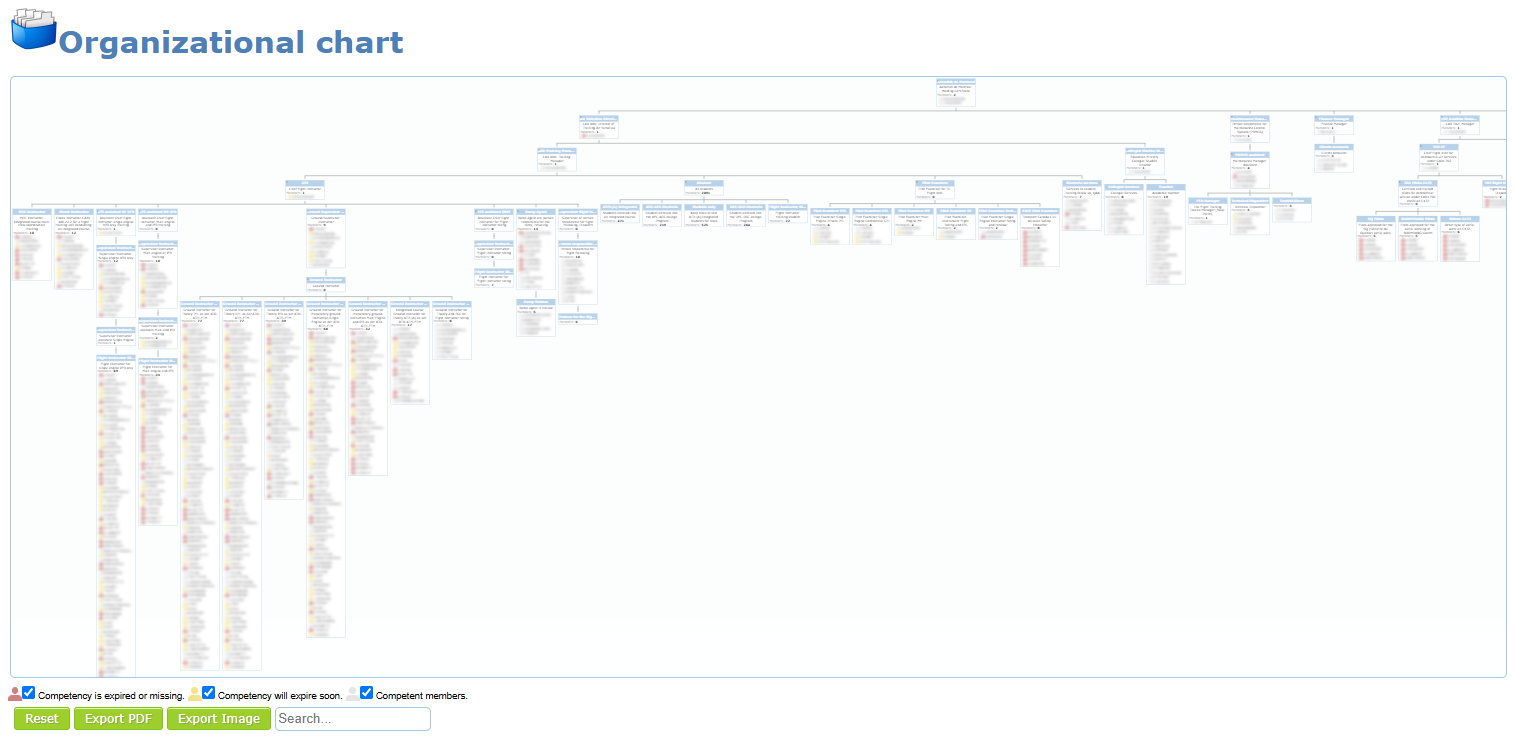
Reading a role box
| Element | Meaning |
|---|---|
| Blue title bar | Role name. Move the mouse over it to read the full name and description. |
| Text under the title | Description of the role. |
| Members: | Number of active members holding the role. |
| List of names | Members holding the role (first-name initial and last name). Move the mouse over a name to open the member card, then use See profile to open the profile. |
| Small + in the corner | The role has sub-roles. Click the arrows around a box to fold or unfold its children, siblings or parents. |
Colours of the member icons
Staff with the proper level see a coloured person icon before each name. It tells whether the member holds the competencies required by the role:
| Icon | Meaning |
|---|---|
| Red | A required competency is expired or missing. |
| Yellow | A required competency will expire soon. |
| Grey | Competent member: all required competencies are valid. |
Uncheck a colour in the legend under the chart to hide those members, for example to keep only the members with an expired or missing competency.
Searching for a role
- Type a word in the Search… field under the chart, in lower case (for example
ground,instructorormaintenance). - Press Enter.
The chart keeps only the matching roles, highlighted in yellow, and the branch that leads to them. The search looks into role names, descriptions and the names listed in the boxes, so you can also type part of a member’s last name to find the roles that member holds.
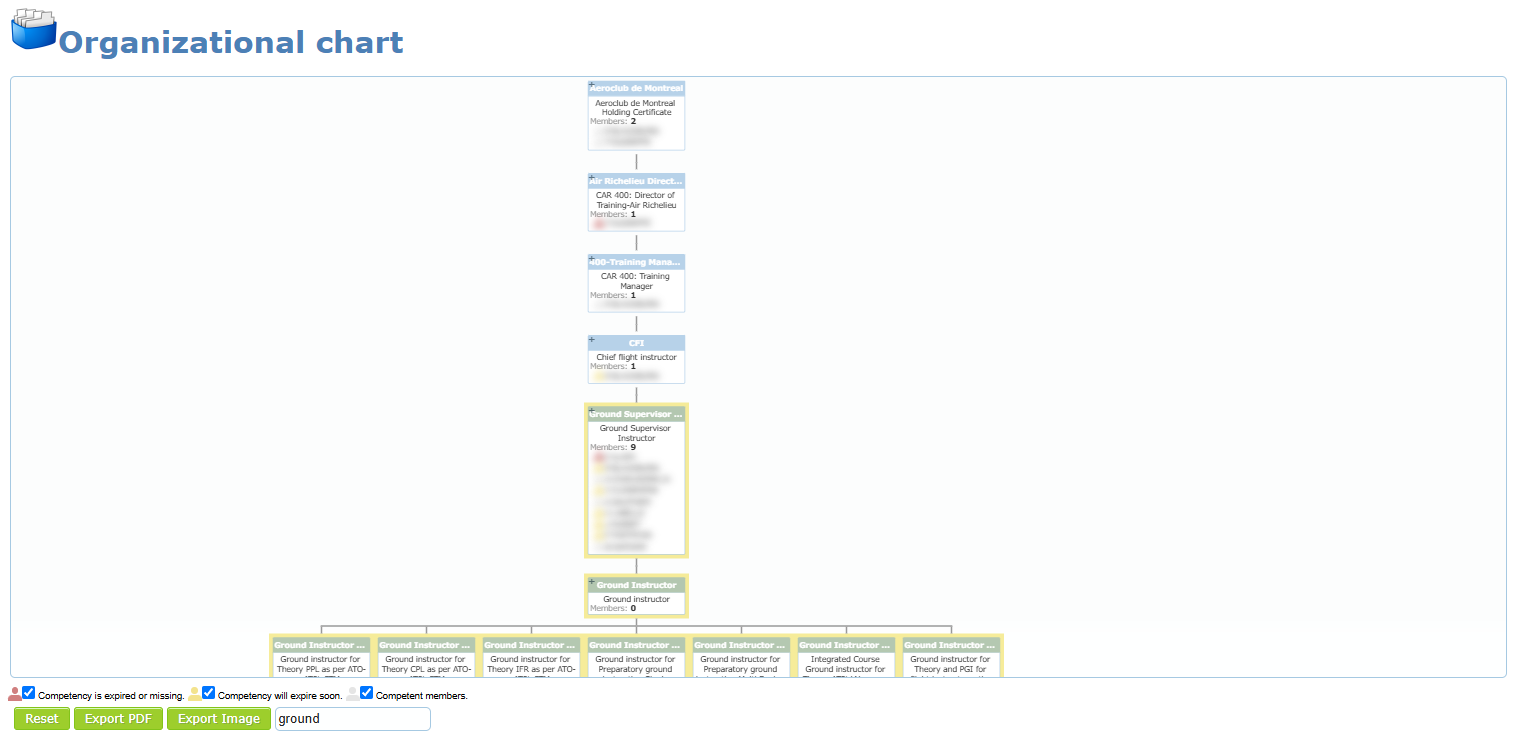
To display the whole chart again, clear the search field with the backspace key or click Reset. Reset also restores the original zoom and position.
Moving, zooming and exporting
- Drag the chart with the mouse to move it, and use the mouse wheel to zoom in or out.
- Export PDF or Export Image saves the chart as it is displayed (a PDF or PNG file).
Using a mobile device
Opening the roles
- Open the menu (top-left button), expand Members and tap Contacts (or Groups).
- Tap Roles in the bottom bar.
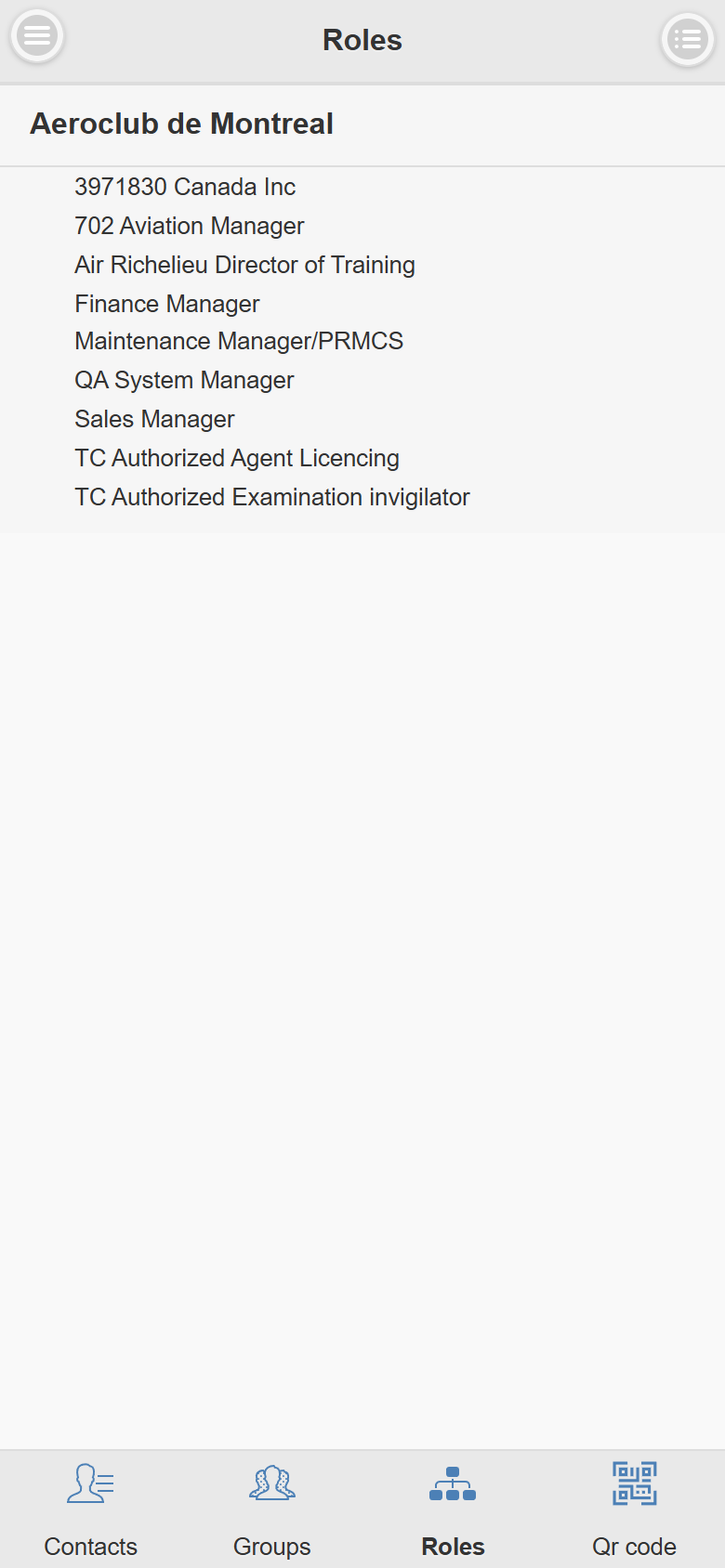
Browsing roles and members
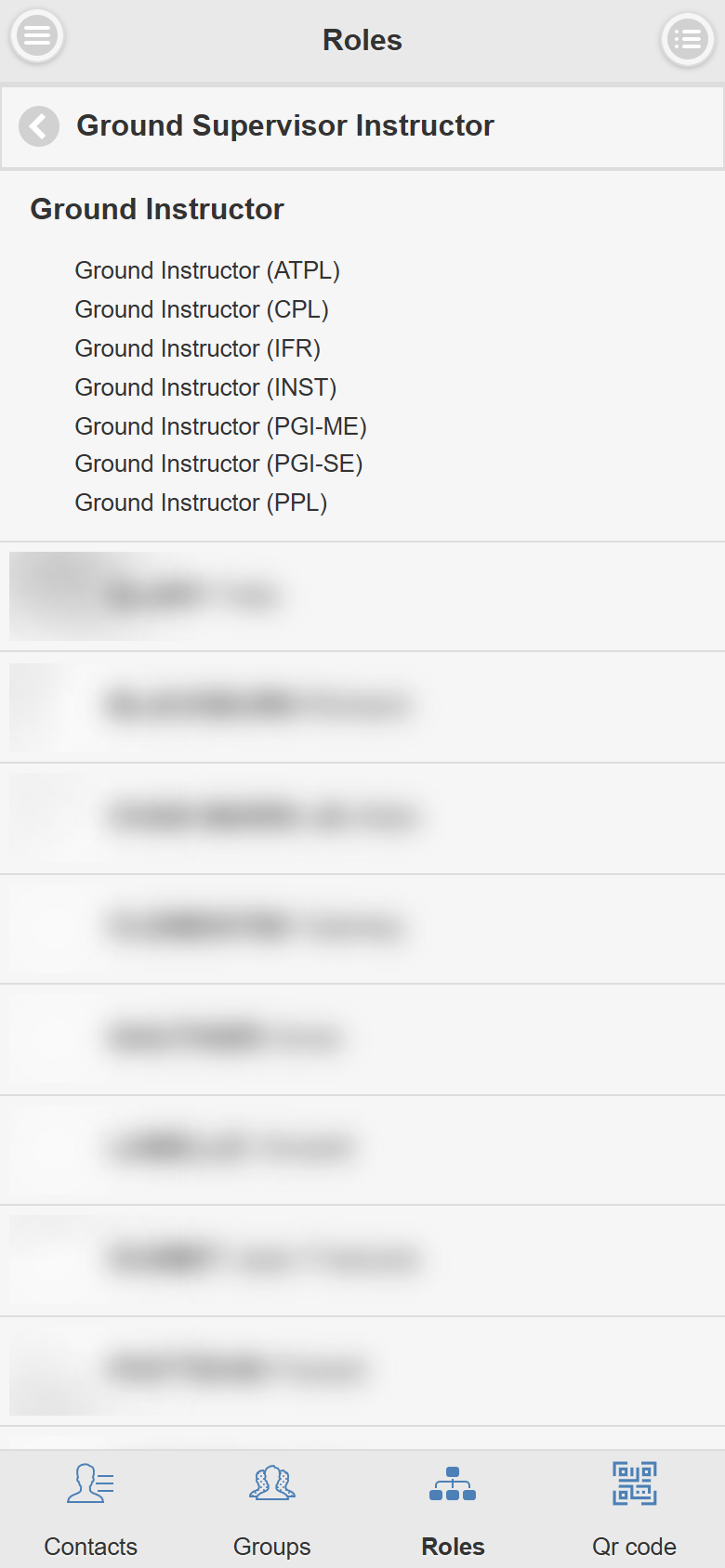
- The page shows the current role in bold and its sub-roles below it. Tap a role to open it.
- Inside a role, its sub-roles are listed first, then the members holding the role. Tap a member to open the profile.
- Tap the back arrow next to the role name to go up one level.
Jumping directly to a role
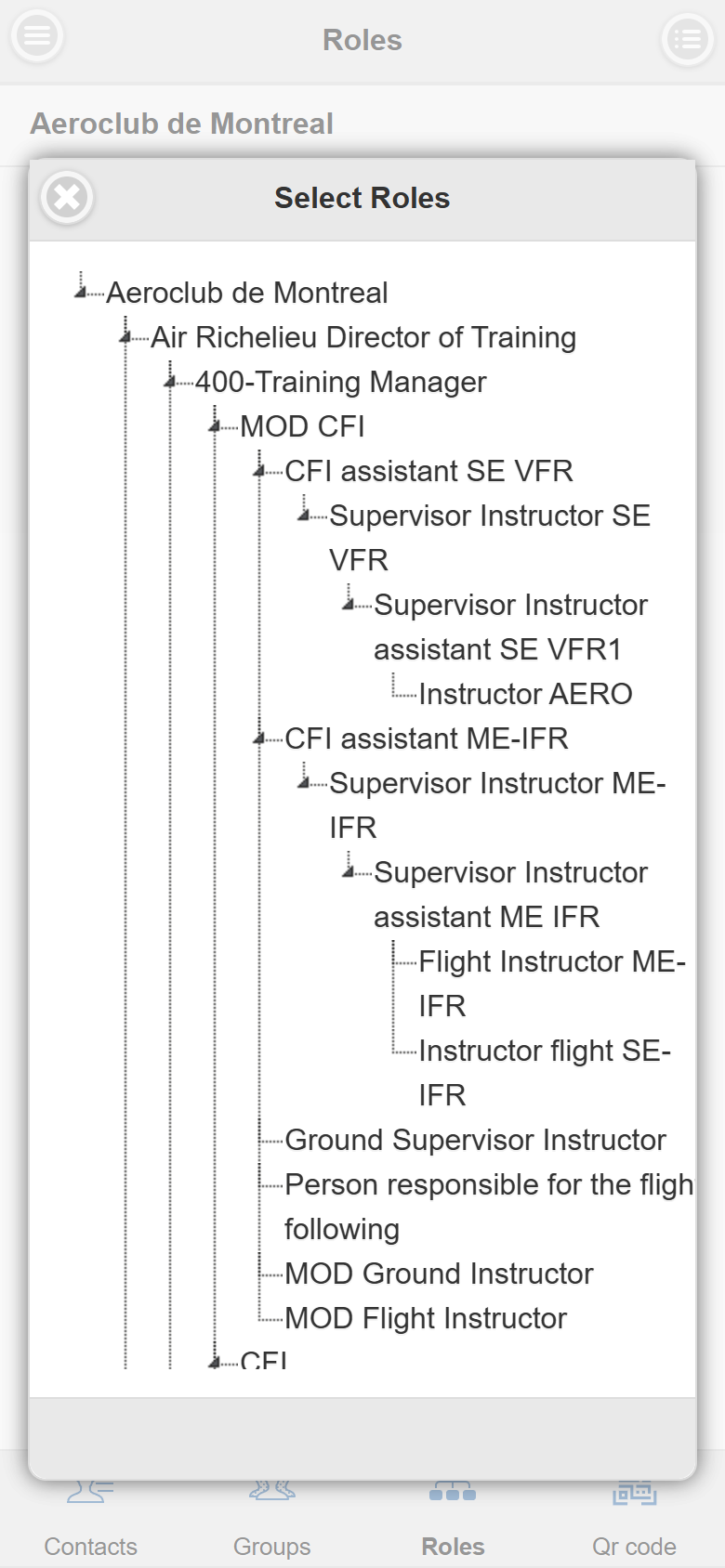
Tap the list button at the top right to open Select Roles. It shows the whole role tree. Tap any role to open it directly.
Good to know
- Only active members are listed. Inactive roles are not shown.
- A member can hold several roles and appear in several boxes.
- To combine roles with other criteria (competencies, groups, dates), use The advanced search.