
Published 9 October 2026, Updated 9 October 2026
The mobile version of AirSupervision (phone browser or mobile application) gives quick access to a training record. Students follow their progress, read their lessons and sign them. Instructors read the record and record a lesson right after the flight.
Opening a course on a mobile device
- From the mobile home page or your member profile, tap the course in your courses list.
- Staff can also open a student’s profile and tap one of their courses.
- You can scan the QR Course ID of a training record (shown on the desktop Details tab and at the bottom of the mobile course page) to open it directly.
The course page
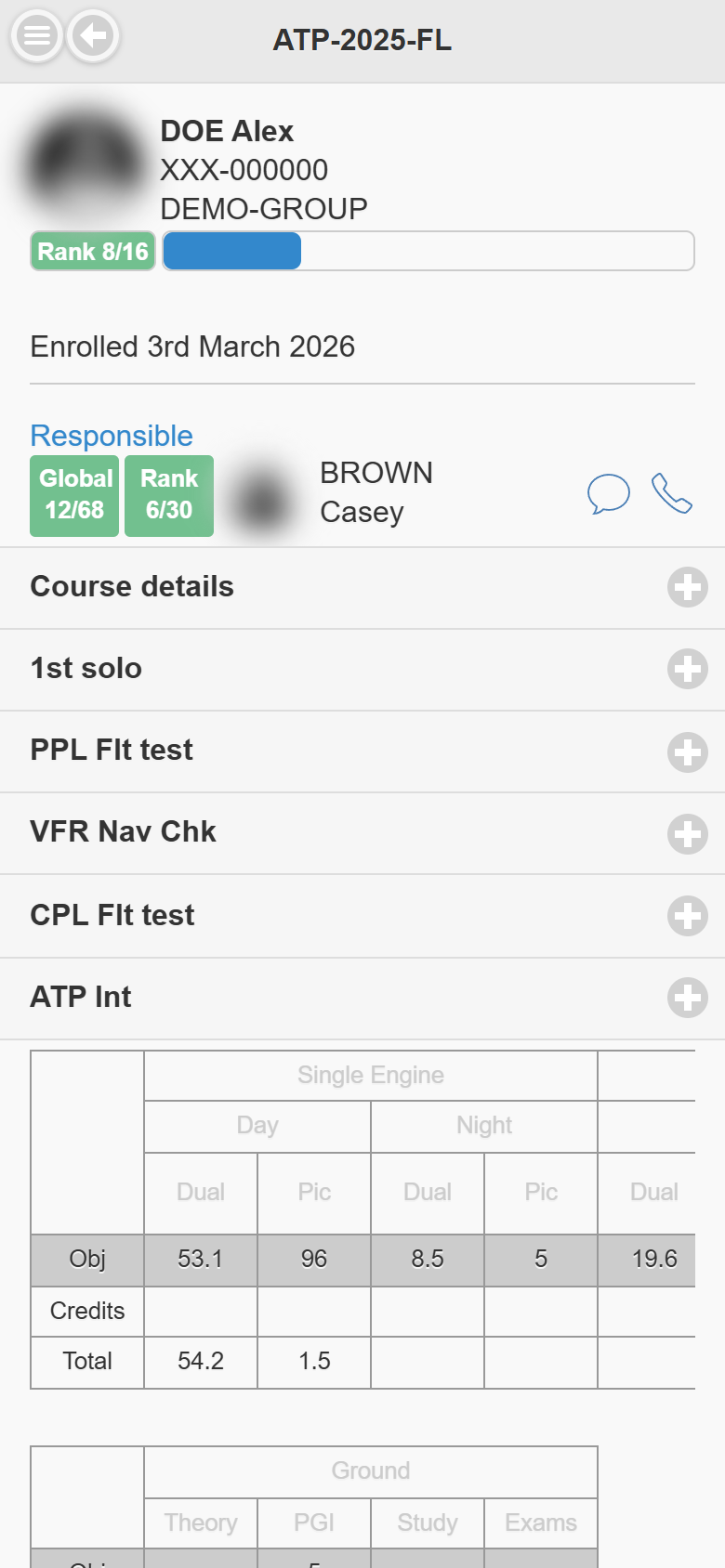
| Element | Meaning |
|---|---|
| Photo, name, licence and group | The student. Tap to open the student’s profile. |
| Rank badge | The student’s ranking among the students of this course, when rankings are enabled for the course and you may see them. |
| Blue progress bar | The share of the course lessons already done or credited. Grey when the course is closed. |
| Priority badge | The follow-up priority set by a course responsible. |
| Enrolled / Closed | The course start date and, if closed, the closing date. |
| AI analysis | Shown in the mobile application to authorized staff when the AI analysis is enabled. |
| Responsible | The person in charge of the training, with ranking badges when available. Use the speech bubble to send a text message and the phone to call. |
| Course details | Tap to read the course objectives, standards, notes, your personal note and the additional fields. |
| Phases | Tap a phase to open its lessons. A red phase header has an overdue planned lesson; a yellow one has a lesson due soon. |
Reading the lesson list
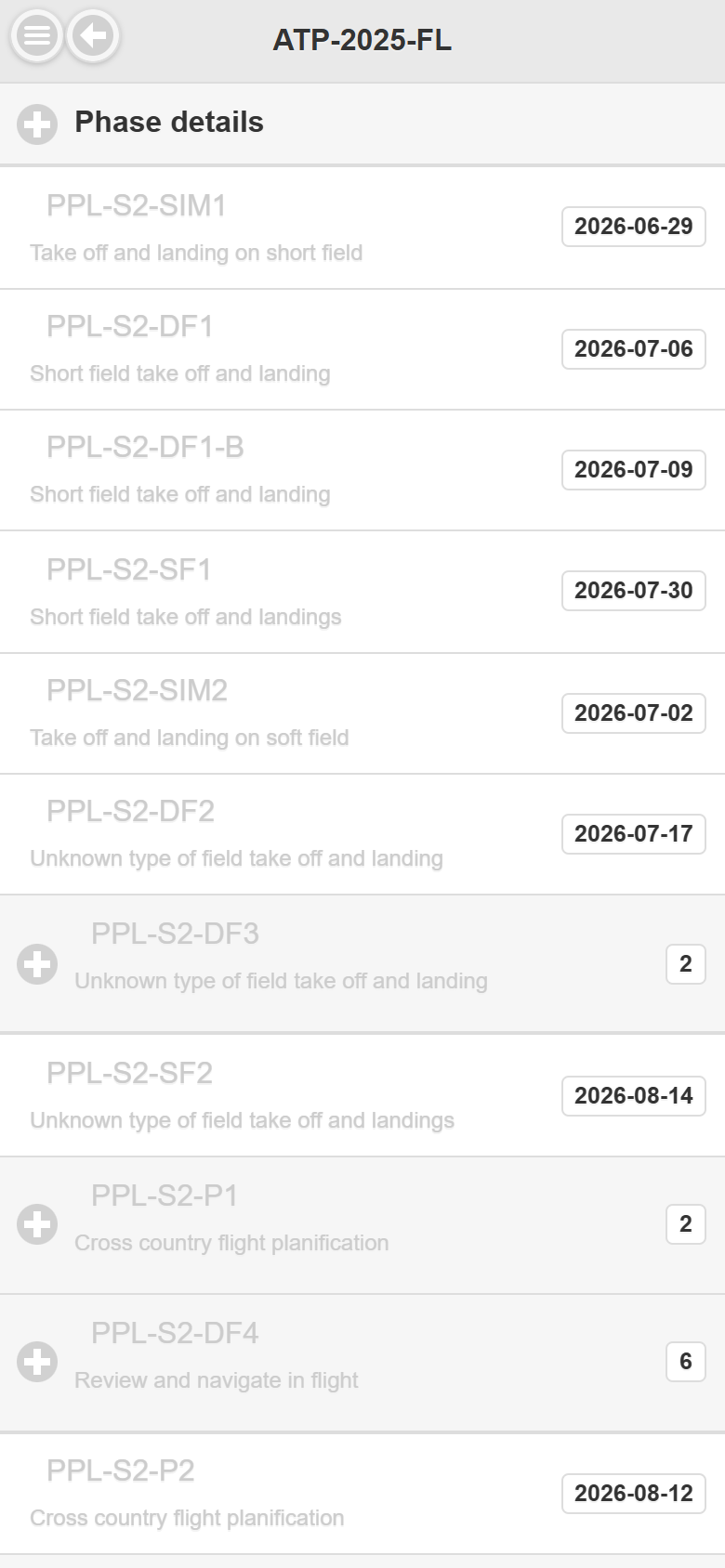
| Display | Meaning |
|---|---|
| Phase details | The phase objectives, standards and note. |
| Grey lesson with a date | The lesson is done; the date is the lesson date. |
| Black lesson without date | The lesson is still to do. |
| Bold title with a stamp icon | Mandatory lesson. |
| Grey box with a number | The lesson was done several times. Tap it to see each entry (date, or departure – arrival airports for legs). |
| Red signature icon / yellow tosign badge | A signature is still missing. |
| Red failed badge | The last entry was not passed. |
| Red due: 7d badge | The planned date passed 7 days ago. |
| Yellow due in: 5d badge | The planned date is in 5 days. |
| Moon | Night lesson. |
| Money bag | Credited lesson. |
| Curved arrow | Leg of a multi-leg flight. |
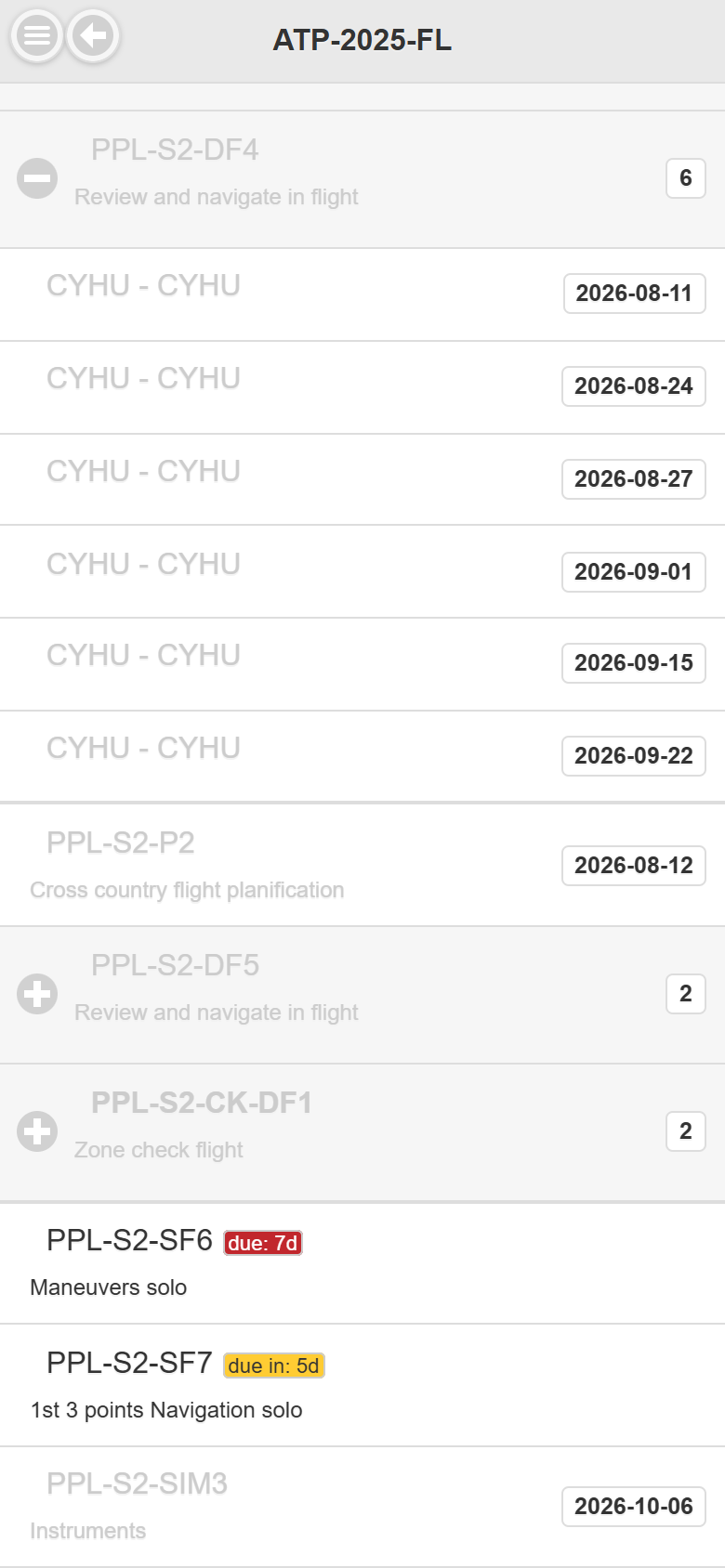
Totals and staff actions
Below the phases, two tables show the course Obj (objective), Credits and Total done for each logbook column and for ground instruction. Slide the table sideways to see every column.
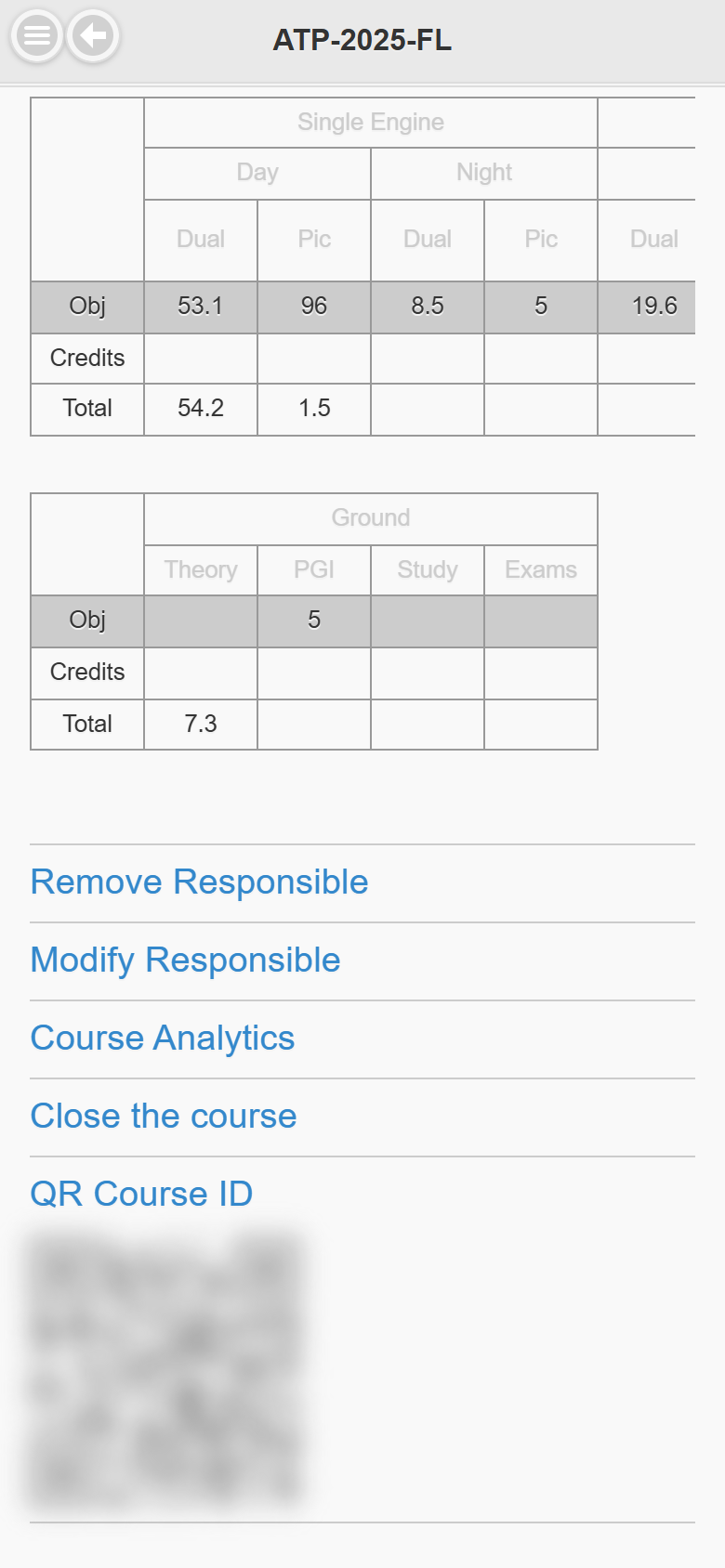
Course managers also see:
| Link | What it does |
|---|---|
| Assign Responsible / Modify Responsible | Opens the list of instructors and responsibles. Tapping a name changes the person in charge immediately and, depending on your settings, sends them a message. |
| Remove Responsible | Removes the person in charge immediately. |
| Course Analytics | Opens the course analytics for this student. |
| Close the course | Opens the list of close reasons. Tapping a reason closes the course immediately. |
| Reopen the course | Shown on a closed course. |
| Delete the course | Shown only when no lesson has been recorded; removes the enrolment. |
| QR Course ID | The QR code of this training record. |
Careful on mobile: these links act as soon as you tap them; there is no extra confirmation screen.
Reading a completed lesson
Tap a grey (done) lesson.
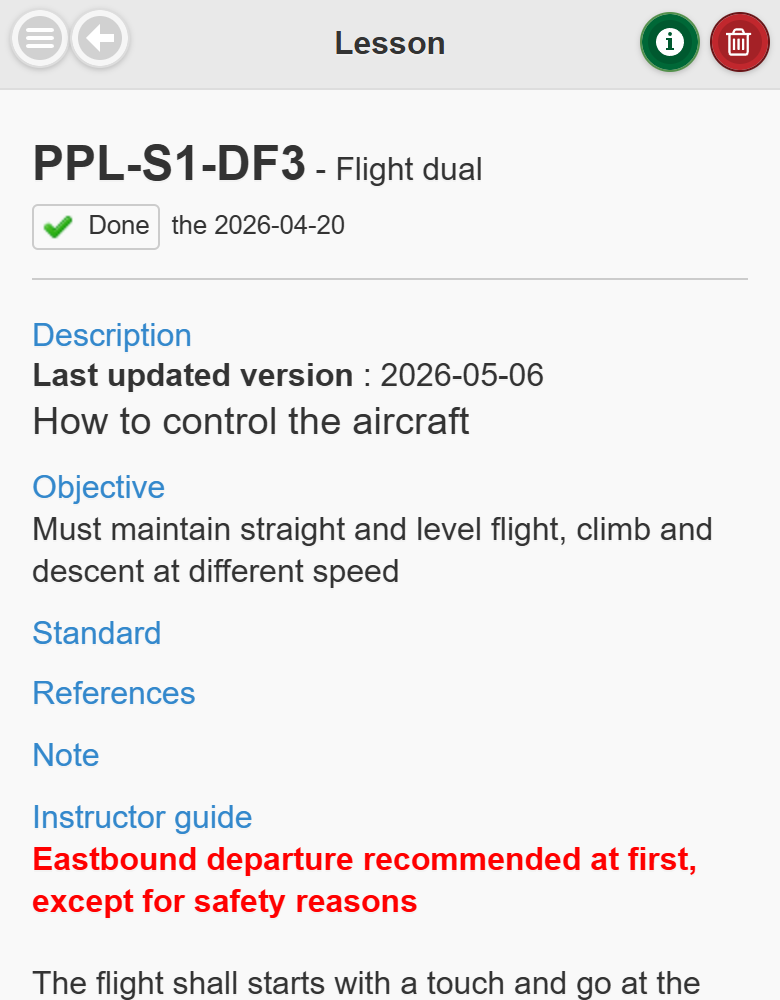
The top of the page shows the lesson code, the activity, the status (Done with a check, or Credited) and the date. The green i icon opens the Help page (legend and grading scales). Administrators also see a red Delete icon.
The page then lists, from top to bottom:
- Description, Last updated version, Objective, Standard, References, Note, and the Instructor guide (course responsibles).
- Pre requisite lessons (red if not passed) and Lesson is prohibited if the following is passed.
- Attached files, Max time allowed since last activity, PIC qualifications and roles, Student qualifications and roles, Files to upload before authorization and Student course duration minimum requirement.
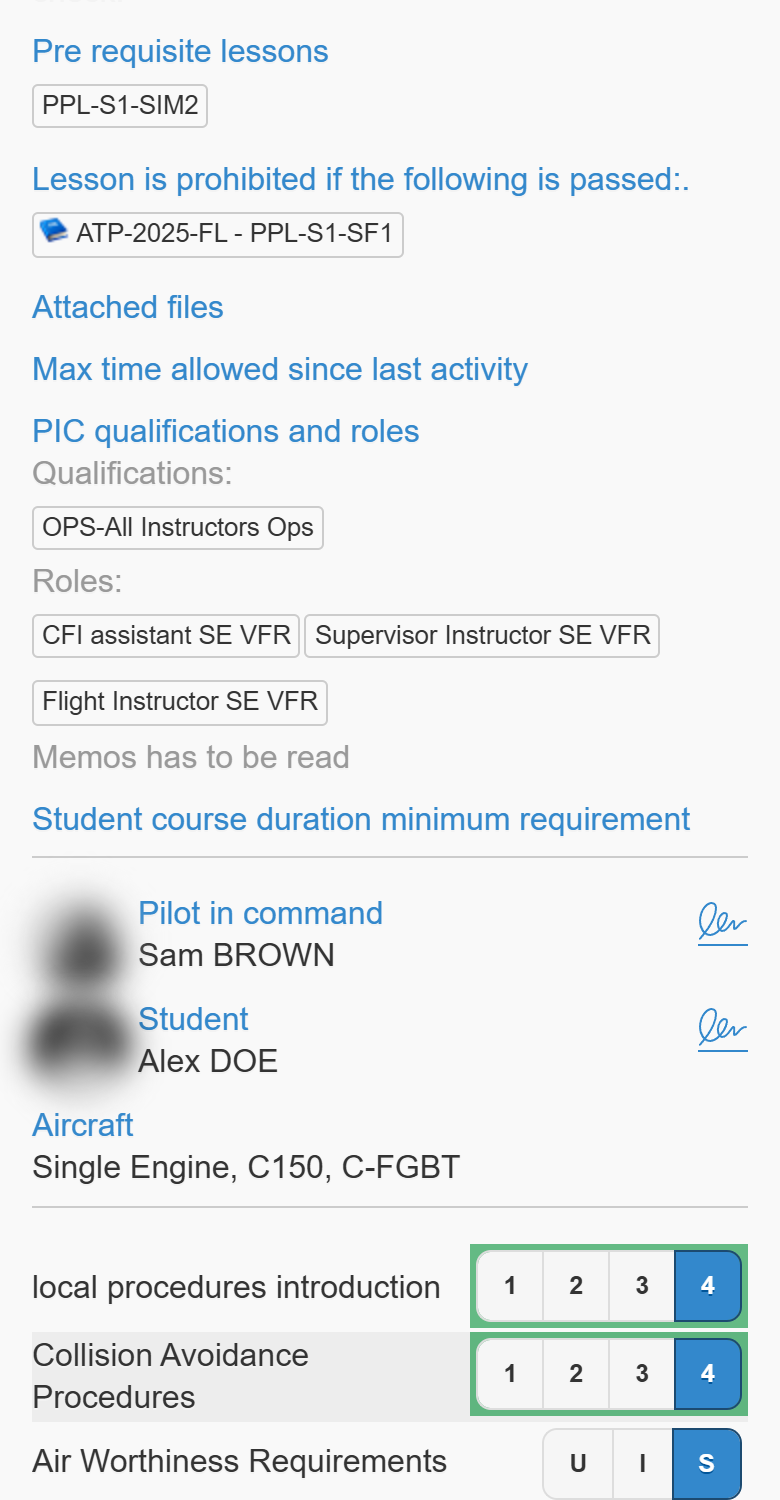
| Element | Meaning |
|---|---|
| Pilot in command / Student | Who did the lesson. A blue signature icon means signed; a red one means the signature is missing. For a lesson signed on behalf of the PIC, the label reads Mandated. |
| Aircraft | The aircraft category, type and registration used. |
| Items | Each exercise with the grade obtained (selected button). The row colour follows the grade. |
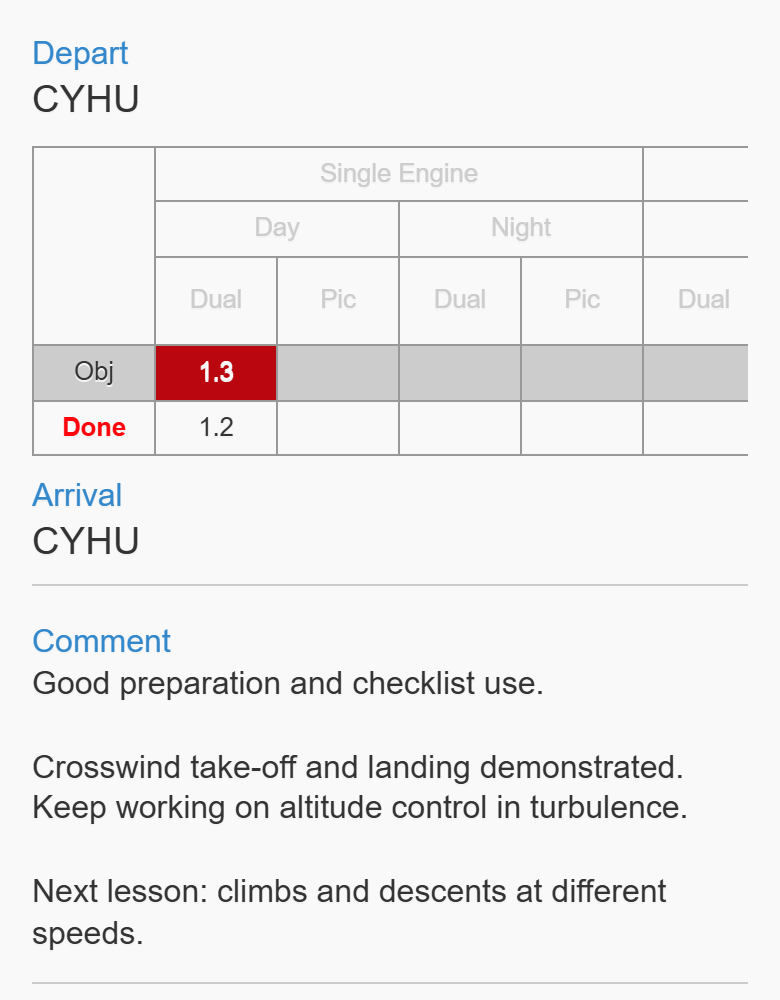
The Depart, Arrival and duration table show what was recorded, and Comment shows the instructor’s comment. Uploaded files, the departure and arrival METARs (course responsibles and administrators) and the History (members with history rights) follow.
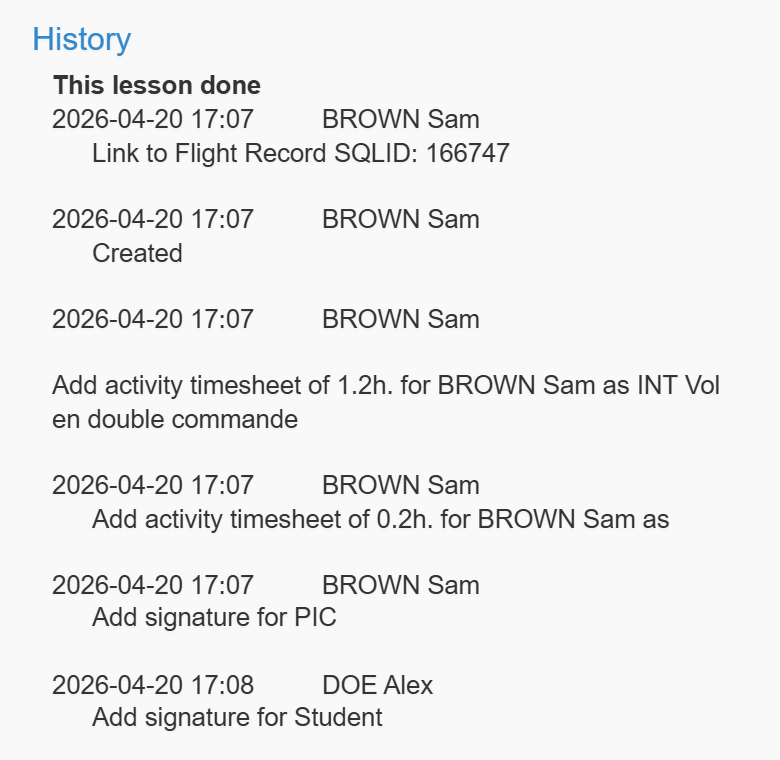
At the bottom: the QR lesson ID and the action buttons.
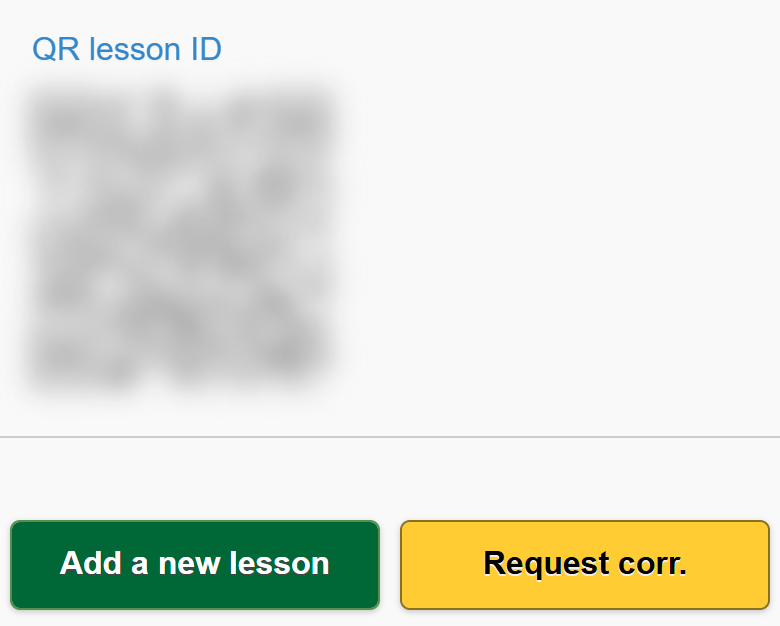
| Button | When | What it does |
|---|---|---|
| Add a new lesson | The lesson can be done again. | Opens a new entry of the same lesson. |
| Request corr. | For the PIC of the lesson (when the course has correction managers) and administrators. | Opens the Request correction page. |
| Add signature | For the student, when the PIC has signed and the student signature is missing. | Tap the red signature icon next to Student, sign, tap Back, then Add signature. |
Requesting a correction on mobile
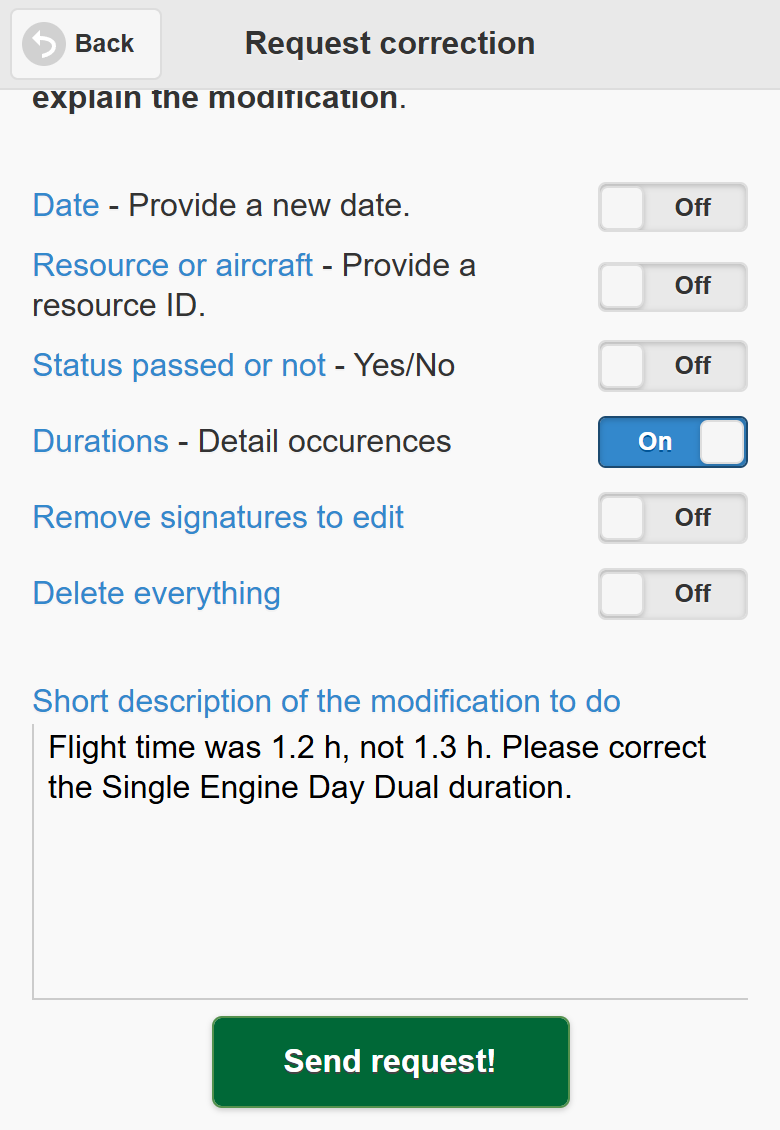
Switch on what must change (Date, Resource or aircraft, Status passed or not, Durations, Remove signatures to edit, Delete everything), describe the change, and tap Send request!. The page closes when the request is sent.
Recording a lesson on mobile
Tap a lesson that is still to do (or Add a new lesson on a done one). The recording form opens.
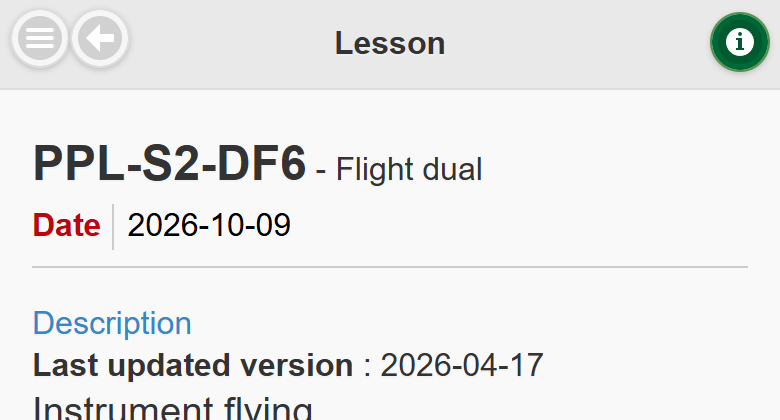
- Date — today’s date is proposed; tap it to choose another date.
- Read the lesson content and the requirements warnings of the student (for example Having: No previous flight on type – Expired).
- Pilot in command — you, when you record a dual lesson; the student for a solo lesson. Tap the red signature icon to sign; it turns blue once signed.
- Student — shows To be log to sign: the student signs later from their own account (see Add signature above).
- Co-pilot (crew lessons) — type at least three letters and pick the co-pilot.
- Aircraft / Ressource — type in Search ressource and tap the aircraft used. The requirements warnings refresh.
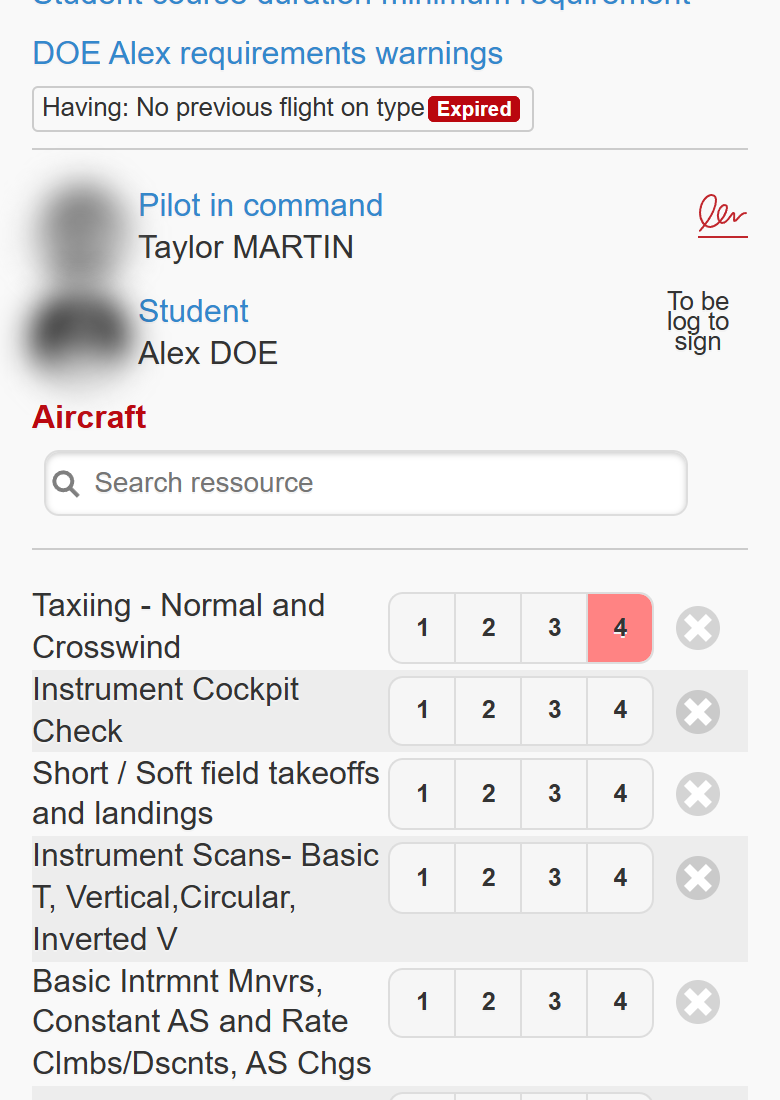
- Grade each item by tapping its grade. Tap the grey cross to clear a grade. A grey button shows the minimum expected grade and a pink one the best grade reached so far.
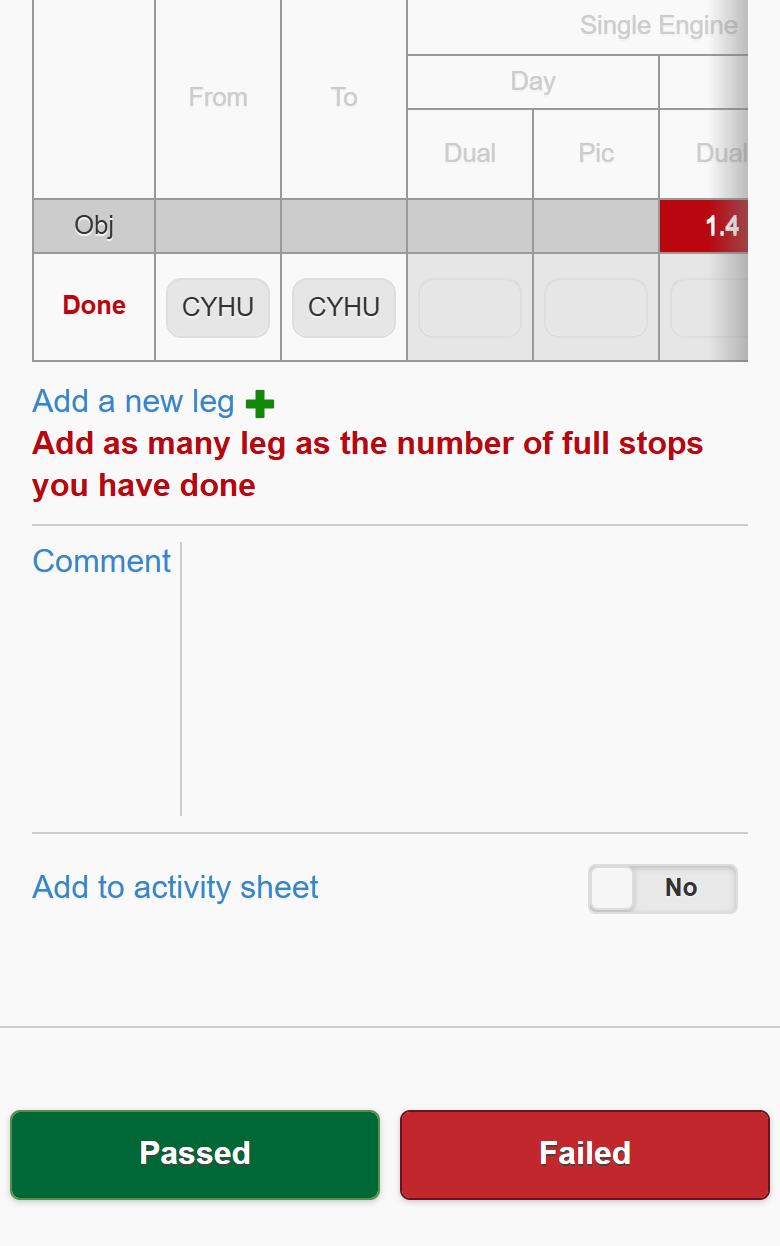
- Fill in the duration table. Tap From / To to choose the airports. Red cells in the Obj row are columns you must fill (enter 0 if no time). Tap Add a new leg for each additional full-stop landing.
- Type the Comment, upload the Files to upload before saving if requested, and enter the Mandatory score for scored lessons.
- Add to activity sheet (instructors whose school uses activity sheets): switch on to add the lesson time (and up to two extra lines) to your activity sheet.
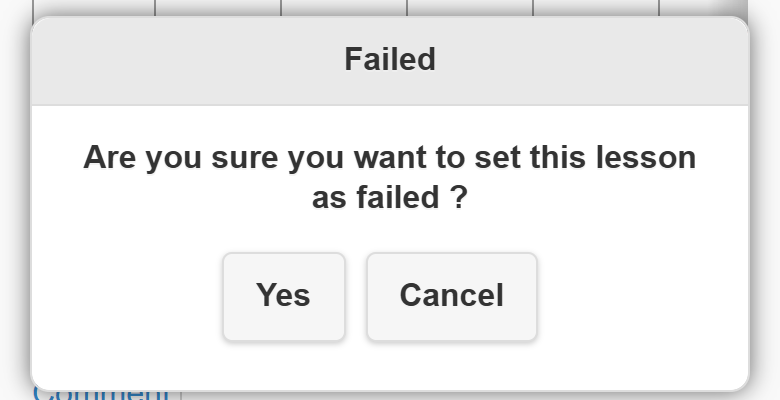
- Tap Passed or Failed. Failed asks “Are you sure you want to set this lesson as failed?” — tap Yes to save as failed or Cancel.
Before saving, the mobile version checks the form and shows an Error window with one of these messages:
| Message | What to do |
|---|---|
| Prerequisite lesson required! | Pass the prerequisite lesson first. |
| Missing Co-pilot! | Select the co-pilot. |
| Missing resource! | Select the aircraft or resource. |
| Missing required values… | Fill the required duration columns (enter 0 if no time). |
| SCORE is mandatory! | Enter the score and the maximum. |
| Airport missing! | Choose the departure and arrival airports of every leg. |
| Duration is missing! | Enter the lesson duration. |
| Missing Pic signature! / Missing Student signature! | Sign before saving when the course requires it. |
When the lesson is saved, a confirmation appears and the course page reopens after a few seconds. The other blocking messages are the same as on the desktop (see Recording a lesson).