
Published 9 October 2026, Updated 9 October 2026
Exercices tab
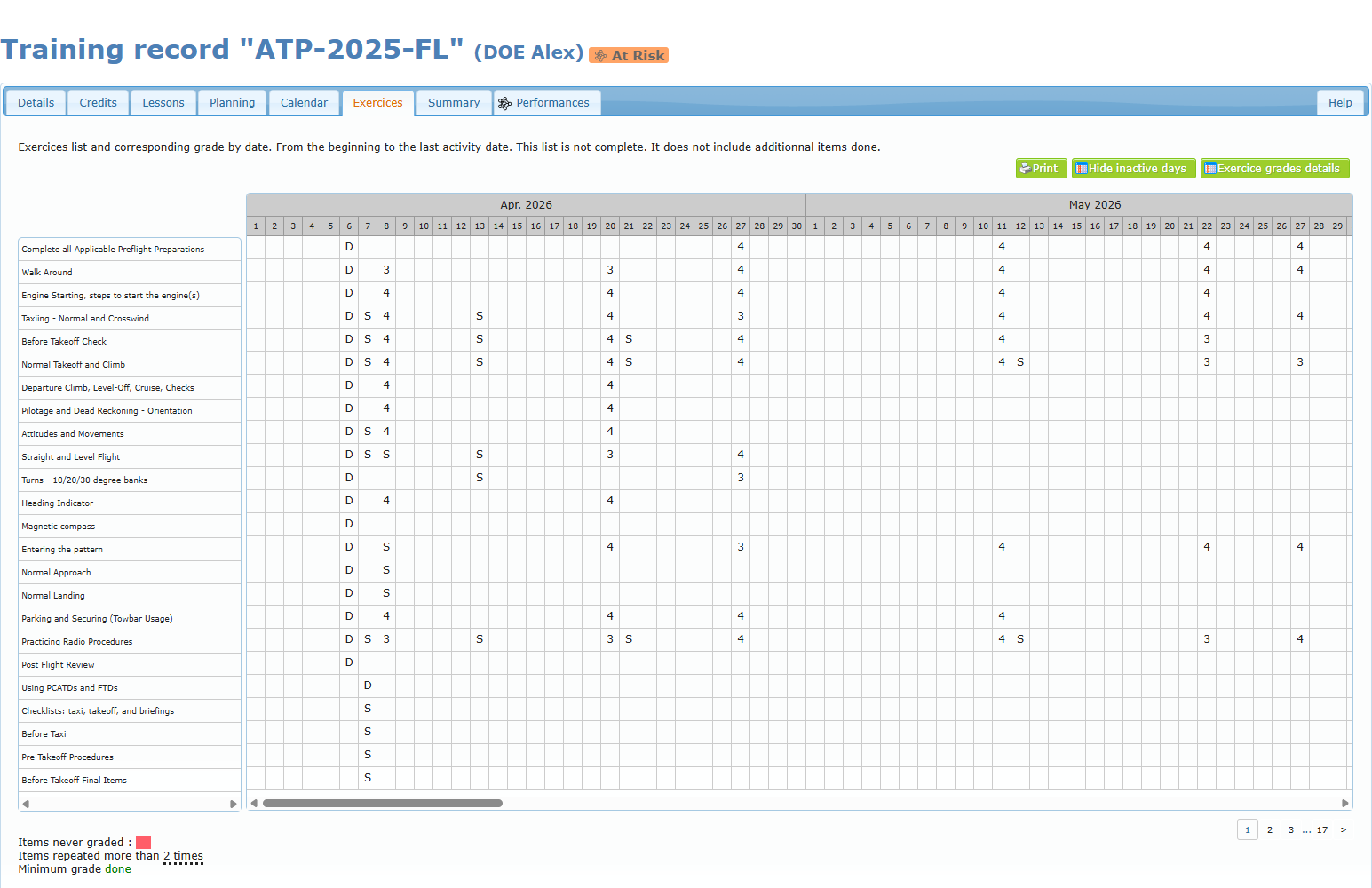
The Exercices tab shows every exercise of the course in rows and every day of training in columns, with the grade obtained on each date. Additional items are not included.
| Element | Meaning |
|---|---|
| Grade in a cell | The grade obtained on that day (for example 1–4, S, D). |
| Red cell in the list | Item never graded. |
| Dotted underline | Item repeated more than 2 times. |
| Green text | Minimum grade done. |
| Page numbers (bottom right) | The exercise list is split into pages. |
Buttons:
- Hide inactive days removes the days without activity (click again to Show inactive days).
- Print asks for the style: System style (default) or Transport Canada PTR style.
- Exercice grades details opens a searchable list of every exercise.
Exercice grades details
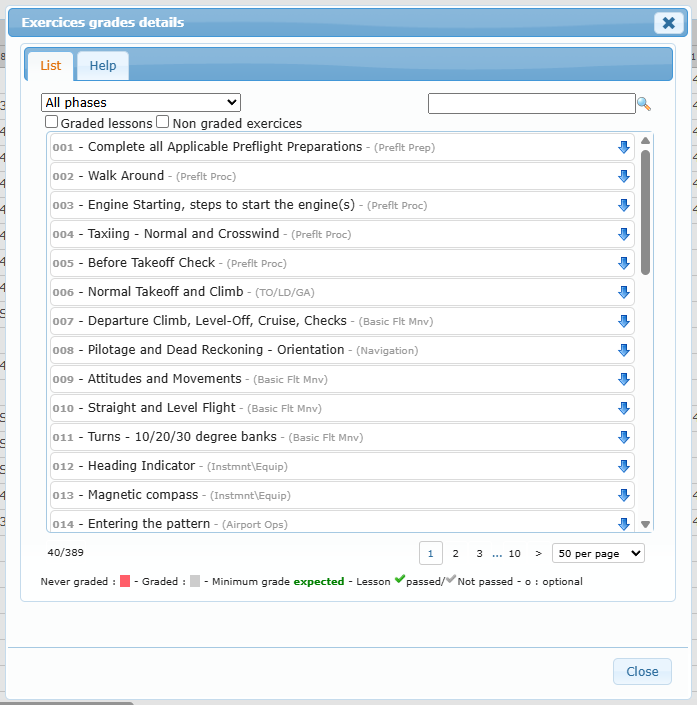
- Filter by phase, tick Graded lessons or Non graded exercices, or type a word and click the magnifier.
- Click the blue arrow of an exercise to see each lesson where it was graded.
- The Help tab of the window explains the grading scales.
As a student: red items in this list are exercises you have never been graded on. Ask your instructor to plan them.
Summary tab
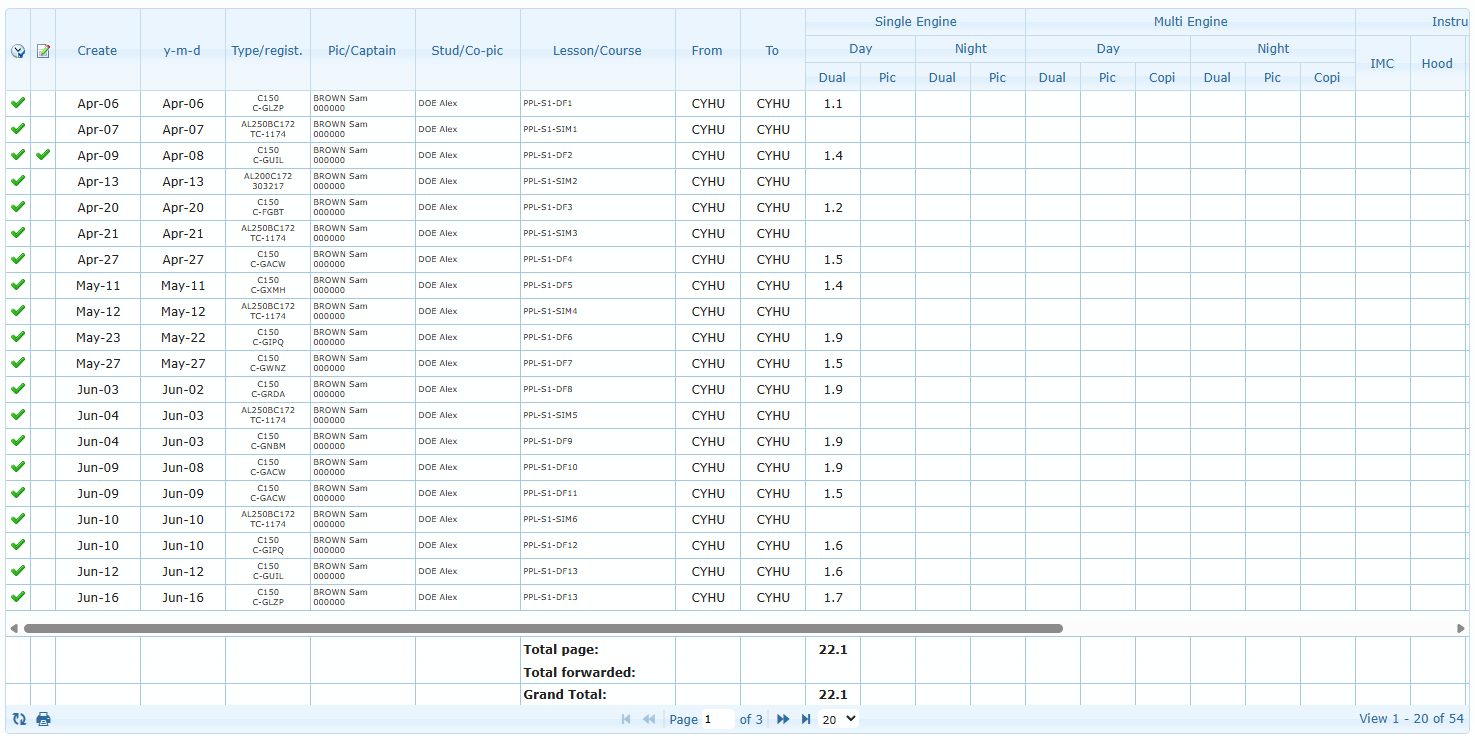
The Summary tab is a logbook view of every lesson recorded in the course.
| Column | Meaning |
|---|---|
| Clock icon | The activity has been recorded in the PIC’s activity sheet. |
| Document icon | A modification was requested for that activity. |
| Create / y-m-d | When the entry was saved / the date of the lesson. |
| Type/regist. | Aircraft type and registration. |
| Pic/Captain, Stud/Co-pic | The PIC and the student. |
| Lesson/Course | The lesson code. Click it to open the lesson in the Lessons tab. |
| From / To | Departure and arrival. |
| Duration columns | The same logbook columns as in the lesson, plus Ground. |
The bottom of the grid shows the Total page, Total forwarded and Grand Total. Use the pager to change pages or the number of lines, the circular arrows to refresh, and the printer icon to print the times summary.
Performances tab
The Performances tab gathers statistics on the training. It contains several sub-tabs.
Progression
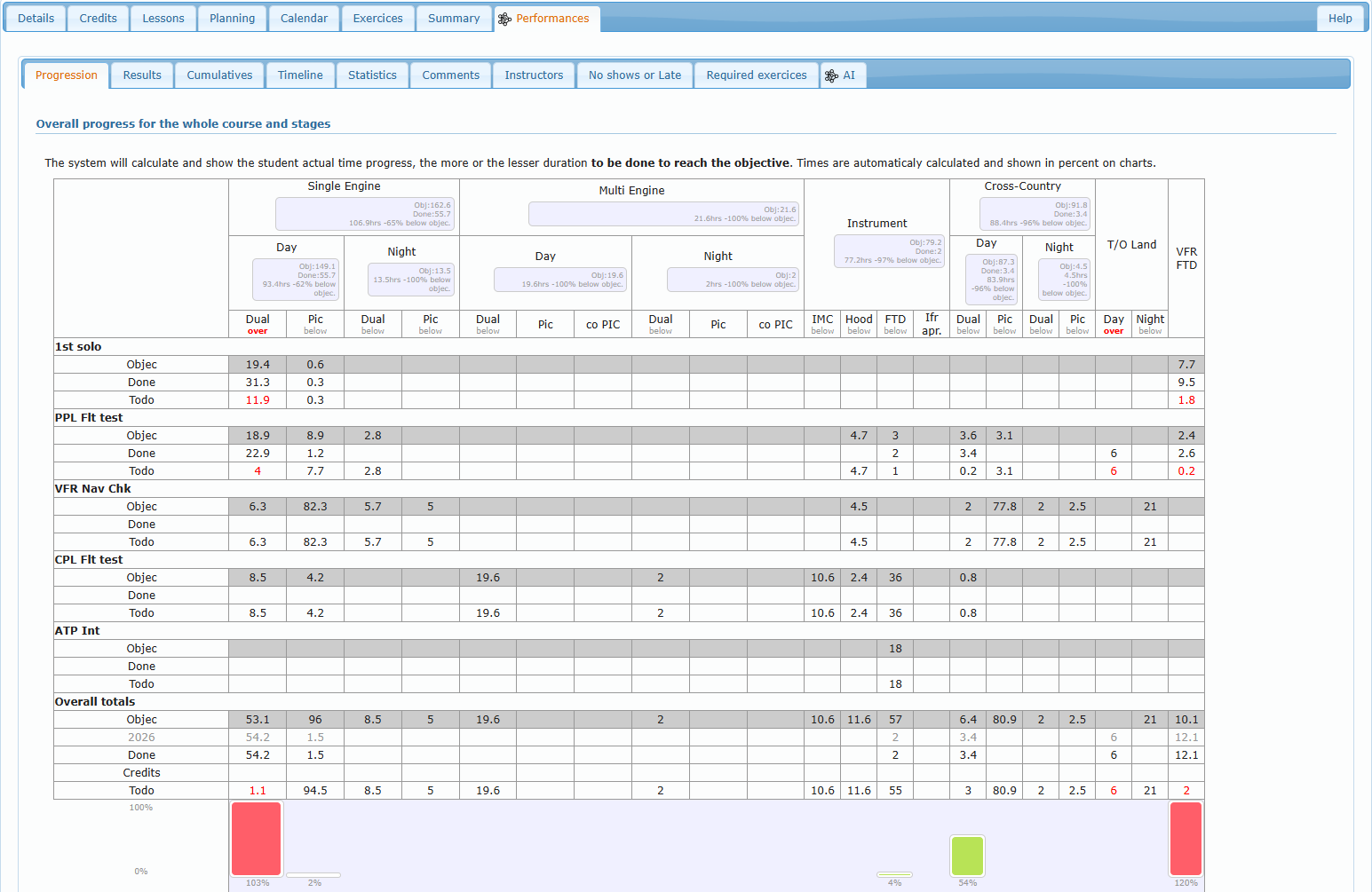
The overall progress table compares, for each phase and each logbook column, the Objective, the Done time, the Credits and what is still To do. Small boxes give the percentage above or below the objective, and the bar chart at the bottom shows the progress in percent.
Results
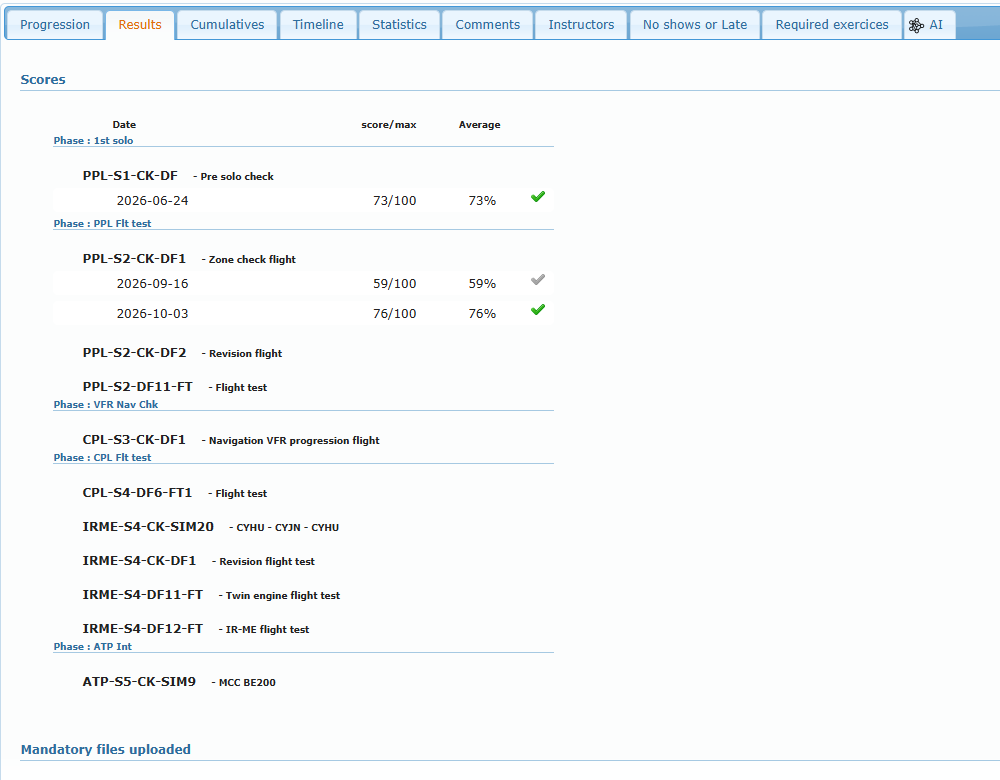
Scores lists, phase by phase, the score obtained on each scored lesson (for example 73/100, 73 %) with its passed or not-passed check. Mandatory files uploaded lists the files uploaded for the lessons.
Cumulatives
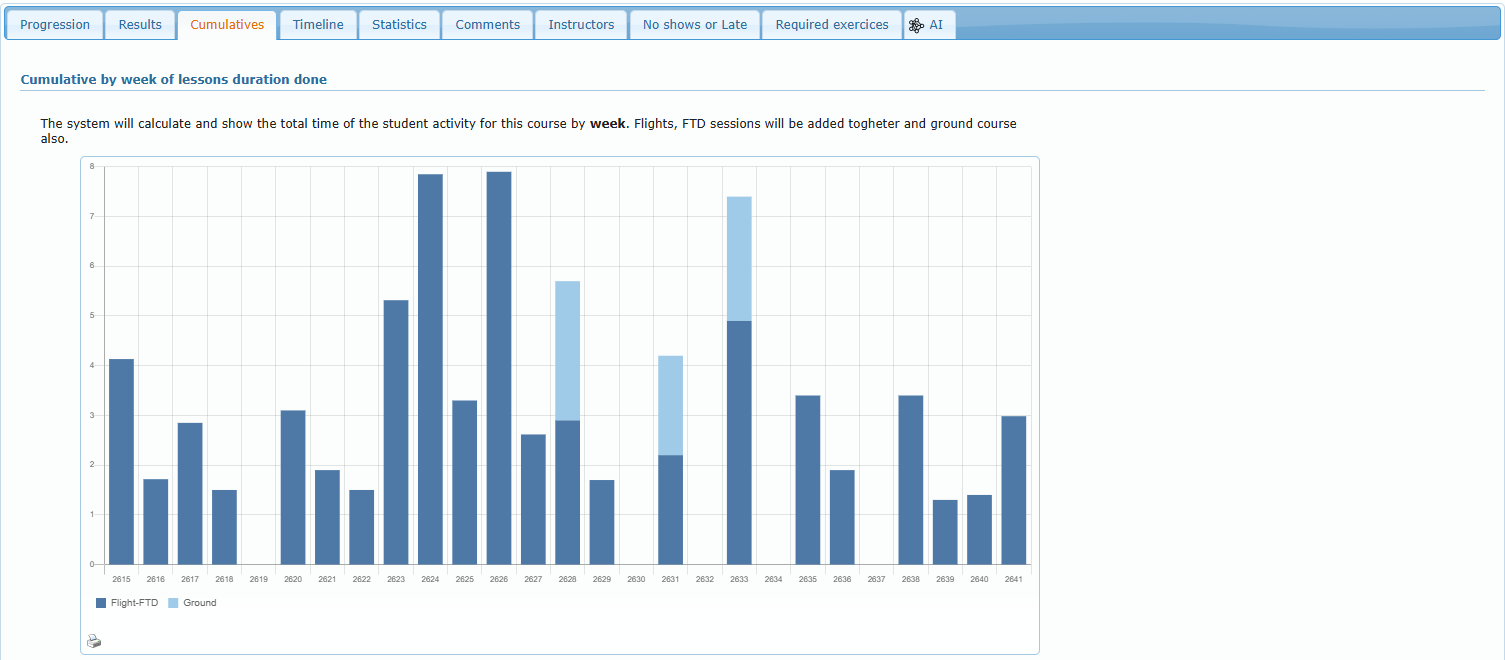
Charts of the hours done by week and by month (flight/FTD and ground), and of no-shows and lateness by month. The printer icon under a chart prints it.
Timeline, Statistics, Comments and Instructors
| Sub-tab | Content |
|---|---|
| Timeline | The lessons on a time line. |
| Statistics | Activity and resources statistics (aircraft and activity types used). |
| Comments | All instructor comments of the course, in date order. |
| Instructors | The course responsible and the people who flew or taught the student. |
No shows or Late
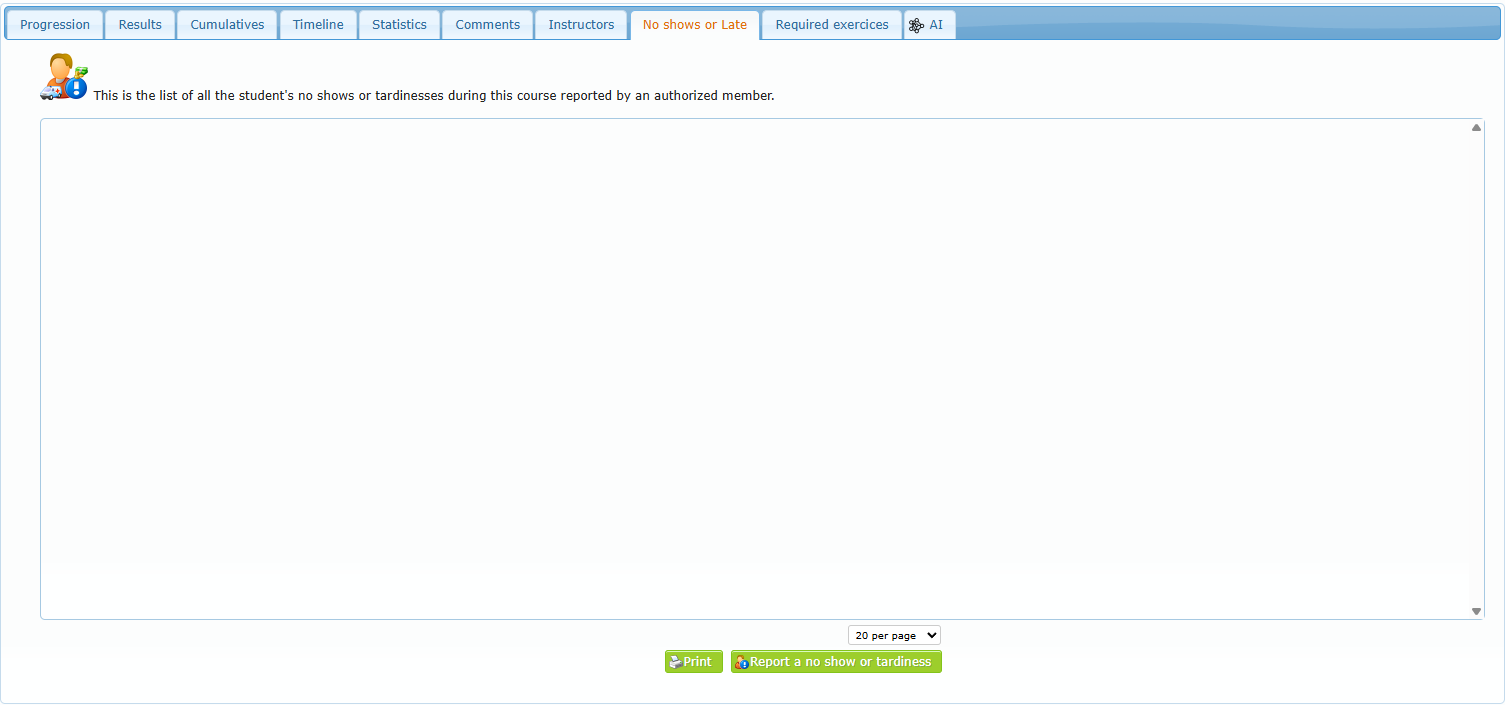
The list of the student’s reported no-shows and lateness. Print prints it; Report a no show or tardiness opens the same report window as in the Planning tab. Authorized members can delete a report (hover it, click the delete icon and confirm).
Required exercices
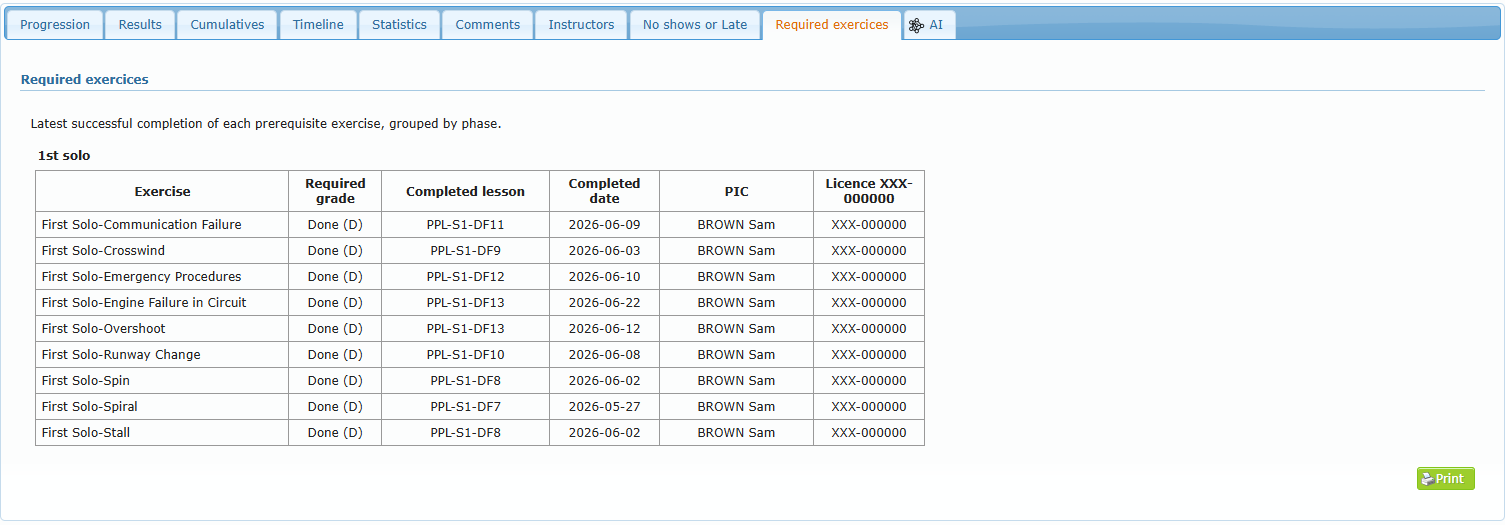
For each phase: every prerequisite exercise, the Required grade, and the lesson, date, PIC and licence number of its latest successful completion, or Not completed. Print prints the table.
AI (when enabled)
An AI-generated analysis of the student’s progress, with status, flags and suggested actions. It is a decision-support tool only. It is not an official student assessment or regulatory record, and all decisions must be validated by authorized personnel using official records.