
Published 9 October 2026, Updated 9 October 2026
Planning tab
The Planning tab compares what was planned with what was done, and lets staff set target dates. Choose key lessons rather than a date for every lesson, to avoid being flooded by alerts.
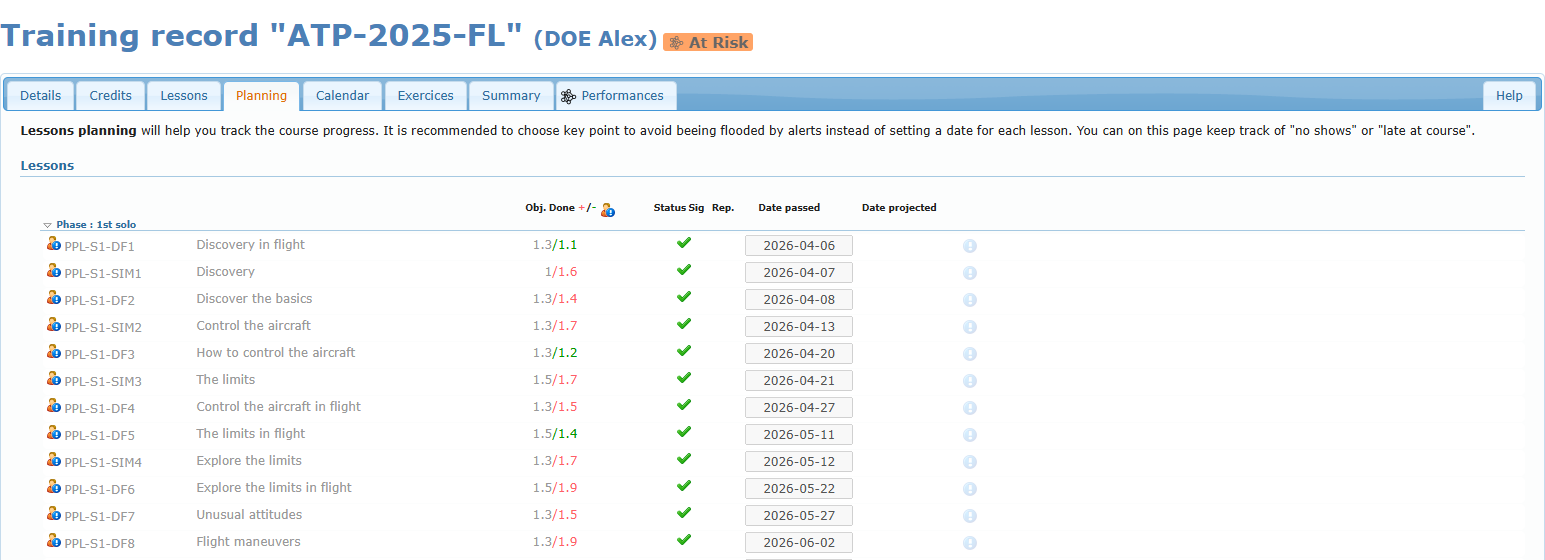
Columns
| Column | Meaning |
|---|---|
| Person icon (first column) | Click to report a no show or lateness for this lesson (authorized members). |
| Lesson and description | Bold lessons are mandatory; struck-through lessons were removed from the course. Click a row to open the lesson in the Lessons tab. |
| Obj. | Objective duration of the lesson. |
| Done +/- | Duration done. Red = more than the objective, green = less than the objective. |
| Person-information icon | Number of no-shows or late arrivals reported for the lesson. |
| Status | Credited, mandatory, passed or done-not-passed icons. |
| Sig | A contract icon means the lesson still has to be signed (signature courses only). |
| Rep. | How many times the lesson was done. Red when the maximum is exceeded. |
| Date passed | The date the lesson was done. Hover it to see who saved it. |
| Date projected | The target date. |
| Information icon | Opens the Planning note of the lesson. A filled icon means a note exists. |
| Alarm clock | Adds a reminder of the projected date to your own calendar. |
Row colours
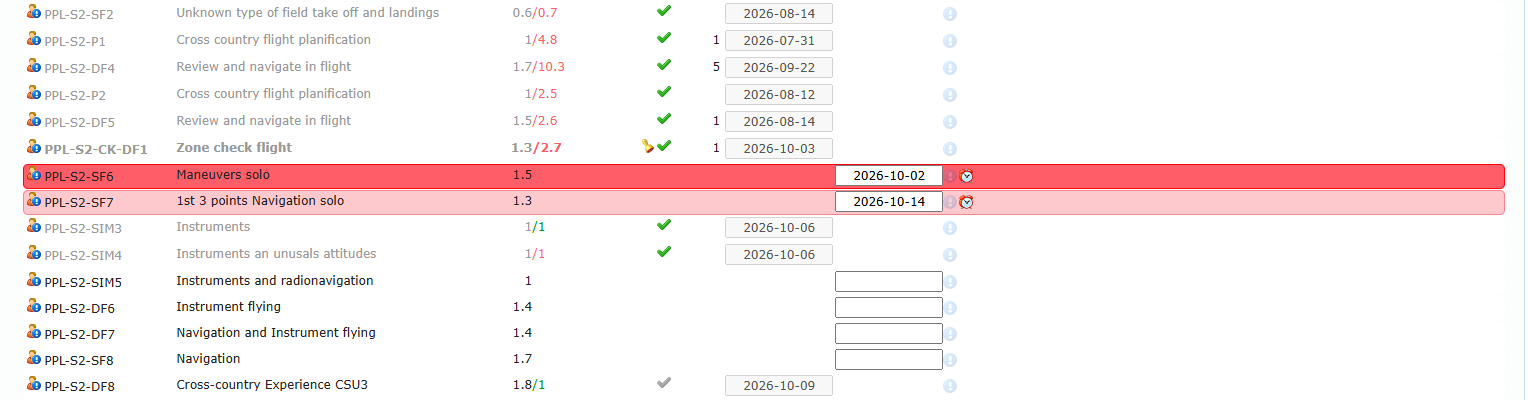
| Colour | Meaning |
|---|---|
| Red row | The projected date has passed and the lesson is not done. |
| Orange / pink row | The projected date is close (within the warning period set by your school). |
| Red projected date text | The lesson was done after the projected date. |
Setting a projected date (staff)
- Click the Date projected field of a lesson not done yet and choose a date.
- If the student belongs to a group, the Part of a group window asks whether to apply the date to all members of the group (Set to all), Only one, or Cancel.
- The date is saved immediately and the row colour updates.
Students see the projected dates read-only.
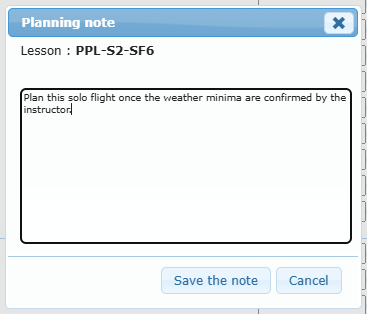
Planning note
Click the information icon to open the Planning note of the lesson. Authorized members type the note and click Save the note. Others can read it.
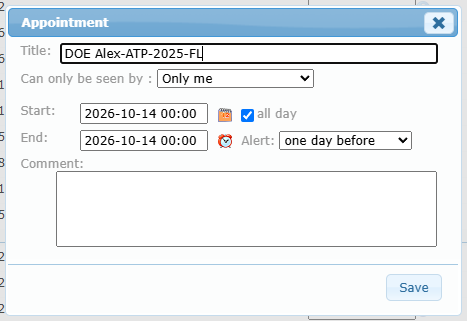
Adding a reminder to your calendar
Click the alarm clock of a lesson with a projected date. The Appointment window opens with the student and course as title.
| Field | Use |
|---|---|
| Title | Text of the reminder. |
| Can only be seen by | Only me, or a member level and above. |
| Start / End / all day | When the reminder occurs. |
| Alert | When to be notified (from 15 minutes to 2 years before). |
| Comment | Free text. |
Click Save to add it to your calendar.
Reporting a no show or lateness
- Click the person icon at the beginning of the lesson row.
- In No show or Late at the lesson, check the On date, choose the Type (no show or late) and the Reason, and add a Comment.
- Leave Send message to student ticked to notify the student.
- Click Save. A confirmation says the no show or tardiness has been reported.
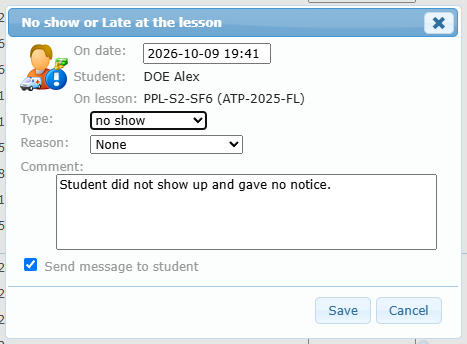
Reports appear in Performances › No shows or Late and in the person-information column.
As a student: if you see a no-show you disagree with, contact the person in charge of your training.
Printing and additional dates
- Print planned dates list and Print list print the planning (staff and the student).
- Additional schedule dates (staff): add your own reminders for this student’s course. Type a label, choose a projected date, click the green +, then Validate. Only you can see these items (administrators see everyone’s). Use the red cross to remove one.

Calendar tab
The Calendar tab shows the student’s scheduled activities.
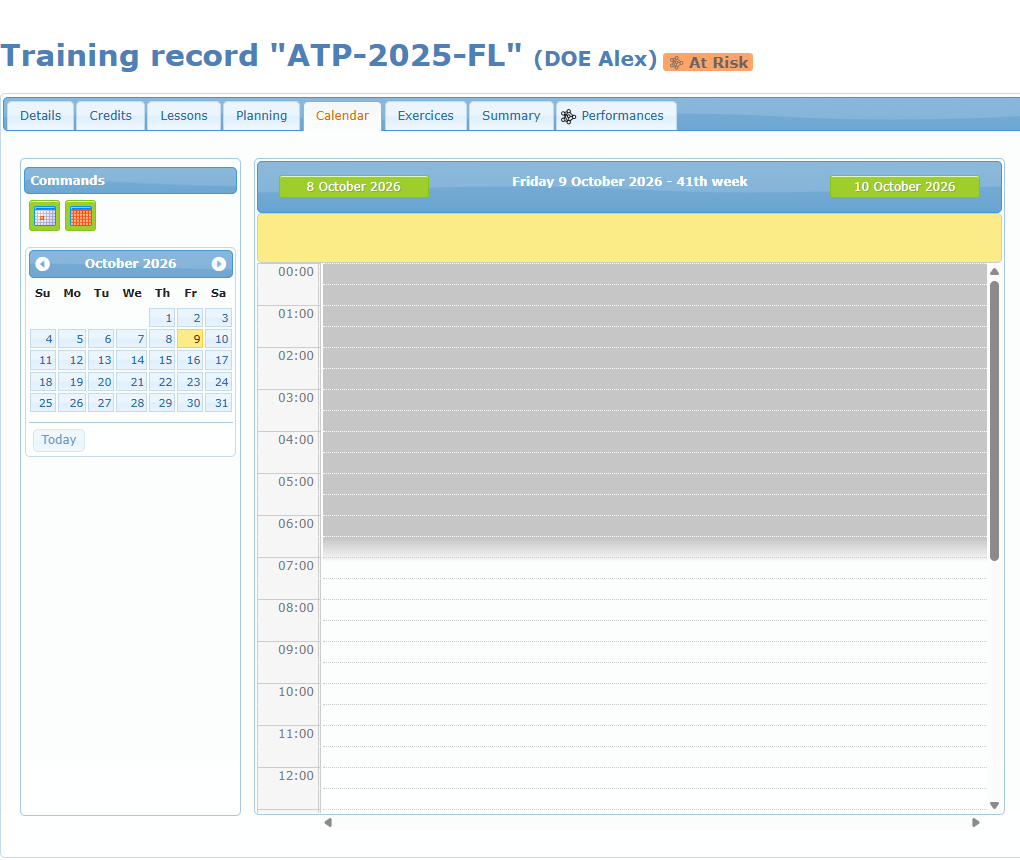
- Commands: the first button shows one day, the second a whole month.
- Click a date in the small calendar (or Today) to go to that day.
- In the day view, the green buttons at the top go to the previous and next day.