
Published 10 October 2026, Updated 10 October 2026
Access is locked until you acknowledge
As soon as an active memorandum addressed to one of your roles has not been acknowledged by you:
- every page you try to open (home page, schedule, records, messages, and so on) sends you back to the Memos center;
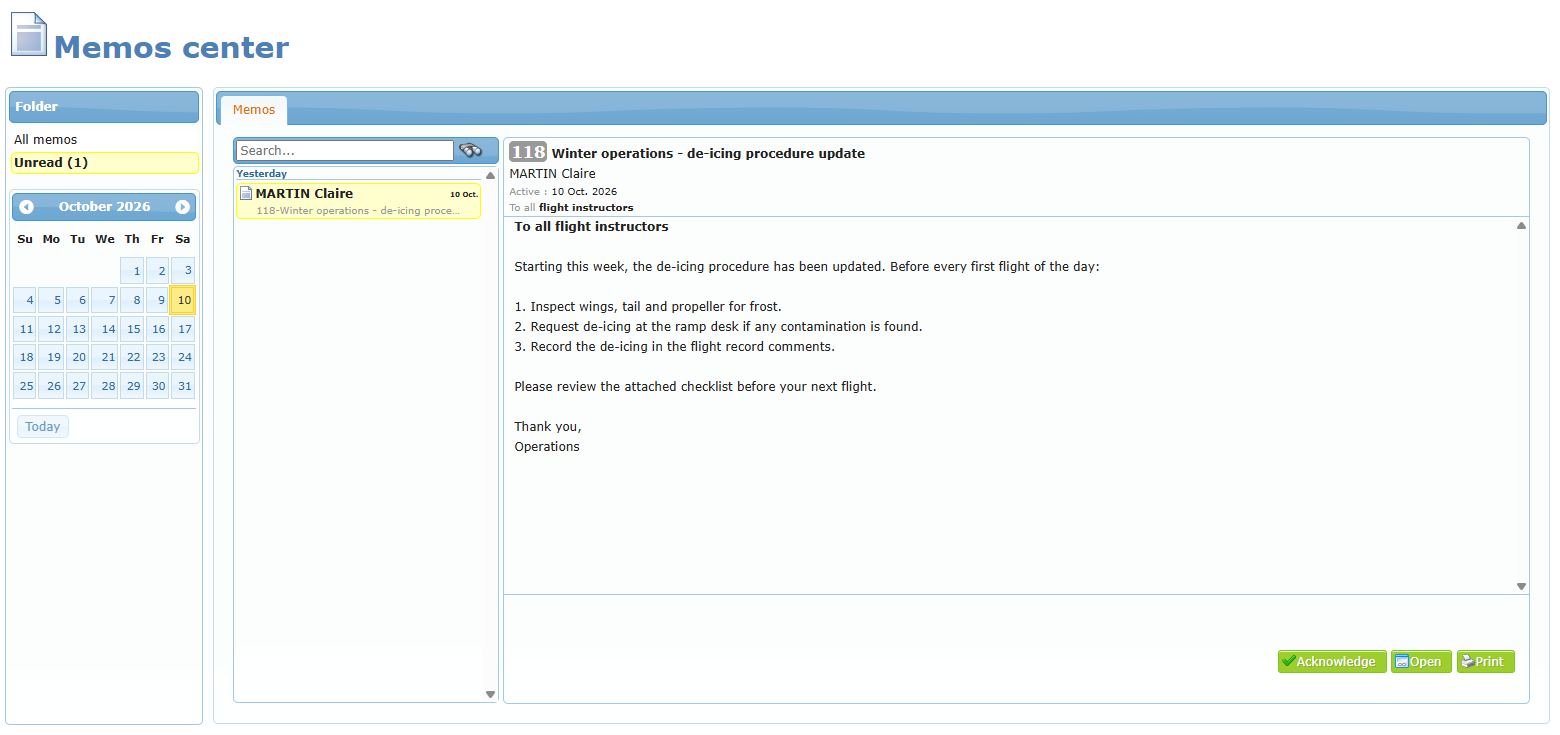
- the Unread folder shows the number of memoranda waiting for you, for example Unread (1);
- no other activity is possible in AirSupervision until you have acknowledged all your unread memoranda.
The lock is released immediately after your last acknowledgment: you can then use AirSupervision normally.
Depending on your organization’s settings, the lock can be replaced by a Memos pop-up window: “You have 1 unread memorandum, please read it!”. This window appears on every page you open, and its Read button takes you to the Memos center. In both cases the memorandum must be acknowledged.
Step by step
- Log in to AirSupervision. If a memorandum is waiting, the Memos center opens with the Unread folder.
- Click the memorandum in the list on the left of the page. Its content appears on the right.
- Read the whole text. If files are attached (under Attached), open them: they are part of the memorandum.
- Click Acknowledge at the bottom right.
- The memorandum leaves the Unread folder. If you have other unread memoranda, repeat steps 2 to 4.
What you see in a memorandum
| Element | Meaning |
|---|---|
| Number (grey badge) and subject | Each memorandum has a unique number. Use it when you refer to a memorandum. |
| Author | The person who published the memorandum (or on whose behalf it was published). |
| Active | The date from which the memorandum applies. |
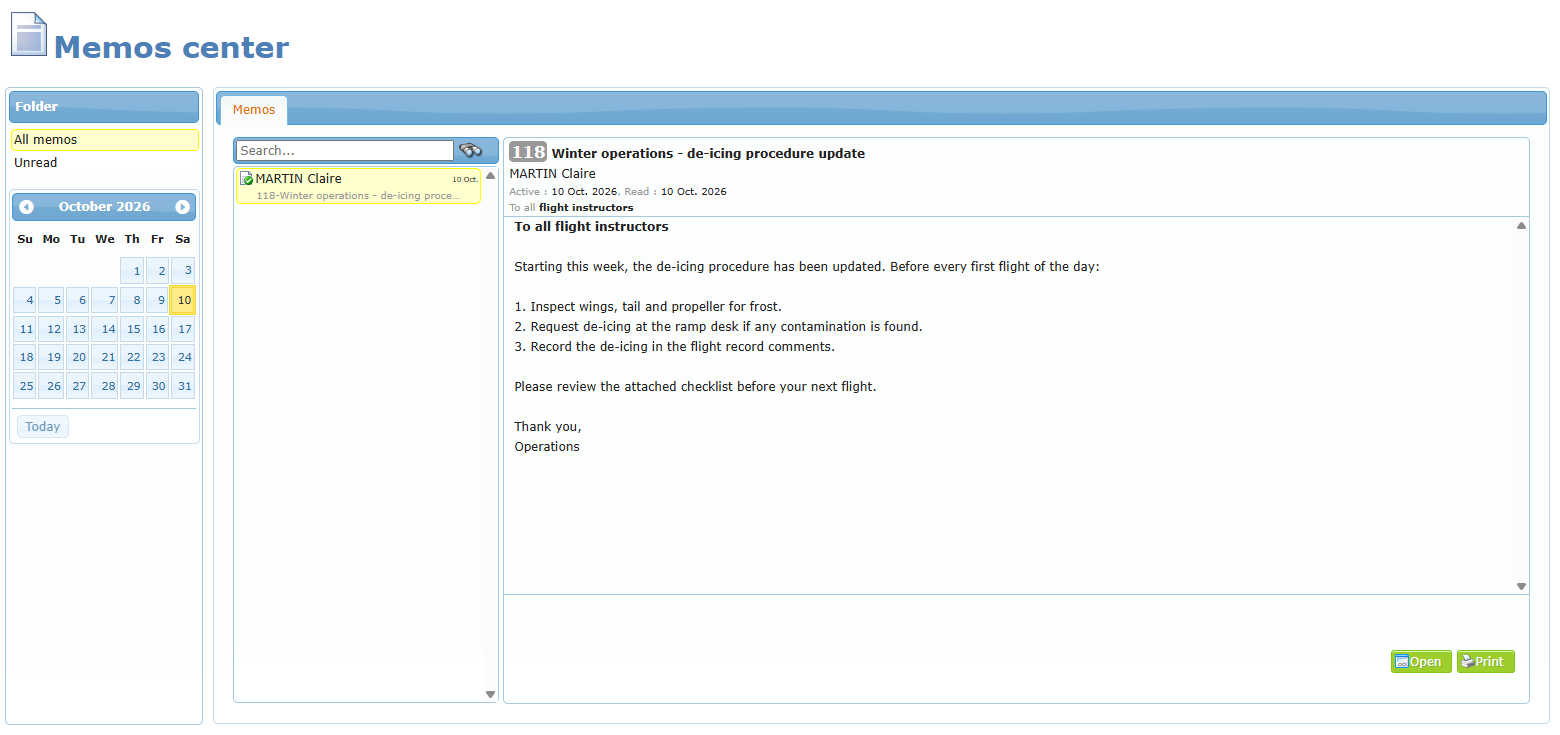
| Read | The date you acknowledged it (only after acknowledgment). |
| Exp | The end date, when one is set. |
| To all | The roles the memorandum is addressed to. Hover over it to see the full list. |
| Attached | Files that are part of the memorandum. Click a file to open or download it. |
Buttons
| Button | What it does |
|---|---|
| Acknowledge | Confirms that you have read and understood the memorandum. The date and time are recorded. |
| View only | Shown instead of Acknowledge when the memorandum is not addressed to any of your roles: you can read it, but you do not have to acknowledge it. |
| Open | Opens the memorandum in a larger window, easier to read. |
| Opens a printable version of the memorandum in a new tab. |
After acknowledging: date and time are recorded
AirSupervision records the date and time at which you acknowledged the memorandum. You can see it on the memorandum next to Read, and in the list a check mark shows that the memorandum has been read. The person in charge sees the same information in the list of members who have read it.
An acknowledgment cannot be cancelled. If you have a question about a memorandum, contact its author.
On the mobile version and the app
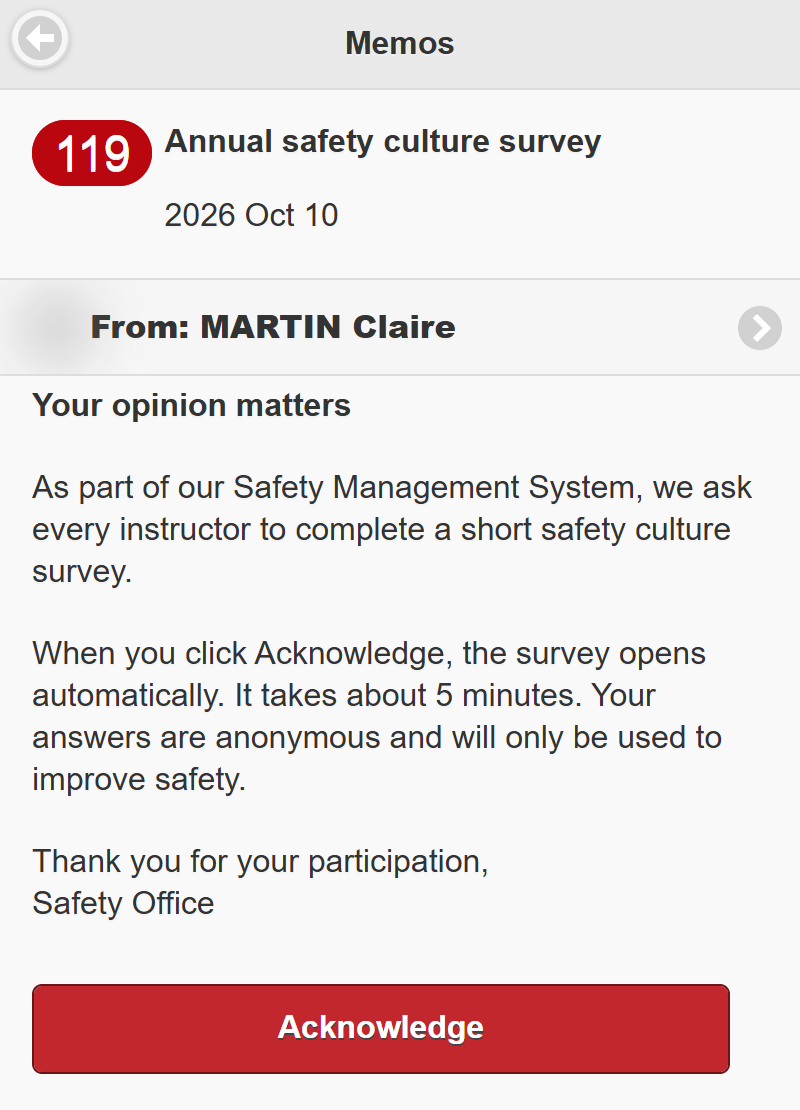
On the mobile version, when you have unread memoranda the home page opens the Memorandums list and the main menu is hidden while you read them. Unread memoranda are highlighted in the list. Open each one, read it and tap Acknowledge at the bottom. Once acknowledged, the memorandum shows Acknowledged with the date and time.
Checklist
- ☐ Open the Unread folder.
- ☐ Read each memorandum completely, including attached files.
- ☐ Click Acknowledge on each one.
- ☐ Check that the Unread folder no longer shows a number.