
Published 10 October 2026, Updated 10 October 2026
The mobile version of AirSupervision (in a phone browser or in the AirSupervision app) gives access to the same courses as the computer version, organized as lists you browse with your finger.
Opening E-courses
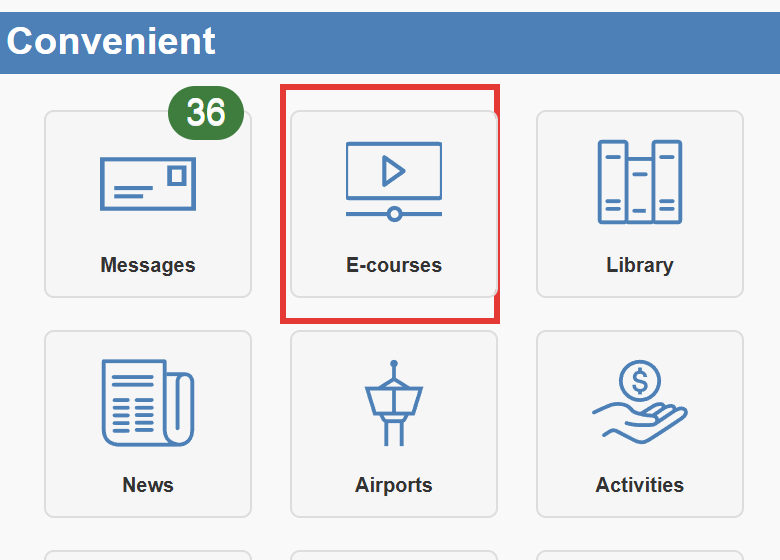
On the mobile home page, scroll down to the Convenient section and tap E-courses.
Browsing by course area
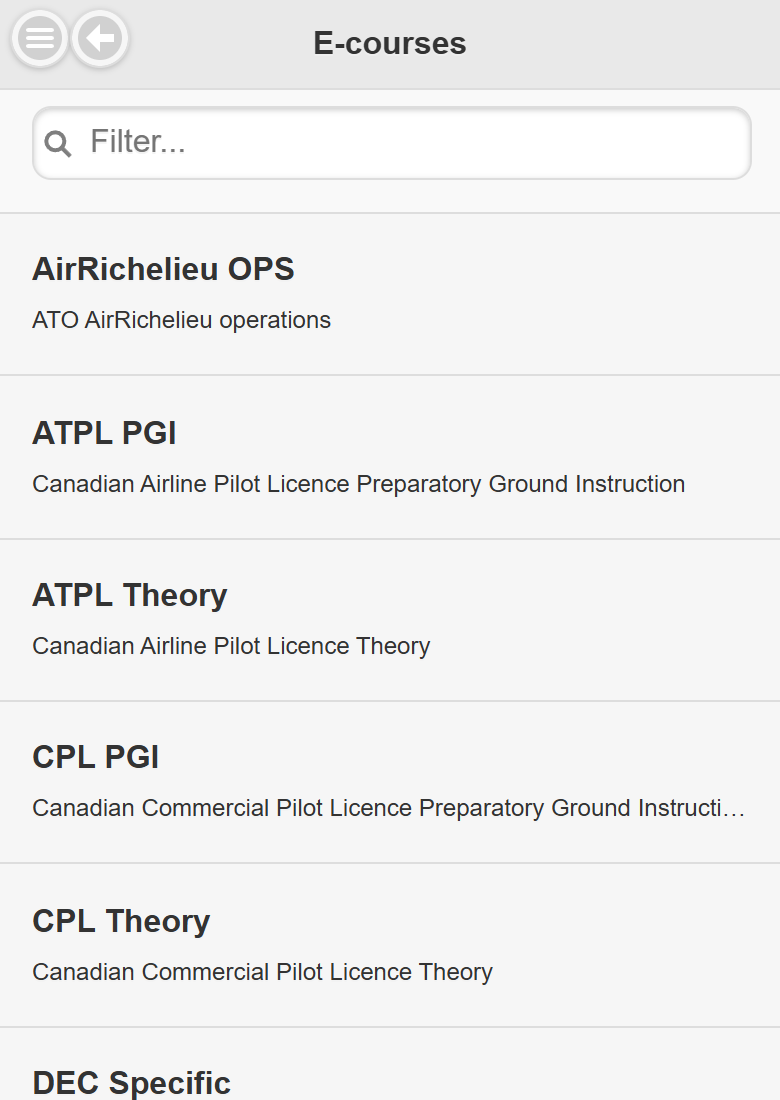
The first screen lists the course areas that contain at least one course you can follow. Each line shows the area name and its description.
- Tap a course area.
- Tap the language you want. Only languages that have courses in this area are listed.
- The list of courses appears.
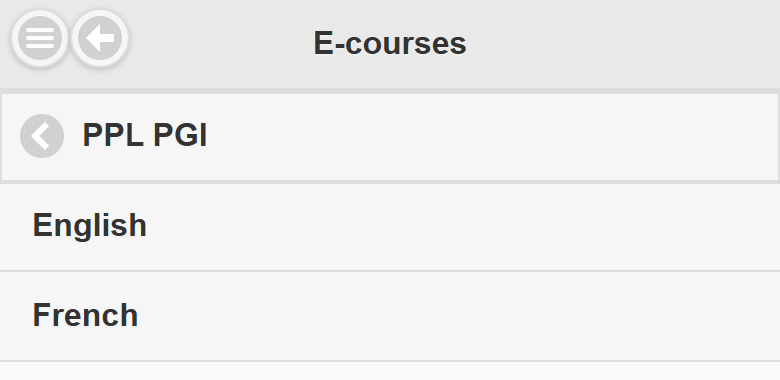
Use the grey line at the top of each list (with the left arrow) to go back one level, for example from the course list to the languages, or from the languages to the course areas.
Reading the course list
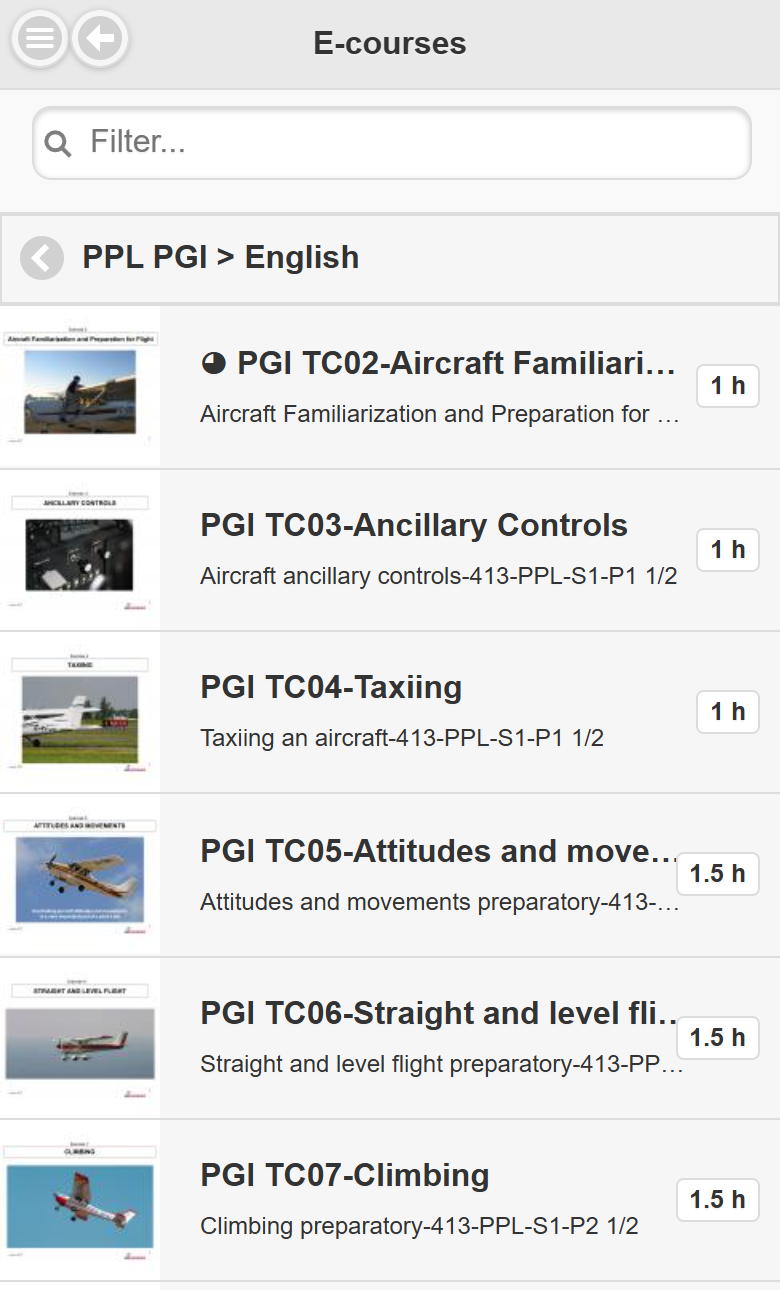
| Element | Meaning |
|---|---|
| Thumbnail | The course cover picture. |
| Symbol before the title | ◕ = Started, ◍ = Completed. No symbol = never opened. |
| Title and description | The course name and its short description (long texts are shortened with “…”). |
| Bubble on the right (for example “1.5 h”) | The estimated duration in hours. |
Inside a course list, type in the Filter… box to narrow the list to the courses whose text contains your words.
Searching all courses at once
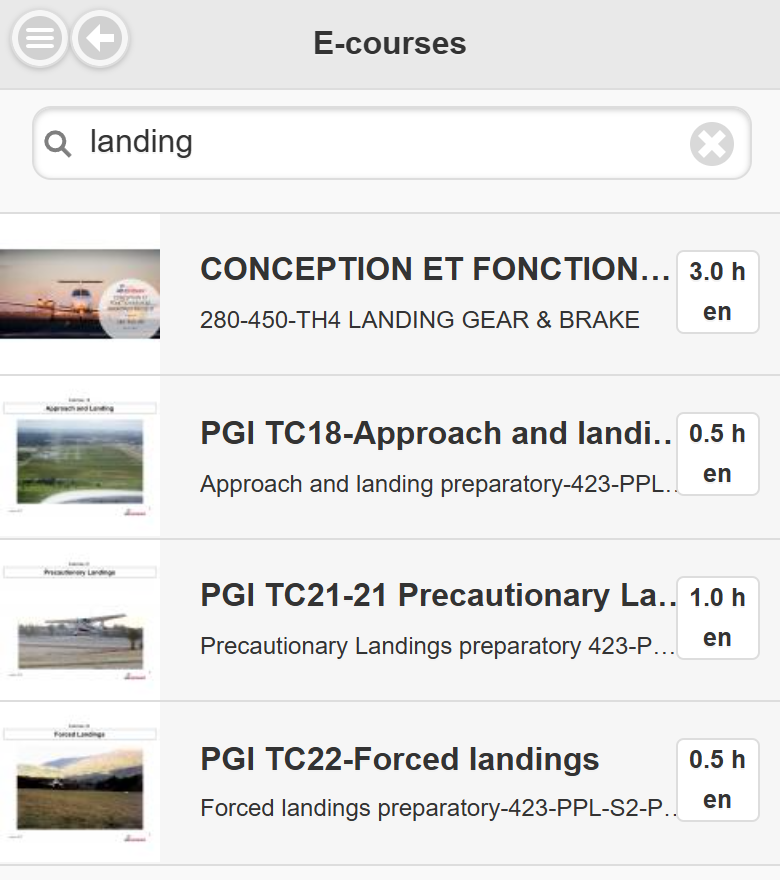
On the first screen (course areas), type at least three letters in the Filter… box. AirSupervision searches all your courses, in every area and language, and shows:
- the course areas whose name or description matches, and
- the courses whose title or description matches, with their duration and language code (for example “en” or “fr”).
Tap the X in the box to clear the search and get the course area list back.
Launching a course
Tap a course to open it. In a phone browser, it opens in the browser; in the AirSupervision app, it opens inside the app. Progress tracking works exactly as on a computer: if tracking is enabled, you continue at the last slide you reached, from any device.
Example: you start a course on your computer at the school, stop at slide 12, then continue on your phone at home. The course resumes at slide 12.