
Published 6 January 2023, Updated 13 October 2026
Your member profile brings together everything the organization knows about you: identity and contact details, courses, competencies and roles, statistics, files, calendar and personal settings. You can always view your own profile. What you can change yourself depends on the options chosen by your organization.
Opening your profile
| Where | How |
|---|---|
| Desktop browser | Click your name in the main menu. |
| Mobile app or mobile browser | Open the side menu and tap My profile, or tap your photo at the top of the menu. |
A regular member can only open their own profile. Other members’ profiles are reserved to staff who have the matching credentials. You can still contact other members from lists, tooltip cards and the Members list (see Searching for members).
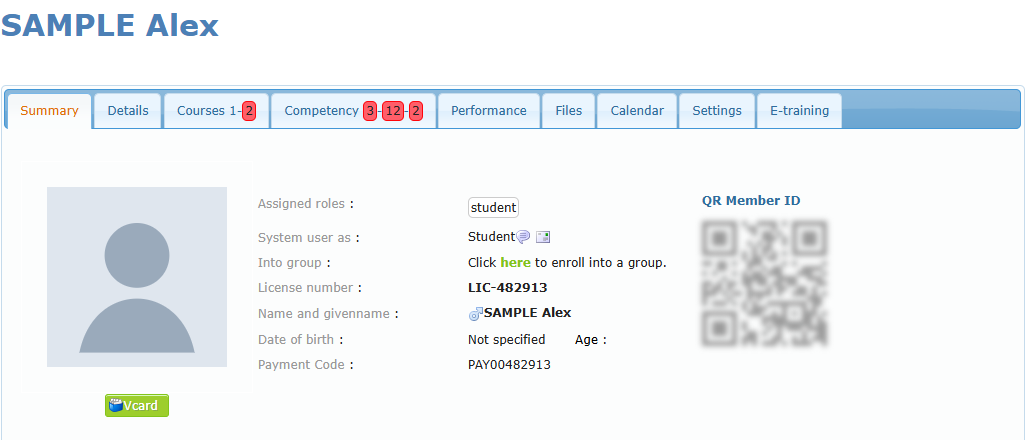
The profile tabs
Tabs are shown according to the options your organization uses. Some tabs only appear when a module is activated for your organization.
| Tab | What you find there |
|---|---|
| Summary | Your photo, roles, licence number, payment code, QR member ID and the main alerts that concern you. |
| Details | Your personal, contact and emergency information, additional information fields and your complimentary email addresses. |
| Courses | The courses you are enrolled in, with their progress. Instructors also see the courses they are in charge of. |
| Competency | Your qualifications, operational competencies, miscellaneous items, your group and your roles. |
| Performance | Statistics about your event reports, activities, flight records and scores. |
| Files | Documents linked to your roles and the files uploaded to your profile. |
| Calendar | Your personal reminders, scheduled activities and competency reminders. |
| Settings | Password help, security questions, your credentials, connected devices, clock puncher ID and homepage layout. |
| E-training | Online trainings and evaluations available to you, and your results. Shown only if the e-training module is active. |
The numbers on the Courses and Competency tabs are counters. Red counters mean something needs your attention, for example an overdue lesson date or an expired competency.
Staff members may see more tabs on a profile (for example notes, system settings or account). These are not part of a regular member’s profile and are described in the Managers documentation.
Mobile version
The mobile version shows the same information in a lighter layout. See Using the mobile version at the end of this chapter.