
Published 12 January 2023, Updated 12 October 2026
The Connection menu, in the main menu bar at the top of every page, groups the features used to reach shared documents, communicate with other members and open useful web links.
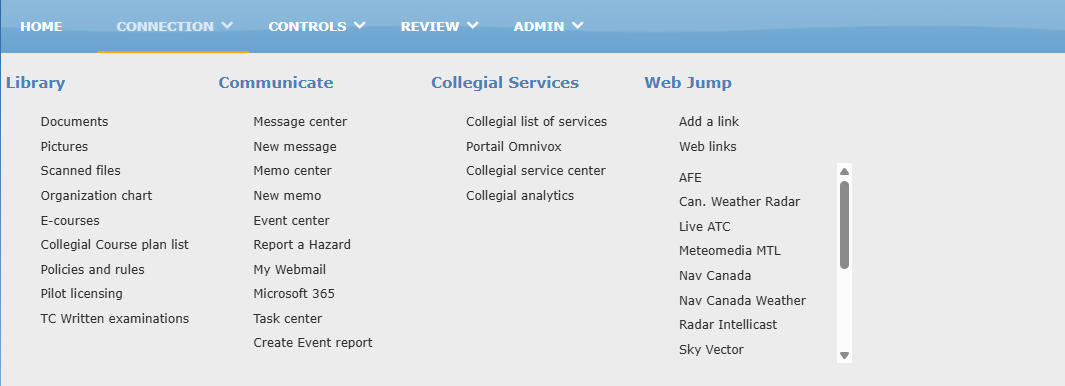
Items are grouped in columns by function. Most items are available to every logged-in member. Some require specific access rights, and others appear only when the feature is enabled for your organization. If you don’t see an item described below, you don’t have access to it or it is not used by your organization.
Menu items
In the table, Access rights required means that only members with the proper credentials see the item. Optional feature means that the item appears only if your organization uses this feature.
| Item | What it is used for | Access rights required | Optional feature |
|---|---|---|---|
| Library | |||
| Documents | Opens the document library shared with members. | ||
| Pictures | Opens the picture and media library shared with members. | ||
| Scanned files | Opens the files scanned by your organization. | X | X |
| Organization chart | Displays the organizational chart, built from the roles defined in your organization. | ||
| E-courses | Lists the online courses available to you. | X | |
| Communicate | |||
| Message center | Opens the internal messaging center. | ||
| New message | Writes a new message with the internal messaging system. | ||
| Memo center | Opens the memorandums: short written notices sent to a person or a group about a specific matter. | ||
| New memo | Writes a new memorandum. | X | |
| Event center | Opens the event report center, used for safety reports, quality assurance and the safety management system (SMS). | ||
| Report a Hazard | Opens the hazard report form, to report a hazard you noticed in the workplace. | ||
| My Webmail | Opens your webmail in a new window. Shown only when an email address is provided to you by your organization. | X | |
| Task center | Opens the tasks of the work areas you are allowed to use, with their progress and the people in charge. Shown only if you have access to at least one task area. | X | |
| Create Event report | Creates a new event report. | X | |
| Collegial services | |||
| Collegial service center | Manages collegial services information and admission requests. | X | X |
| Collegial analytics | Displays statistics and graphs about collegial services. | X | X |
| Web Jump | |||
| Add a link | Adds a new web link to the Web Jump list. | X | |
| Web links | Displays and manages the web links library. | ||
| List of links | The links added with Add a link are listed below. Click a link to open the site in a new window. The list scrolls when it is long. |
Pages added by your organization
Besides the standard items, your organization can add its own pages or links to the Library, Communicate and Collegial services groups, for example policies and rules, licensing information or a link to an external service. Their names and content are chosen by your organization, so they vary from one organization to another. Some of these pages are visible only to specific roles.
Connection links in the page footer
The same Connection items are also available at the bottom of every page, in the footer, under Library, Communicate and Collegial services.