
Published 26 October 2026, Updated 26 October 2026
Part of Current and Accepted Lists in the Activities Center guide.
A list of activities is only useful if it shows exactly the lines you need: one pay period, one member, only the lines still to validate, only one kind of activity. This page explains the three tools that shape the list: the filter boxes under the column titles, the Advanced search, and the Select columns window.
Quick filters under the column titles
Just below each column title there is a filter box. Type or choose a value: the list is filtered immediately. The small ~ sign in front of a box means “contains”: typing carter finds every line whose text contains “carter”. The small x after a box clears that filter.
| Filter | How to use it | Example |
|---|---|---|
| On date | Click the box and choose a period in the calendar (see below). | Every line from 1 to 15 October. |
| Status (icon column) | Choose in the list: All, To validate, In the waiting list, In the waiting list set by user, In the waiting list set by accounting. | Only the lines still on hold at accounting’s request. |
| Created by, Email, Cell, Summary | Type part of a name, address, number or word. | All lines created by one member. |
| Duration referrer (calendar icon column) | Choose where the hours come from: All, From Flight record, From Courses, Unknown referrer, Duration is user input. | Only typed hours, to check them carefully. |
| Accepted tab: Accepted and Accept period | Type part of the acceptance date or of the period name. | Only “October 2026 – 1st half”. |
Filters add up: a line must match every filled box to stay in the list. To start again from a clean list, click Clear and refresh (the first button at the bottom left of the list).
Choosing a date range
Clicking the On date box opens a calendar with ready-made ranges on the left.
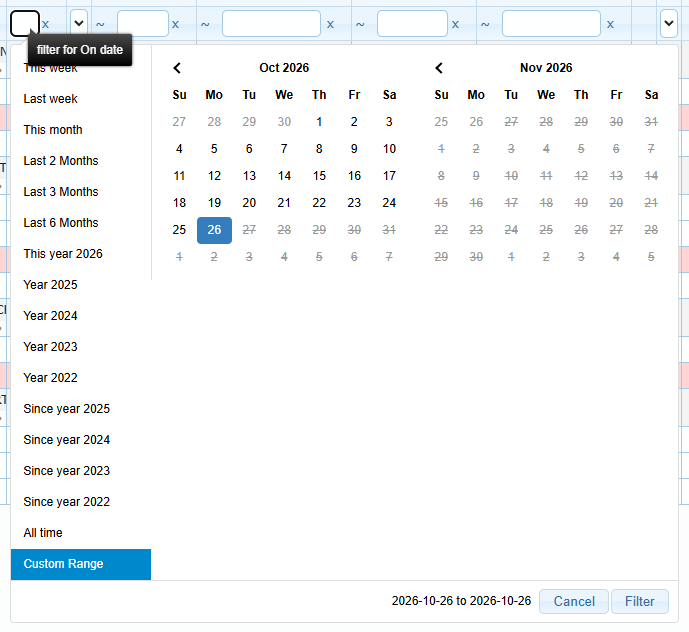
- Choose a ready-made range (This week, Last week, This month, Last 2 Months, Last 3 Months, Last 6 Months, a full year, “Since year…”, All time), or
- Click Custom Range, then click the first day and the last day in the two calendars. The chosen range is shown at the bottom.
- Click Filter to apply, or Cancel to leave the filter unchanged.
For a pay period, a custom range matching exactly the first and last day of the period is the most reliable choice.
Advanced search
Click the Advanced search button (magnifying glass at the bottom of the list) when the quick filters are not enough, for example “lines of Emma Carter or Lucas Bennett, in October, with typed hours”.
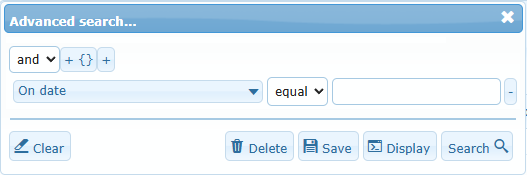
| Element | What it does |
|---|---|
| and / or | “and”: a line must meet every condition. “or”: a line must meet at least one condition. |
| + | Adds a condition. |
| + {} | Adds a sub-group of conditions with its own and/or choice, to mix both logics. |
| Field list (first box of a condition) | The column to test, for example On date, Status, Created by or an activity. Type a few letters to find it. |
| Comparison (second box) | How to compare: equal, not equal, contains, greater, less… |
| Value (third box) | The value to compare with. |
| – (at the end of a condition) | Removes that condition. |
| Search | Applies the conditions to the list. |
| Clear | Removes all conditions. |
| Display | Shows the conditions written as a sentence, to check them. |
| Save | Saves the conditions under a name so that you can reuse them. Leave the name empty to use the current date and time as name, or tick “Or overwrite the selected query” to update an existing one. |
| Delete | Deletes the saved query selected in the “List of saved queries”, after a confirmation. |
Once at least one query is saved, a List of saved queries appears at the top of the window. Choose a query to load its conditions, then click Search.
Tip for recurring checks: build the search once (for example “typed hours over 8 hours”), save it with a clear name, and reuse it at every period end.
Select columns: choose what you see
The Select columns button (table icon at the bottom of the list) chooses which columns are displayed. Your choice is remembered for your next visits.
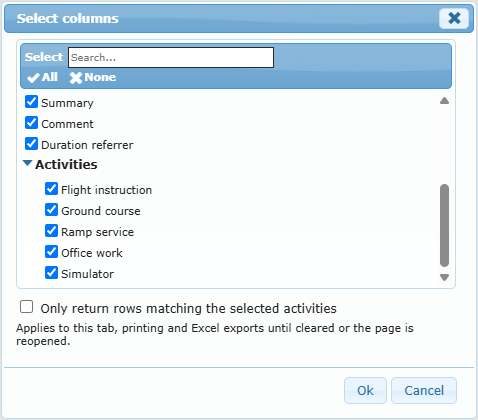
- Tick or untick a column to show or hide it. All and None tick or untick everything.
- Type in the Search box to find a column quickly.
- The Activities group lists one column per activity code (flight instruction, ground course…).
- Click Ok to apply, or Cancel to close without changes.
- Reset columns order (another button at the bottom of the list) puts the original columns and order back.
Only return rows matching the selected activities
At the bottom of the window, the box Only return rows matching the selected activities changes the meaning of the activity ticks.
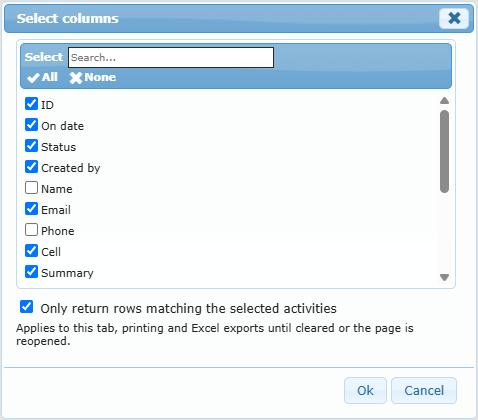
| Box | Unticked activity columns | Lines of unticked activities |
|---|---|---|
| Not ticked (normal) | Hidden | Still listed (only the column is hidden) |
| Ticked | Hidden | Removed from the list, the printouts and the Excel exports |
While this filter is active, a small Activities filtered (number) indicator is shown beside the Select columns button. The filter stays active until you untick the box, click Clear and refresh, or reopen the page. If you tick the box without keeping at least one activity, the window shows: “Select at least one activity, or uncheck the activity filter.”
When to use it: to produce a report on one kind of paid work only, for example all simulator hours of the month.