
Published 26 October 2026, Updated 26 October 2026
Part of the Right-click menu chapter of the Activities Center guide.
When an entry raises a question, the fastest way to solve it is to ask the member directly. The Communication submenu offers every available way to reach the member who owns the line you right-clicked.
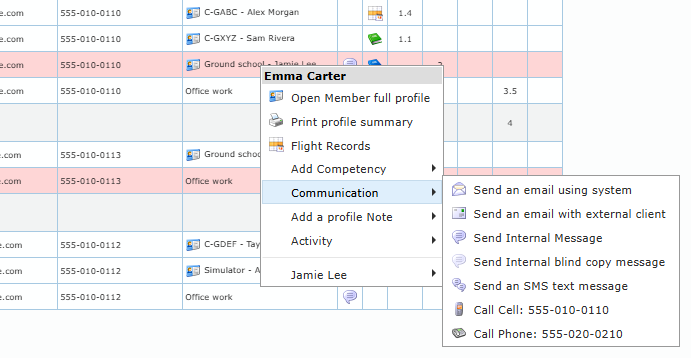
Which option should I use?
| Menu entry | What happens | Best for |
|---|---|---|
| Send an email using system | Opens AirSupervision’s e-mail window with the member already filled in as recipient. The e-mail is sent by AirSupervision. | A formal question or a reminder you want to send from the application. |
| Send an email with external client | Opens your usual e-mail program (for example Outlook) with a new message addressed to the member. | When you prefer to keep the exchange in your own mailbox. |
| Send Internal Message | Opens AirSupervision’s internal messaging in a new tab, with the member already added as recipient. The member reads it in AirSupervision. | Members who use AirSupervision every day. |
| Send Internal blind copy message | Same as above, but recipients cannot see who else received the message. | Mostly useful with several recipients (see Selected items). |
| Send an SMS text message | Opens the SMS window with the member’s cell number. Shown only when a cell number is recorded. | Short, urgent messages. |
| Call Cell: … / Call Phone: … | Starts a call to the number shown, using the phone application of your computer or device. Shown only when the number is recorded. | A quick phone check. |
If an option is missing, the member’s profile does not contain the matching information (no e-mail address, no cell number or no phone number). Update the profile, then refresh the list.
Sending an e-mail from AirSupervision
Choose Send an email using system. The e-mail window opens.
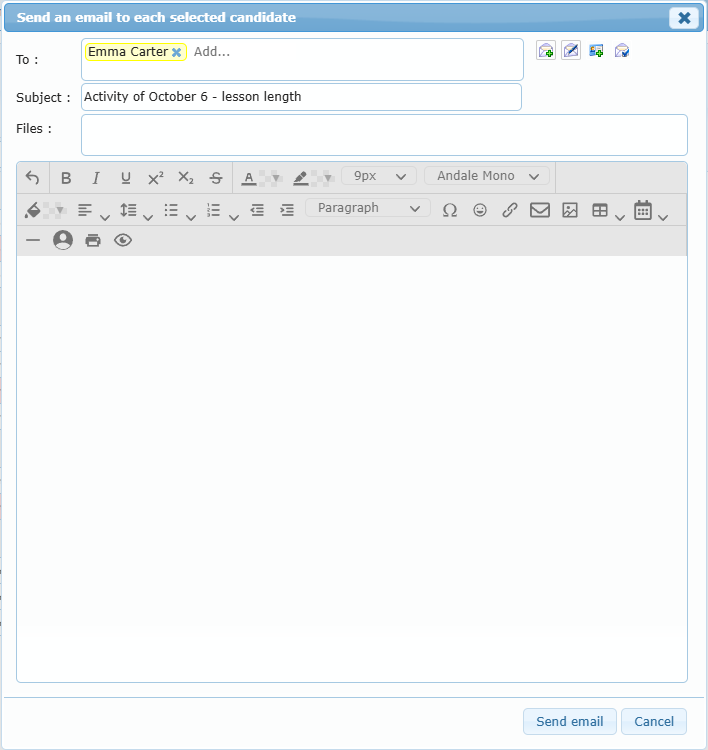
- To: the member is already added. Click Add… and type a name to add other recipients. Click the small x on a name to remove it. The icons on the right of the To field help you add more recipients.
- Subject: type a clear subject, for example the date and type of the activity you are asking about.
- Files: attach a document if needed.
- Write your message in the large text area. The toolbar works like a word processor (bold, lists, colours, links…).
- Click Send email to send it, or Cancel to close the window without sending.
Example: “Hello Emma, your ground course of 6 October shows 2 hours, while the course plan shows 1.5 hours. Could you confirm the correct duration? Thank you.” Then put the line in the waiting list so that it is not accepted by mistake while you wait for the answer (see Activity actions).
Good to know
- Putting a line in the waiting list already sends an automatic e-mail to the member. You only need to write a personal message when you want to explain the exact problem.
- To contact several members at once, tick their lines and use Selected items instead. See Working with several entries at once.