
Published 26 October 2026, Updated 26 October 2026
Part of the Right-click menu chapter of the Activities Center guide.
While you check activities, you often need to know more about the person: their profile, their flights, or a note left by a colleague. The first entries of the right-click menu give you this information without leaving the list.
Open or print the member’s profile
| Menu entry | What happens | When to use it |
|---|---|---|
| Open Member full profile | The member’s complete profile opens in a new window. Your list stays as it was. | Check the member’s position, contract details, contact information or notes before accepting an unusual entry. |
| Print profile summary | A printable summary of the profile is prepared. | Keep a paper or PDF record with a payroll file. |
| Flight Records | The member’s flight records open. This entry exists only when your organization uses flight records. | Compare flight instruction hours with the flights actually recorded. |
The second person on the line
Some activities are done with someone else: a lesson given to a student, a simulator session, a ground course. When the line is linked to another person, that person’s name appears as an extra entry at the bottom of the menu, below a separator line. Point to it to open a small menu for that person.
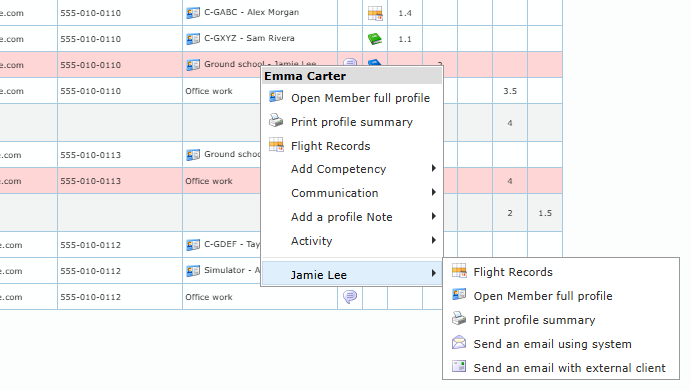
From this submenu you can open the second person’s Flight Records, Open Member full profile, Print profile summary, Send an email using system or Send an email with external client. This is useful when you need to confirm a lesson with the student rather than with the instructor.
Add a competency
Add Competency records a competency for the member, for example a briefing, a training course or a rating renewal. The submenu lists the competencies your organization has chosen to offer for quick adding, limited to the ones your level is allowed to add.
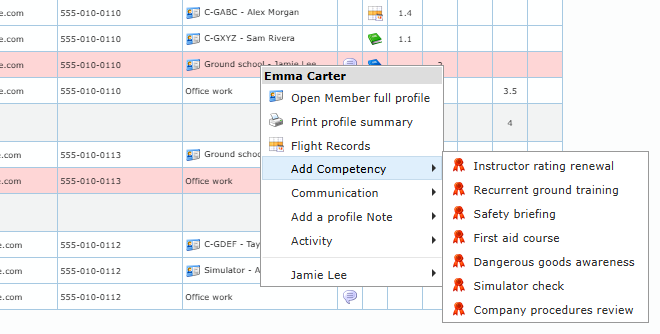
Clicking a competency opens the Add a competency window with that competency already chosen.
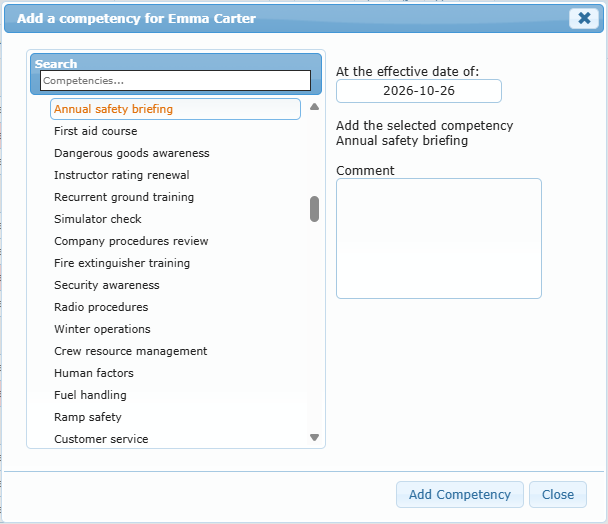
- Check the competency. To pick another one, use the list on the left. Type a few letters in the search box to find it quickly.
- Enter the date in At the effective date of. It is filled in with today’s date. Change it when the competency was obtained on another day.
- When the competency can expire, an expiry date box is also shown. It is marked optional unless your organization requires an expiry date for that competency.
- Add a Comment if it helps (for example, the course reference).
- Click Add Competency to save, or Close to leave without saving.
The competency is then visible in the member’s profile, like a competency added from the profile itself.
Add a note to the member’s profile
Notes are the best way to keep a written trace of a discussion, for example: “Overtime of 12 October approved by the chief instructor by phone.” There are two ways to add one.
Quick note
Point to Add a profile Note. A small text box opens beside the menu. The grey text inside the box tells you who will be able to read the note: people at your level and above.
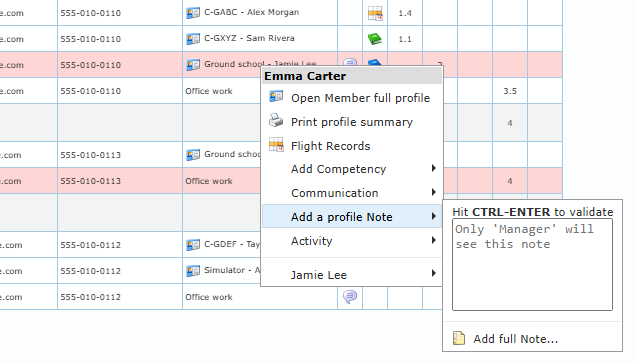
- Click in the box and type the note.
- Press CTRL + ENTER (hold the Ctrl key and press Enter) to save it. The menu closes and the note is added to the member’s profile.
- To leave without saving, press Esc or click elsewhere on the page.
Full note
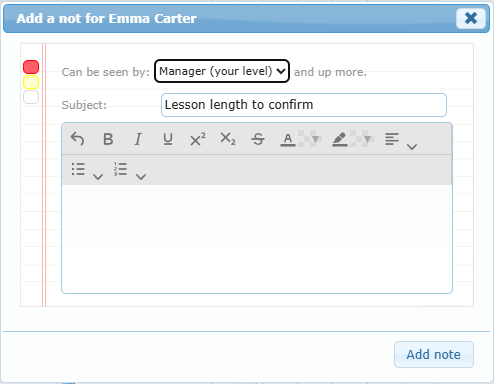
Choose Add full Note… under the quick note box when you need a subject, formatting or a different level of confidentiality.
| Field | What it does |
|---|---|
| Coloured squares (left) | Set the category of the note: red for Important, yellow for Warning, white for No category (the default). |
| Can be seen by | Chooses the lowest level that can read the note. Everyone at that level and above can read it. Your own level is selected by default. |
| Subject | A short title shown in the list of notes. |
| Text area | The note itself. Use the toolbar for bold, lists or colours if needed. |
| Add note | Saves the note in the member’s profile. Close the window with the X to leave without saving. |
Good practice: write notes as facts (who, what, when) rather than opinions. Notes stay in the member’s profile and can be read by every authorised colleague at the chosen level.