
Published 26 October 2026, Updated 26 October 2026
Part of the Activities Center guide.
Accounting administrators only. The activity codes define what members can declare (flight instruction, ground course, office work…) and how it is counted (hours or units). Changing them affects future entries, the activity columns of the lists, the reports and the Dashboard. Agree on any change with payroll before adding, renaming, hiding or retiring a code.
Open the list of activity codes
Click the Manage activity code button (tag icon) at the bottom of the Current or Accepted list. The button is shown only to accounting administrator profiles.
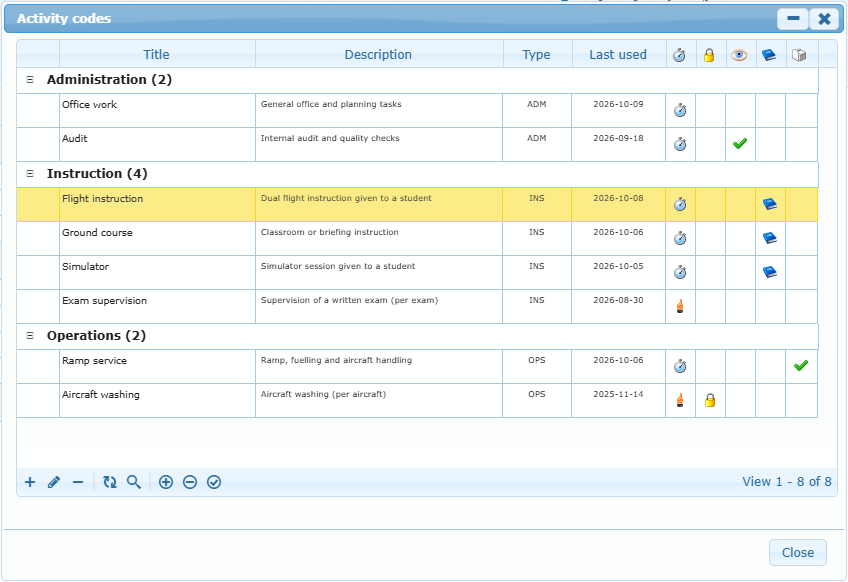
Reading the list
| Column | Meaning |
|---|---|
| Title | The name members choose when they add an activity. It is also the title of the activity column in the lists. |
| Description | A plain explanation of when to use the code. |
| Type | The accounting category of the code. The type also decides whether the code is counted in hours or in units. |
| Last used | The date of the most recent activity using the code. A code unused for a long time may be a candidate for retirement. |
| Stopwatch / hand | Stopwatch: counted per hour. Pointing hand: counted per unit (for example per aircraft washed or per exam). Units are reported separately from hours. |
| Padlock | The code is inactive: it is kept for history but can no longer be used for new activities. Click the cell to switch between active and inactive. |
| Eye | The code is hidden from the choices members see when they add an activity themselves, but it stays active (useful for codes filled in automatically by courses or punches). Click the cell to hide or show it. |
| Blue book | The code is used by a course lesson. |
| Punch icon | The code is used by an active Clock Puncher event. |
Toolbar buttons
| Button | What it does |
|---|---|
| + | Add a new code. |
| Pencil | Modify the selected code. |
| − | Delete the selected code (see below). |
| Circular arrows | Refresh the list. |
| Magnifying glass | Show or hide the search boxes above the columns, to find a code by title, description, type or status. |
| Circled + | Add an activity group. |
| Circled − | Delete an activity group. A group can be deleted only when no code belongs to it. |
| Circled tick | Rename an activity group. |
Click Close at the bottom of the window when you have finished.
Add or modify a code
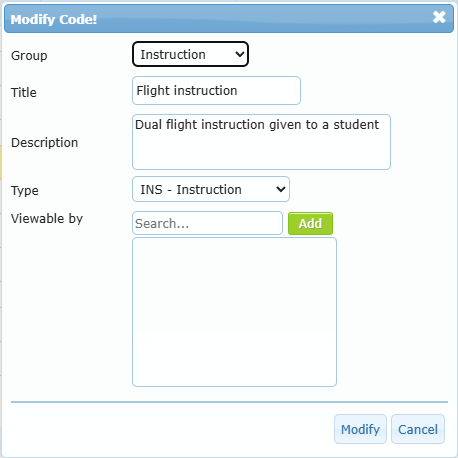
Click + for a new code, or select a code and click the pencil to change it.
| Field | What to enter |
|---|---|
| Group | The activity group the code belongs to. Groups organise the list and the Dashboard charts. |
| Title | A short, clear name, for example “Ground course”. |
| Description | One sentence explaining when to use the code. |
| Type | The accounting category. It decides whether the code is counted in hours or in units. |
| Viewable by | People with View only access to the Activities Center see only the lines of the codes that list them here. Search a name and click Add to add a person. Profiles allowed to validate activities always see every code. |
Click Modify (or the add button for a new code) to save, or Cancel to close without saving.
Delete, deactivate or hide a code
| You want to… | Do this | Result |
|---|---|---|
| Remove a code created by mistake and never used | Select it and click −, then confirm with Delete. | The code is permanently deleted. |
| Retire a code that was already used | Select it and click −, or click its padlock cell. | The code becomes inactive. AirSupervision explains: “This code has already been used! The system has set it as inactive instead of deleting it!” Its history stays in the reports. |
| Keep a code for courses or punches, but stop members from choosing it | Click its eye cell. | The code is hidden from the members’ own entry, but remains active. |
| Bring back a retired code | Click its padlock cell. | The code is active again. |
Example: your organization stops paying a separate rate for aircraft washing. Click the padlock of “Aircraft washing”. Past entries stay in the accepted periods and reports, but nobody can declare new ones.