
Published 26 October 2026, Updated 26 October 2026
Part of the Activities Center guide.
The right-click menu in a few words
Almost everything you do with a single activity line starts with a right-click. Place the mouse pointer on any line of the Current or Accepted list and press the right mouse button. A menu opens next to the pointer. Its title, in bold at the top, is the name of the member who owns the line, so you always know whose entry you are working on.
You do not need to select the line first. The menu always applies to the line you right-clicked. The only exception is the Selected items part of the menu, which applies to every line you have ticked.
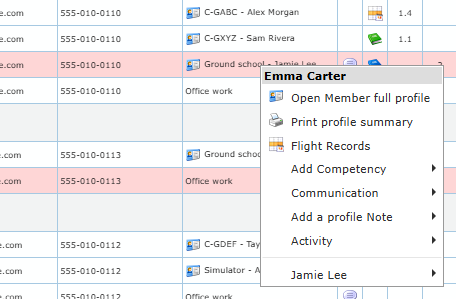
Tip: if the menu does not open, make sure you right-clicked on a line and not on a group heading (the grey line showing a member’s name and totals). On a laptop touchpad, a two-finger click usually acts as a right-click.
What each menu entry does
| Menu entry | What it is for | Details |
|---|---|---|
| Open Member full profile | Opens the member’s complete profile in a new window. | Member profile, notes and competencies |
| Print profile summary | Creates a printable summary of the member’s profile. | Same page as above |
| Flight Records | Opens the member’s flight records. Shown only when flight records are used by your organization. | Same page as above |
| Add Competency | Records a competency (training, rating, briefing…) for the member. | Same page as above |
| Communication | E-mail, internal message, SMS or phone call to the member. | E-mail, messages, SMS and calls |
| Add a profile Note | Writes a quick note or a full note in the member’s profile. | Member profile, notes and competencies |
| Activity | Correct, accept, put on hold, send back for validation, or read the history of this activity line. | Activity actions |
| Name of a second person | Appears when the line is linked to another person (for example a student or a client shown in the Summary). Gives access to that person’s profile, flight records and e-mail. | Member profile, notes and competencies |
| Selected items | Appears when several lines are ticked. Sends a message to all of them or changes their status in one go. | Working with several entries at once |
Why some entries are missing
The menu adapts itself to the line and to your access rights. It is normal that two colleagues, or two different lines, do not show exactly the same menu.
| You do not see… | Usual reason |
|---|---|
| Activity | Your profile can view the Activities Center but is not allowed to validate activities (“View only”). |
| Edit activity | You are in the Accepted tab. Corrections are made in Current only. Send the line back to validation first if it really must be corrected. |
| Set as accepted | The line is already accepted in a period. |
| Set in the waiting list for review | The line is already in the waiting list. |
| Flight Records | Flight records are not used by your organization. |
| An e-mail, SMS or call entry | The member has no e-mail address, cell number or phone number in the profile. |
| Selected items | Fewer than two lines are ticked. |
| A second person’s name | The activity is not linked to another person. |
The History entry is always listed, but the history itself is displayed only for accounting administrator profiles.
Pages in this chapter
- Member profile, notes and competencies – open or print the profile, flight records, the second person, competencies and notes.
- E-mail, messages, SMS and calls – contact the member without leaving the list.
- Activity actions: edit, accept, waiting list, validate and history – the day-to-day accounting decisions on one line.
- Working with several entries at once – accept, hold, validate or contact many lines in one operation.