Published 15 October 2026, Updated 15 October 2026
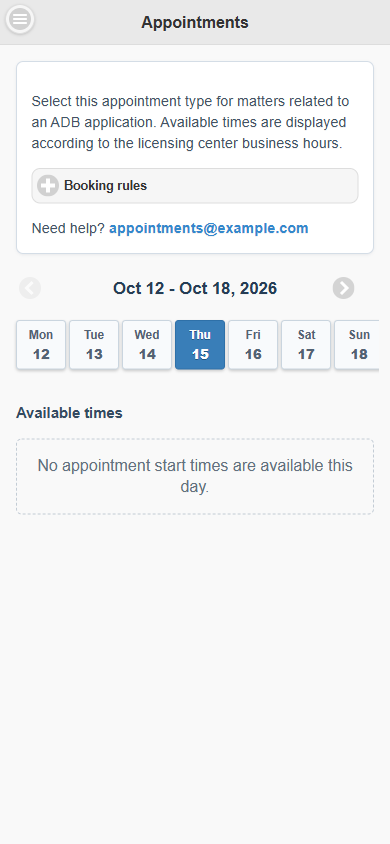
On a phone, open the mobile AirSupervision site and choose Appointments. The page title is Appointments.
| Step | What you see on a phone |
|---|---|
| Choose a type | When several types exist, a list titled What do you need to schedule? shows them with their duration, for example “(30 minutes)”. When only one type exists it is selected for you and its description is shown at the top. |
| Read the rules | Tap Booking rules to open the list of rules for the selected type, and use the contact link under Need help? if you have a question. |
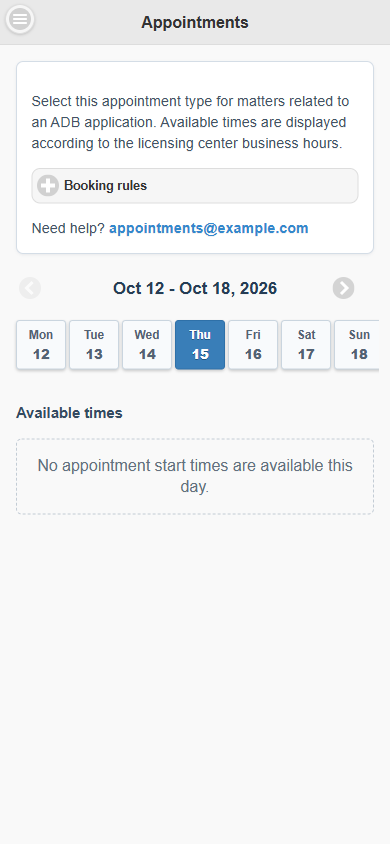
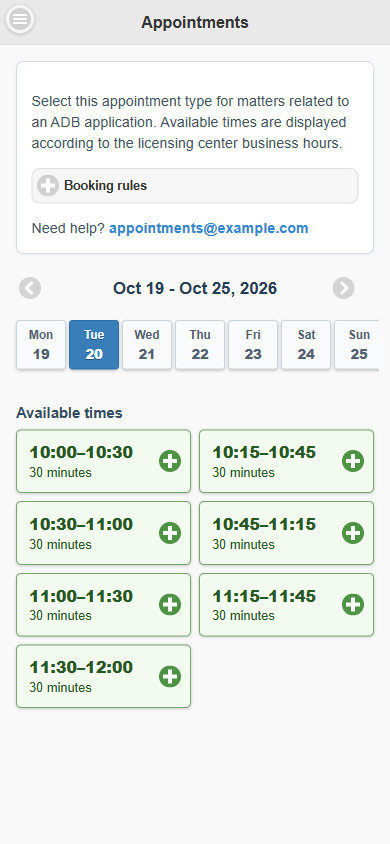
| Browse | Arrows to change week and a row of day buttons (Mon to Sun). Tap a day to see its free times, shown as for example “10:00–10:30, 30 minutes”. If a day has none, the page says No appointment start times are available this day. |
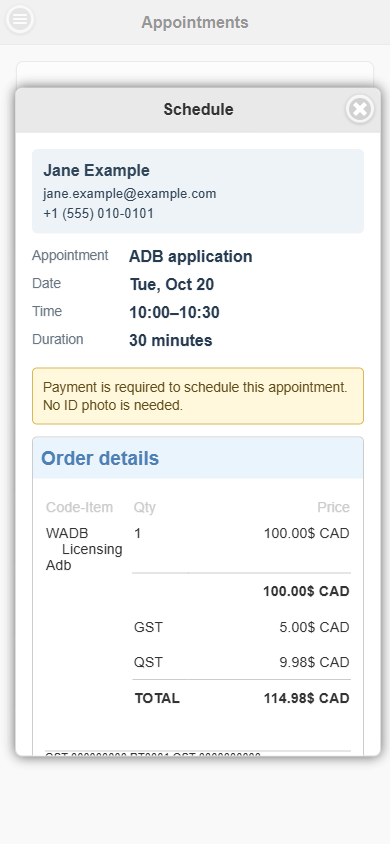
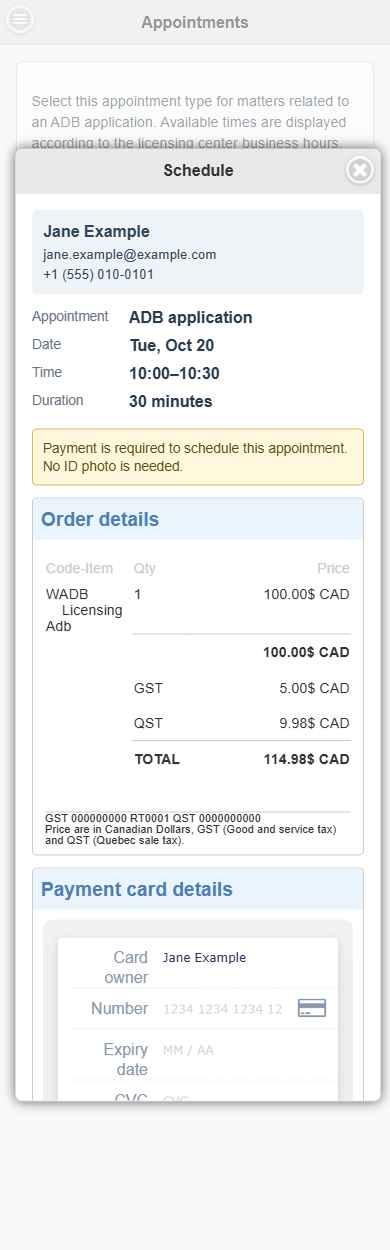
| Book | Tap a time. A Schedule window shows your name, email, phone and the appointment summary (Appointment, Date, Time, Duration). |
| Pay | When required, a notice says Payment is required to schedule this appointment. No ID photo is needed., followed by Order details and Payment card details. |
| Confirm | Tap Pay & Schedule (or Schedule when there is nothing to pay), or Back to return. |