Published 15 October 2026, Updated 16 October 2026
Choosing an appointment type
When the page opens, a window titled Choose an appointment type appears.
| Item | What it does |
|---|---|
| Appointment type list | Lists every kind of appointment you may book. Select one. |
| Short description | Appears under the list once you select a type and explains what the appointment is for. |
| Continue | Confirms your choice and opens the calendar. |
If only one type exists, it is selected for you and the window is skipped.
After you choose, the page shows the type name, a longer explanation above the calendar, and the rules for that type (see the list below). To switch type later, click Change application type at the top of the page.
Rules for each appointment type
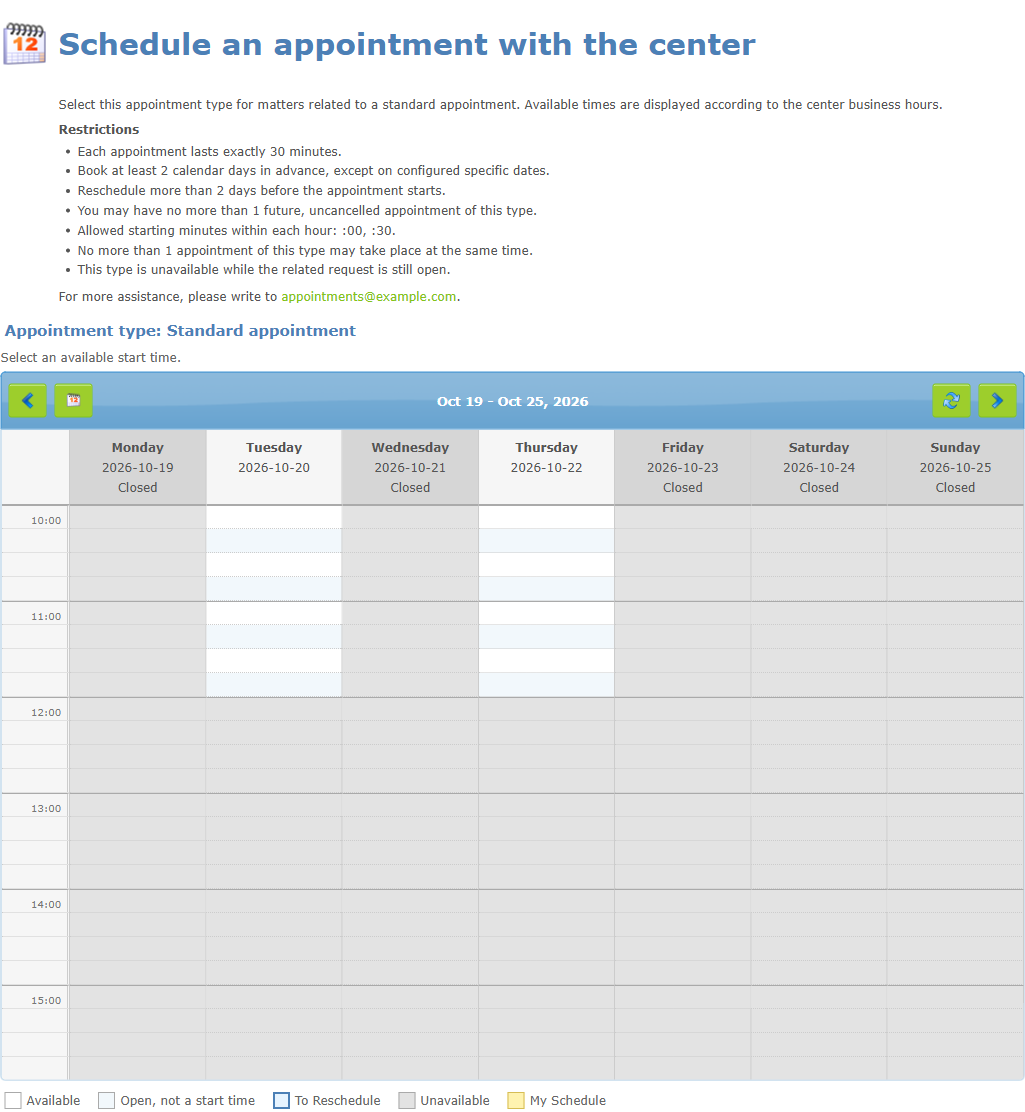
Each type shows its own rules. Typical rules are:
| Rule | What it means for you |
|---|---|
| Duration | Either every appointment lasts a fixed number of minutes, or you may book up to a maximum length. |
| Book in advance | You must book at least a number of days before the appointment. |
| Rescheduling limit | You may only move an appointment more than a number of days before it starts. |
| Maximum appointments | You may hold only a limited number of future, non-cancelled appointments of that type. |
| Allowed start times | Appointments can only start at certain minutes of the hour (for example :00 and :30). |
| Same-time limit | Only a limited number of people can book the same time. |
| Pending related request | Some types are unavailable while a related request is still open for you. |
Reading the weekly calendar
The calendar shows one week at a time. Each column is a day, each row a time. The current day is highlighted. Days that the center is closed are marked Closed.
Colour legend
| Legend entry | Meaning |
|---|---|
| Available | You can start an appointment here. Click it. |
| Open, not a start time | The center is open but an appointment cannot start at this exact time. |
| To Reschedule | Times you can choose while moving an existing appointment. |
| Unavailable | Not bookable (closed, outside the center’s hours or past). |
| Already scheduled | Taken by someone else. |
| My Schedule | Your own appointments. |
Hover over a cell to see a short explanation (for example “Already scheduled” or “Past time”). If you click a cell that cannot be booked, a notice explains why.
Moving between weeks
| Control | Action |
|---|---|
| Left arrow | Previous week (you can also press the left arrow key). |
| Calendar icon | Return to the current week. |
| Right arrow | Next week (or press the right arrow key). |
| Circular arrow | Refresh the calendar to see the latest availability. |
You cannot go beyond the farthest booking date set by the center, and you cannot go back to weeks that are already over.
What it looks like on a phone
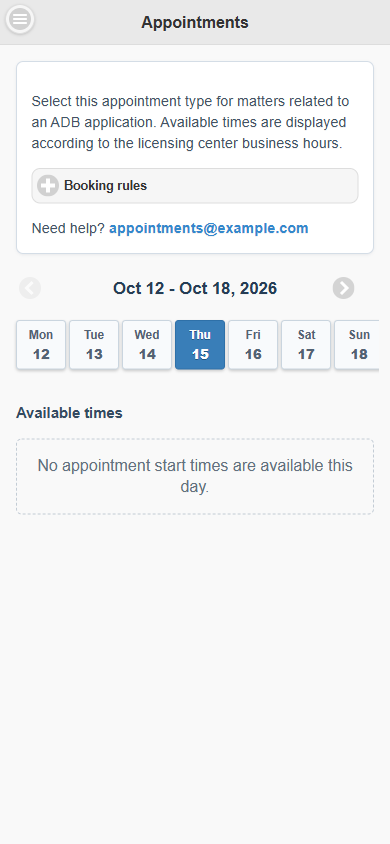
On the mobile version the page shows the description of the type, the Booking rules panel, the week and a row of day buttons.