
Published 10 October 2026, Updated 10 October 2026
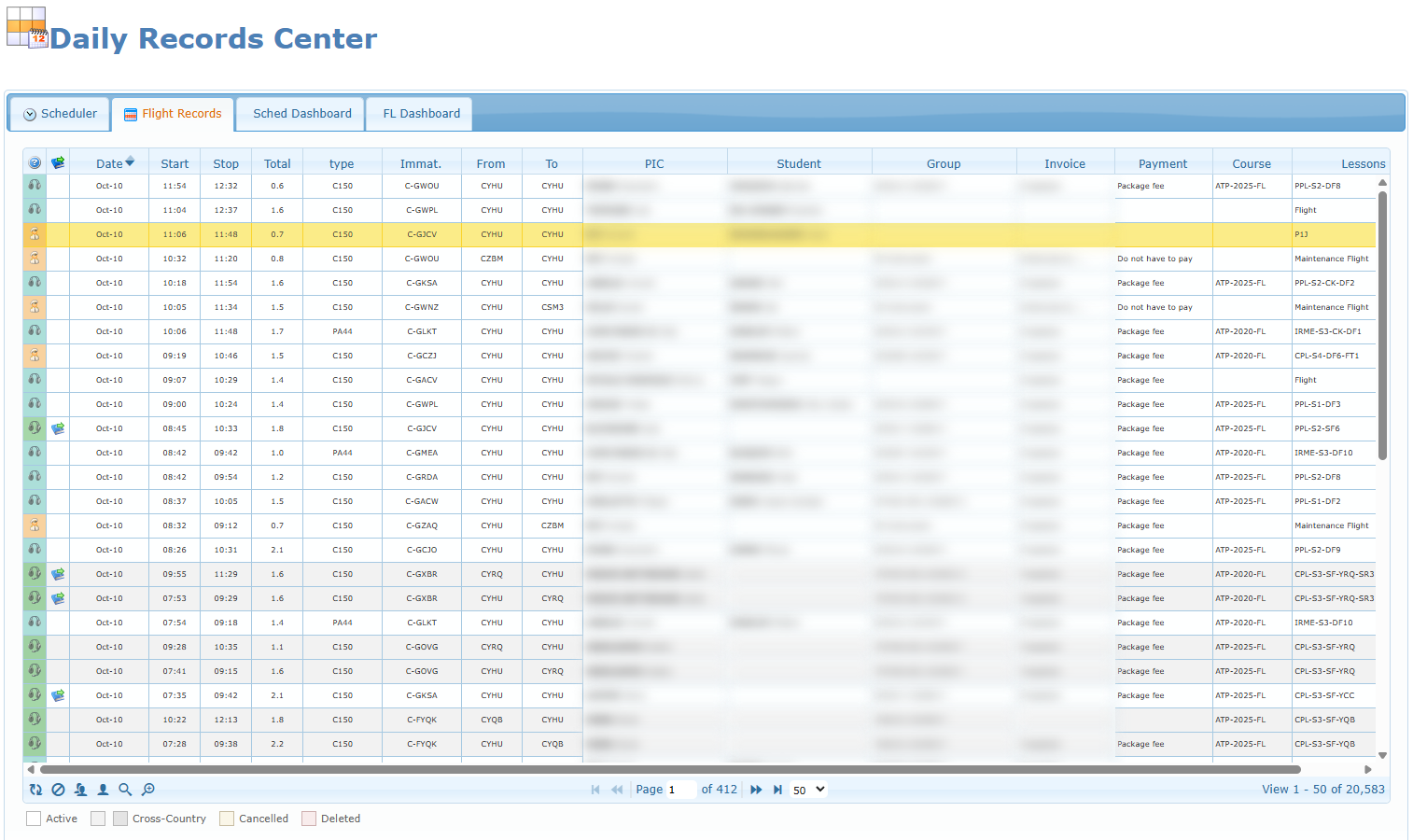
The Daily Records Center is a consultation and follow-up page for everything that has been planned in the Scheduler and everything that has been completed in the Flight Records. It lets office staff, accounting staff and quality staff search through the scheduled movements and the closed flight records, open the full detail of any movement, check routes on a map, add invoice and payment references, and follow activity statistics.
The page does not create, dispatch or close flights: that work is still done in the Flight Dispatcher. The Daily Records Center is where you find, check and complete the information afterwards.
Who can open the page
You can open the page if at least one of these permissions has been given to you by your administrators:
| Permission | What you get on the page |
|---|---|
| Flight Dispatcher (flight records) | Scheduler tab and Flight Records tab, in read-only mode. |
| Accounting (administrator, supervisor or user) | Flight Records tab with the right to fill in the Invoice and Payment columns. The Scheduler tab is shown only if you also have the Flight Dispatcher or quality permission. |
| Quality (quality user, quality administrator or designated quality supervisor) | Every tab, including the two dashboards, plus the option to show cancelled and deleted flight records. |
| High-level administrator | The two dashboards are also available. |
If you have none of these permissions, the page sends you back to the “no access” page. If a tab, button or menu entry described in this article is missing, the option is not part of your permissions or is not enabled for your organization.
The tabs of the page
| Tab | What it contains | Who sees it |
|---|---|---|
| Scheduler | Every scheduled movement from today onward (or any period you choose), with its people, resource, lesson, note and cancellation status. | Everyone except users who only have accounting rights |
| Flight Records | Every completed (returned) and non-cancelled flight record, with times, aircraft, airports, people, invoice and payment. | Everyone who can open the page |
| Sched Dashboard | Statistics on scheduled movements: volumes, hours, cancellations, transfers to flight records. | Quality staff and high-level administrators |
| FL Dashboard | Statistics on completed flight records: volumes, hours by activity, monthly trends, aircraft usage. | Quality staff and high-level administrators |
The dashboards only load when you open their tab for the first time, so the page itself stays fast.

Activity types and icons
Both grids show the same activity icons in their first column. The coloured background behind the icon uses the colour set for that activity in your organization’s Scheduler.
| Activity | Meaning |
|---|---|
| Training | Dual instruction with an instructor and a student. |
| Training – Solo (shown as Solo) | A student flying alone under instructor authorization. |
| Renting | A member renting an aircraft as pilot in command. |
| Internal | Internal flights (staff, ferry, maintenance test and similar). |
| Ground | Ground lessons, briefings, simulator or classroom sessions. |
| Other | Any other activity. |
| Unavailable | Shown only in scheduled movement details: a period blocked for a person or a resource. |
Flight Records tab
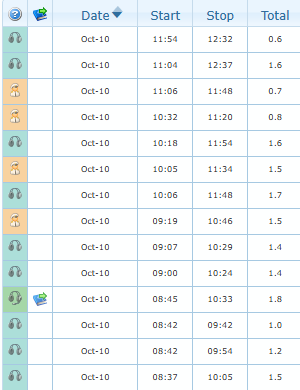
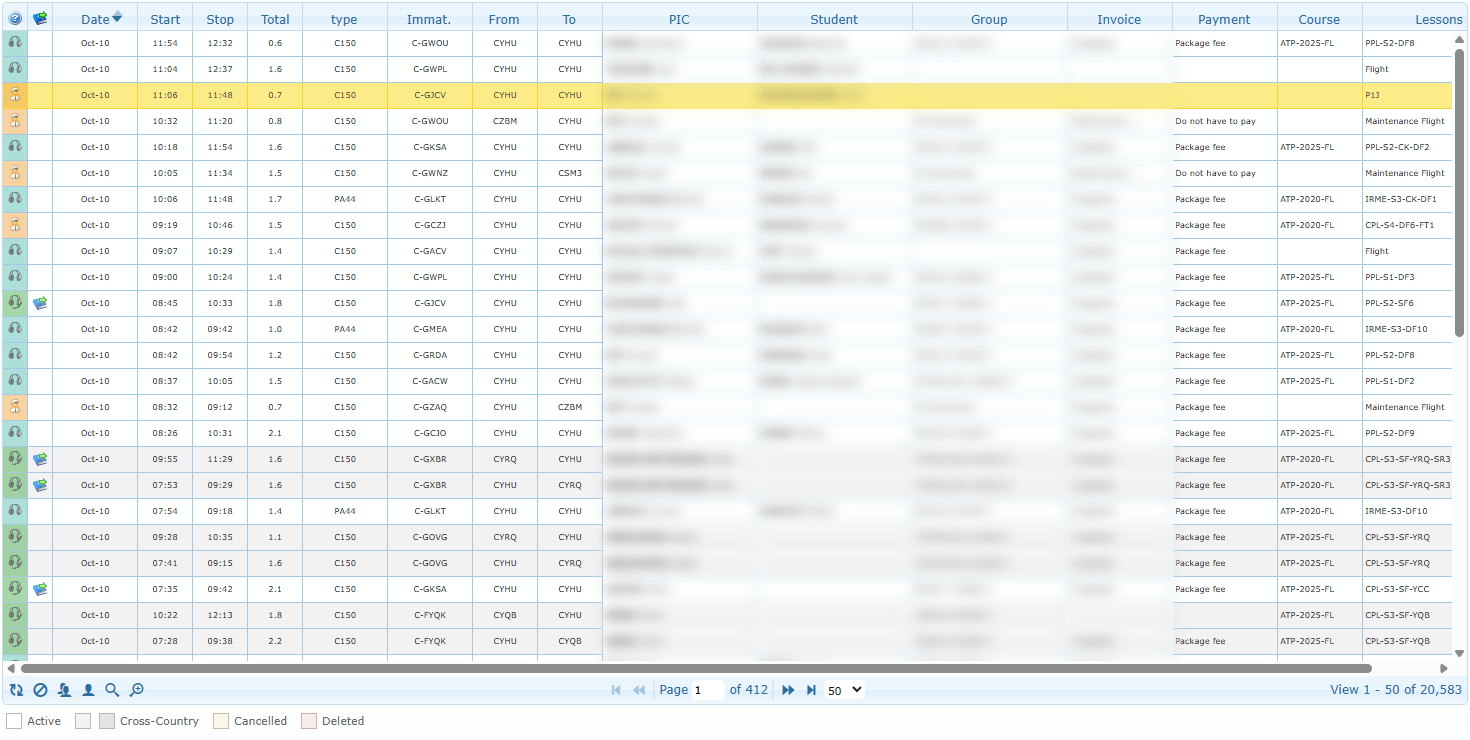
The Flight Records tab lists every flight record that has been completed (the ramp-in has been recorded) and not cancelled. The newest records appear first. By default 50 records are shown per page.
Columns
| Column | What it shows |
|---|---|
| Activity icon | The activity type. Hover over it to see the activity, the ramp-out and ramp-in times and who recorded them. For cancelled or deleted records the tooltip also shows the status, the record reference, the activity date, when and by whom it was cancelled and the reason. Right-click it to open the movement menu (see below). |
| Lesson icon (blue book) | A book appears when the flight record is linked to a lesson of a training record. |
| Date | Date of the activity. Dates of the current year are shown as month-day (for example Oct-10); older dates include the year. |
| Start | Engine start (or activity start) time. |
| Stop | Engine off (or activity end) time. |
| Total | Total recorded time in hours, with one decimal. |
| type | Aircraft or resource type. |
| Immat. | Registration of the aircraft or name of the resource. |
| From / To | Departure and arrival airport codes. Hover over a code to see the full airport name. |
| PIC | Pilot in command or instructor. The last name is in bold. Hover to see the member card; right-click for the member menu. |
| Student | Student or second member, same behaviour as PIC. |
| Group | Group of the student (or of the PIC when there is no student). |
| Invoice | Invoice reference(s). Editable by accounting staff. |
| Payment | Payment type. Editable by accounting staff. |
| Course | Course of the linked lesson, if any. |
| Lessons | Lesson title(s) recorded on the flight record. |
Click a column header to sort by that column; click again to reverse the order.
Row colours
The legend under the grid explains the row colours.
| Colour | Meaning |
|---|---|
| White – Active | A normal, completed flight record. |
| Light grey / dark grey – Cross-Country | Records belonging to the same trip (several legs created together, for example a cross-country flight with intermediate stops). Consecutive trips alternate between light and dark grey so you can see where one trip ends and the next begins. |
| Cancelled colour | A flight record that was cancelled. Visible only to quality staff when cancelled and deleted records are shown. |
| Deleted colour | A flight record that was deleted and archived. Visible only to quality staff when cancelled and deleted records are shown. |
Cancelled and deleted rows are for consultation only: they cannot be edited.

Buttons at the bottom of the grid
| Button | What it does |
|---|---|
| Refresh (circular arrows) | Reloads the list, goes back to page 1 and switches off the Dual/Solo filters. Your search filters are kept. |
| Show cancelled and deleted records (circle with a bar) | Quality staff only. Adds cancelled records and archived deleted records to the list. The button stays highlighted while active; click it again (Hide cancelled and deleted records) to go back to active records only. |
| Show only dual (two people) | Shows only records with both a PIC and a student. Click again to switch it off. |
| Show only Solo (one person) | Shows only records with a PIC and no student. Click again to switch it off. Dual and Solo cannot be active at the same time. |
| Toggle Search Toolbar (magnifier) | Shows or hides the search row under the column headers. Hiding the toolbar clears all its filters. |
| Advanced search… (magnifier with +) | Opens the advanced search window. |
| Rows per page | Choose 10, 20, 30, 50, 100, 150, 200, 300, 400 or 500 records per page. |

Searching with the search toolbar
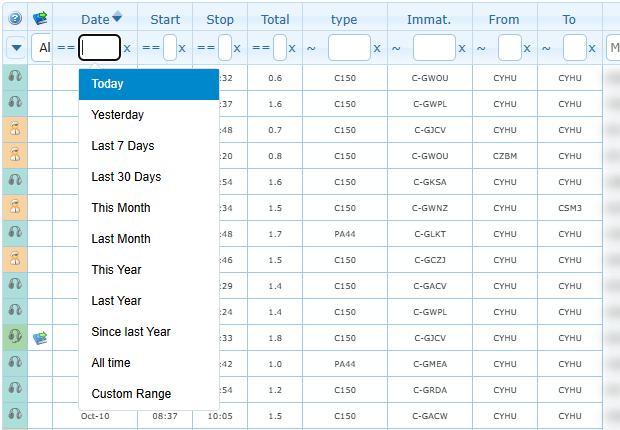
Click the magnifier button to show the search row. The list is filtered as you type; you do not need to press Enter. Most text columns have a small operator selector in front of the field:
| Operator | Finds records where the value… |
|---|---|
| contains / does not contain | includes (or does not include) the text |
| equal / not equal | is exactly (or is not) the text |
| begins with / does not begin with | starts (or does not start) with the text |
| ends with / does not end with | ends (or does not end) with the text |
| is empty / is not empty | has no value / has any value |
| less, less or equal, greater, greater or equal | Start, Stop, Total and Date only: compares numbers, times or dates |
Special search fields:
| Field | How to use it |
|---|---|
| Activity | Tick one or more activities. All and None links tick or untick the whole list. |
| Lesson icon | Choose All, Is linked or Not linked. |
| Date | Click the field to open a calendar. Pick a preset (Today, Yesterday, Last 7 Days, Last 30 Days, This Month, Last Month, This Year, Last Year, Since last Year, All time) or select a start and end day, then click Filter. Future dates cannot be selected. |
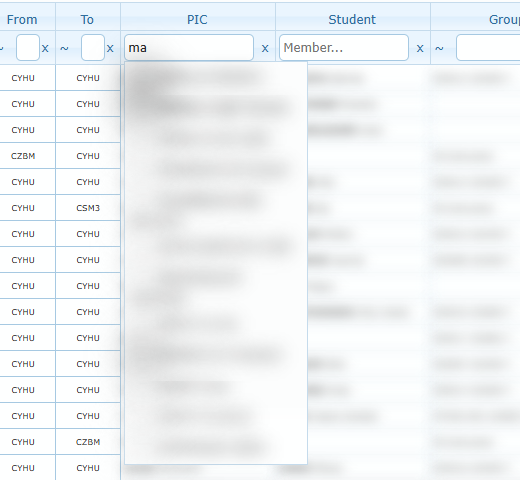
| PIC / Student | Type at least two letters, then pick the member (or group) in the suggestion list. The list is filtered immediately on that exact member. Choosing a group shows the records of every member of that group. |
To remove a filter, clear its field (or click the small x next to it). To remove every filter at once, hide the search toolbar.
Advanced search
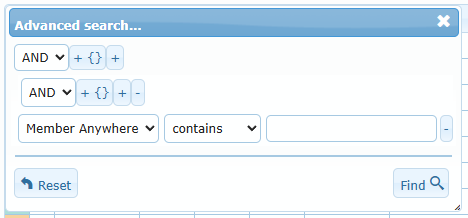
Advanced search… opens a window where you can combine several conditions:
- Choose AND (all conditions must match) or OR (any condition may match).
- Click + to add a condition, choose the column, the operator and the value.
- Click Add group to create a sub-group with its own AND/OR choice, for example “Renting AND (aircraft A OR aircraft B)”. Delete group removes a sub-group.
- Click Find to apply, or Reset to start again.
The advanced search offers one extra field, Member Anywhere: it finds records where the name (or part of the name) appears as PIC or as student, and also matches group names. Use it when you want every flight of one person regardless of their role.
When to use it: “All training flights of member X in March that are not yet invoiced” — add Member Anywhere contains X, Activity = Training, Date range for March and Invoice is empty.
Filling in invoice references and payment types
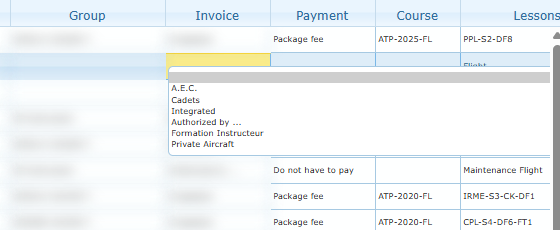
If you have accounting rights, the Invoice and Payment cells of active records can be edited directly in the grid.
- Click the Invoice or Payment cell of a record.
- Invoice: pick one of your organization’s predefined invoice references from the list, or type your own reference. Payment: pick a payment type in the list, or None to clear it.
- Press Enter (or click outside the cell).
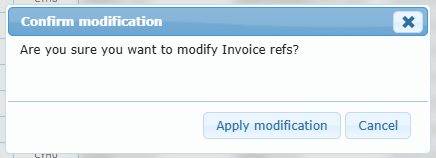
- The Confirm modification dialog asks “Are you sure you want to modify Invoice refs?” (or Payment type). Click Apply modification to save, or Cancel to keep the previous value.
The grid then reloads on the same page. Each change is stamped with your name and the date, and is added to the record’s history (“Invoice refs modified” or “Payment type modified”). The latest values and date are visible in the Accounting tab of the movement details.
| Rule | Message you may see |
|---|---|
| Maximum 20 characters | The value cannot exceed 20 characters. |
| Payment type must be one of the configured types | Invalid payment type. |
| The record must still be active and completed | Flight record not found. |
| No change made | Nothing happens; no confirmation is asked. |
If saving fails, an Unable to save dialog explains why. Cancelled and deleted records can never be edited.
Right-click menu of a flight record
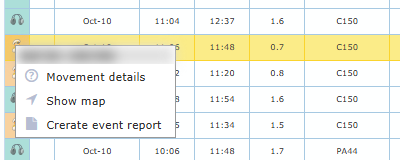
Right-click the activity icon (first visible column) of any row. The record is selected and a menu opens; its header shows the record reference (Ref ID).
| Menu entry | What it does |
|---|---|
| Movement details | Opens the full detail of the movement (see below). Works for active, cancelled and deleted records. |
| Show map | Opens the route map of the movement. |
| Create event report | Opens a new event report in a new browser tab, already linked to this flight record. Shown only if you are allowed to create event reports, and not for deleted records. |
The Movement details window
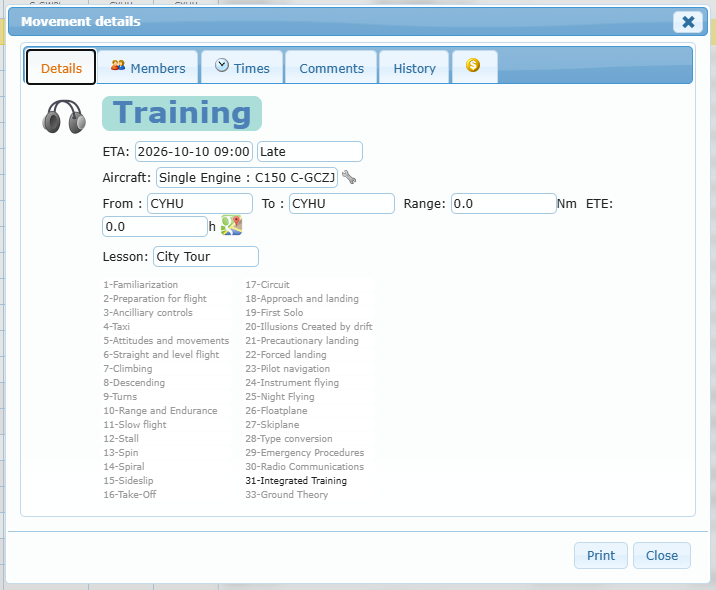
The Movement details window shows everything recorded for one movement. It has up to six tabs and two buttons: Print (opens a printable sheet of the movement in a new tab) and Close.
| Tab | What you see |
|---|---|
| Details | Activity title, ETA, Aircraft (type and registration — click the wrench icon for more details on the aircraft), From / To airports, Range in nautical miles and ETE in hours, a map icon to open the route map, the Lesson title (click the blue book to open the lesson sheet) and, for training and ground activities, the list of planned exercises. |
| Members | The movement status and one card per person (see below). |
| Times | All recorded times and durations (see below). |
| Comments | Comment entered when the movement was created, comment entered at ramp-in, and the departure and arrival METAR. |
| History | Every action performed on the record, with date and author. |
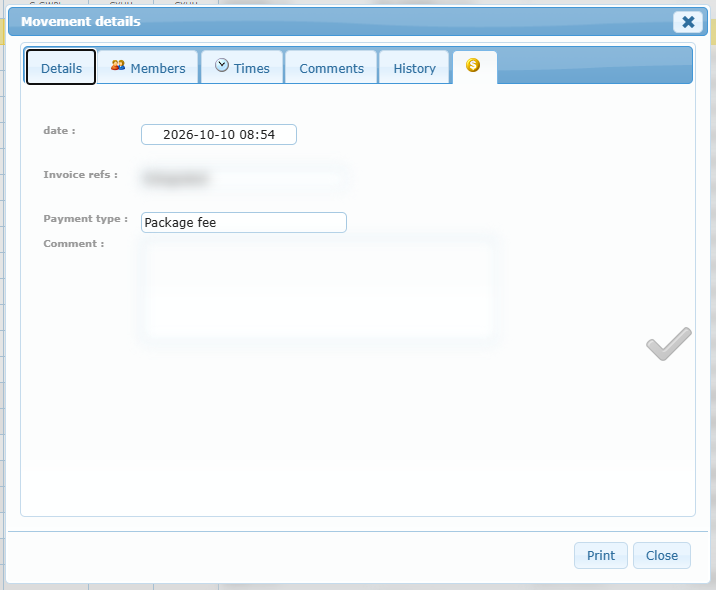
| Accounting ($ icon) | Date of the last accounting update, invoice references, payment type and accounting comment. A green check mark in the corner means the accounting has been verified. Shown only if your organization displays accounting information. |
Exercises (Details tab): exercises planned for the lesson are highlighted. An exercise that was planned but not done is struck through. An exercise done but not planned is shown with a + in front of it.
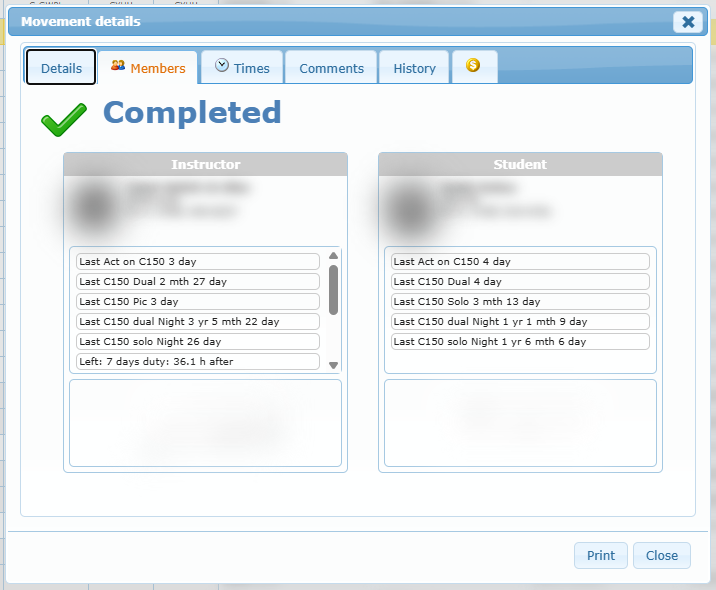
Members tab: the status line at the top shows where the movement stands — Ready to Acknowledge, Time to go, In movement, After return or Completed. Each card (Instructor, Student, PIC, Member or Authorization, depending on the activity) shows the photo, name, licence number, phone numbers, qualifications and the signature.
| Qualification label | Meaning |
|---|---|
| Missing: | A required qualification is missing. |
| Expired: | A required qualification has expired. |
| Last | Date of the last occurrence (for example the last flight). |
| Having: | A qualification the member holds. |
| Left: | Remaining quantity or time. |
| Role: | A role held by the member. |
A card framed in red indicates a blocking condition for that person at the time of the movement. The Authorization card shows who authorized a renting or solo movement; Signature required means it was not signed.
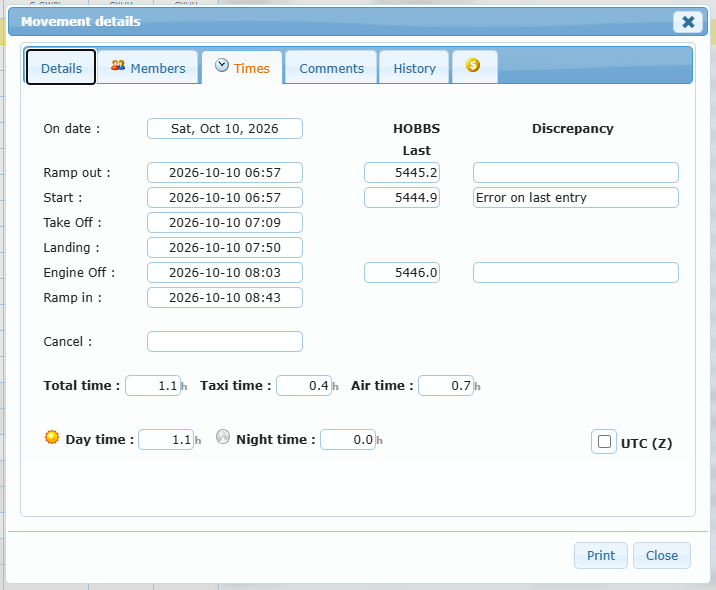
Times tab: shows the date, Ramp out, Start, Take Off, Landing, Engine Off, Ramp in and Cancel times; the HOBBS readings (last, at start, at engine off) with any Discrepancy reason; and the Total, Taxi and Air times, split into Day and Night time. Tick UTC (Z) to display the times in UTC. For ground and other non-flight activities, the flight-only lines are hidden and the labels become Initiate, End and Over.
The route map
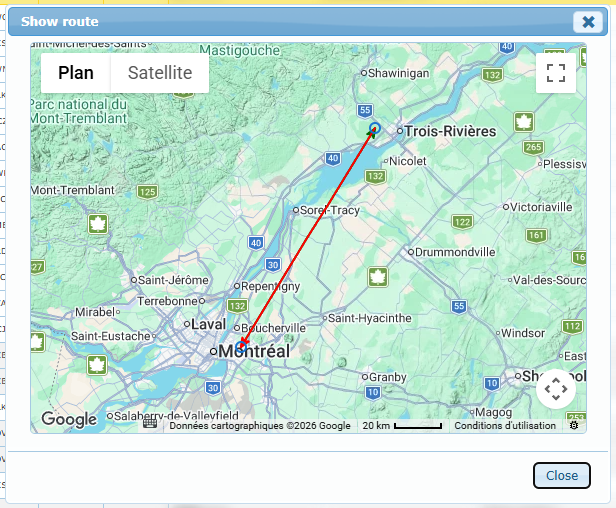
Show map (from the right-click menu, the Details tab or a scheduled movement) opens a Show route window with the airports and the route drawn on a terrain map.
- Each airport is a small blue circle. Click it to see the airport name and, for a recorded flight, the Total time (taxi included) of the trip and the time of each leg.
- The current leg is drawn in red. Other legs of the same trip are drawn in green.
- If no coordinates are known for the airports, the window says No airport coordinates are available for this route.
Scheduler tab
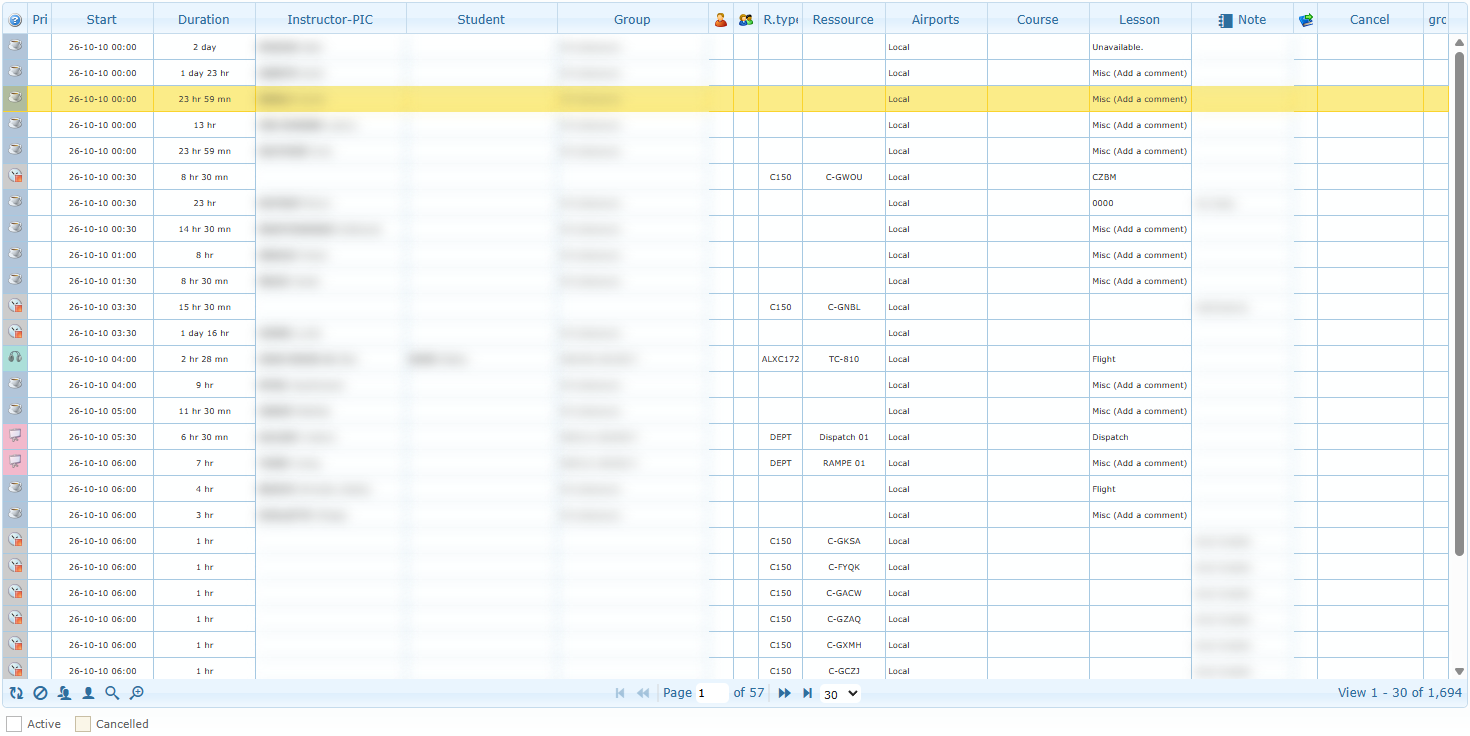
The Scheduler tab lists the movements planned in the Scheduler. It opens on the scheduled movements from today onward, with cancelled schedules hidden. 30 movements are shown per page (10 to 200 available). This tab is read-only: to plan or modify a movement, use the Flight Dispatcher.
Columns
| Column | What it shows |
|---|---|
| Activity icon | Activity type with its colour. |
| Prio | Follow-up priority 1 to 4 of the student, shown as a coloured badge. |
| Start | Planned start date and time. |
| Duration | Planned duration. |
| Instructor-PIC / Student | People planned on the movement. Hover for the member card, right-click for the member menu. |
| Group | Group of the student or PIC. |
| Additional members (person icon) | Hover the icon to see how many additional members are planned and their names. |
| Additional groups (group icon) | Hover the icon to see the groups added and the total number of members in them. |
| R.type | Resource type (aircraft type, classroom…). |
| Ressource | Registration of the aircraft or name of the resource. |
| Airports | Planned airports. |
| Course / Lesson | Course and lesson planned, if any. Hover a long text to read it in full. |
| Note | Scheduler note. |
| Lesson icon (blue book) | The movement is related to a course lesson. |
| Cancel | Date and time of cancellation, if cancelled. |
| Sync icon (alarm clock) | The movement was created by the Group Scheduler. Hover to see the group scheduler project name. |
Cancelled movements are shown with the Cancelled row colour when you display them.
Buttons at the bottom of the grid
| Button | What it does |
|---|---|
| Refresh | Clears all search filters and the Dual/Solo filters, then reloads from page 1 (back to movements from today onward). |
| Show cancelled schedules (circle with a bar) | Adds cancelled movements to the list. The button stays highlighted; click Hide cancelled schedules to remove them again. |
| Show only dual / Show only Solo | Same as in the Flight Records tab: movements with both a PIC and a student, or with a PIC only. |
| Toggle Search Toolbar | Shows or hides the search row. |
| Advanced search… | Same advanced search window as in Flight Records, including Member Anywhere, Additional members and Additional groups. |

Searching scheduled movements
The search toolbar works like the one of the Flight Records tab, with these specific fields:
| Field | Choices |
|---|---|
| Activity and R.type | Tick one or several values. |
| Prio | All, Is set, Not set, Priority 1 to Priority 4. |
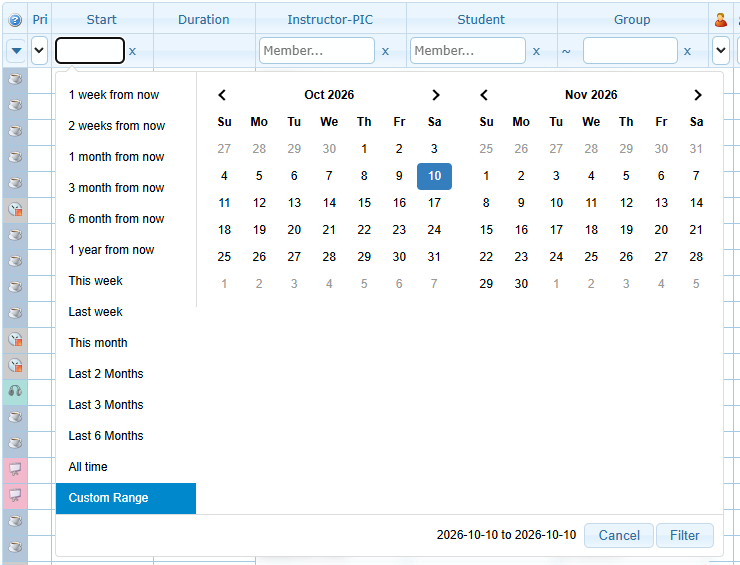
| Start | Calendar with future presets (1 week from now, 2 weeks from now, 1 month from now, 3 month from now, 6 month from now, 1 year from now) and past presets (This week, Last week, This month, Last 2/3/6 Months, All time). Choosing a Start range replaces the “from today onward” default, so this is how you look at past schedules. |
| Instructor-PIC / Student | Type two letters and pick a member or group in the list. |
| Additional members | All, Has members, Has no members. |
| Additional groups | All, Has groups, Has no groups. |
| Cancel | Pick a date range of cancellation, or use the operator is empty / is not empty. Remember to click Show cancelled schedules to see cancelled rows. |
| Sync icon | All, Is sync group scheduler, Is not sync. |
Example — “Which lessons were cancelled last month?” Click Show cancelled schedules, open the search toolbar, choose a Start range for last month and set Cancel to is not empty.
Scheduled movement details
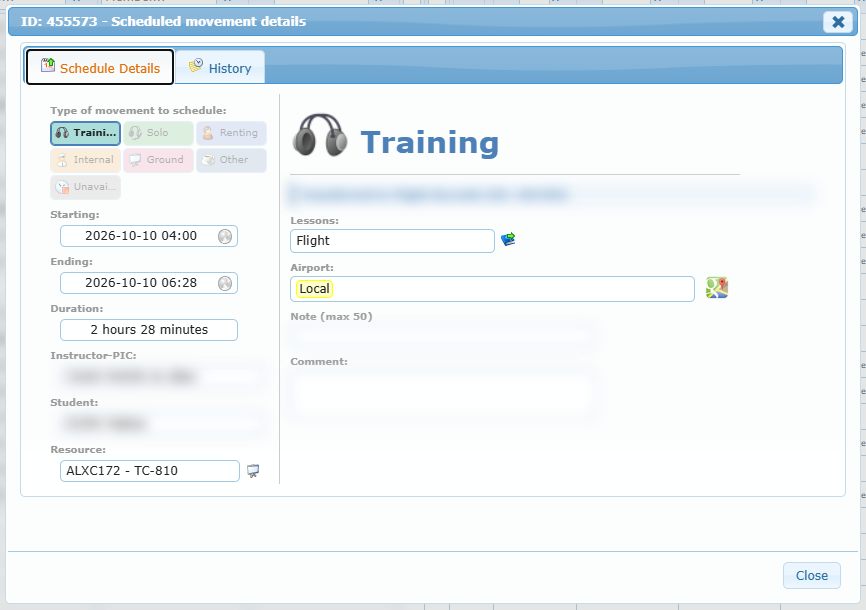
Right-click any row of the Scheduler grid and choose Movement details. A window titled ID: … – Scheduled movement details opens. It is for consultation only and closes with Close.
Schedule Details tab
| Area | What you see |
|---|---|
| Type of movement to schedule | All activity types, with the planned one highlighted. |
| Starting / Ending | Planned start and end, with a sun or moon icon for day or night. |
| Duration | Planned duration in days, hours and minutes. |
| Instructor-PIC / Student / Resource | Shown when planned. The resource icon tells you whether it is an aircraft or a classroom-type resource. |
| Status line | Cancelled on … by … – Reason: … for a cancelled movement, or Transferred to Flight Records (ID: …) once the movement has become a flight record. |
| Lessons | Planned lesson; click the blue book to open the lesson sheet. |
| Airport | Planned airports, or Local if none. Click the map icon to see them on the map. |
| Note | Scheduler note (the label shows the maximum number of notes allowed when your organization sets one). |
| Comment | Comment of the movement. |
| Additional participants | Additional members and groups. A member shown in red has another scheduled movement during the same period. |
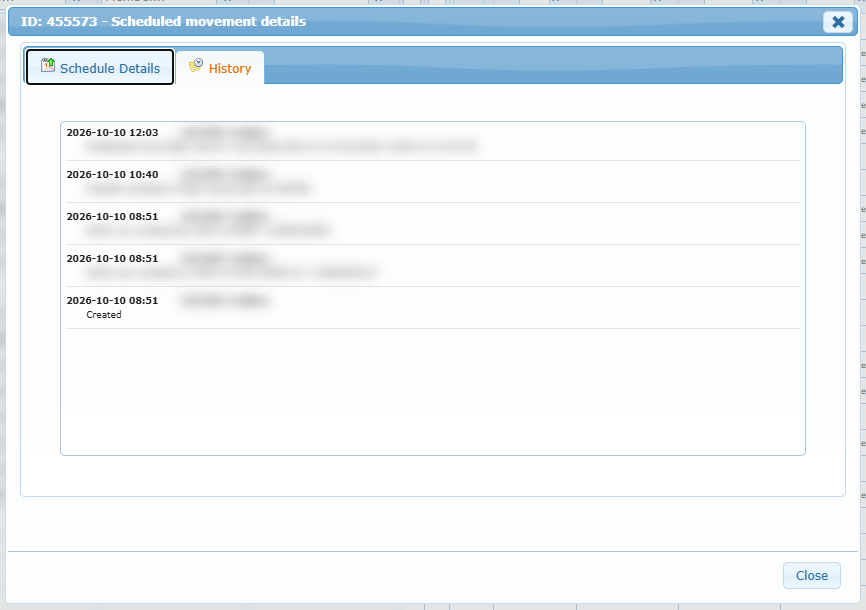
History tab: every change made to the scheduled movement, with date, author, action and details. No history is available. is shown when nothing was recorded.
Member right-click menu
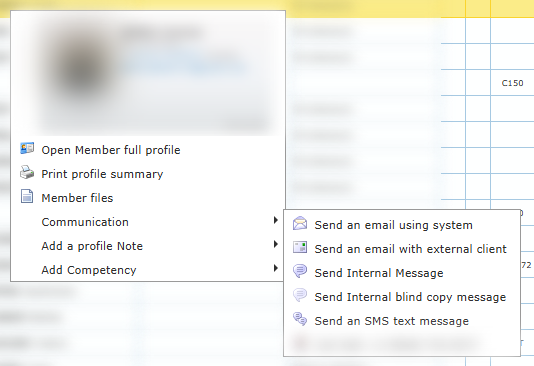
In both grids, right-click a name in the PIC / Instructor-PIC or Student column. The menu opens with the member’s card at the top (photo, name, group, phone and email). Click the card to open the member’s profile.
| Menu entry | What it does |
|---|---|
| Open Member full profile | Opens the member’s profile in a new tab. |
| Print profile summary | Opens a printable summary of the member’s profile in a new tab. |
| Member files | Opens the window listing the member’s files. |
| Communication › Send an email using system | Opens the email window with the member as recipient. You can add other recipients (type two letters in Add…), write the subject and message, choose the options (send me a copy, add my signature, send using my own email address, notify me when read) and drop files to attach them. Shown only if the member has an email address. |
| Communication › Send an email with external client | Opens your own email program. Shown only if the member has an email address. |
| Communication › Send Internal Message | Opens a new internal message to the member. |
| Communication › Send Internal blind copy message | Same, with the member as blind copy. |
| Communication › Send an SMS text message | Opens the SMS window. Shown only if a cell phone number is known. |
| Communication › Call Cell / Call Phone | Starts a call on devices that support it. Shown only if the number is known. |
| Add a profile Note | Type a quick note directly in the menu and press CTRL-ENTER to save it on the member’s profile. Add full Note… opens the complete note window (title, importance, visibility level). |
| Add Competency | Lists the competencies you are allowed to add from here. Choose one to open the Add a competency window, prefilled with today’s date. The entry is greyed out when no competency can be added from this page. |
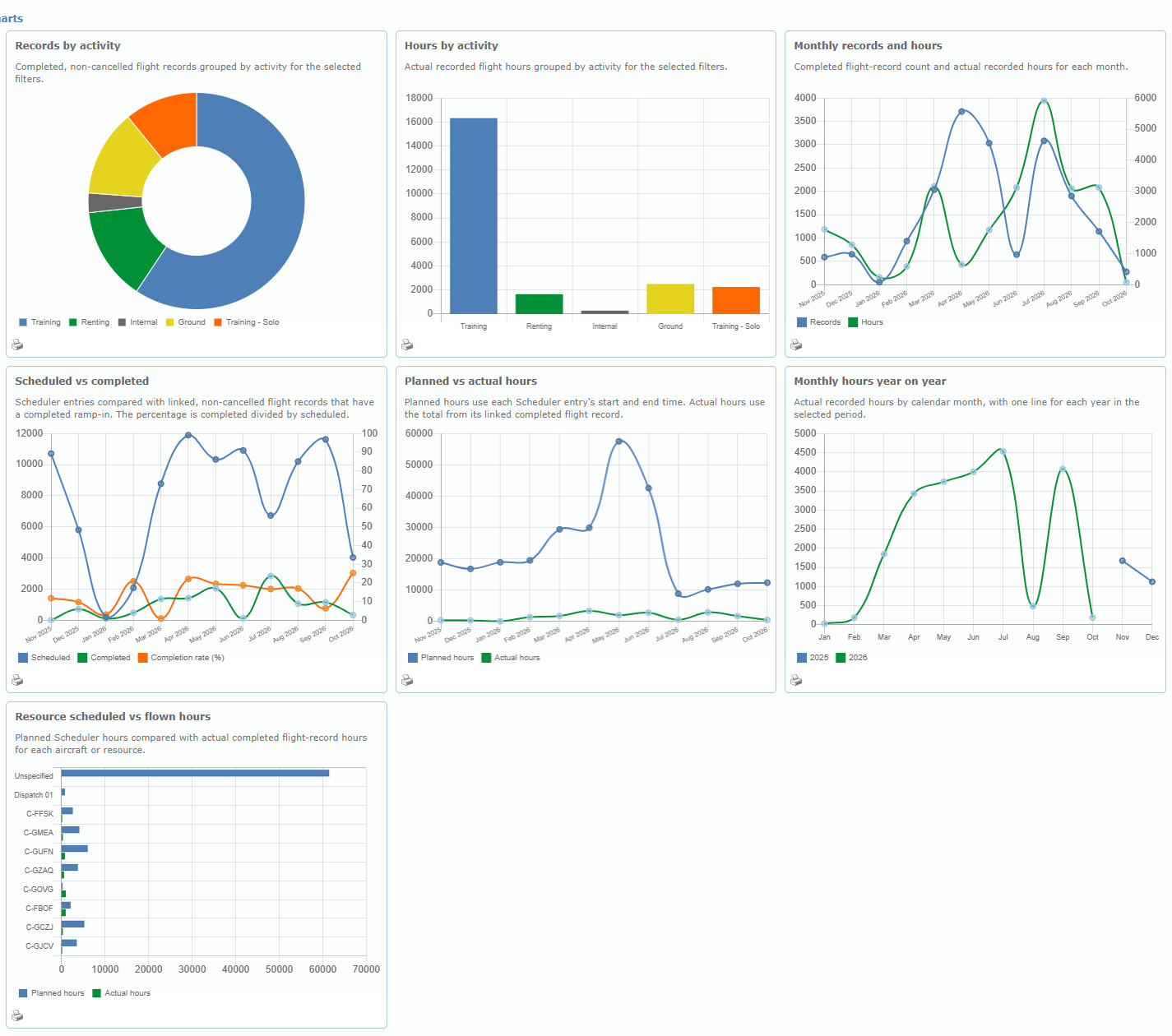
FL Dashboard (flight records statistics)
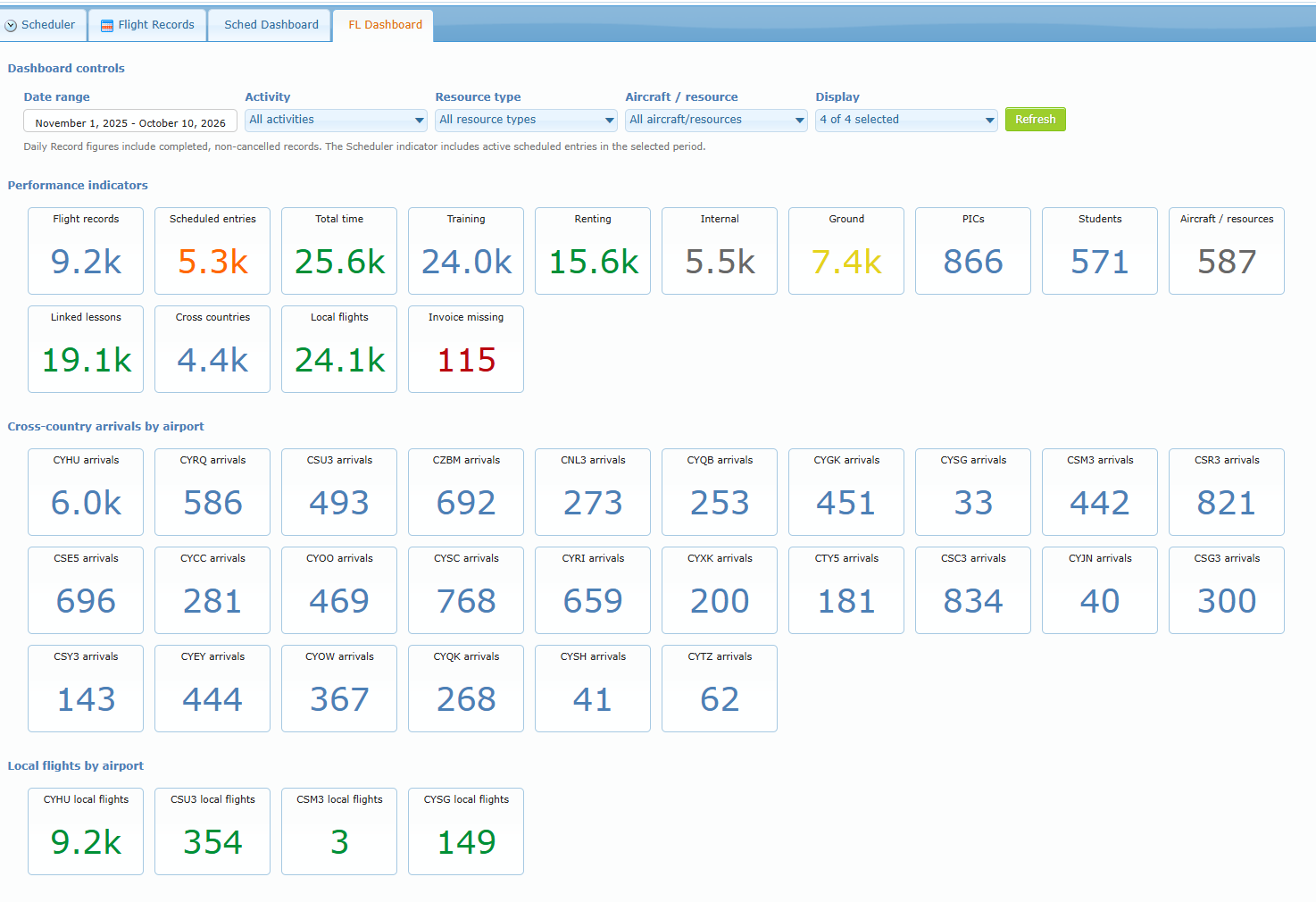
The FL Dashboard summarizes completed, non-cancelled flight records. It opens on the last 12 months (from the first day of the month eleven months ago until today).
Dashboard controls
| Control | What it does |
|---|---|
| Date range | Choose a preset (Today … All time) or a custom period, then click Filter. Periods longer than 10 years are shortened to 10 years. |
| Activity | Limit to one or more activities. |
| Resource type | Limit to one or more aircraft or resource types. |
| Aircraft / resource | Limit to one or more registrations. |
| Display | Choose which sections to show: Performance indicators, Charts, Resource detail, Unlinked lesson hours. |
| Refresh | Reloads the dashboard. |
Each list has a Search box. The dashboard reloads automatically when you close a list after changing it.
Performance indicators
| Box | Meaning |
|---|---|
| Flight records | Completed, non-cancelled records in the period. |
| Scheduled entries | Active Scheduler entries in the period (date, activity and aircraft filters apply). |
| Total time | Total recorded hours. |
| Training / Renting / Internal / Ground | Number of records per activity (Training includes solo training). |
| PICs / Students | Number of different PICs and students. |
| Aircraft / resources | Number of different registrations used. |
| Linked lessons | Records linked to a lesson. |
| Cross countries / Local flights | Records where departure and arrival differ / are the same. |
| Invoice missing | Completed records without an invoice reference (only when accounting is displayed). |
Two extra rows of boxes break down Cross-country arrivals by airport and Local flights by airport. Hover any box to read its definition.
Charts
Records by activity, Hours by activity, Monthly records and hours, Scheduled vs completed (with completion rate), Planned vs actual hours, Monthly hours year on year and Resource scheduled vs flown hours. Each chart has a short description above it and a printer icon below it to print that chart.
Tables
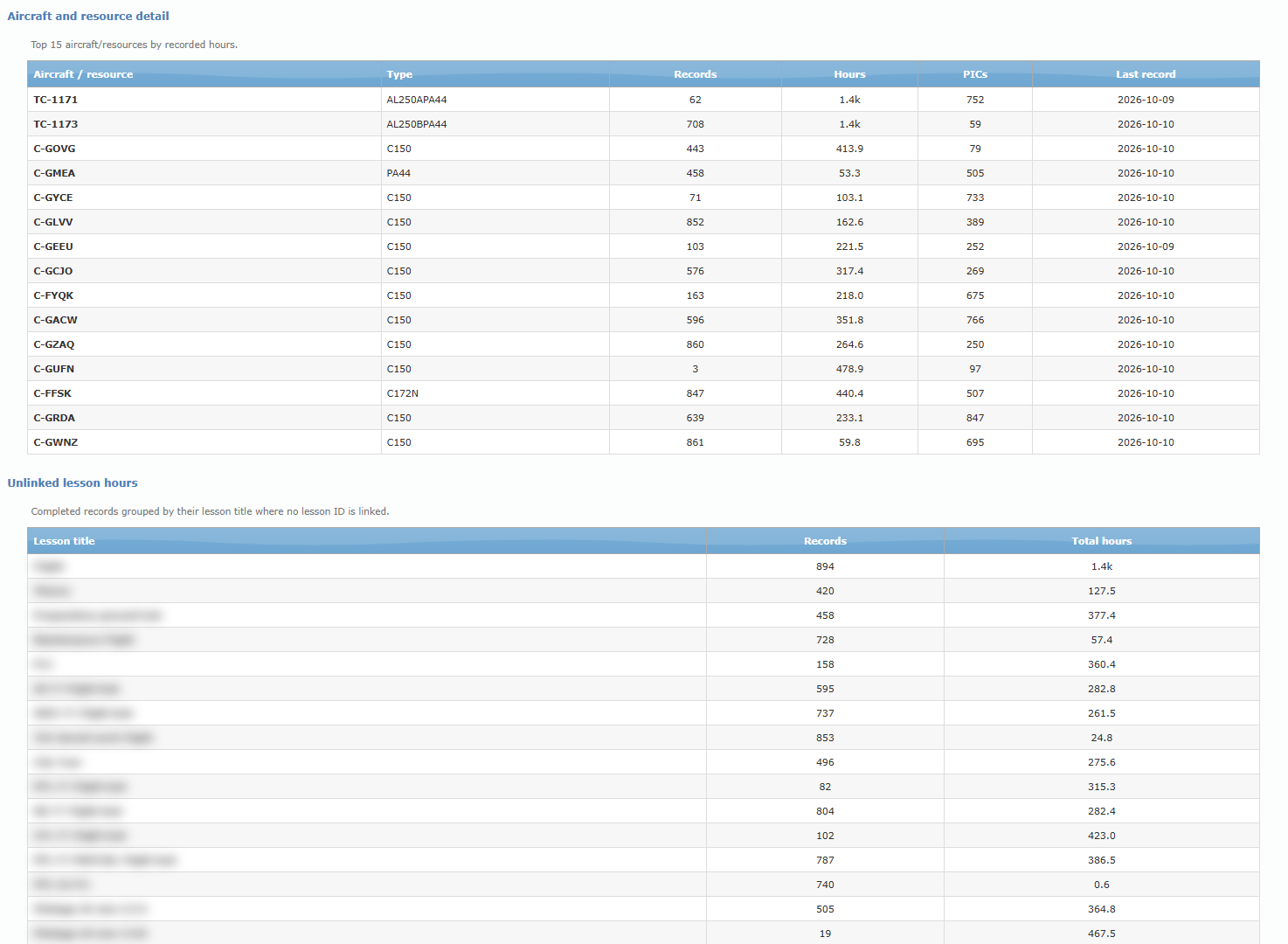
- Aircraft and resource detail: top 15 aircraft/resources by recorded hours, with type, records, hours, number of PICs and date of the last record.
- Unlinked lesson hours: completed records that carry a lesson title but are not linked to a training-record lesson, grouped by title with records and hours. Use it to find flights that still need to be linked to a student’s training record.
Sched Dashboard (scheduler statistics)
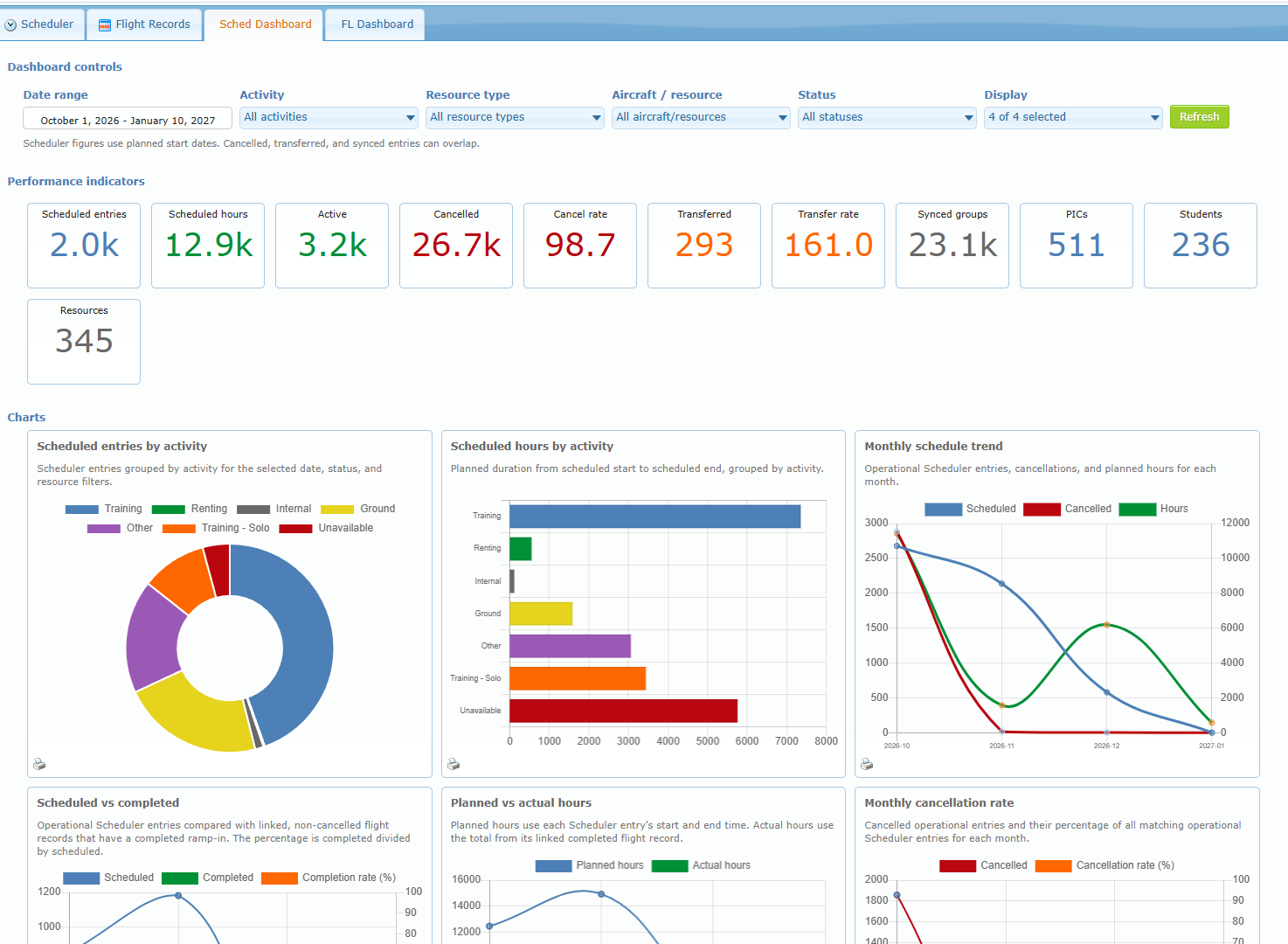
The Sched Dashboard summarizes the Scheduler using the planned start date. It opens on the period from the first day of the current month to three months ahead.
Dashboard controls
The same controls as the FL Dashboard (Date range with future presets such as Next 7 Days, Next 30 Days, Next Month, plus Activity, Resource type, Aircraft / resource, Refresh), with one extra filter:
| Control | Choices |
|---|---|
| Status | Active, Cancelled, Transferred to flight record, Synced group scheduler. Leave empty for all statuses. |
| Display | Performance indicators, Charts, Cancellation detail, Resource detail. |
Cancelled, transferred and synced entries can overlap: one movement can be counted in more than one of these statuses.
Performance indicators
| Box | Meaning |
|---|---|
| Scheduled entries / Scheduled hours | All entries starting in the period and their planned duration. |
| Active / Cancelled / Cancel rate | Entries not cancelled, cancelled, and the cancelled percentage. |
| Transferred / Transfer rate | Entries that became flight records, and their percentage. |
| Synced groups | Entries created by the Group Scheduler. |
| PICs / Students / Resources | Number of different people and registrations planned. |
Charts and tables
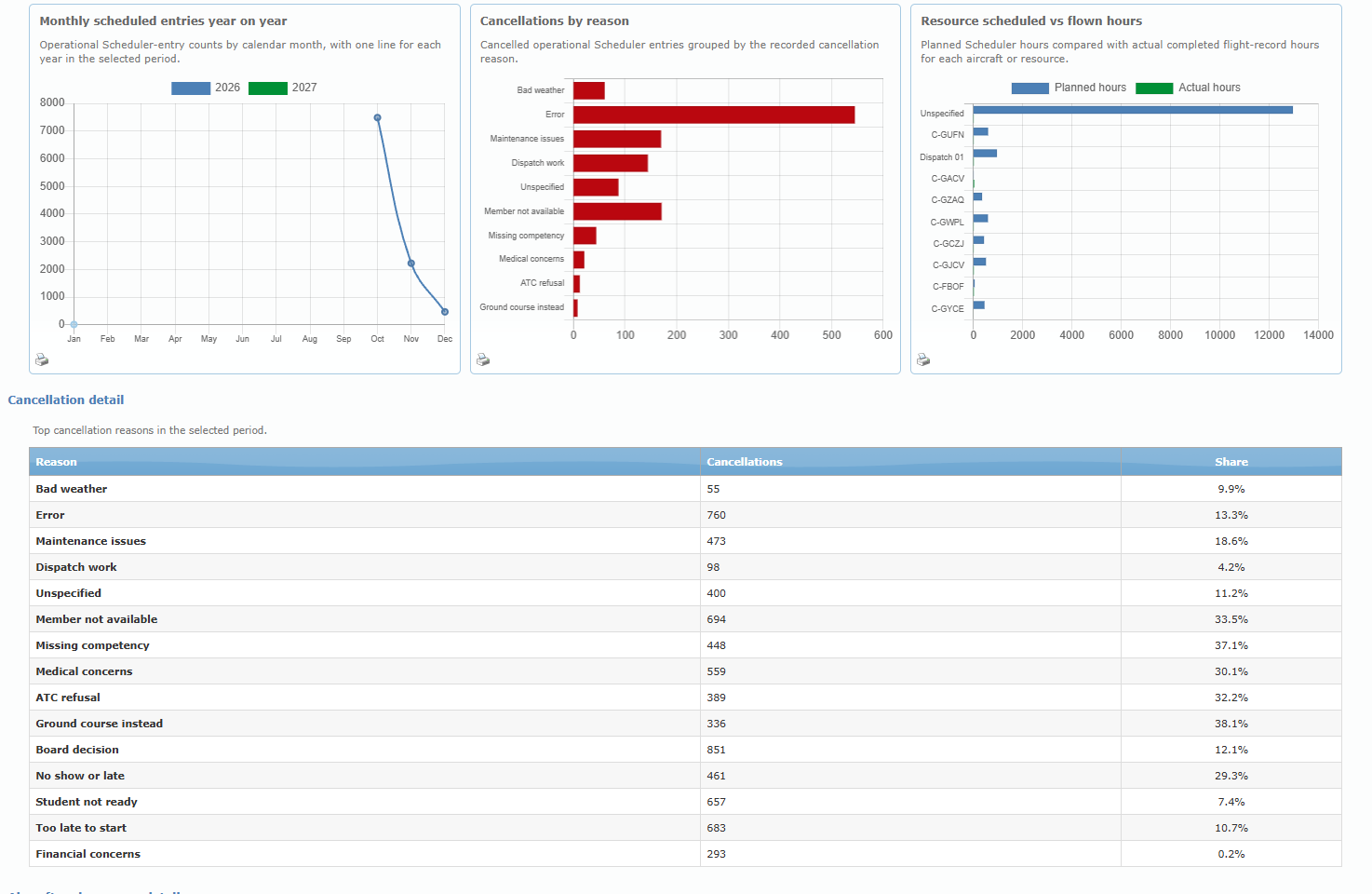
Charts: Scheduled entries by activity, Scheduled hours by activity, Monthly schedule trend, Scheduled vs completed, Planned vs actual hours, Monthly cancellation rate, Monthly scheduled entries year on year, Cancellations by reason and Resource scheduled vs flown hours.
Tables: Cancellation detail (top cancellation reasons with count and share) and Aircraft and resource detail (top 15 resources by planned hours, with scheduled count, planned and flown hours, realization rate, cancelled, transferred, completed and the date of the last schedule).
When to use it: to see whether planned hours are actually flown, which aircraft are over- or under-used compared with the plan, and why lessons are cancelled.
Common questions
| Question | Answer |
|---|---|
| A flight I just closed is not in Flight Records. | Only movements with a recorded ramp-in appear. Check that the return has been completed in the Flight Dispatcher, then click Refresh. |
| I cannot see past schedules. | The Scheduler tab starts at today. Set a Start range in the search toolbar. |
| A cancelled schedule is missing. | Click Show cancelled schedules. |
| I cannot click the Invoice or Payment cell. | You need accounting rights, and the record must be active (not cancelled or deleted). |
| My invoice reference is refused. | It is limited to 20 characters. |
| I do not see the dashboards or cancelled/deleted flight records. | These are reserved to quality staff (dashboards also to high-level administrators). |
| The map does not open. | The airports may have no coordinates, or the map service could not load. Try again later. |
| My filters disappeared. | Hiding the search toolbar (Flight Records) or clicking Refresh (Scheduler) clears the filters. |