
Published 10 October 2026, Updated 10 October 2026
The Advanced view is a table version of the E-courses Center, made for managers who maintain many courses. Open it with Advanced view at the bottom of the Filters panel. Its title reads E-Courses advanced Manager. It has two tabs: List and Task.
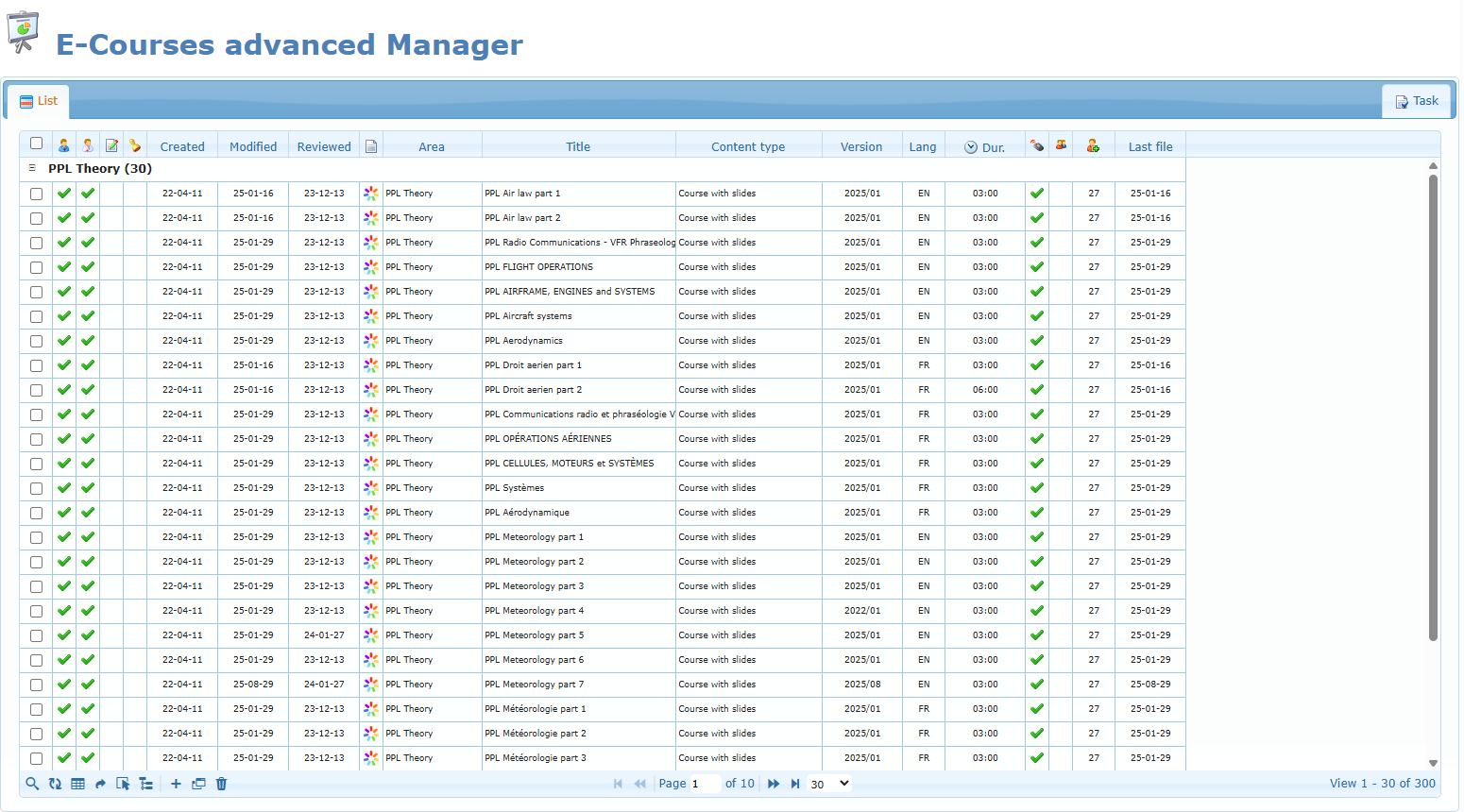
List tab
Every course is one line. The list is grouped by course area; click the area line to fold or unfold it.
| Column | Meaning |
|---|---|
| Check box | Selects the course for bulk actions. |
| Responsible / Reviewer icons | A check mark shows that you are a responsible or a reviewer of the course’s area. |
| To correct / To review icons | Show the courses with open correction requests or waiting for review. |
| Created, Modified, Reviewed | Dates of creation, last modification and last review. |
| Type icon | iSpring, PowerPoint or external link. |
| Area, Title, Content type, Version, Lang, Dur. | Course details. |
| Keep track, For all members | A check mark when progress tracking is on, or when the course is open to all members. |
| Roles | Number of roles that have access. |
| Last file | Date of the latest uploaded content. |
The search line under the column titles filters the table. Several columns offer ready-made choices, for example Only responsible, Only reviewer, To be reviewed, To be corrected, Trackable or Accessible to all member.
Toolbar (bottom left)
| Icon | Action |
|---|---|
| Magnifier | Show or hide the search line. |
| Circular arrows | Refresh. |
| Table | Choose the columns to display. |
| Curved arrow | Reset the column order. |
| Pointer | Tick or untick all lines. |
| Tree | Group or ungroup the list by area. |
| + | Add a Course. |
| Window | Area manager: open the course area manager. |
| Recycle bin | Delete a Course: delete the selected line (after confirmation). |
Right-click menu and bulk actions
Right-click a line to get Launch e-course, Edit, Duplicate, Delete, Edit Area and the review entries (Set as Reviewed, To correct, Restore backup files) when they apply.
When two or more lines are ticked, the menu also shows Selected E-courses:
| Bulk action | What it does |
|---|---|
| Add access to roles | Opens the role chart; the roles you tick are added to all selected courses. |
| Remove access to roles | Removes the ticked roles from all selected courses. |
| Give access to All members | Opens all selected courses to every member. |
| Move Courses to Area | Moves all selected courses to the area you choose. |
Each bulk action asks for confirmation and is applied immediately, only to the courses you are allowed to modify. There is no undo.
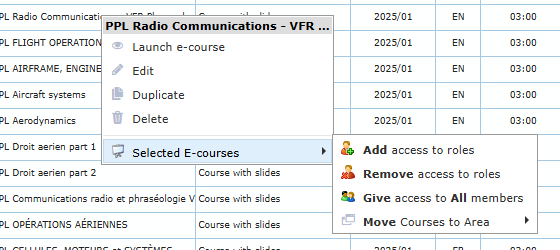
Example: a new role “Ground Instructor (IFR)” must follow ten existing IFR courses. Filter the Area column on “IFR”, tick the ten lines, right-click, choose Selected E-courses › Add access to roles, tick the new role and confirm.
Area manager
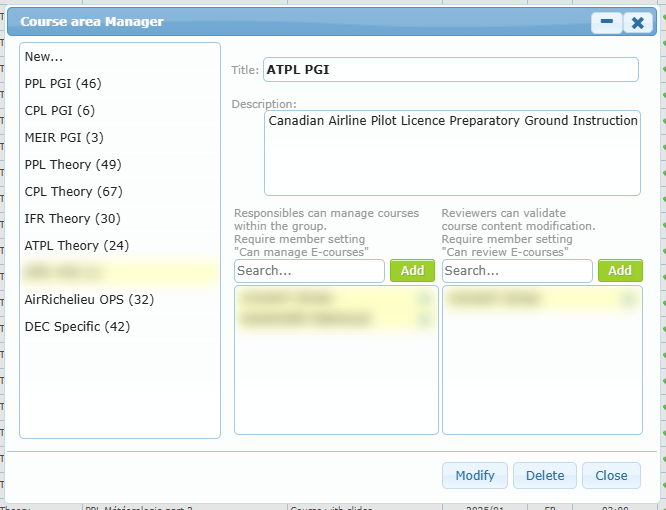
The Area manager button opens the Course area Manager: the list of areas on the left (with their number of courses) and the details of the selected area on the right (title, description, responsibles and reviewers).
- Click New… at the top of the list to create an area, then click Add.
- Click an area to load it, change it, then click Modify.
- Delete removes the selected area (or sets it as inactive if it still contains courses).
Task tab
The Task tab lists the tasks linked to e-course management (for example a review to do). It works like the other task lists of AirSupervision: see Tasks and Task Center in the Organization staff section.