
Published 10 October 2026, Updated 10 October 2026
When your organization enables e-course review, every new or changed content must be validated by a reviewer before members can use it. This chapter is for members with the Can review E-courses credential who are listed as reviewers of the course area.
Finding the courses waiting for you
In the Status section of the Filters panel:
| Status | Shows |
|---|---|
| To review (red) | Courses whose new or modified content is waiting for validation. The number in brackets is the count. |
| To correct (green) | Courses with open correction requests. |
A coloured dot on the Status title reminds you that something is waiting, even when the section is folded.
Viewing published or pending content
When you click a course that is waiting for review, AirSupervision asks: “This E-course has a pending content to be reviewed! Do you wish to view the published content or the pending content to be reviewed?”
- Published content opens the version members currently see.
- Pending content opens the new version that waits for your validation.
Compare both before deciding.
Setting a course as reviewed
Click the rubber stamp icon on the card, or right-click and choose Set as Reviewed, then answer Yes to “Are you sure you want to set this course as REVIEWED ?”.
What happens:
- The current published files are saved as a backup.
- The pending content becomes the published content.
- The course is visible again to the members who have access to it.
- Your name and the date are recorded in the course history (Reviewed column of the Advanced view).
Handling correction requests
Correction requests list slides that need to be checked or changed. Open them with the hand icon on the card, with To correct in the right-click menu, or with the Correction requests button of the Modify a Course window.
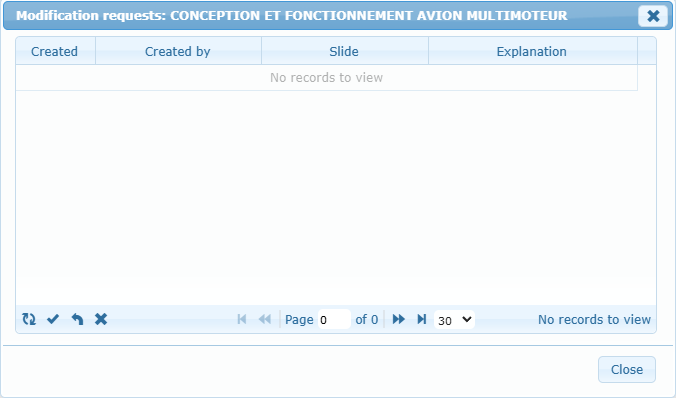
Each line shows the date, the requester, the slide number and the explanation. Select a line, then use the toolbar at the bottom left:
| Icon | Action |
|---|---|
| Circular arrows | Refresh the list. |
| Check mark | Set as reviewed: the correction is done. The line is shown in grey. |
| Return arrow | To review: reopen a correction that was marked as done. |
| X | Deny: reject the request. |
When the window is closed, the course list is refreshed and the To correct counter is updated.
Restoring a backup
Every time content is replaced by a reviewer (validation or Force deletion of old files), AirSupervision keeps a backup of the previous files. A red clock with arrow icon appears on the card when backups exist.
- Click the icon, or right-click and choose Restore backup files.
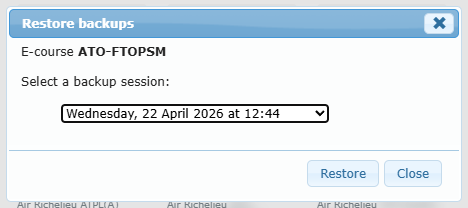
- In the Restore backups window, choose a backup session (date and time).
- Click Restore, then Yes to “Are you sure you want to restore this backup. Actual files will be overwritten if exists!”.
Click Close to leave without restoring. Restoring replaces the current files immediately: use Test the project afterwards to check the result.
Only a limited number of backups is kept per course; the oldest ones are removed automatically.