
Published 9 October 2026, Updated 9 October 2026
Library
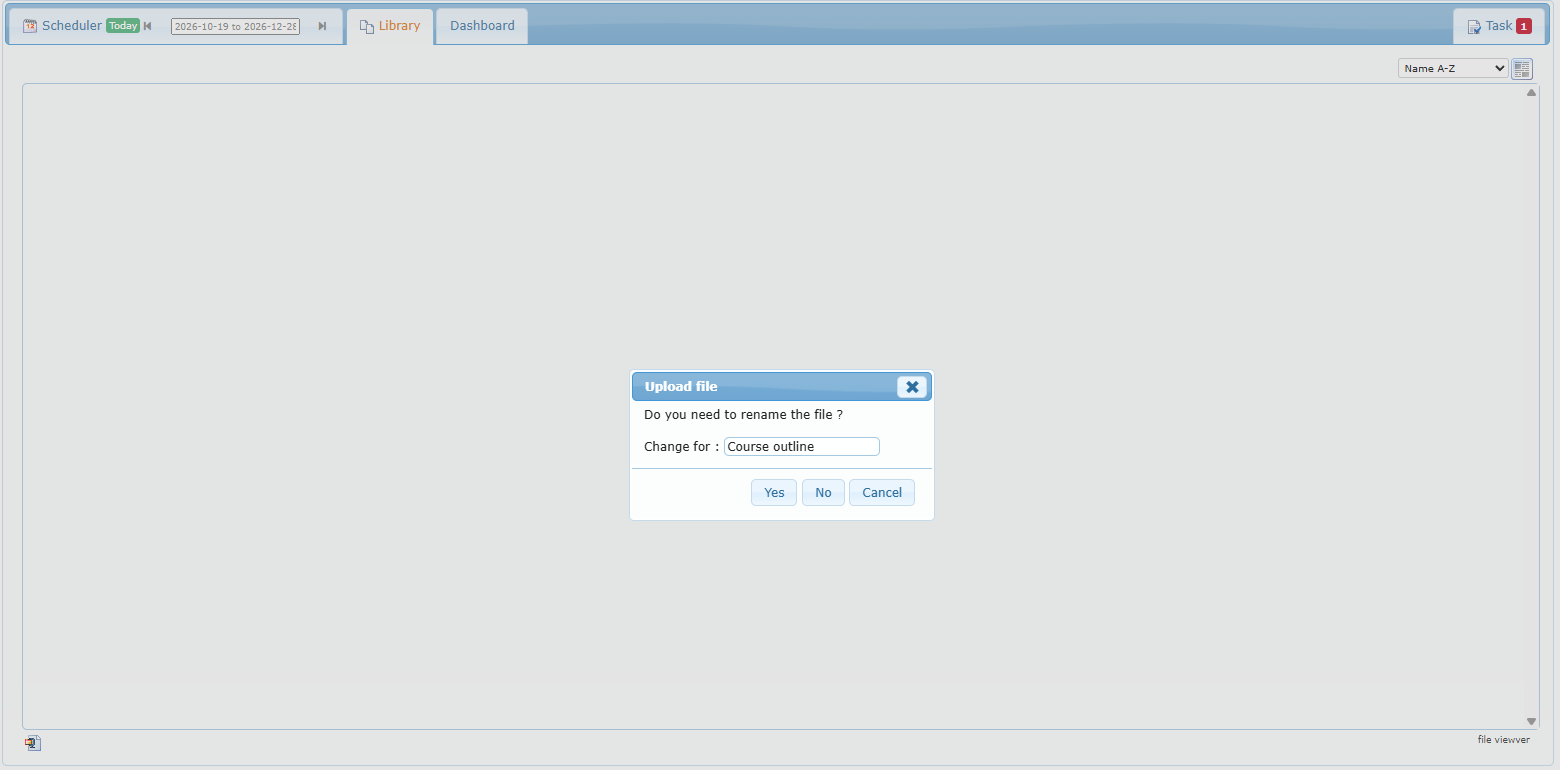
The Library stores files for the project, such as the course outline, room plan, or exam calendar.
- Load the project. Otherwise you see “A project has to be loaded first!”.
- Drag a file from your computer onto the Library area.
- The Upload file window asks “Do you need to rename the file?”. Change the name and click Yes, click No to keep the original name, or click Cancel.
Dashboard
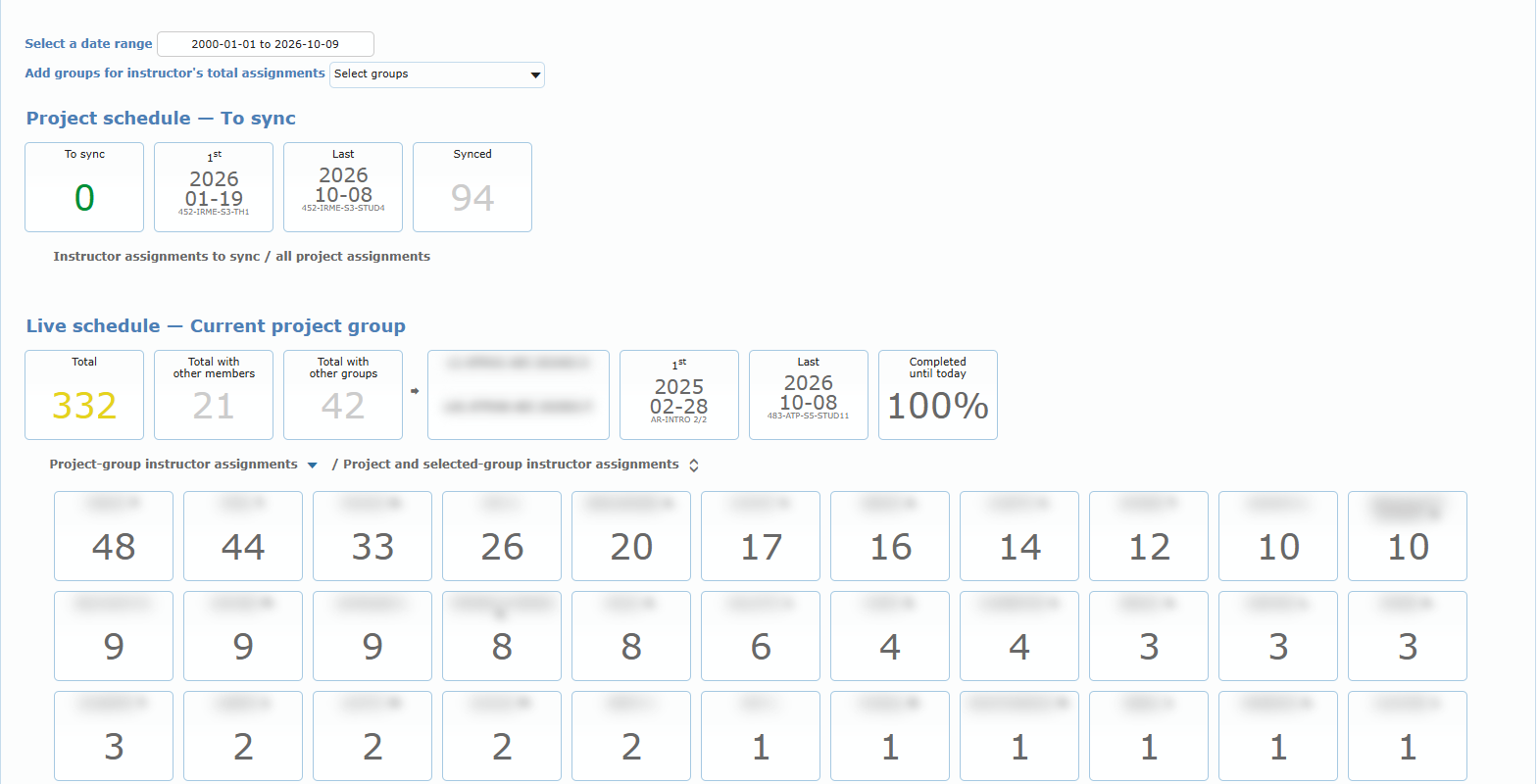
The Dashboard summarizes the loaded project for the chosen date range (by default, from the beginning up to today). It has these sections: Project schedule – To sync, Live schedule – Current project group, Historical analytics – Last 5 years, and Resource occupancy – Weekly rate.
| Box / chart | Meaning |
|---|---|
| To sync | Lessons still waiting for synchronization, with the first and last dates. |
| Synced | Lessons already published. |
| Total, Total with other members, Total with other groups | Number of schedules and how many include extra participants. |
| 1st / Last | First and last lesson of the project. |
| Completed until today | Percentage of the plan already carried out. |
| Project-group instructor assignments | Lessons per instructor. Use Add groups for instructor’s total assignments to also count the other groups’ lessons (shown as n/total). The sort buttons order the cards. |
| Weekly charts | Number of schedules compared with actual activities, per week and per year. |
| Resource occupancy – Weekly rate | Room occupancy percentage. Choose the rooms in its own selector. Time, duration, and excluded days come from the Resources avail. settings. |
Task
The Task tab shows your task list, so you can track follow-ups such as “confirm guest instructor” without leaving the page.