
Published 9 October 2026, Updated 9 October 2026
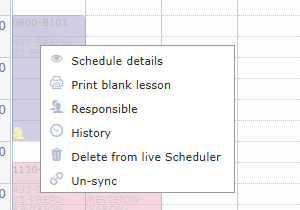
Right-click menu of a synced box
| Menu entry | Action | Availability |
|---|---|---|
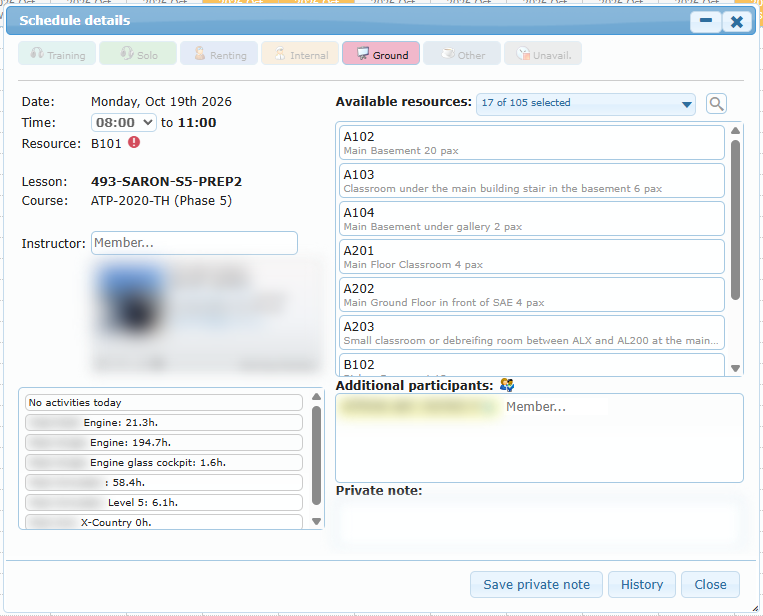
| Schedule details | Read-only view of the live schedule. You can save the private note if you are allowed to. Double-clicking the box does the same. | Always |
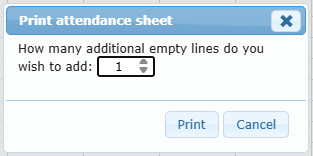
| Print attendance sheet | Asks how many extra empty lines to add, then prints the attendance sheet. | Ground lessons, within the allowed number of days |
| Print blank lesson | Lesson sheet as a PDF. | Always |
| Responsible | Check or change the instructor (Set selected instructor). | Always |
| History | Change history. | Always |
| Delete from live Scheduler | Shows the date, lesson, and instructor, then asks “Are you sure you want to delete this item from the live scheduler?”. | Disabled for past or started lessons, or lessons owned by another group’s project |
| Un-sync | Removes the lesson from the live scheduler and returns it to the project as a not-yet-synchronized lesson, so you can move or change it. | Future lessons synchronized from this project only |
Lessons of another group
When your group is only an additional participant in another group’s lesson (blue people icon), the details title names the other group and project. Delete and Un-sync are refused here (“This schedule belongs to another group’s project…”). Make those changes from the owning project.
A live reservation that is not linked to a lesson cannot be opened from this page (“This reservation from live Scheduler is not linked to any lesson…”).