
Published 9 October 2026, Updated 9 October 2026
Synchronizing publishes project lessons to the live scheduler. After synchronization, the room and instructor are booked, members see the lesson in their schedules, and the box gets the green Synced check.
Before you synchronize
Every lesson needs an instructor and a resource. The system checks each lesson and can return these results:
| Result | Typical reasons |
|---|---|
| STOP (not synchronized) | “This schedule is past.” · “Resource is mandatory.” · “Instructor is mandatory.” · “Resource is not available.” · “Instructor is not available.” · “Group is not available.” · a member “not available from … to …” · “This schedule has already started, modification not allowed.” |
| WARN (synchronized anyway) | Instructor role or competency missing or expired · the schedule belongs to another group · member unavailability when Bypass is used. |
Sync all
- Check or clear Send notification next to the button. When it is checked, the people concerned are notified of the new schedules.
- Click Sync all (green link icon).
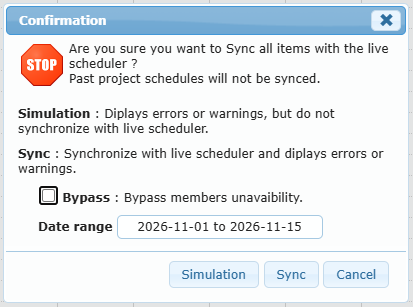
- In the confirmation:
- Date range: the period to publish (default: today plus one week). Past lessons are never synchronized.
- Bypass: when checked, member unavailability is shown as a warning instead of blocking.
- Choose:
- Simulation: shows the errors and warnings without publishing anything.
- Sync: publishes every lesson that passes the checks and lists the others.
- Cancel.
Synchronization results
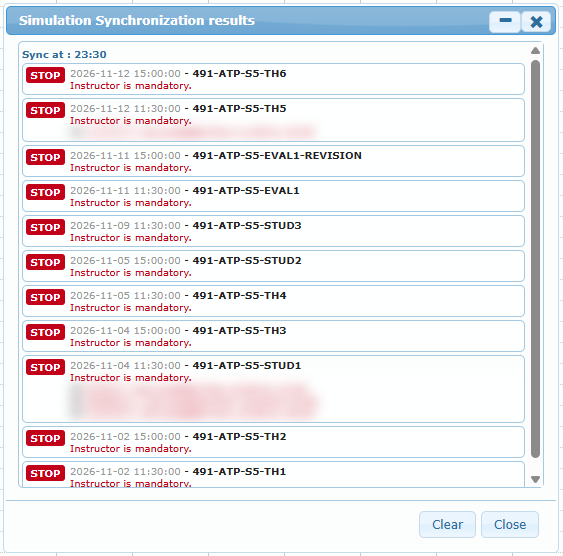
The Synchronization results (or Simulation Synchronization results) window lists, under “Sync at : time”, one line per lesson:
- DONE (green): synchronized, or would be in a simulation.
- STOP (red): not synchronized, with the reasons below the lesson title.
Click a line to jump to the lesson on the calendar, where it blinks briefly. Clear empties the window and Close hides it. Synchronized boxes switch immediately to the synced appearance.
Synchronize one lesson
Right-click a project box and choose Synchronize, or Force Synchronize (no members check) when a member conflict is acceptable. In the Grid list, select a row and click Sync (no bypass).
Good practice: run a Simulation for the next weeks every time you finish a planning session. Synchronize in rolling periods (for example two weeks at a time) so last-minute room or instructor changes stay in the project until you are sure.