
Published 9 October 2026, Updated 9 October 2026
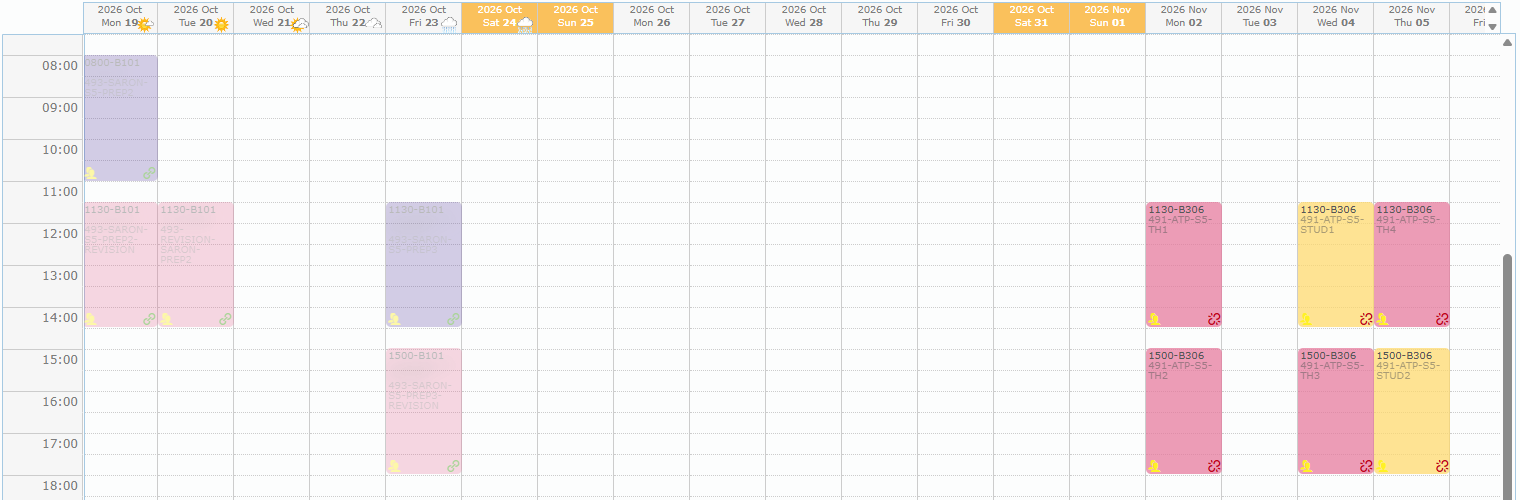
Days and hours
- Each column is one day. The header shows the year, month, weekday, and date, plus a weather icon when a forecast is available.
- Today has a green header. Weekends have an orange header.
- The left column shows the hours from 00:00 to 24:00, divided into half-hour slots.
- Scrolling right or left loads more days automatically.
- Click a day header to narrow that day and save space. Click it again to restore it. Double-click any header to restore all days.
Navigation buttons (in the Scheduler tab title)
These appear once a project is loaded:
| Button | Action |
|---|---|
| Today | Jumps to today. |
| ◀ (left arrow) | Jumps to the first lesson of the project. |
| Date field | Choose a date range to display. |
| ▶ (right arrow) | Jumps to the last lesson of the project. |

What a schedule box shows
Each lesson appears as a coloured box:
- First line: start time (for example
0830) and the resource name. - Second line: the instructor’s short name.
- Third line (faded): the lesson title.
- Colour: the activity type (Ground, Training, and so on), using the same colours as the live scheduler.
The grid shows two kinds of boxes:
| Box | Origin | What you can do |
|---|---|---|
| Project schedule | Placed in this project, not yet published | Drag to move, double-click to modify, right-click for the project menu. |
| Synced / live schedule | Already in the live scheduler for this group | Double-click for details, right-click for the live menu. It cannot be dragged. |
Legend
The legend below the buttons explains the small icons on the boxes:
| Icon | Meaning |
|---|---|
| Red warning icon | No instructor or resource set. This lesson cannot be synchronized yet. |
| Yellow people icon | Includes additional participants (extra members or groups). |
| Blue people icon | Schedule of another group. Your group is an additional participant in another group’s lesson. |
| Green check | Synced. The lesson is published in the live scheduler. |
