
Published 9 October 2026, Updated 9 October 2026
All actions in this article require Can manage course responsible by batch. Every change is recorded in the course history.
Find unassigned courses
Select the green plus icon in the lower toolbar. The Unassigned courses window opens on the right side of the screen. It lists every open course that has no responsible member, grouped by the student’s organization group.
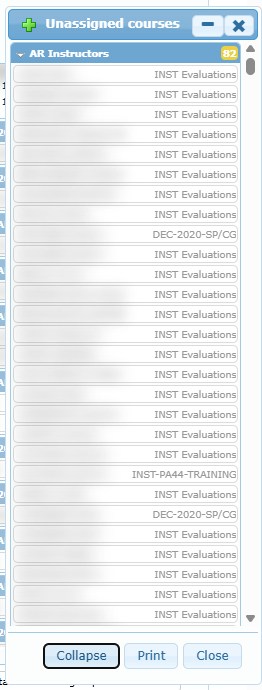
- Use the second-row filters Select: Students and Courses to narrow the list. The window refreshes when you close a selector.
- Expand / Collapse opens or closes every group. Groups start collapsed.
- Each card shows the student name and, on the right, the course title. Hover the name for the course summary; double-click the name to open the profile, or the course title to open the Training Record.
- Print creates a PDF of the unassigned list (see Print assignment lists).
- The window can be minimized and moved while you work on the board.
Assign an unassigned course
- In the Unassigned courses window, expand the group and find the course.
- Hover the card to confirm the student and course.
- Drag the card onto the heading or the list of the responsible member’s column. The target column turns grey while you hover it.
- Read the Assign responsible confirmation and the name of the person shown.
- Choose Yes and alert to assign and notify, Yes to assign without notification, or No to cancel.
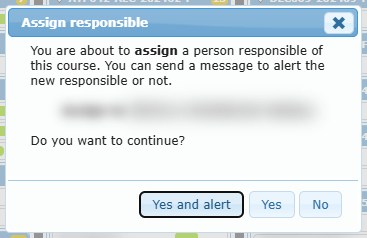
The card leaves the Unassigned courses window and appears in the responsible member’s column.
Press Esc while dragging to cancel the drop.
If the target column is faded, the drop is refused with the message This member has not been set as a course responsible or is inactive. Please review his profile! Review that member’s profile instead of assigning the course elsewhere temporarily.
Transfer a course to another responsible
- Find the course card in the current responsible member’s column.
- Hover it to confirm the student and course.
- Drag it onto the new responsible member’s column.
- Read the Changed of responsible confirmation: it shows the previous and the new responsible.
- Choose Yes and alert, Yes or No.
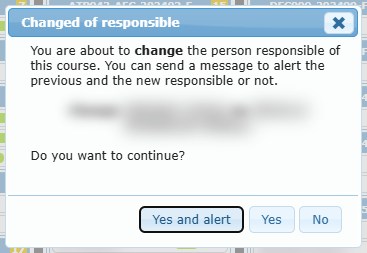
The two affected columns reload. If the card does not appear where expected, check that the Show filters include that student and course, then select the recycle icon.
What the alert sends
Yes and alert sends an internal message and an e-mail whose subject is your organization’s name followed by Person in charge of training:
| Change | Who is notified |
|---|---|
| Assign | The new responsible member. |
| Transfer | The previous responsible member (if active) and the new one. |
| Unassign | The previous responsible member (if active). |
The alert is sent only if internal messaging is enabled and you have permission to send messages; otherwise Yes and alert works like Yes. Your e-mail signature is added when it is enabled in your profile.
Use the course right-click menu
Right-click a course card for these actions:
| Action | Result |
|---|---|
| View member profile | Opens the student’s profile in a new tab. |
| Course notes | Opens the note saved on this course assignment. |
| View responsible profile | Opens the profile of the responsible member whose column contains the card. |
| Course details | Opens the student’s Training Record for this course. |
| Set course as unassigned | Removes the responsible member after confirmation. Full access only. |
Add or update a course note
- Choose Course notes. The window title shows the student and the course.
- Enter or revise the text.
- Choose Save Note, and close, or Close to leave without saving.
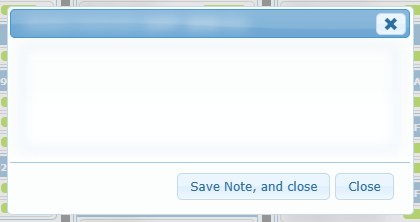
After saving, the red note dot and the hover card of the course are updated. To remove a note, delete its text and save.
Set a course as unassigned
- Choose Set course as unassigned.
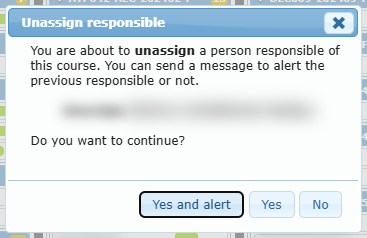
- Read the Unassign responsible confirmation.
- Choose Yes and alert, Yes or No.
The card leaves the column and the course returns to the Unassigned courses list. It remains an open student course.