
Published 9 October 2026, Updated 9 October 2026
Both tabs compare the members highlighted in the left Members list, one column per member. See Responsible analytics for how to select members.
Activities tab
Activities is the main side-by-side comparison matrix. Each selected member receives a column. The fixed left column names the measure; the body can scroll horizontally and vertically while headings stay aligned.
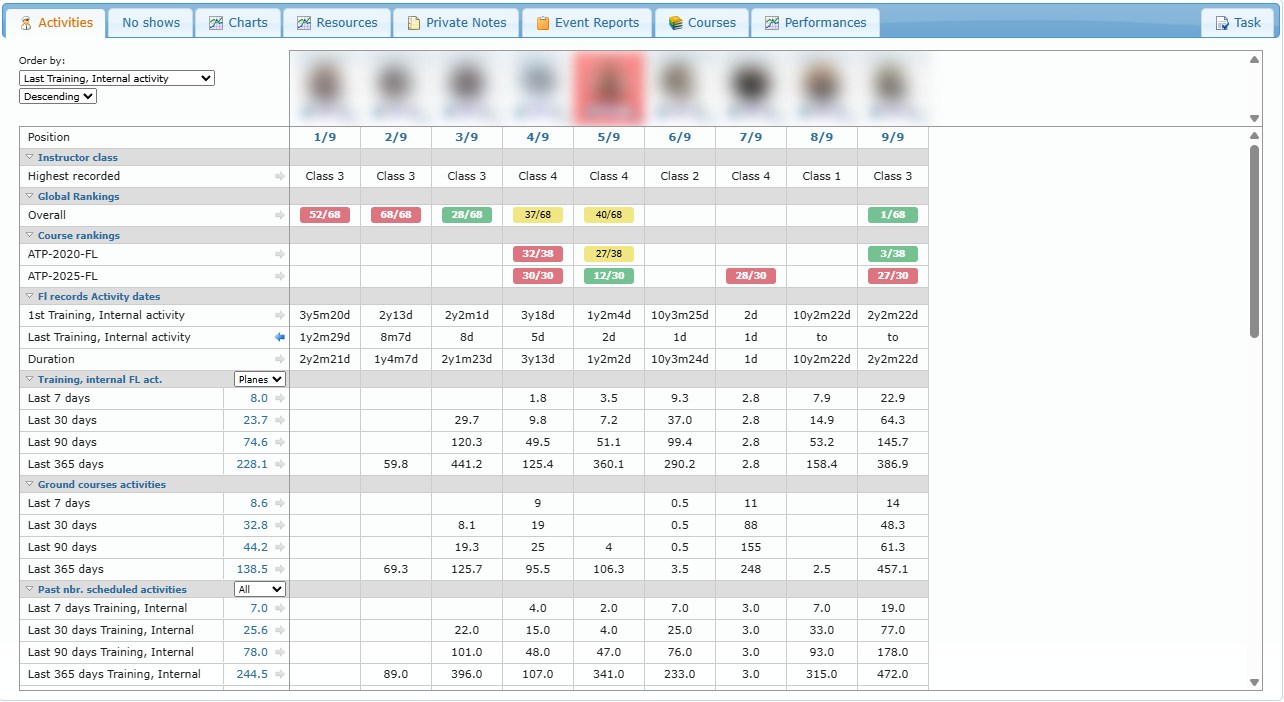
Read and control the matrix
- Select a section arrow to collapse or expand that section.
- Select the X in a member heading to hide that column from the current comparison.
- Use Display all to restore hidden columns.
- Select the small arrow beside a measure to sort member columns by that measure.
- Select the active sort arrow again to reverse ascending and descending order.
- You can also use the item and direction selectors under Order by at the top of the matrix.
- The Position row shows each visible column’s current position out of the number of visible members.
- An average shown beside a measure uses only visible, non-empty numeric member values.
For flight activity and schedule sections, an All / Planes / Sim selector changes the visible values without reloading the page. Planes excludes simulator categories; Sim includes simulator categories. Ground rows are not changed by the aircraft selector.
Meaning of each Activities section
| Section | How to read it |
|---|---|
| Instructor class | Highest instructor class recorded for the member. Treat it as a classification indicator, not proof that every related qualification is currently valid. |
| Global Rankings | Overall responsible ranking, when your role may see it. Ranking combines configured factors; hover for the explanation and avoid treating rank alone as a quality decision. |
| Course rankings | Responsible rank inside each eligible course. A higher result can reflect student outcomes, group size, or both. Only authorized course rankings appear. |
| Fl records Activity dates | First qualifying Training/Internal flight-record activity, last activity, and elapsed duration between them. |
| Training, internal FL act. | Total qualifying duration in the last 7, 30, 90 and 365 days. Use All/Planes/Sim to change the resource scope. |
| Ground courses activities | Ground-course duration in the last 7, 30, 90 and 365 days. |
| Past nbr. scheduled activities | Counts of non-cancelled past Training/Internal and Ground schedules in rolling 7, 30, 90 and 365-day periods. Later activities on the current day are not yet past. |
| Next nbr. scheduled activities | Training/Internal and Ground schedule counts in the next 7 and 30 days. |
| Open assigned courses | Open course assignments for which the member is responsible, shown by course and in total. |
| Recommended lessons—fail/total | Passed and failed recommendation counts grouped under course headings. Select a value to inspect the underlying recommendations. Red follow-up styling reflects the configured follow-up rules shown below the page. |
| Hazard and event reports | Counts authored by the member, regular event reports concerning the member, and access-warning indicators where enabled. Hazard, Event and Concerned Event counts represent different relationships to a report. |
| Activities accounting | First and last accepted activity-accounting dates, when this feature is available. |
Recommendation drill-down from Activities
Select a recommendation value to open the Recommended Lessons dialog.
- Choose the number of recent recommendations to include. Enter 0 for all.
- Choose the inclusive before date.
- Expand a recommendation lesson to see individual attempts.
- Double-click an attempt to open its course record.
The parent row shows title, description, quantity, passed count and failed count. Attempt details include the date, evaluator, course, student, result, preceding dual lessons, and preceding lessons performed by the recommending instructor.
Some authorized users also see a reset action. It marks a recommendation as unaccountable for performance calculations; it does not delete the completed lesson. Enter a meaningful comment and use the undo action only after confirming why the recommendation should count again.
No shows tab
No shows compares scheduled, cancelled and completed activity for the selected members. Access can depend on scheduling and supervisory permissions.
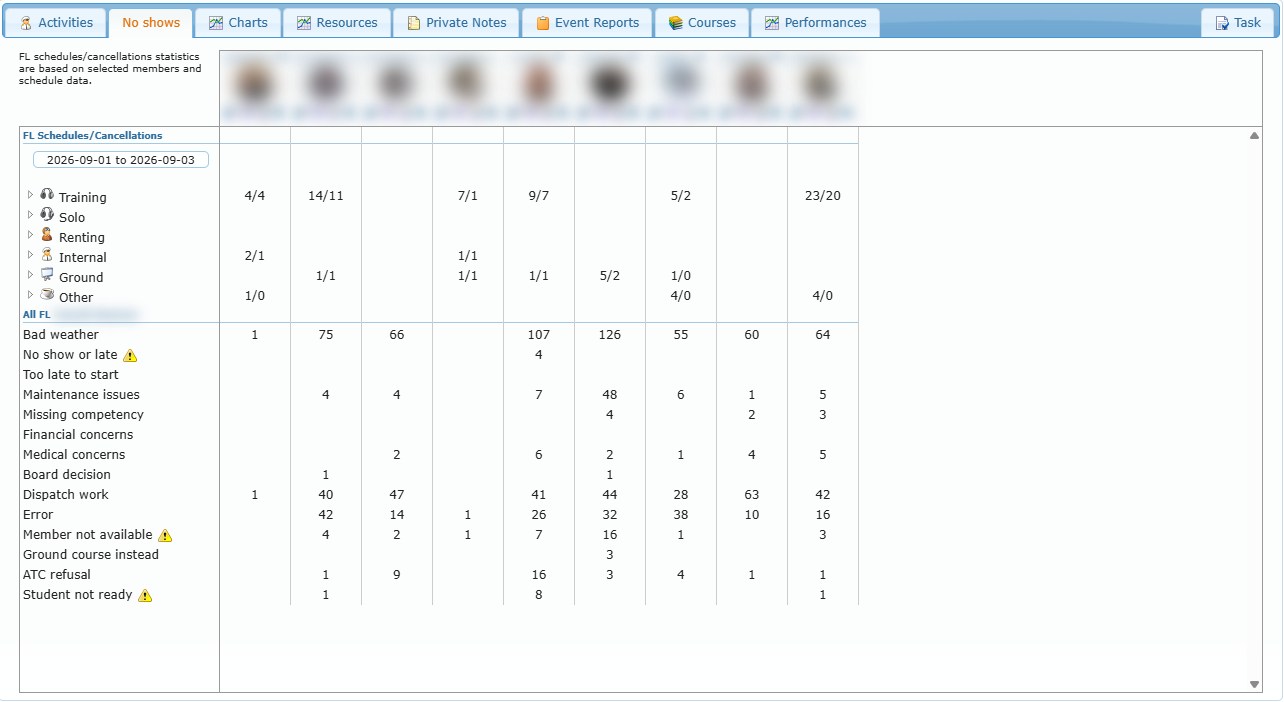
The matrix can include:
- Training, Solo, Renting, Internal, Ground and Other schedules, shown as scheduled/cancelled pairs
- each configured cancellation reason
- completed activity counts
Cancellation reasons marked with a warning icon are reasons your organization has identified as needing special attention.
Change the period
Use the date-range control inside this tab and apply the range. The page recalculates scheduled/cancelled values, reason counts and completed records for the displayed members.
You can hide individual member columns and restore them, just as in Activities. Compare a cancellation count with scheduled and completed activity before drawing a conclusion: a larger schedule volume naturally creates more opportunities for cancellation.