
Published 9 January 2023, Updated 13 October 2026
The Details tab shows all the information registered about you. Your organization decides which fields you may change yourself: those fields are editable, the others are greyed out.
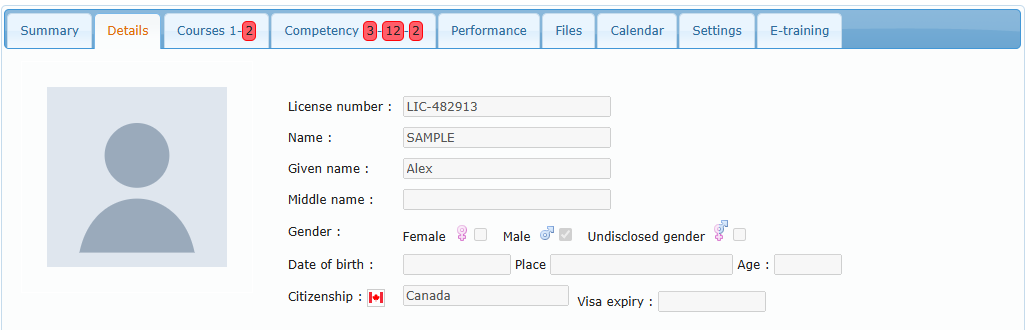
Personal details
Licence number, name, given name and middle name, gender, date and place of birth, citizenship and visa expiry date.
Because AirSupervision identifies each person uniquely, the combination of name + given name, the licence number and the primary email must be unique in the system. If one of them is refused, contact the office.
Your profile photo can only be changed by staff.
Contact and emergency
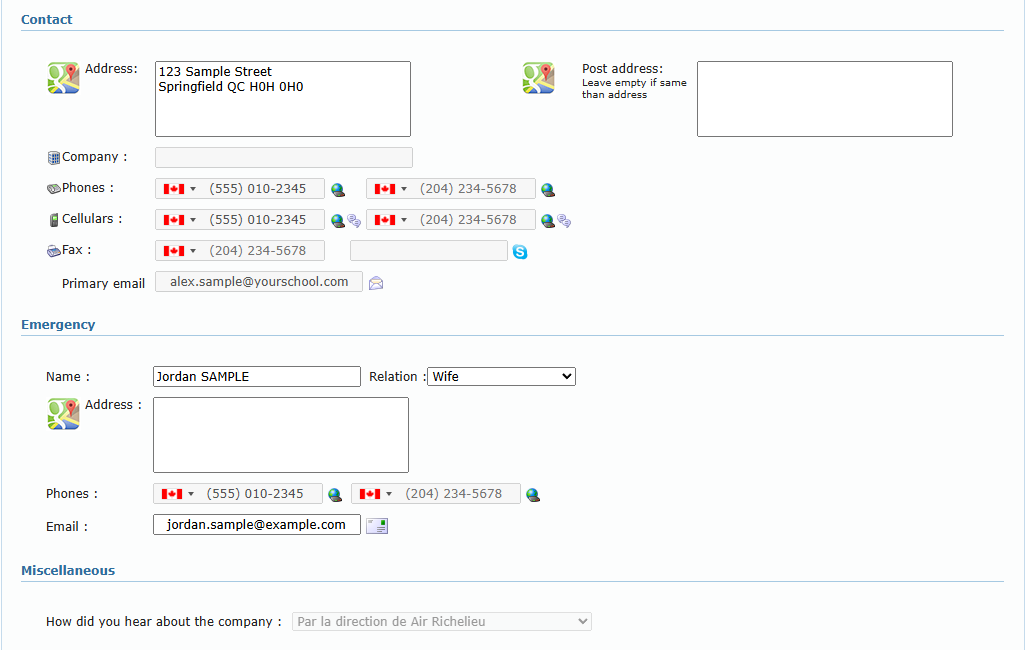
| Field | Notes |
|---|---|
| Address / Post address | Click the map icon to see the address on a map. Leave the post address empty if it is the same. |
| Phones / Cellulars / Fax | Click the globe icon to call the number. Cellular numbers may be used by the organization to send you text notifications. |
| Primary email | The email used to log in and to recover your password. A warning icon next to it means messages sent to this address have bounced: check it. |
| Emergency | The person to contact if something happens to you during an activity: name, relation, address, phones and email. Keeping it up to date is strongly recommended. |
Miscellaneous and additional information
Miscellaneous contains, for example, how you heard about the organization. Additional informations are fields defined by your organization (languages, occupation, program details…). A lock icon next to a field means only authorized staff can see it.
My complimentary email address
If the organization gave you one or more organization email accounts, they are listed here.
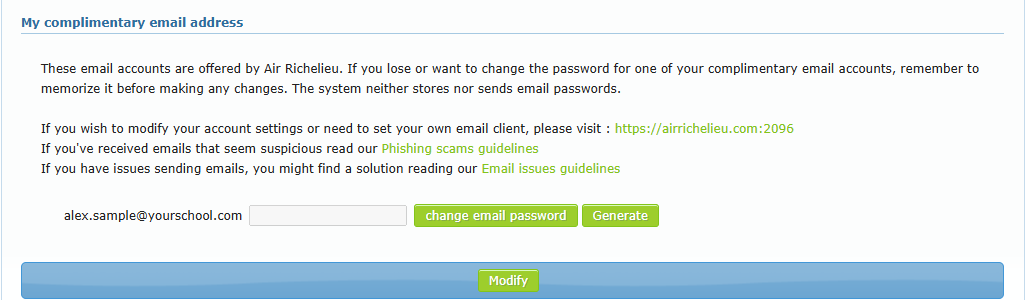
- Type a new password in the field next to the address, or click Generate to get a suggestion.
- Note the password somewhere safe: the system neither stores nor sends email passwords.
- Click change email password.
The section also links to the webmail and to the phishing and email-issues guidelines. A suspended account is shown as Suspended.
Saving your changes
When your organization allows you to edit some fields, a Modify button appears at the bottom of the page. Click it to save. If there is no Modify button, your details can only be changed by the office.