
Published 9 February 2023, Updated 14 February 2023

While hovering the file thumbnail, depending on the user’s credentials, set by administrators, options are as follow:
 Delete the file. The system will automatically backup the file in a “Recycle bin” accessible by administrators only.
 - Select the file
- Display
 lock or
  unlock status of the file. Accessing the file can be restricted to minimum level of power. This characteristics will prevent viewing or download of sensitives data.
 - For any media type files, such as pictures, photos, screenshots, clicking on the icon
 will display a light box pictures slideshow.
Right clicking on a file will display a contextual menu as follow:


| Title | Function | Cred- dentials | Portal opts |
|---|---|---|---|
 Files Files |
|||
| Download | Download or open the file depending on the browser settings | ||
| Delete | Delete the file | X | |
| Cut | Cut the file | X | |
| Copy | Copy the file | X | |
| Rename | Rename the file | X | |
| Paste | Paste the copied or cut file | X | |
| Download Zip |  Download all the selected files as a compressed ZIP file Download all the selected files as a compressed ZIP file | ||
| Send file | Send the file using internal messaging | ||
| More options | Opens a dialog box with more options | ||
 More options dialog box More options dialog box |
|||
| Download |  Download or open the file depending on the browser settings Download or open the file depending on the browser settings | ||
| Copy to |  Send a copy of the file to the selected member’s profile. File can be renamed Send a copy of the file to the selected member’s profile. File can be renamed | ||
| Copy |  Send a copy of the file in “My library”. Can be found later using “Connection>Documents” Send a copy of the file in “My library”. Can be found later using “Connection>Documents” | ||
| Send |  Send the file using internal messaging Send the file using internal messaging | ||
| Lock | Lock the file choosing the minimum level of power a user must have to access the file | X | |
| Unlock | Unlock the file | X | |
Adding a file
If the user has proper credentials to add files to the system, the portal provides several ways to upload files.
Browse a local computer file
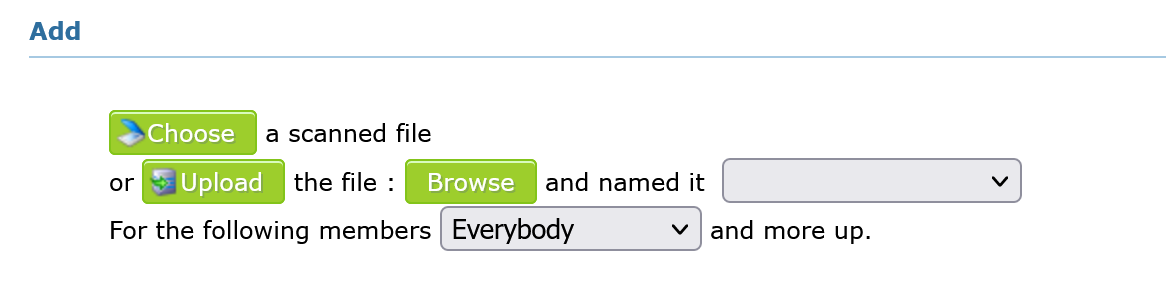
Select a place to upload the file, then select a file by hitting the Browse button. The system will ask you if you want to rename the file within or not a selected list.
From the scanned file center
The “Scanned files option” list all files that have been scanned using an external device and directly uploaded in on the server. From there, user can transfer these files to the member’s profile. But this component requires a Portal option to be activated by AirSupervision’s IT specifically for the organization.
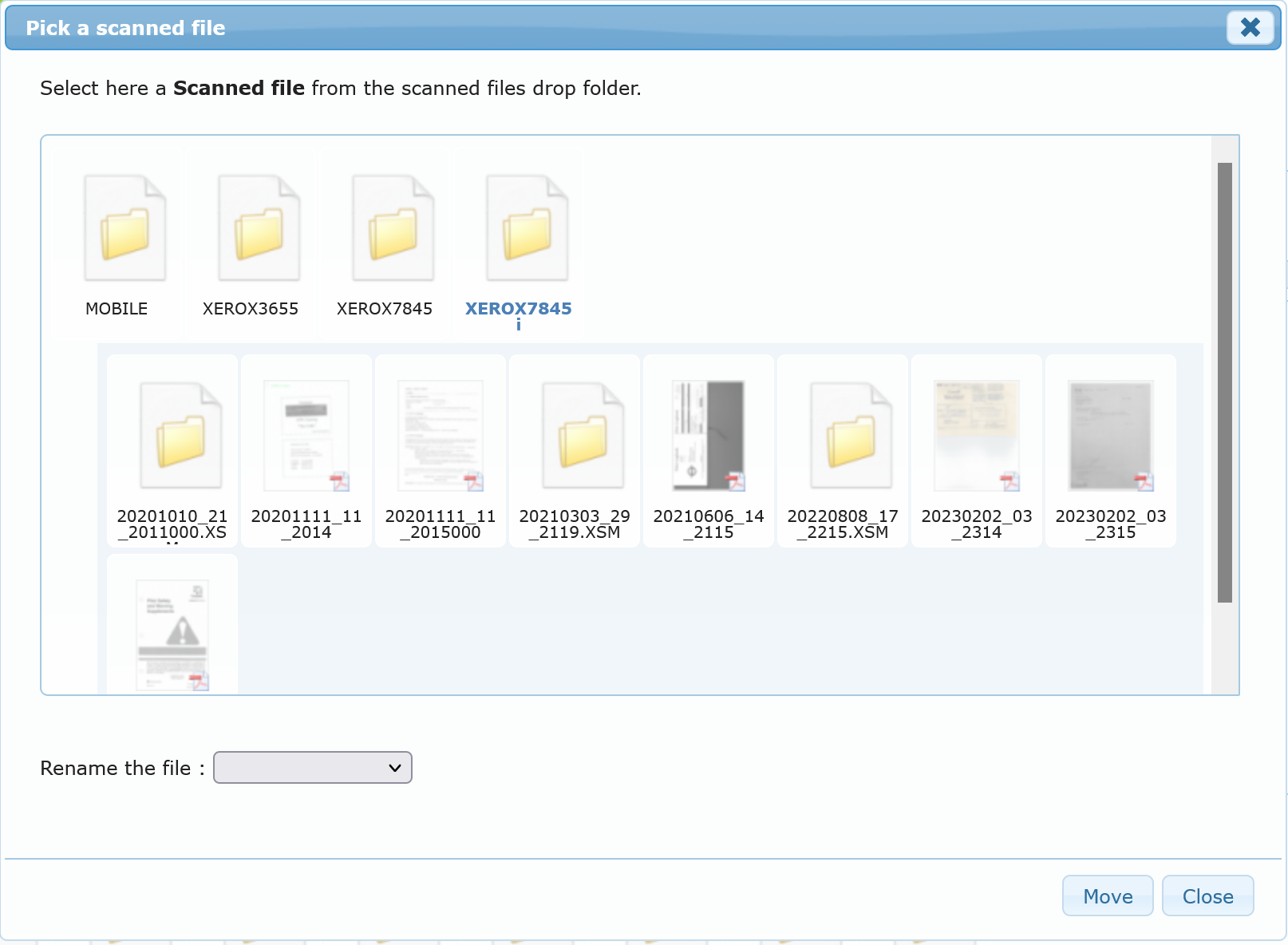
Select a place to upload the file, then choose from the scanned files center, if portal option have been set, the user can also rename the file.
Drag and drop from a local computer
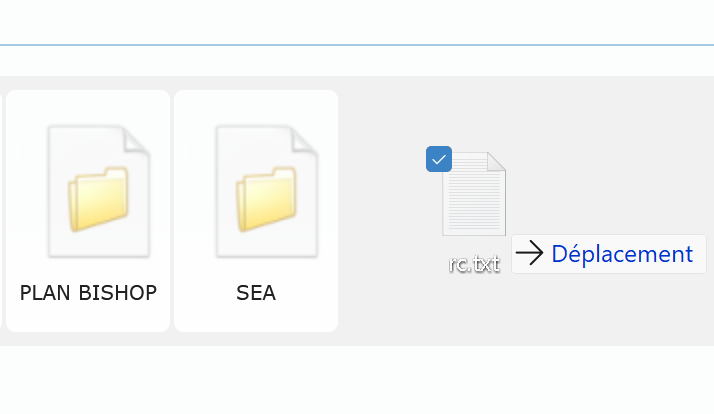
The user can drag and drop a file selected from his computer.
Drag and drop within the displayed box
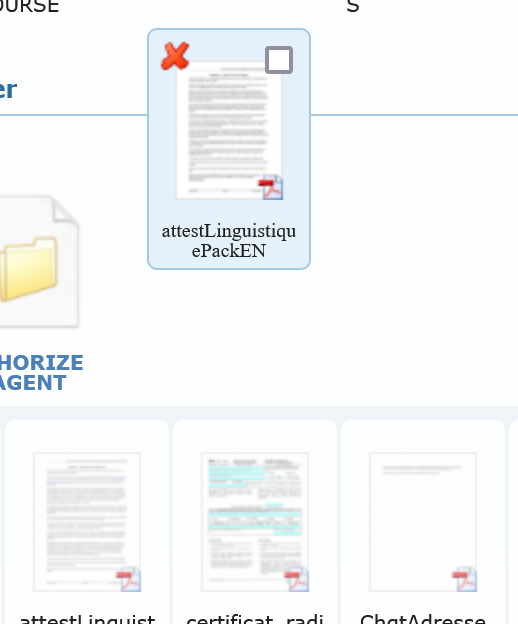
The user can drag and drop files from the system to another place.
Attaching files

At different places, such as the “Messaging center”, “The memorandum center” and more, user can attached a file, by selecting from the computer or from the internal scanned files center, if available. However, drag and drop function is also available.
Using mobile device
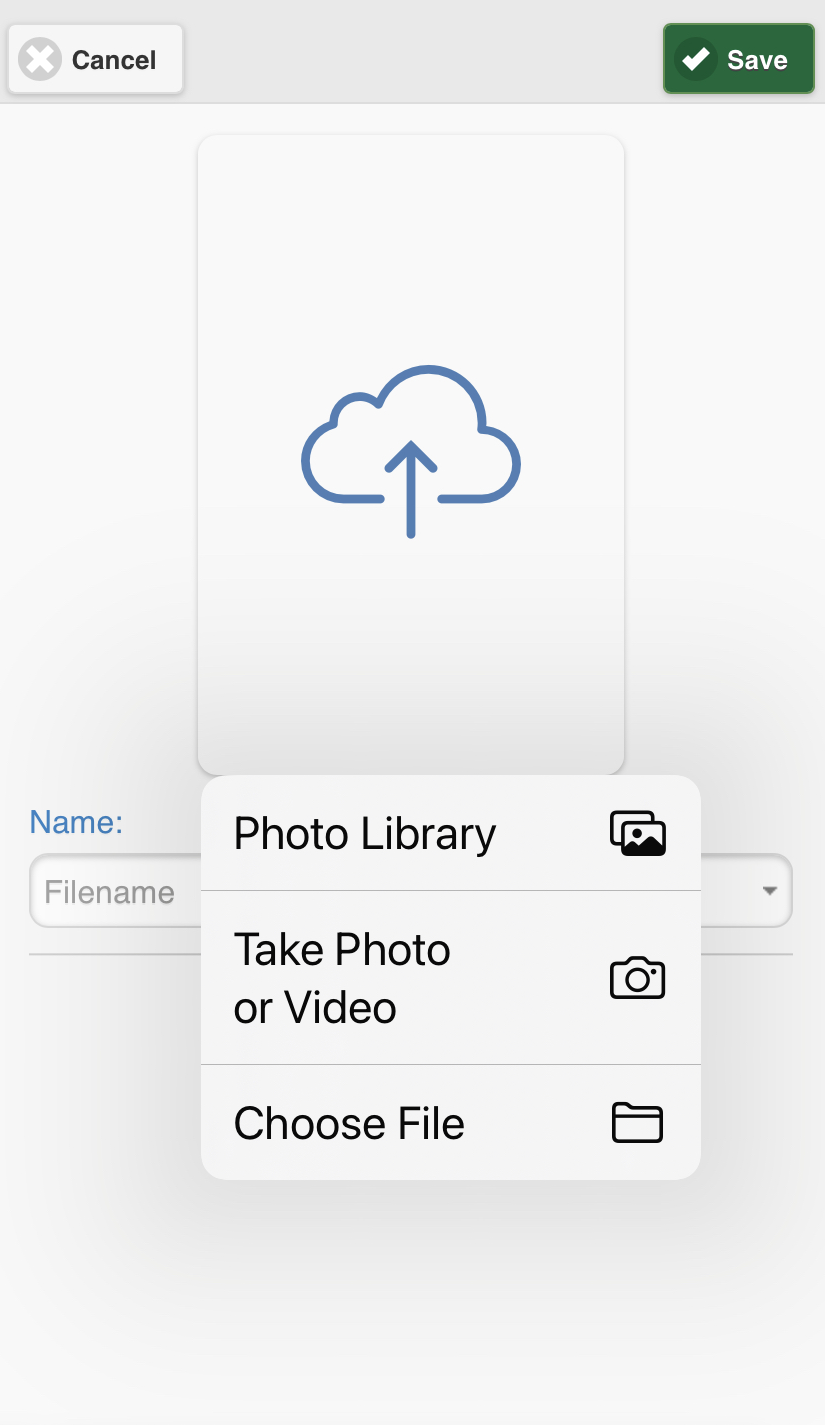
In the mobile device version, depending of the device brand, multiple option are available, including taking a picture.
The filename
Renaming the file using the dropdown combo box to whether select a predefined name or start typing a new name. Space character is not allowed in file name. AirSupervision will automatically sanitize the filename, such as removing any special character, punctuation or accent by replacing or escaping them.
While copying or dropping a file, in a folder or at the root that contains another file with the exact filename name and file extension, the system automatically add at the end of the new filename the actual date and time as follow:
filename + YmdHis + “.” + fileextention
Y : A full numeric representation of a year, at least 4 digits
m : Numeric representation of a month, with leading zeros
d : Day of the month, 2 digits with leading zeros
H : 24-hour format of an hour with leading zeros
i : Minutes with leading zeros
s : Seconds with leading zeros
So for example file220208134523.pdf for file.pdf if it already exists.