
Published 9 February 2023, Updated 11 October 2026
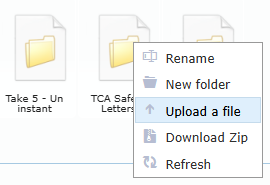
Clicking on a folder will expand it to show its contents.
| Title | Function | Cred- dentials | Portal opts |
|---|---|---|---|
 Folder |
|||
| Download ZIP | Download the whole folder as a compressed ZIP file | ||
| Refresh | Refresh folder content | ||
| Rename | Rename the folder | X | |
| New folder | Create a new folder below the actual folder or at the root | X | |
Users allowed to manage files also see these options in the folder menu:
| Title | Function |
|---|---|
| Upload a file | Upload a file into this folder. Opens the Choose a file source window (computer, scanned file or cloud service). Right-click an empty space of the box to upload at the top level. |
| Paste | Paste a file that you cut or copied into this folder. Shown only after a Cut or Copy. |
See “The files” for the complete upload steps.
To delete a whole folder, make sure it is empty. Otherwise, delete first all files within the folder.
The folder name
AirSupervision will automatically sanitize the filename, such as removing any special character, punctuation or accent by replacing or escaping them.
Naming a folder
User can rename a folder by slowly clicking twice on the folder name. If the naming or renaming folder already exists, the system will generate an error and set the name as “New folder”.