Published 25 October 2026, Updated 25 October 2026
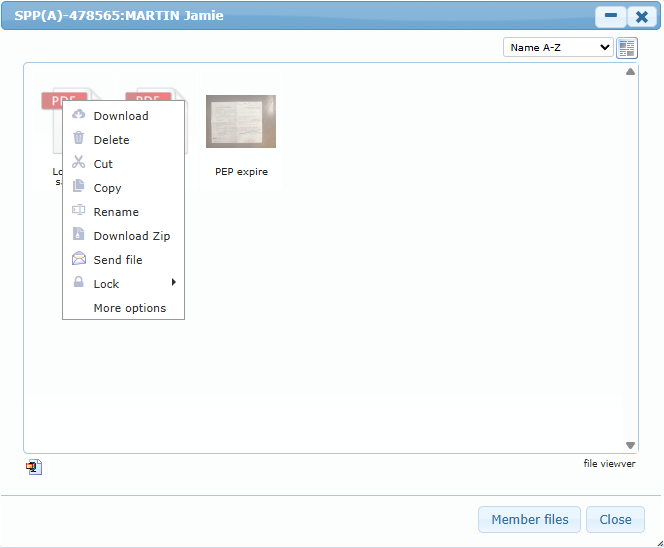
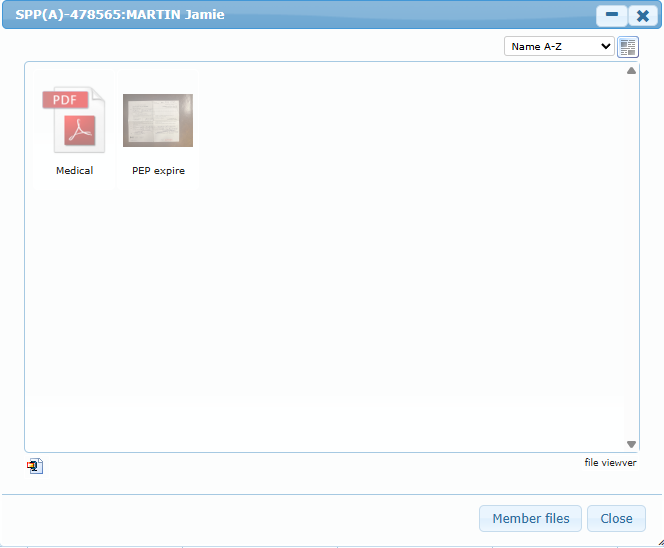
Each case has its own folder of files (application form, medical certificate, identity documents…). Open it with the Files cell or View uploaded files. The window can be resized and minimized; the list can be sorted (name, date…) and shown as icons or as a list.
Uploading a file
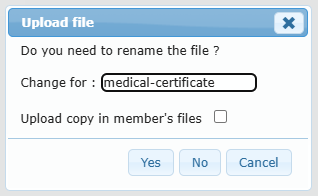
Drag a file from your computer and drop it in the case files window. The Upload file window asks Do you need to rename the file?: type the new name in Change for (the extension is kept) and tick Upload copy in member’s files to also keep a copy in the member’s personal files. Click Yes or No to upload, or Cancel to stop.
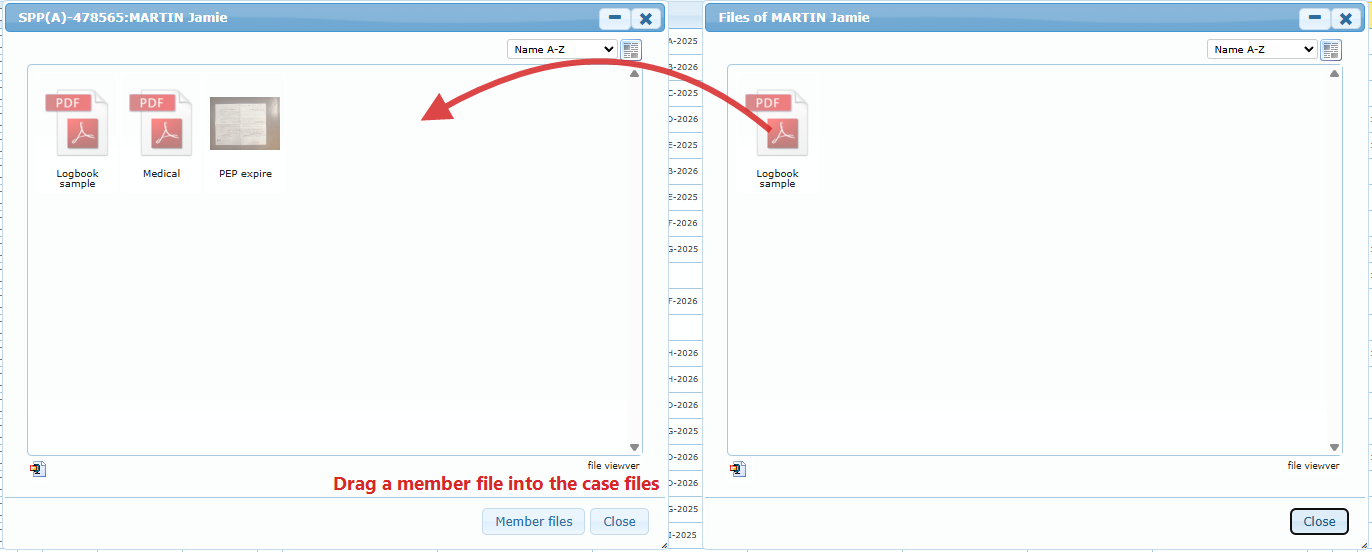
Copying files between windows with drag and drop
The case files window accepts files dragged from two other windows:
- Member files: click Member files at the bottom of the case files window (or Member › Member files in the right-click menu). Drag a file from the member’s files and drop it into the case files.
- Course uploaded files: open Member › Courses, right-click a course and choose Transfer in uploaded files › Course uploaded files. Drag a file from the course files window into the case files.
The file is copied into the case; the original stays where it was.
File actions
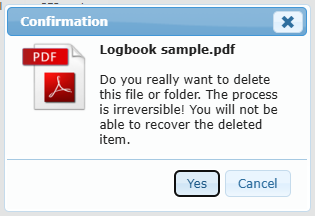
Right-click a file to Download, Delete, Cut, Copy, Rename, Download Zip, Send file by email, Lock it (restricted access) or see More options. Deleting asks for a confirmation and cannot be undone. Locked files show a padlock; files you are not allowed to open stay greyed out. For details on these actions see Handling files and folders and The files.