Published 25 October 2026, Updated 25 October 2026
The Licenses tab lists the cases. By default it shows the open cases only (closed cases are hidden), 30 per page, newest first. Use the pager at the bottom to change the page or the number of lines.
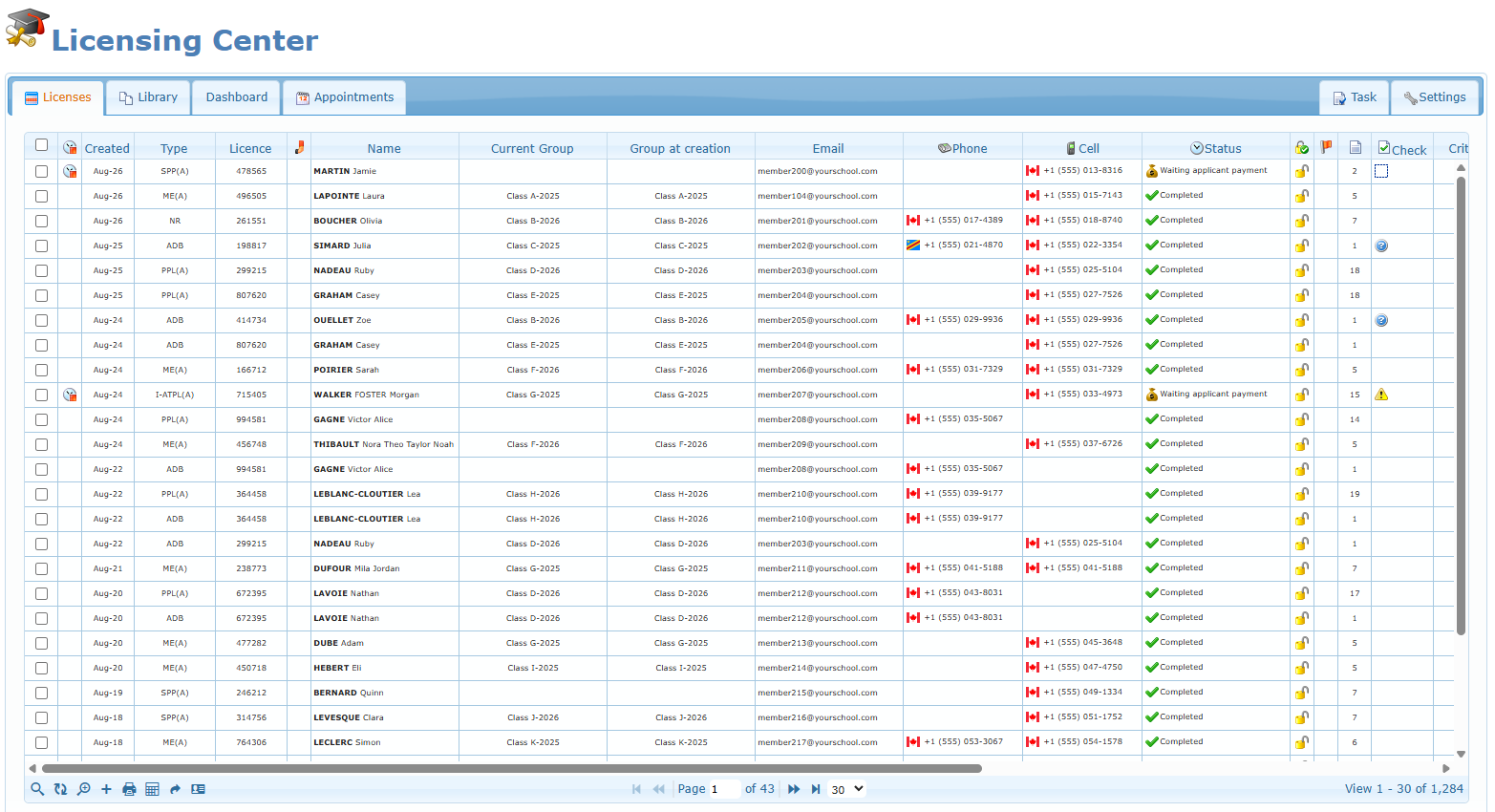
Columns and icons
| Column | What it shows |
|---|---|
| Checkbox | Select several cases to work on them together (see The right-click menus). |
| Is past (clock icon) | A red clock means the case is overdue. |
| Created | Date the case was created. |
| Type | Short title of the case type; hover it to read the full title. |
| Licence | The member’s licence number. |
| No licencing set (red card icon) | The member holds the competency that flags a missing licence and the case is not signed yet. Hover the icon to see the competency. |
| Name | The applicant. Hover the name to see the member card. |
| Current Group / Group at creation | The member’s group today and the group recorded when the case was created. |
| Email, Phone, Cell | Contact details (with the country flag of the number). |
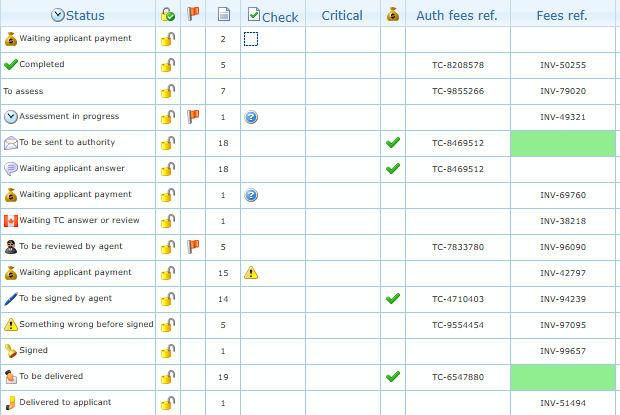
| Status | Icon and title of the status. Right-click the status cell to change it directly. |
| Lock icon | Open padlock: the case is open. Click it to close the case; click again to reopen it. Closed cases appear greyed out. |
| Flag icon | A red flag marks a priority case. Click the cell to set or remove the priority. |
| Files | Number of files uploaded in the case. Click the cell to open the case files. |
| Check | Summary of the checklist: an icon for unevaluated, denied or missing items, or a question mark when no item was evaluated yet. Hover for the counts; click to open the checklist. |
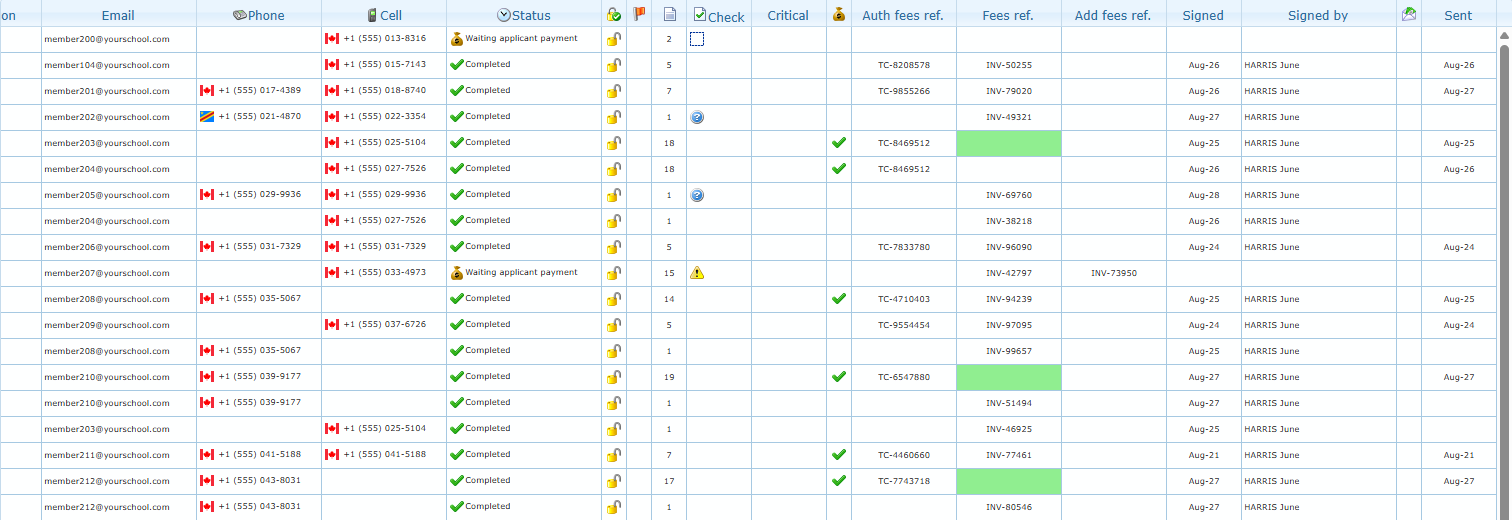
| Critical | Optional critical date (double-click to edit). Red when reached, amber when set in the future. |
| Money bag icon (Accounting Acknowledge) | A green check means accounting acknowledged the case. Click an empty cell to set it (a confirmation is asked). |
| Auth fees ref., Fees ref., Add fees ref. | Authority fees reference, organization invoice reference and additional invoice reference (double-click to edit). |
| Signed | Date signed by the authorized agent (double-click to edit, agents of the case type only). |
| Signed by | The agent who signed. |
| Sent | Date the file was sent to the authority (double-click to edit). |
Editing a cell directly in the list
Several columns can be edited without opening the case: double-click the cell, type the value or pick a date in the calendar, then press Enter. The list refreshes after saving.
- Critical, Signed and Sent open a date picker.
- Auth fees ref., Fees ref. and Add fees ref. accept free text. The Fees ref. cell is highlighted in light green when the member’s current group is a 2026 group and no reference is entered yet. After saving an Add fees ref., a reminder suggests closing the member’s courses when the fees were based on course hours, so the numbers cannot change afterwards.
- Signed can only be edited by the authorized agents of the case type. If accounting has not acknowledged the case, a warning appears before the date is entered (see Signature and accounting acknowledgment). After a signature date is saved, the Add a competency window opens so you can add the new licence or rating to the member’s profile right away.
The toolbar

| Icon | Action |
|---|---|
| Magnifier | Show or hide the search row under the column titles. |
| Circular arrows | Refresh the list. |
| Magnifier with plus | Advanced search with several conditions. |
| + | Add a case. |
| Printer | Print the list to Excel or PDF. |
| Grid | Select columns to show. |
| Curved arrow | Reset columns order to the original layout. |
| Contact card | Student Pilot Permit Name calculator. |
Searching and filtering
Click the magnifier to show the search row. Type in a text field (name, licence, groups, email, fee references, signed by) or pick a value in a list. The list updates as you type. Useful lists:
- Type and Status: tick one or several values (All / None shortcuts at the top).
- Close or open: Open (default), Closed or All.
- Priority: All or Priority set.
- Is past: On time or Past overdue.
- Accounting Acknowledge: No GO or Acknowledge.
- Check: show the cases where a given item is in a given state, or where an item is not in the checklist (NO … entries).
- Created, Critical, Signed and Sent: pick a period (last 3 months, this year, a given year, since a year, all time) or your own range, then Filter.

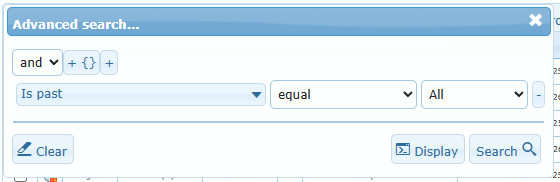
The Advanced search window combines several conditions with and / or and groups of conditions. Click + to add a condition, choose the column, the comparison and the value, then Search. Clear removes all conditions.
Printing and choosing the columns
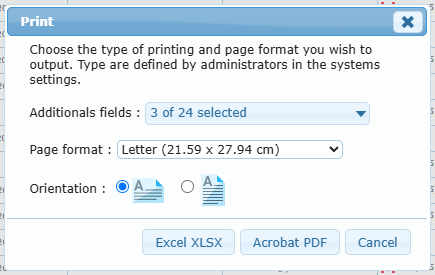
Print exports the cases that match the current filters. Type, licence number and candidate name are always included; choose the Additional fields you need (status, dates, contact details, priority, closed, fee references, accounting acknowledgment, signed date…), the page format and the orientation, then click Excel XLSX or Acrobat PDF.
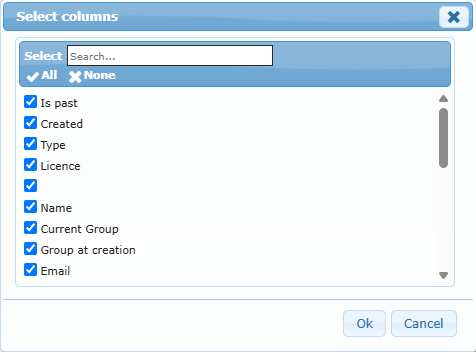
Select columns to show lets you tick the columns to display. When you click Ok, you are asked whether to save the selection: answer Yes to keep it the next time you open the center. Column order can also be changed by dragging a column title. Reset columns order restores the original columns.
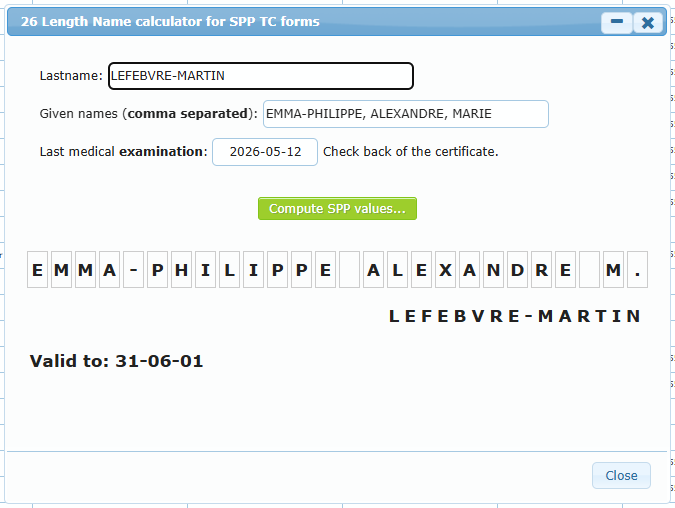
Student Pilot Permit name calculator
This calculator is only for the old paper version of the student pilot permit.
The old paper Transport Canada student pilot permit forms limit the name to 26 boxes. Click the contact-card icon, enter the Lastname, the Given names separated by commas and the date of the Last medical examination (see the back of the certificate), then Compute SPP values…. The window shows the 26 letters to copy into the form boxes, the last name line and the Valid to date. Nothing is saved.