
Published 18 October 2026, Updated 23 October 2026
Dynamic documents
Dynamic documents are templates (recommendations, attestations, reports) filled automatically with information of the member, the course, the lesson and the completed session. Click Dynamic docs to open the Dynamic docs Manager.
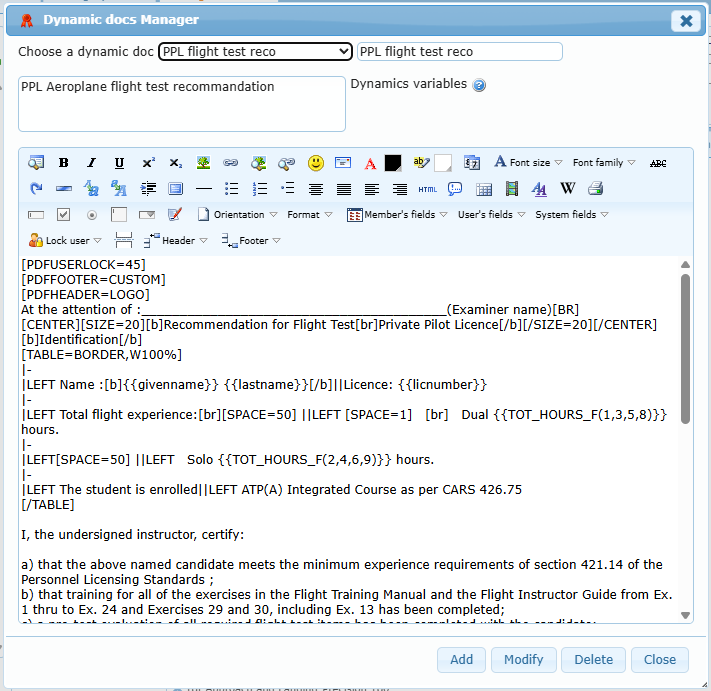
- Choose New dynamic doc… or an existing document in Choose a dynamic doc.
- Enter or change the Title and the Short description.
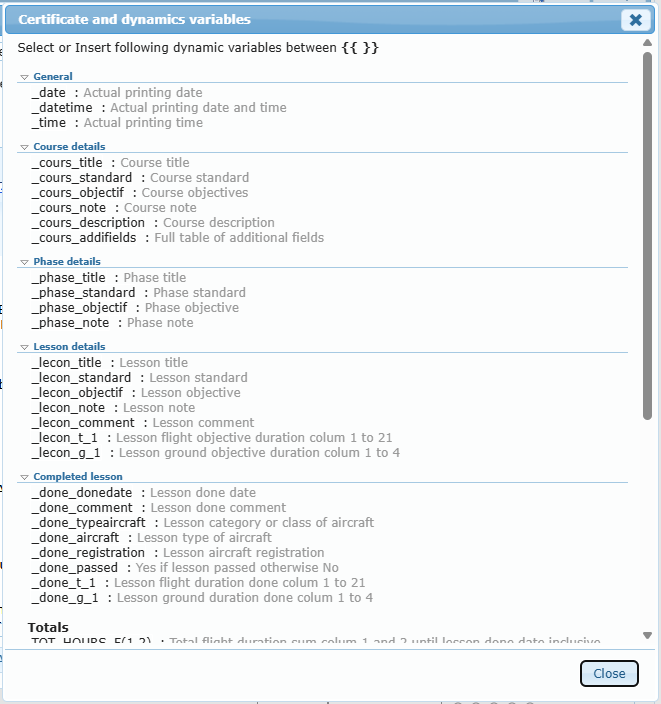
- Write the text in the editor. Click the ? beside Dynamics variables to insert variables between
{{ }}. - Click Add for a new document, Modify to save changes, Delete to remove it, Close to leave.
The variables cover the printing date and time, course, phase and lesson details (title, standard, objective, notes, comment, planned durations), the completed lesson (date, comment, aircraft, registration, passed, durations), total hours up to the lesson or up to today, and the PIC and student details.
To make a document available, select it in Design a lesson › Completion and grading › Dynamic documents. It becomes downloadable when the lesson is completed as passed.
Test every template with a test member before attaching it to a live lesson.
Course certificates
The Course certificates tab creates certificates for the whole course (for example an enrolment certificate or a course completion certificate). Unlike dynamic documents, they are not attached to a lesson: they can be printed when their own requirements are met.
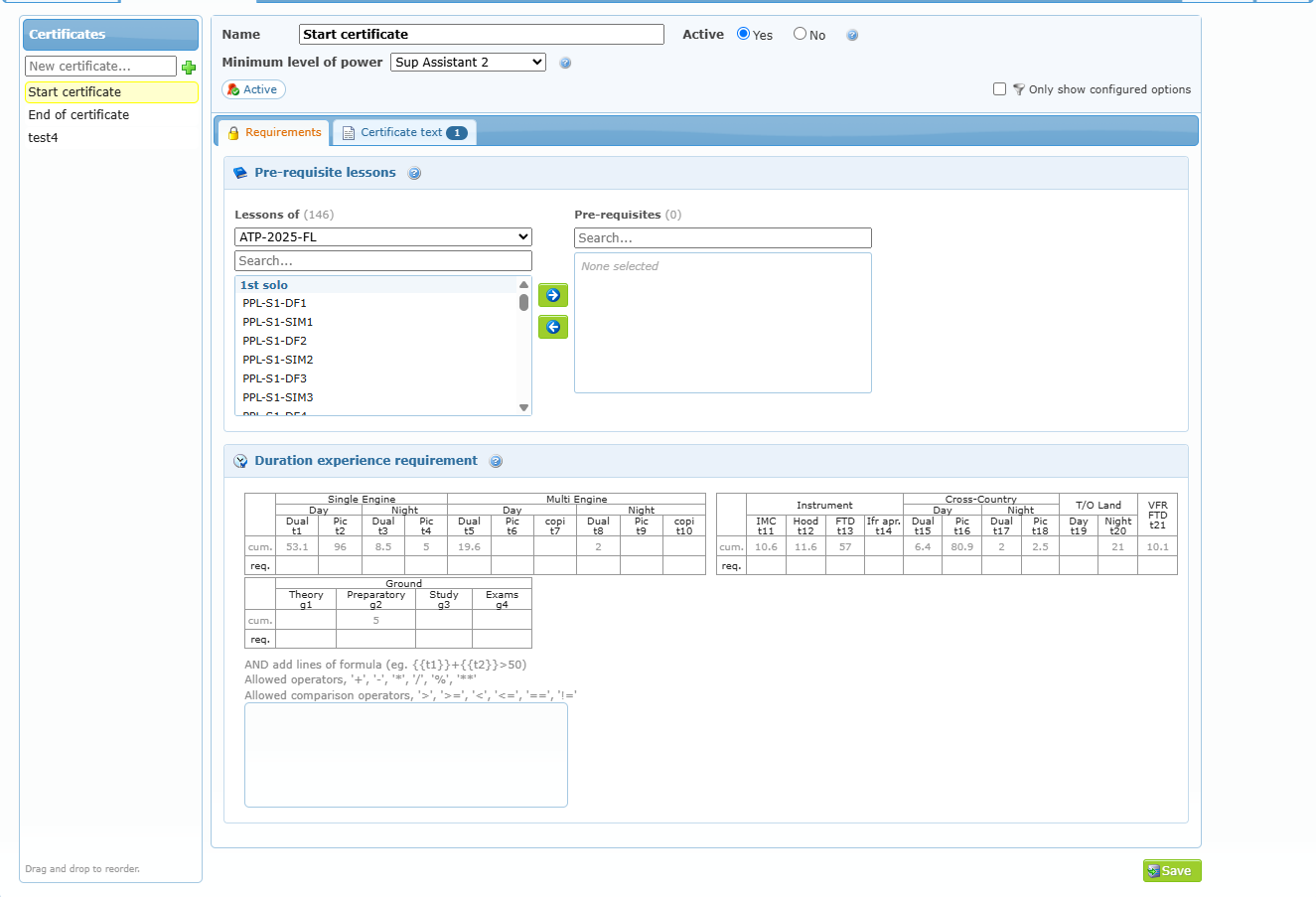
Manage the list (left panel)
- Type a name in New certificate… and click +.
- Click a certificate to open it.
- Drag certificates to reorder them.
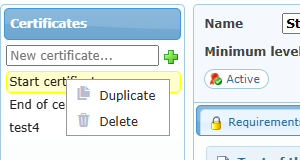
- Click the red cross, or right-click and choose Delete, to delete one. Right-click › Duplicate creates a copy.
Configure a certificate
| Setting | Purpose |
|---|---|
| Name | Name of the certificate. |
| Active Yes / No | An inactive certificate cannot be printed. |
| Minimum level of power | Minimum level a member needs to print it. |
| Requirements › Pre-requisite lessons | Lessons that must be completed before printing. Choose a course to list its lessons; lessons of another course are marked []. |
| Requirements › Duration experience requirement | Minimum times in the same course (the cum. row shows the total planned by the course), plus optional formula lines written as for lessons (see Duration experience requirement). The hours recorded and the hours credited to the member in the course are counted, as for lessons. Unlike a lesson, a certificate with an invalid formula is not saved: the message Invalid duration formula for … names the certificate and the formula to correct. |
| Certificate text | The text of the certificate, with variables such as the member name, dates and course durations (click ? to insert one). The badge No text yet warns you when it is empty. |
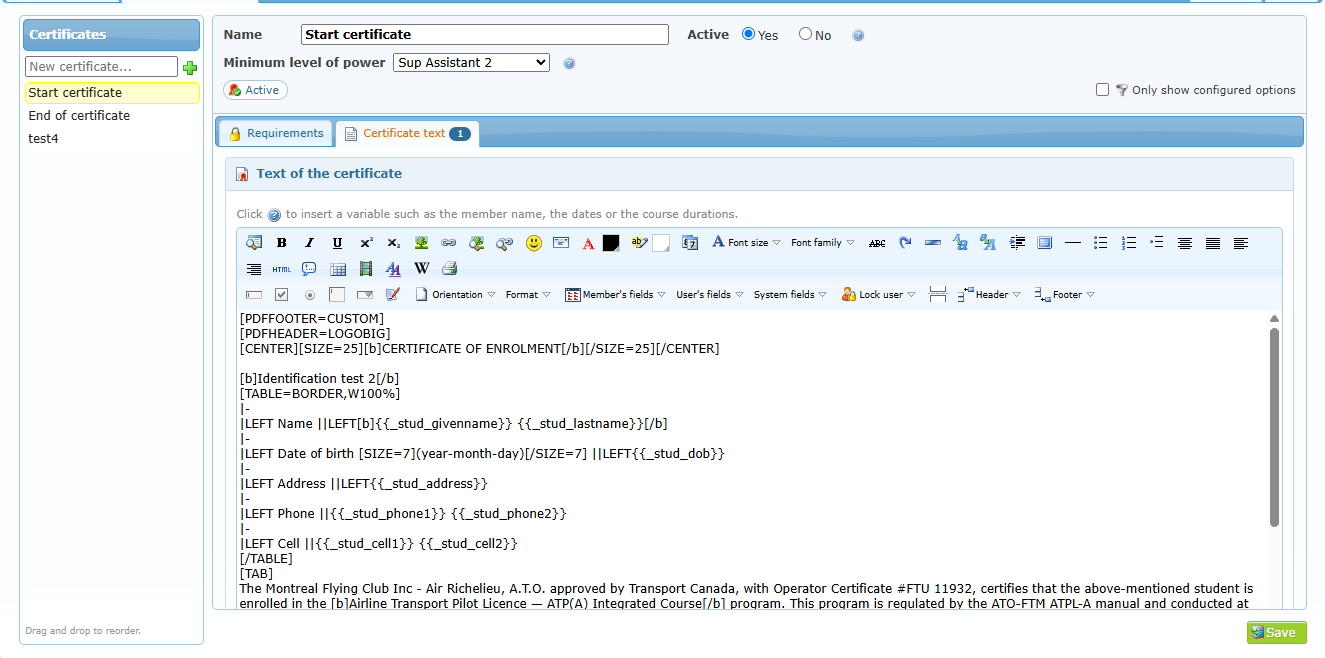
Click Save to keep your changes. Certificates can be changed only while the course can be modified.