
Published 18 October 2026, Updated 18 October 2026
Exercise items library
Click Exercises items at the bottom of the page to open the Groups and items manager. Items are reusable: the same item can be graded in many lessons and courses.
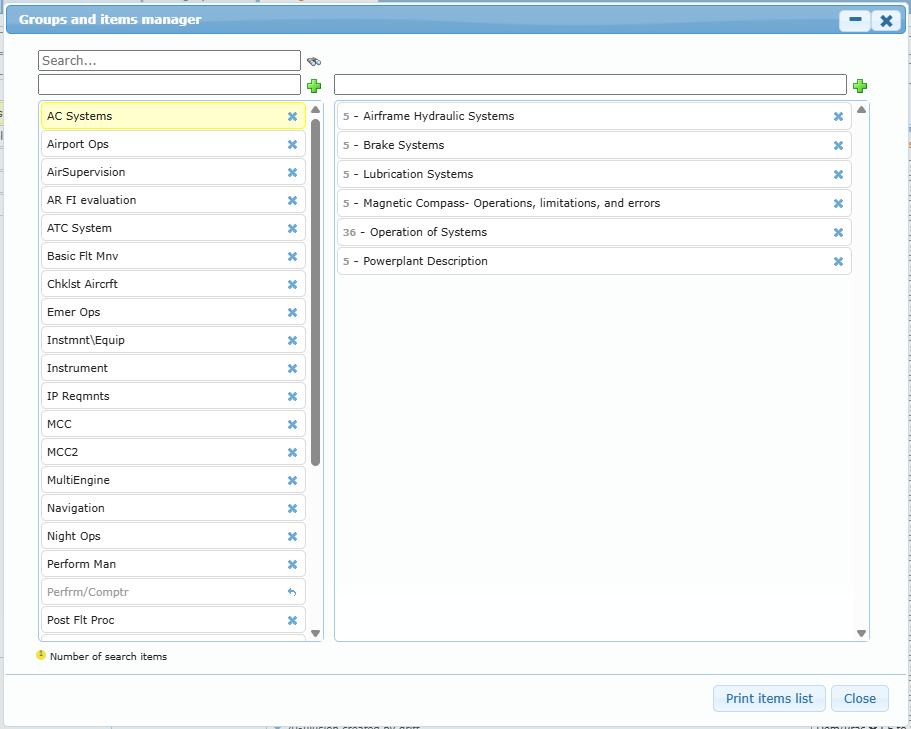
| Action | How |
|---|---|
| Search | Type in Search… and press Enter or click the magnifier. The number beside each item is the number of matching uses. |
| Add a group | Type the group name in the left field and click +. |
| Add an item | Select a group, type the item title in the right field and click +. |
| Deactivate | Click the cross of a group or item. It is kept for past records but no longer proposed. |
| Restore | Click the undo icon of an inactive group or item. |
| Print items list. |
Tip: deactivating an item does not change past records. Restore it only if it must be used again.
View all exercises of a course or phase
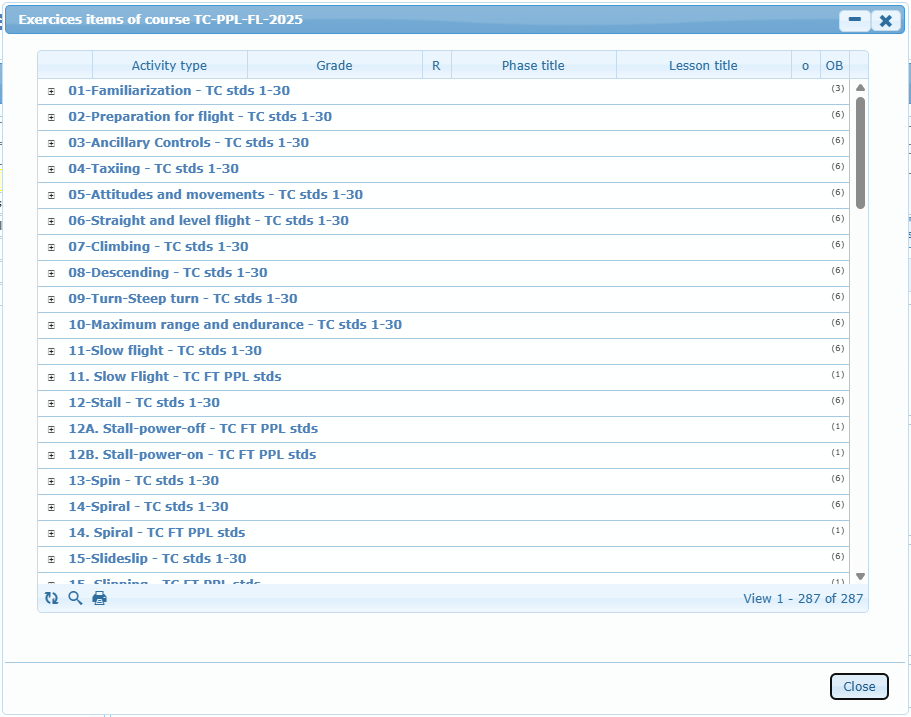
Right-click a course (or a phase) and choose View all exercices to see every item used, grouped by item, with activity type, grade, phase, lesson, whether it is optional and its OB. Use the magnifier to search and the printer to print.
Observable Behaviours (OBs)
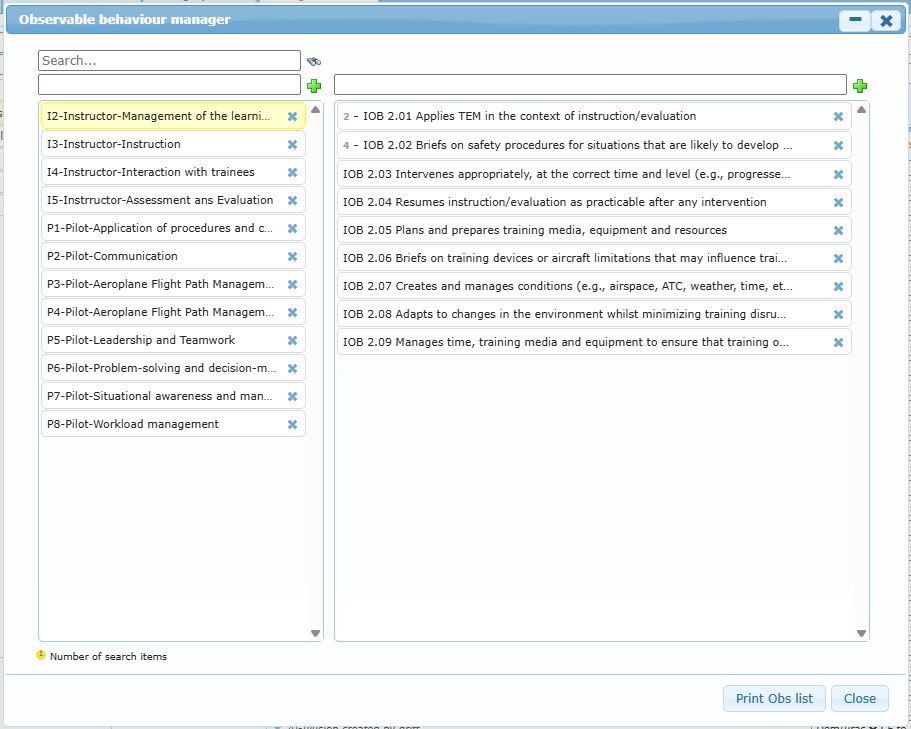
Observable Behaviours describe actions a trainer can actually observe (for example Monitors the flight path and takes corrective action). Click OBs to open the Observable behaviour manager. It works like the items manager: groups on the left, behaviours on the right, Search…, + to add, cross to deactivate, undo to restore, and Print Obs list.
Link OBs to lesson items in Design a lesson › Items (OB marker). Write short, observable wording and avoid vague qualities that two trainers would assess differently.