Published 18 October 2026, Updated 18 October 2026
Completion and grading
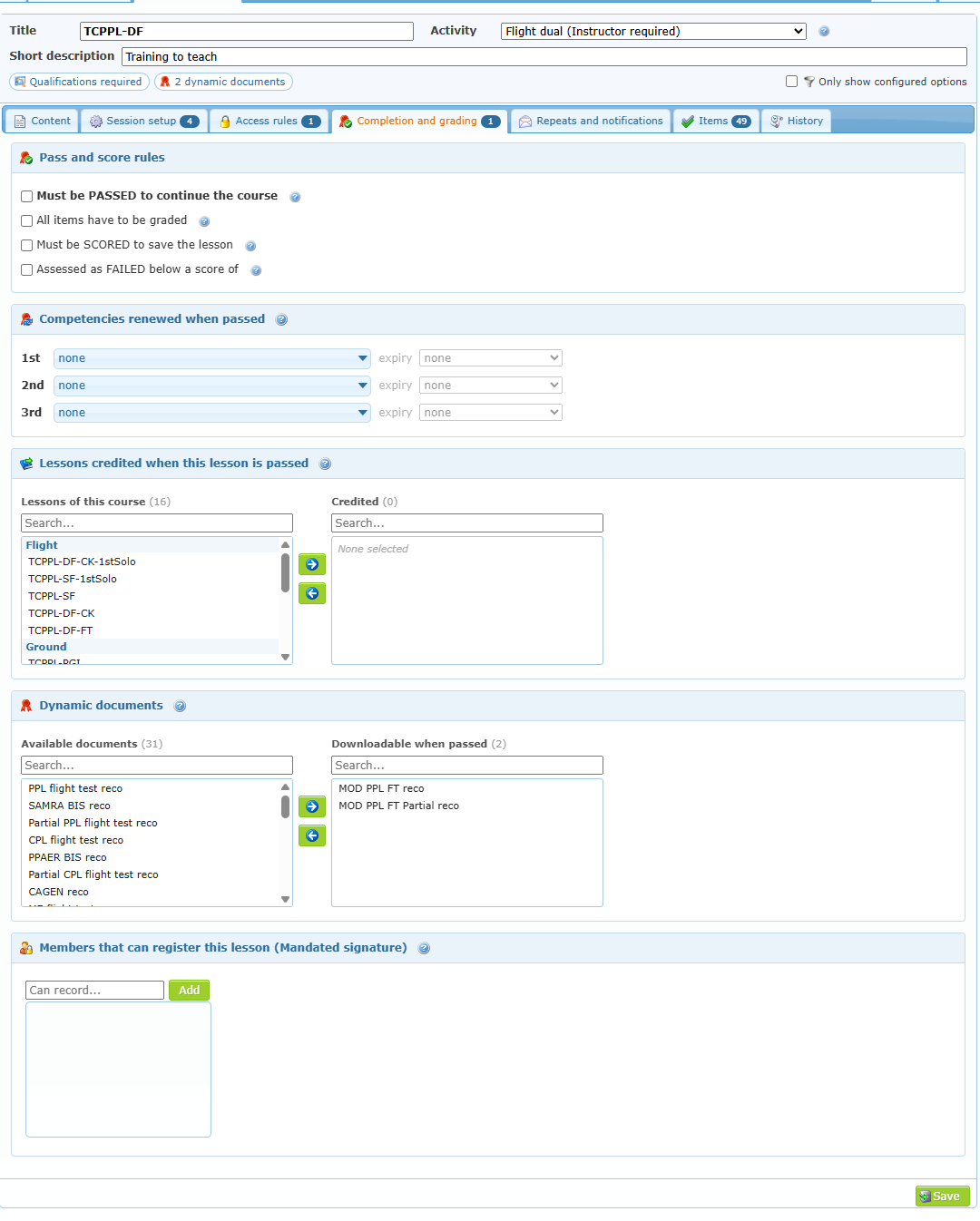
Pass and score rules
| Option | Effect |
|---|---|
| Must be PASSED to continue the course | The student must pass this lesson before continuing. Use it for checks and phase evaluations. |
| All items have to be graded | Every exercise item of the lesson must receive a grade. |
| Must be SCORED to save the lesson | A score is required to save. |
| Assessed as FAILED below a score of … % | The lesson is automatically assessed as failed below this score. Untick for no automatic check. |
Competencies renewed when passed — Up to three competencies (1st, 2nd, 3rd) renewed when the lesson is passed, each with its expiry rule. This updates the member’s qualifications, so confirm the competency and expiry with the approved program.
Lessons credited when this lesson is passed
Some lessons cover other lessons of the same course: a check ride can validate earlier exercises, or one long ground session can replace several short ones. List those lessons once here. Each time an instructor saves this lesson as passed for a student, the listed lessons are credited to the student automatically, exactly as if a course responsible had credited them in the Credits tab of the training record (money bag icon, counted as passed, no duration added).
To configure them:
- The left list shows the other lessons of this course, grouped by phase. Select one or more lessons.
- Click the arrow, double-click or drag them to the Credited list.
- To remove one, move it back to the left list.
- Save the lesson.
| Rule | What it means |
|---|---|
| Same course only | Only lessons of the current course can be credited. |
| Not the lesson itself | The lesson you are editing is never listed. |
| No crossed links | A lesson that already credits this lesson is greyed with (credits this lesson) and cannot be selected. |
| Inactive lessons | Marked (inactive); listed but never credited while inactive. |
| One level only | A credited lesson never credits its own linked lessons in turn. |
| Editable course only | The list can be changed only while the course can be modified. |
| Not installed | This option is not installed yet (database update required): ask your administrator. Lessons save normally in the meantime. |
What happens later, in the training records:
| Situation | Result |
|---|---|
| Instructor saves the lesson as passed | A Lessons to credit window lists the configured lessons, all checked. The instructor unchecks those not covered for this student and clicks Save. |
| Lesson saved through Multiple Entries, changed later to passed, or passed automatically by its score | All configured lessons are credited, without a window. |
| The student already has a configured lesson (completed, failed or credited) | That lesson is greyed and never credited twice. |
| The phase of a configured lesson is hidden for the student | That lesson is not proposed and not credited. |
| The passed entry is deleted, or changed to not passed | The automatic credits are removed. Credits added by hand are never removed. |
| The course is closed | Nothing is credited. |
In the training record, the money bag tooltip reads Credited automatically from lesson … (entry of …), and the Credits tab shows (auto: …).
Dynamic documents — Move documents from Available documents to Downloadable when passed. They become downloadable when the lesson is completed as passed. The documents themselves are managed with the Dynamic docs tool.
Members that can register this lesson (Mandated signature) — Selected members who have access to the course can record this lesson for another pilot in command and certify it with a mandated signature. Leave empty to keep the normal recording permissions. This does not give correction rights.
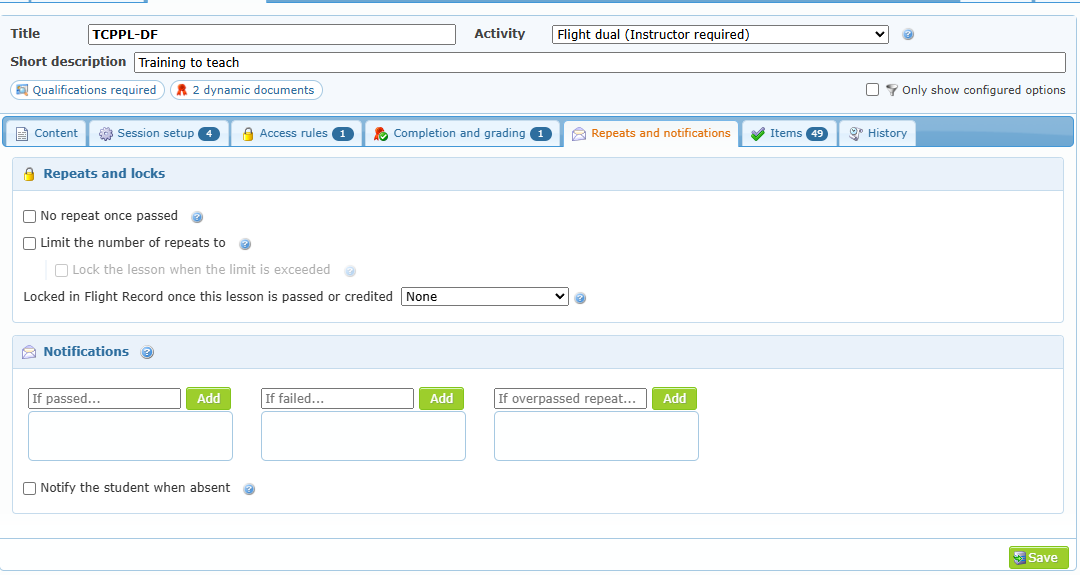
Repeats and notifications
| Option | Effect |
|---|---|
| No repeat once passed | The lesson cannot be done again after its last result is passed. |
| Limit the number of repeats to | Maximum number of repeats. Untick for no limit. |
| Lock the lesson when the limit is exceeded | Blocks the lesson once the limit is exceeded (available when a limit is set). |
| Locked in Flight Record once this lesson is passed or credited | Choose a following lesson: once that lesson is passed or credited, this lesson can no longer be selected in Flight Record. Useful for alternative or superseded paths. |
| Notifications — If passed…, If failed…, If overpassed repeat… | Members e-mailed when the lesson is saved as passed, as failed, or when the repeat limit is exceeded. Search a member and click Add. |
| Notify the student when absent | The student is notified when marked absent for a session, and an attendance report is created if this report type is configured. |
Items
The Items sub-tab lists the exercise items graded in this lesson. The number on the sub-tab is the number of items.
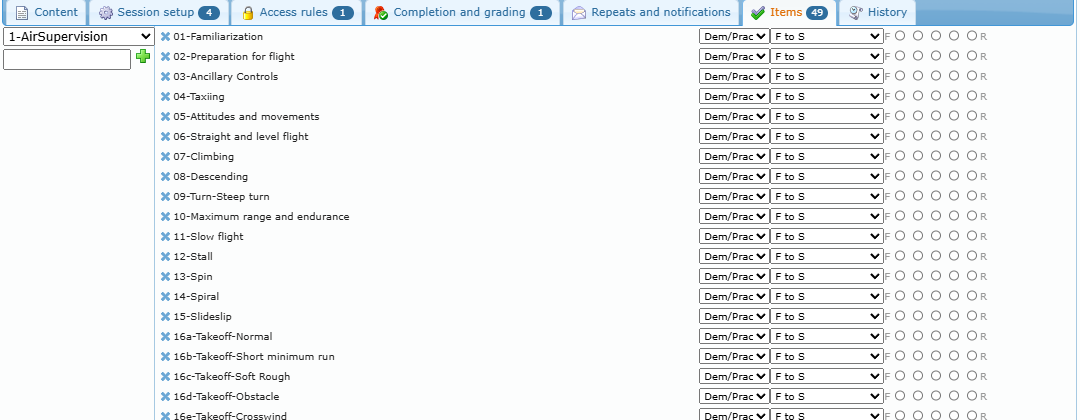
Add items (left column, when the course can be modified):
- Choose an item group in the drop-down list. Its items are listed below.
- Click an item to add it to the lesson, or type a new item title and click + to create it in the group and add it.
Configure each item (right column):
| Control | Purpose |
|---|---|
| Cross | Removes the item from the lesson (a removed item can be recovered with the undo icon). |
| Item title | Hover it to see the item details. |
| Set as optional | Makes the item optional for this lesson. |
| OB | Links an Observable Behaviour to the item (see below). |
| Activity type list | Discuss, Introduce, Demonstrate/Practice, Practice, Evaluate, Oral evaluation… |
| Grade type list | The grading scale used (for example 1 to 4, F to S, Incomplete-Done, Unsatisfactory-Incomplete-Satisfactory). The Help tab describes each scale. |
| Grade buttons | Select the minimum grade required for the item; choose No minimum grade to remove it. |
Drag items to change their order. Item changes are saved immediately.
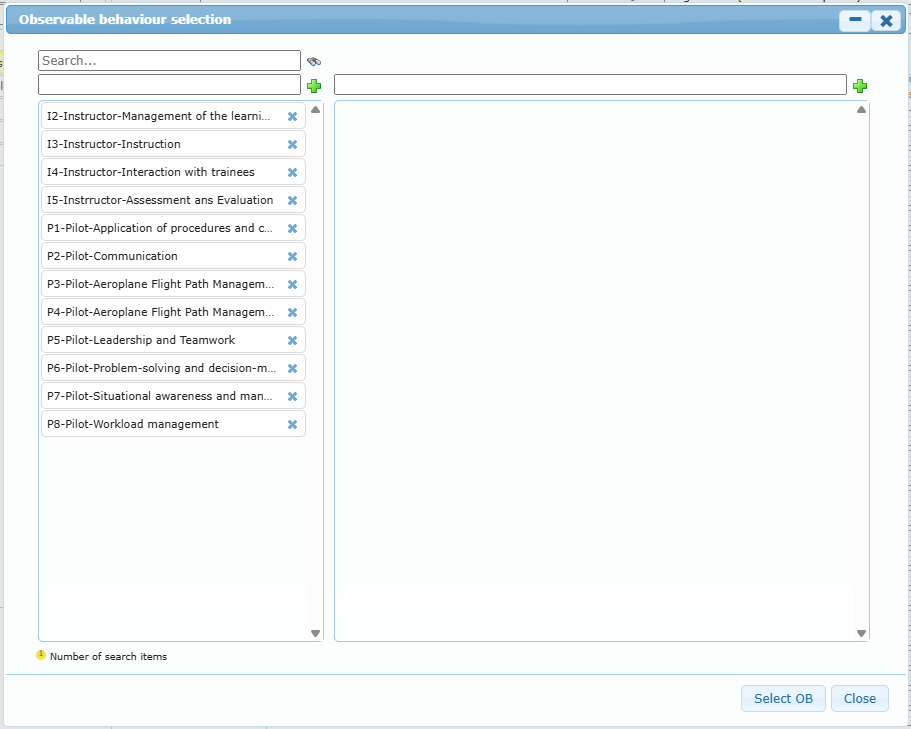
Link an Observable Behaviour — click the OB marker of an item, choose the behaviour in the Observable behaviour selection window and click Select OB.
History
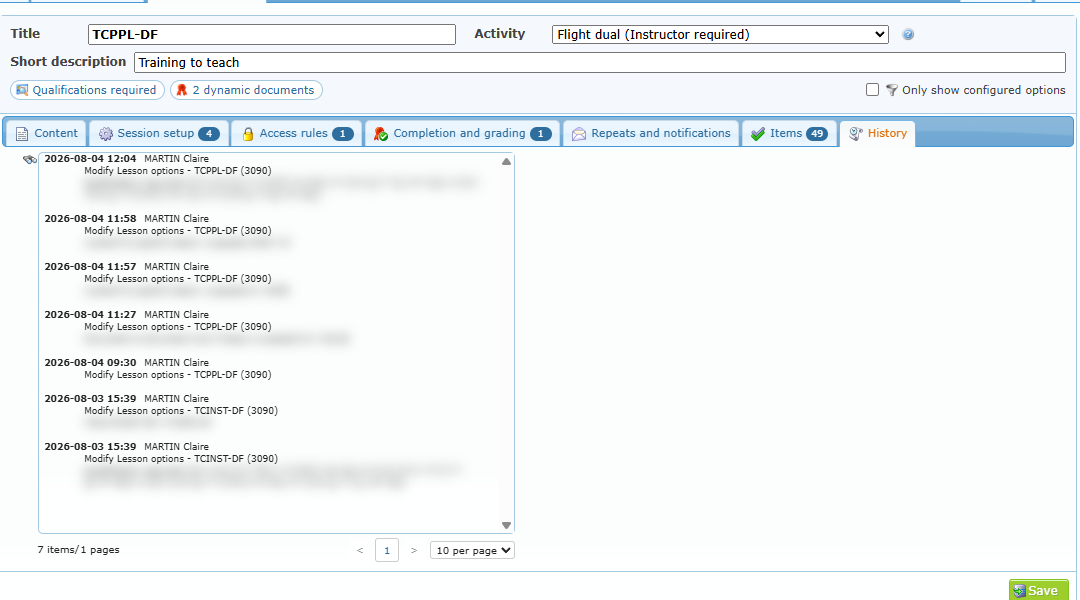
Visible to administrators. Lists every recorded change of this lesson with date and member.