
Published 10 October 2026, Updated 10 October 2026
Opening the E-training tab
- Open your own profile: click your name in the main menu.
- Click the E-training tab.
The tab is visible on your own profile only. Senior administrators can also open it on other members’ profiles to check their results.
The tab has two parts:
| Part | What it shows |
|---|---|
| My e-training or evaluation available | The e-trainings you can start now. |
| Current e-training or evaluation completed. | The e-trainings you started or finished, most recent first. |
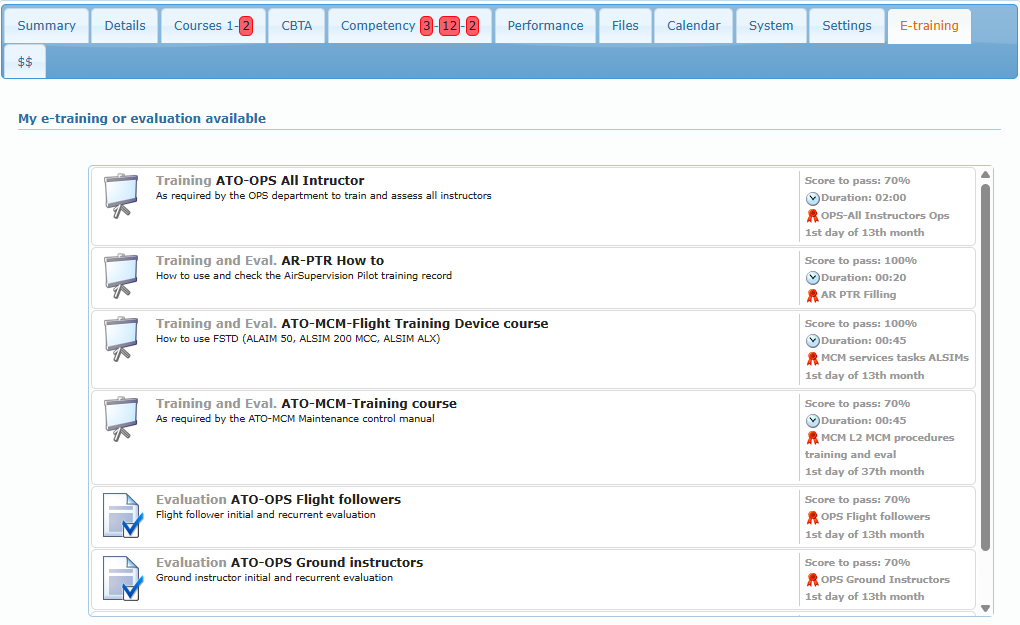
Reading an e-training line
| Element | Meaning |
|---|---|
| Icon on the left | Type of e-training: presentation board for a Training or Training and Eval., checked sheet for an Evaluation, clipboard for a Survey. |
| Grey word before the title | The type written in full: Training, Evaluation, Training and Eval., Survey. |
| Title and description | What the e-training is about. |
| Score to pass | Minimum score you need to pass the quiz. |
| Clock Duration | Maximum time allowed (hours:minutes). |
| Red ribbon and a name | The competency that is added or renewed when you pass. |
| Last line (for example “1st day of 13th month”) | How the expiry date of the competency is calculated when you pass. |
Launching an e-training
Click the line of the e-training. It opens in your browser window. E-trainings hosted online open in a new tab.
- Read the slides or answer the questions until the end of the e-training.
- Results are recorded when you reach the end. Don’t close the window before the results screen.
- If a maximum duration is set, finish within that time.
Continuing a course later
Some courses keep track of your progression. When you leave such a course before the end, it moves from the available list to the completed list with a blue play icon and the text “last slide: N”.
Click that line (its tooltip says Resume) to restart at the slide where you stopped. While a course is in progress, it is not shown in the available list.
Common questions
| Question | Answer |
|---|---|
| An e-training my colleague sees is missing for me. | It is not open to your roles and you don’t hold the competency it renews. Ask the person in charge of trainings. |
| My competency was not renewed. | You didn’t reach the score to pass, or you closed the window before the results were recorded. Launch the e-training again. |
| A course restarts from the beginning. | That course doesn’t keep track of progression. |