
Published 9 October 2026, Updated 9 October 2026
A training record is the complete file of one student in one course: every lesson planned by the course, every lesson already done, the grades given to each exercise, the flight and ground durations, the signatures, the planning and the statistics. The page title always reads Training record “COURSE” followed by the student’s name.
The same page is used by two kinds of people:
| You are… | What you mainly do on the page |
|---|---|
| The student (the training record is yours) | Follow your progress, read your instructors’ comments and grades, see what is still to do, sign your lessons, check your durations and print your file. When your school allows it, you can also record some activities yourself (for example a solo flight). |
| An instructor / PIC | Open the student’s record, record the lesson you have just given (grades, durations, comment, pass or fail), link it to the flight in the Flight Records, sign it and follow the student’s planning and performance. |
| A course responsible or manager | Everything an instructor does, plus planning dates, credits, notes, additional fields, priority, certificates and closing or reopening the course. |
What you can see and change depends on the credentials given to you by your administrators. If a button, tab or menu entry described in this chapter is missing, the option is not enabled for you or for this course.
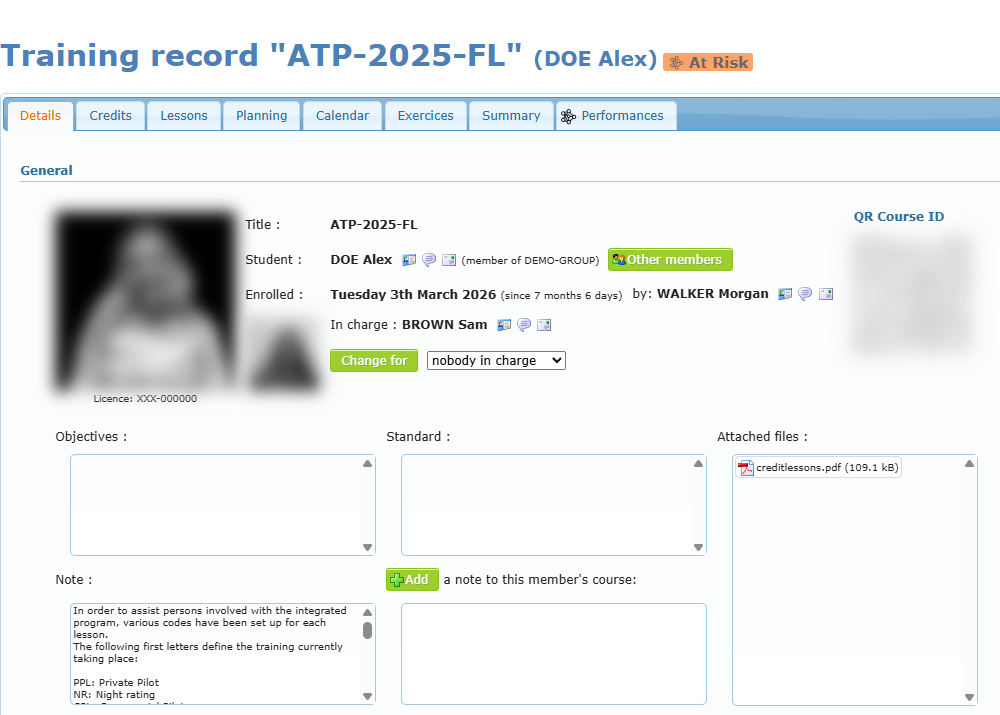
How to open a training record
| From | How |
|---|---|
| Main menu | Students open their assigned courses from the main menu. |
| Profile page | Open your profile, then the Courses list, and click the course. See Profile details. |
| Course lists (staff) | Instructors and responsibles open a student’s course from the Courses Center, the Course responsible Center or a member profile. |
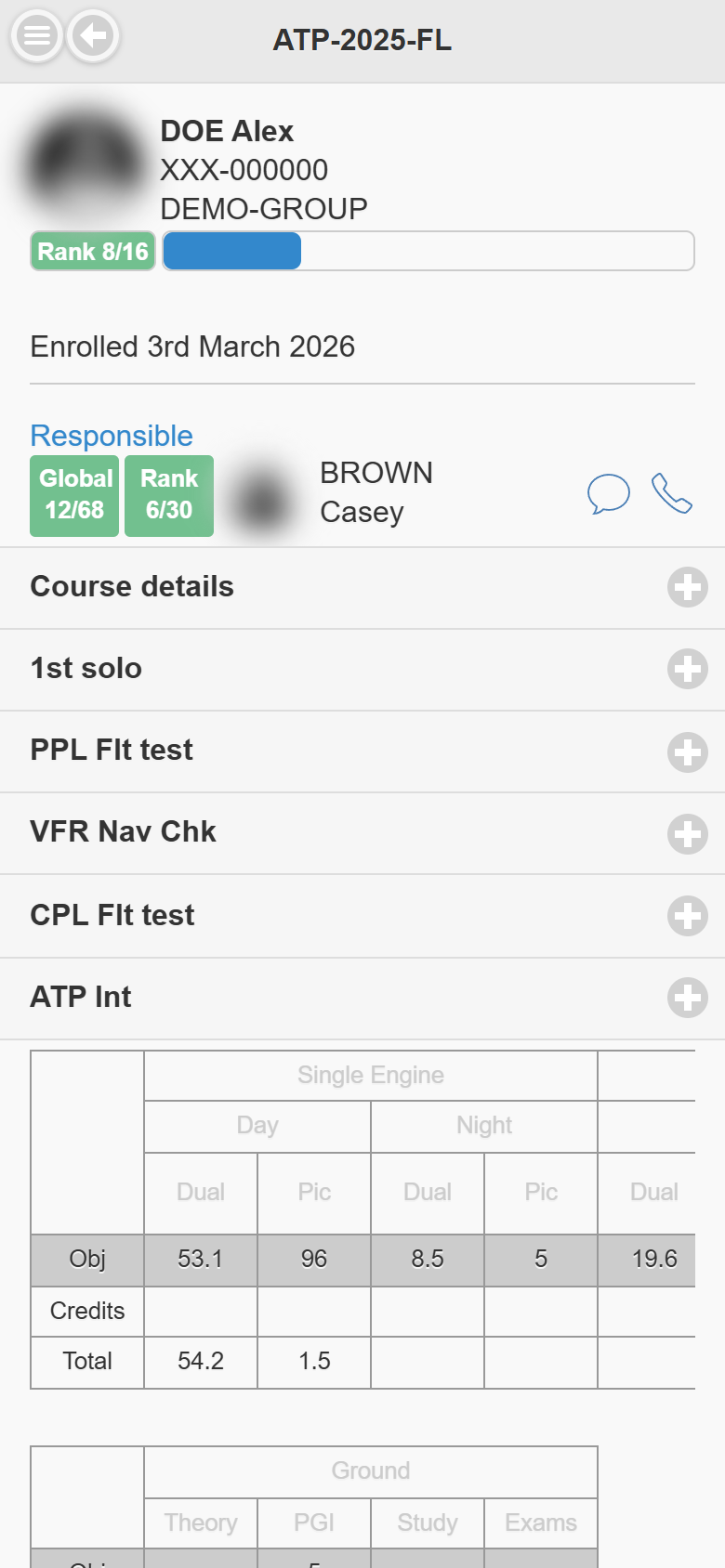
| Mobile device | Open the course from your courses list or scan its QR code. See Using the mobile version. |
Using a mobile device
The mobile version shows the course, its phases and lessons, lets you read every completed lesson, record a new lesson, sign and request corrections. The full set of tabs described in this chapter (Planning, Exercices, Summary, Performances…) is available in a desktop browser. See the article Using the mobile version.
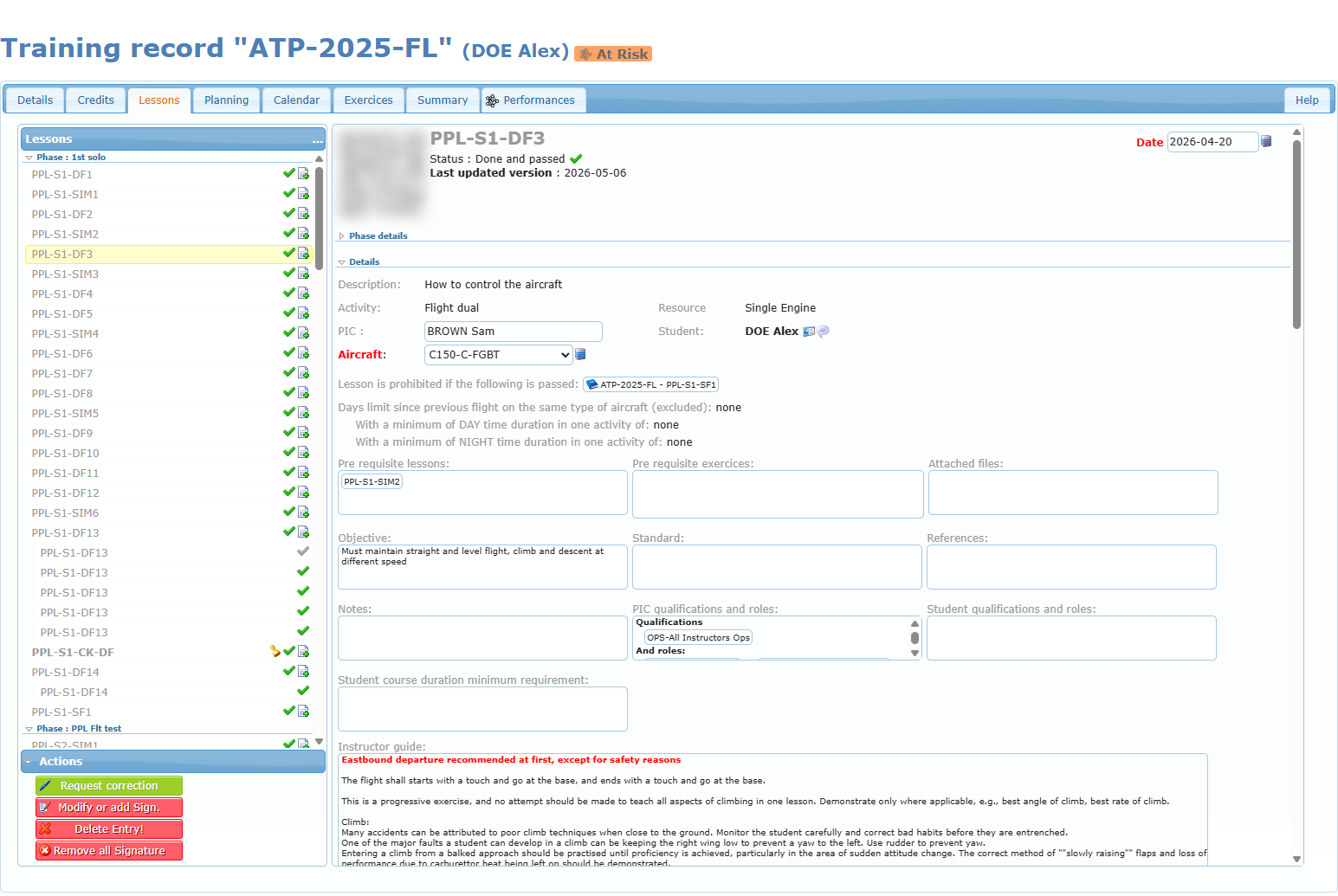
The tabs of a training record
| Tab | What it contains | Who sees it |
|---|---|---|
| Details | Student, enrolment, person in charge, objectives, notes, additional fields, history and course actions (certificates, priority, close). | Everyone who can open the record |
| Credits | Hours and lessons credited from previous training. | Everyone (changes need the credit permission) |
| Lessons | The lesson list on the left and the selected lesson on the right. This is where lessons are read, recorded and signed. | Everyone |
| Planning | Objective versus done durations, projected dates, no-shows and lateness, planning notes. | Everyone (dates are changed by staff) |
| Calendar | The student’s scheduled activities by day or month. | Everyone |
| Exercices | Every exercise and the grade obtained on each date. | Everyone |
| Summary | A logbook-style list of all recorded lessons with totals. | The student, instructors, responsibles and managers |
| Performances | Progress tables, scores, charts, comments, no-shows, required exercises and, when enabled, an AI analysis. | The student, instructors, responsibles and managers |
| Help | The meaning of every icon and grading scale used on the page. | Everyone |
Indicators in the page title
| Indicator | Meaning |
|---|---|
| Priority 1 to 4 (coloured badge) | A course responsible has set a follow-up priority for this student (see Details and Credits). |
| On Track / At Risk / Behind / Complete (AI badge) | Shown only when the AI analysis is enabled for your school and you have the right to see it. Hover the badge to read the summary. It is a decision-support indicator only, not an official assessment. |
Articles in this chapter
- Details and Credits tabs — student information, person in charge, notes, additional fields, certificates, priority, closing a course, credited hours and lessons.
- Lessons tab: reading a training record — lesson icons, filters, the right-click menu and every section of a lesson.
- Recording a lesson — step by step, for instructors and students, including flight record selection, durations and grading.
- Signatures, corrections and changes — signing, correction requests, deleting an entry, locked lessons.
- Planning and Calendar tabs — projected dates, alerts, planning notes, no-shows and lateness.
- Exercices, Summary and Performances tabs — grades by date, logbook summary and statistics.
- Using the mobile version — the course page, reading a lesson, recording and signing a lesson on a phone or tablet.
- Printing, Help tab and troubleshooting — every printout and the answers to common blocking messages.
- The logbook items — the definition of every logbook column used across the portal (article kept from the former “Course details” chapter).