Published 22 February 2026, Updated 28 February 2026
Right-click is the main operational launcher in the List tab.
Important context rule:
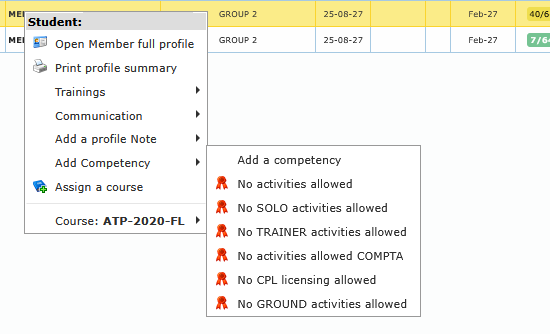
- Right-click on a student name to work on student-side actions.
- Right-click on a responsible name to work on responsible-side communication/profile actions.
- Right-click on a student row after selecting several rows to get bulk actions under Selected Students.
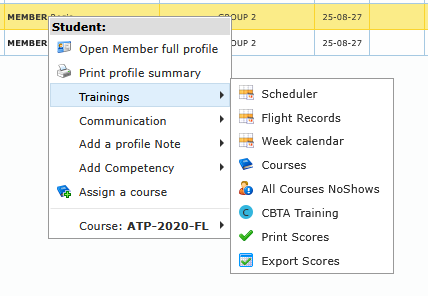
Profile and Training Actions
| Action | What it does | Visibility/conditions |
|---|---|---|
| Open Member full profile | Opens full member profile page | Available when member row context is valid |
| Print profile summary | Opens printable profile summary | Same as above |
| Scheduler | Opens scheduler focused on selected member | Requires scheduling feature availability |
| Flight Records | Opens member flight records dialog | Requires scheduling/flight records feature availability |
| Week calendar | Opens weekly planning view for member | Available in normal list usage |
| Courses | Opens list of member courses | Available in normal list usage |
| All Courses NoShows | Opens no-show view across all courses | Visible only for roles with no-show access |
| CBTA Training | Opens CBTA training dialog | Available where CBTA module is active |
| Print Scores | Generates score report (PDF) | Available in member training submenu |
| Export Scores | Generates score export (Excel) | Available in member training submenu |
Communication Actions
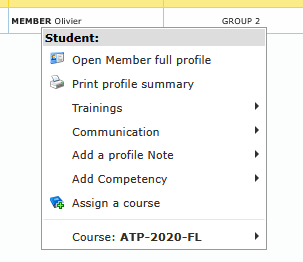
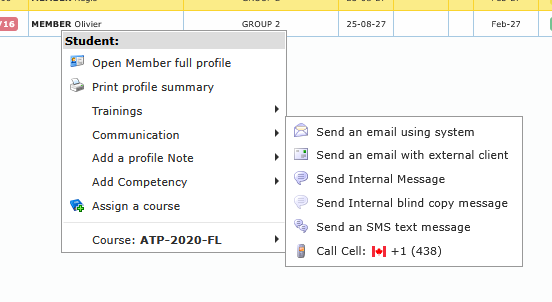
Communication options are context-sensitive and can be hidden if contact data is missing.
| Action | Typical use | When hidden/blocked |
|---|---|---|
| Send an email using system | Send tracked operational email with attachments | Hidden when email is missing |
| Send an email with external client | Opens local mail client | Hidden when email is missing |
| Send Internal Message | Sends internal platform message | Usually visible |
| Send Internal blind copy message | Sends internal message with blind-copy behavior | Usually visible |
| Send an SMS text message | Sends SMS to mobile contact | Hidden when mobile number is missing |
| Call Cell | Starts a phone call action on compatible device | Hidden when cell number is missing |
| Call Phone | Starts a phone call action on compatible device | Hidden when phone number is missing |
Notes and Follow-Up
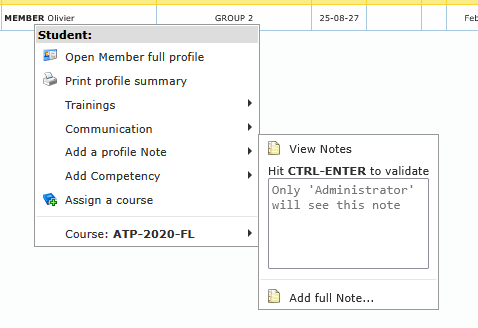
Notes actions support both quick and full-detail follow-up.
- View Notes: Opens notes history/list for the selected member.
- Quick note: Type directly in the context input and press Ctrl+Enter to save.
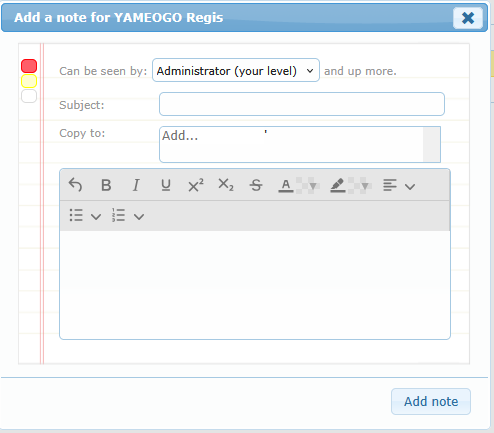
- Add full Note…: Opens full note editor with title, content, and note importance options.
Use quick note for fast operational trace, and full note for structured safety/training follow-up.
Competency and Course Assignment
Add Competency behavior:
- The submenu contains one generic entry (Add a competency) plus preconfigured competency shortcuts when available.
- Available competencies depend on your role and competency activation rules.
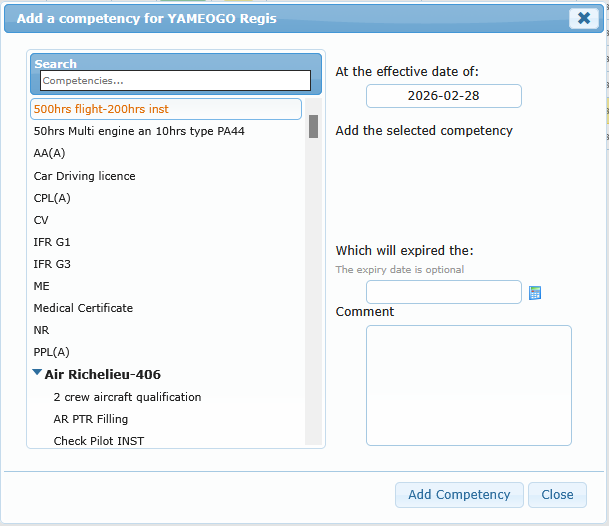
Competency dialog fields:
| Field | Meaning | Validation behavior |
|---|---|---|
| At the effective date of | Competency start date | Expected date format from date picker |
| Which will expired the | Expiry date | Optional for some competencies, mandatory for others |
| Comment | Operational note about the competency | Optional but recommended |
Dynamic competency rules:
- Some competencies hide the expiry section entirely (no expiry allowed).
- Some competencies make expiry mandatory.
- Dialog action button can be Add Competency or Modify Competency, depending on operation mode.
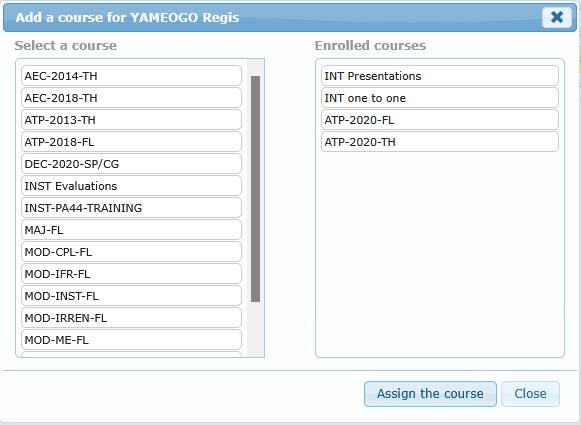
Assign a course behavior:
- Left side: available active courses.
- Right side: courses already enrolled for the selected member.
- Use Assign the course to confirm assignment.