
Published 10 March 2026, Updated 11 March 2026
This guide explains how to use the Ramp In Pad page on the shared tablet or mobile device. It is written for front-end users who need to review their activity, sign it, enter or verify times, and finish the record without needing technical knowledge.
This page is used to finalize an activity after departure. Depending on your organization settings, you may use it to:
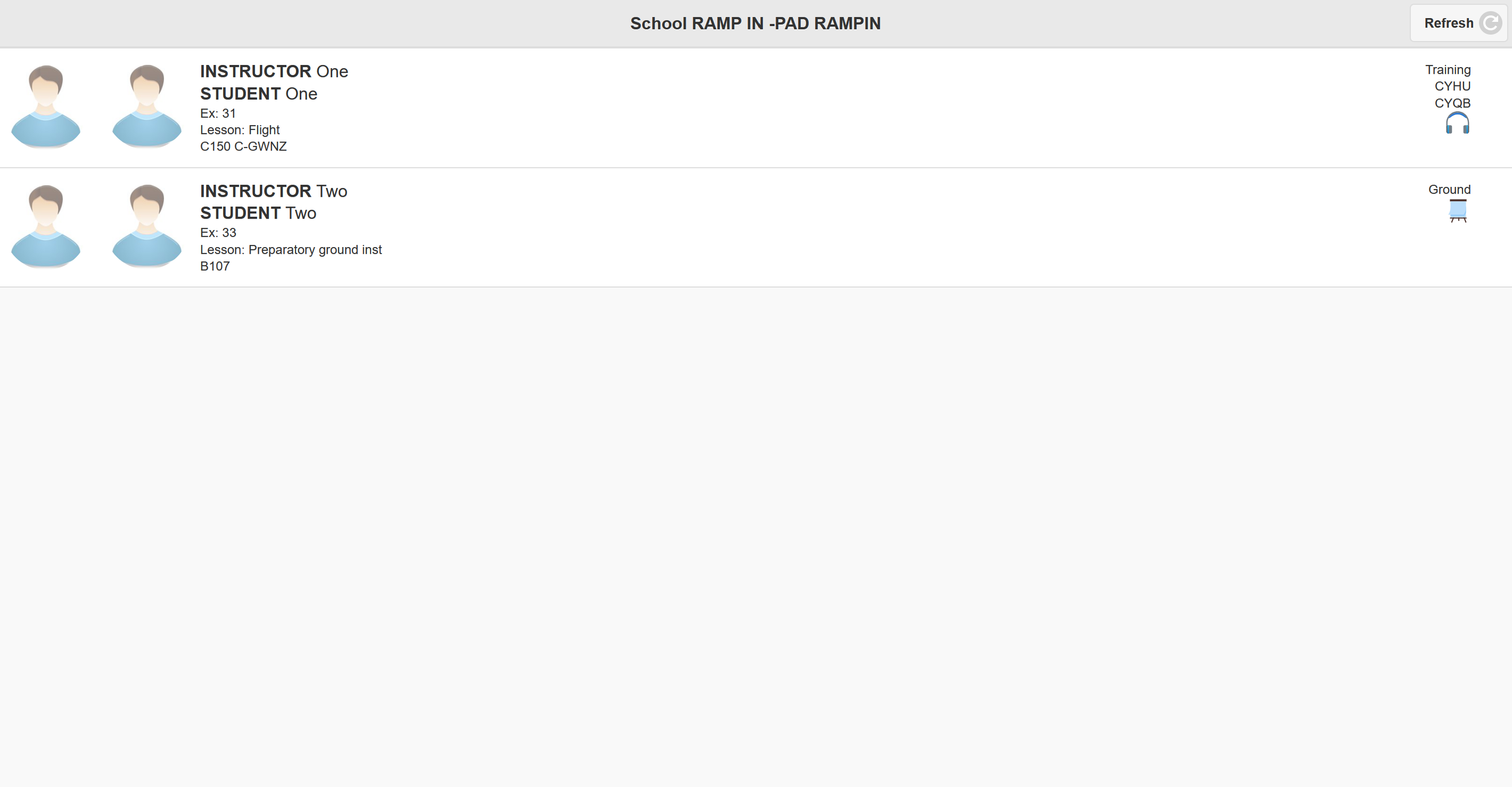
- open an activity from the waiting list
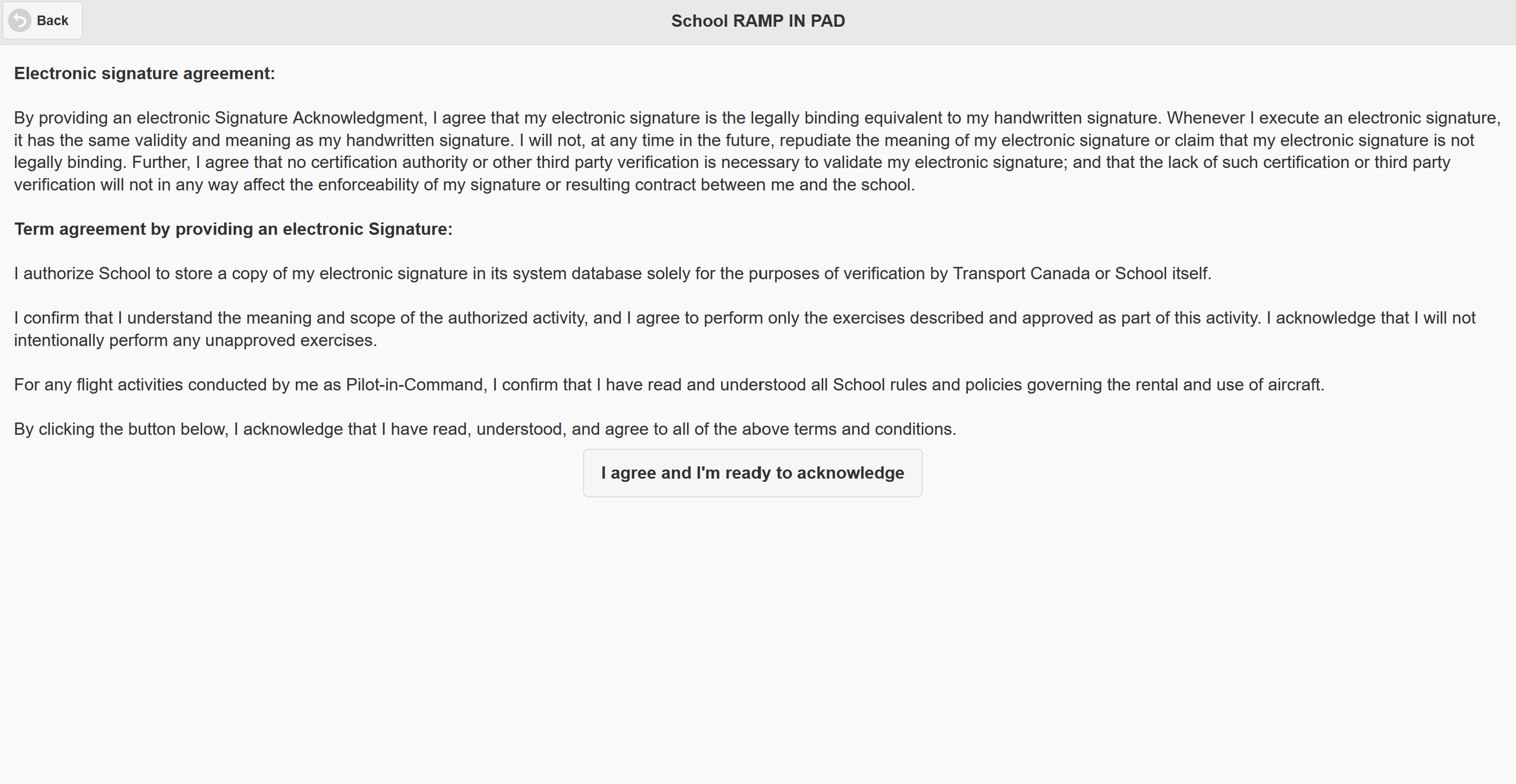
- read an agreement message before signing
- review one or several legs in the same activity
- enter or correct times, durations, Hobbs values, and per-leg total duration
- sign as the pilot in command
- confirm the activity as completed
- cancel the activity if it did not fly
- answer a short yes/no survey before returning to the list
What this page is for
Think of this page as the final check before the flight record is locked in. It does not only collect a signature. It also keeps the timing sequence coherent from start to finish, makes sure one leg does not overlap the next, and updates totals automatically while still letting you adjust the total when needed.
That means you are not expected to calculate everything by hand. The page helps you by adjusting connected fields when you change one value. At the same time, it protects the record from impossible timelines such as landing before take-off or ending the last leg in the future.
Before you start
Before you begin, make sure you have the information you really want to keep as the official record:
- the correct activity from the list
- the pilot signature ready to draw on the device
- the real engine, taxi, flight, total, and Hobbs values if they need correction
- confirmation that the activity actually flew, or confirmation that it must be cancelled
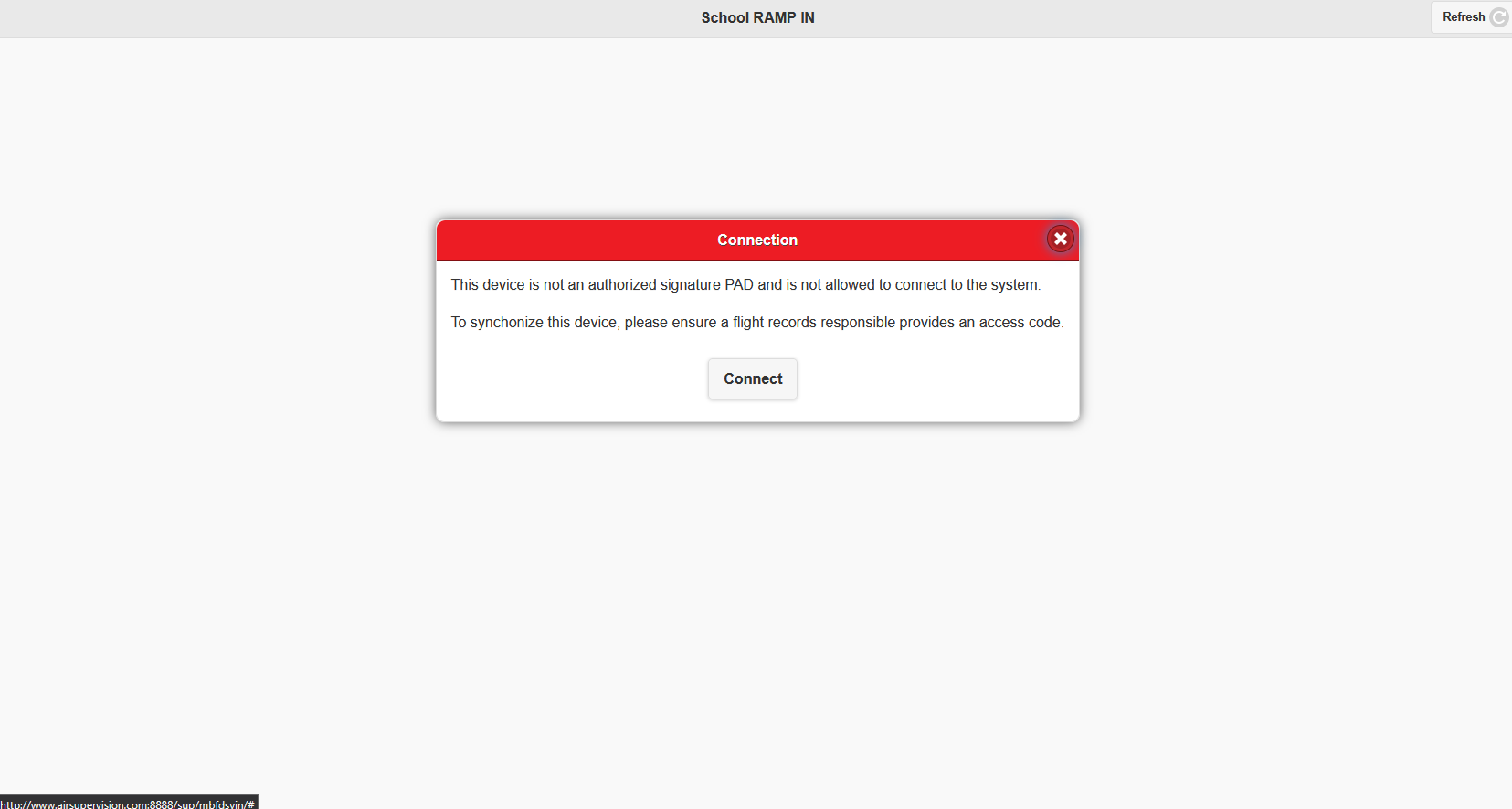
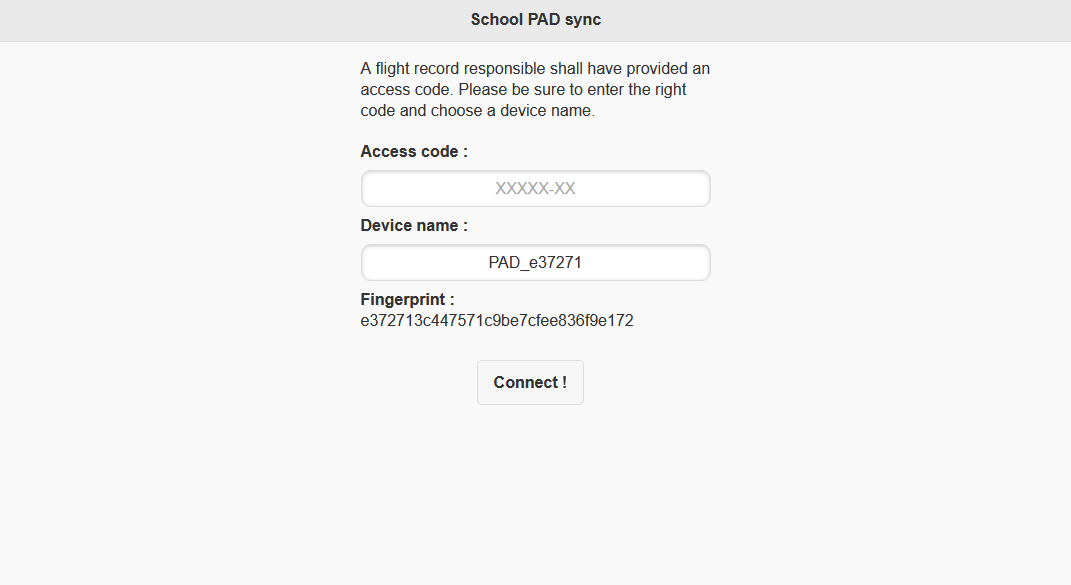
If this is the first time the device is being used, the page may say the tablet is not authorized yet. In that case, a flight records responsible must provide an access code so the device can be connected once.
Opening an activity
When the page loads, you land on a list of activities waiting for Ramp In completion. Tap the activity you want to process. If the list looks old, use the Refresh button in the page header.
Some organizations display an agreement page before the signature page. If that page appears, read the message and tap the button that confirms you are ready to acknowledge the activity.
After that, the device opens the activity details page.
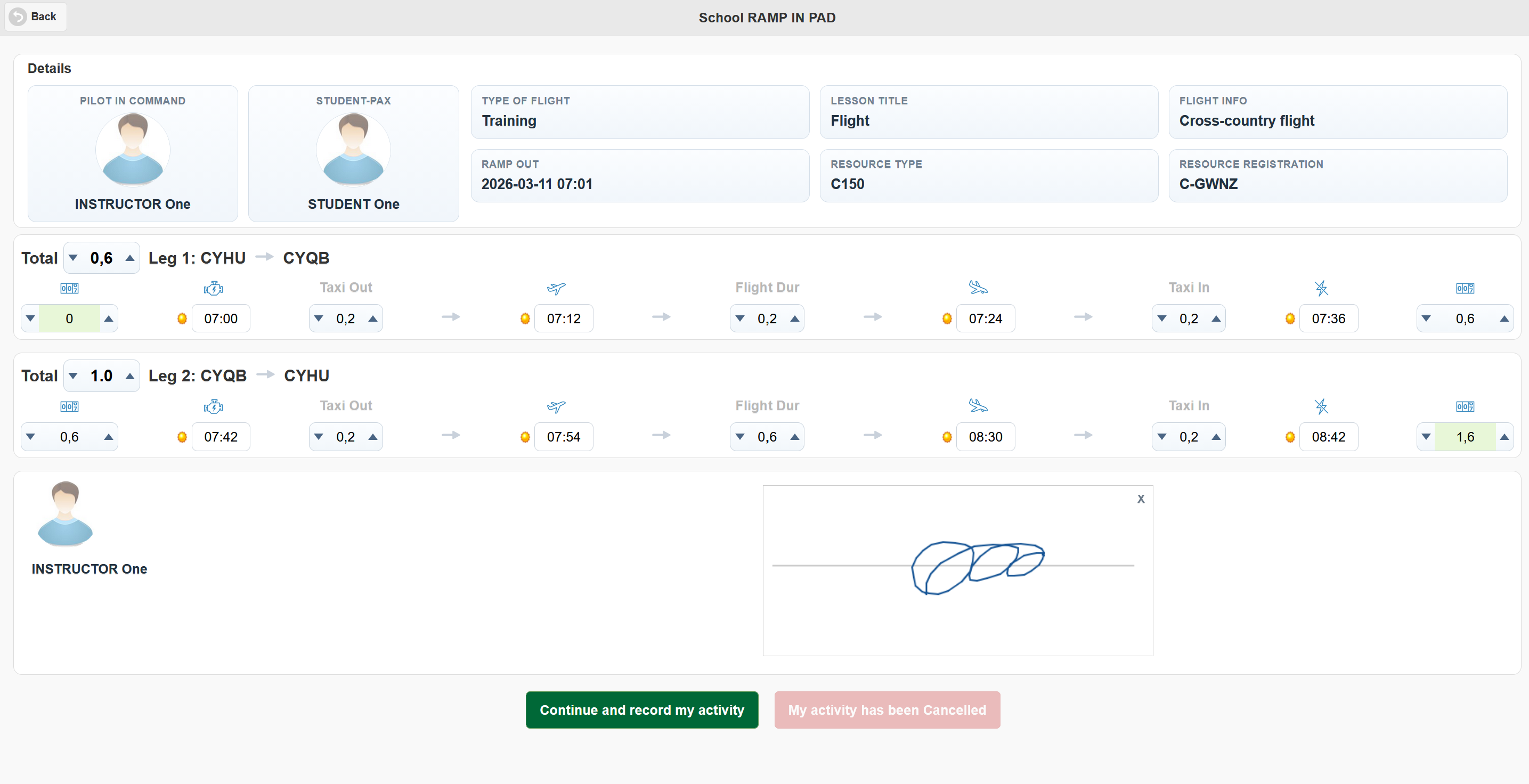
What you see on the activity details page
The activity details page is divided into two main parts.
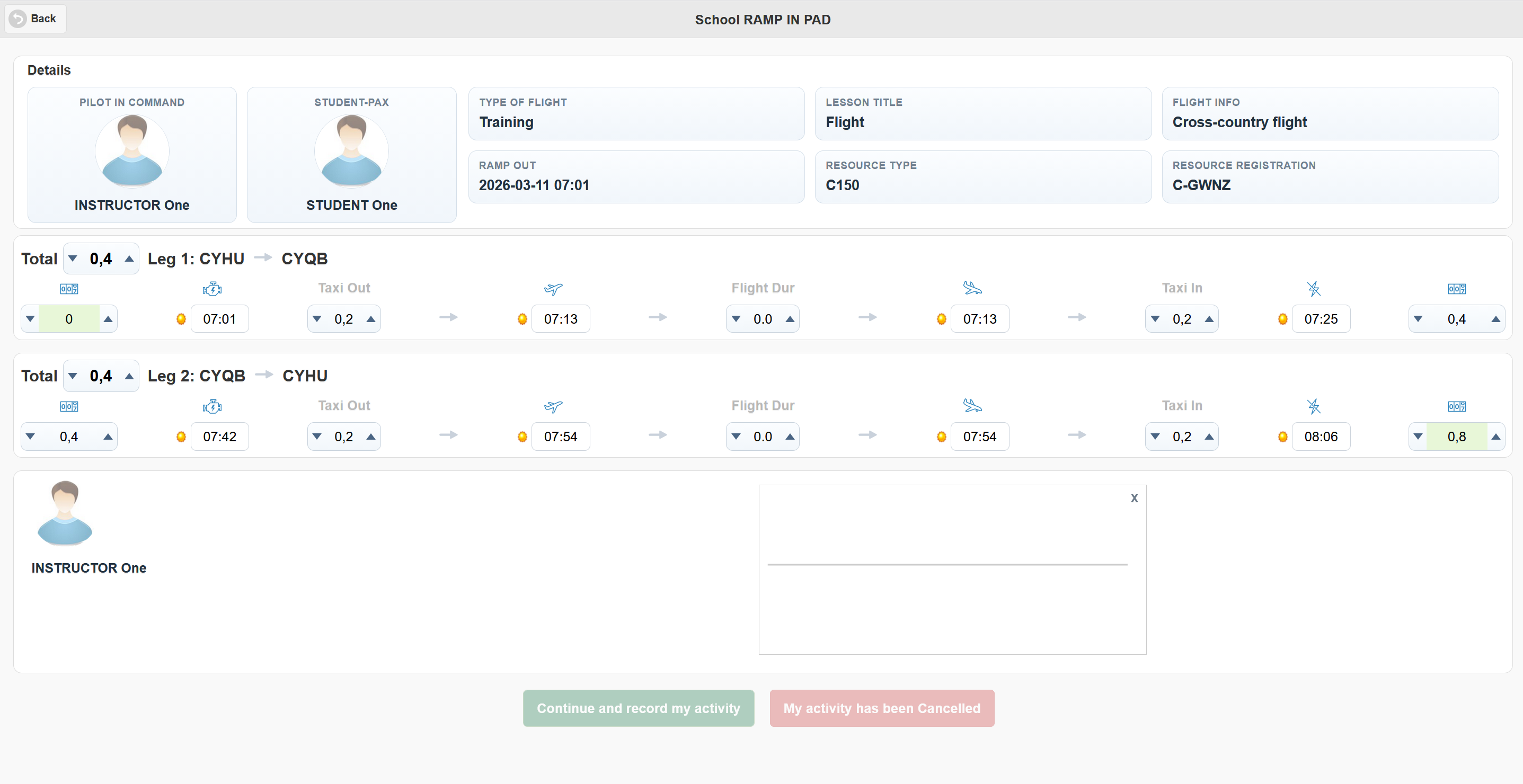
The first part is a summary area. It shows the people involved and the overall context of the activity, such as:
- pilot in command
- student or passenger, when applicable
- type of flight
- lesson title
- local or cross-country indication
- Ramp Out date and time
- resource type
- resource registration
The second part is the leg entry area. Each row represents one leg of the activity. A one-leg activity has one row. A multi-leg activity has one row for each leg, in order.
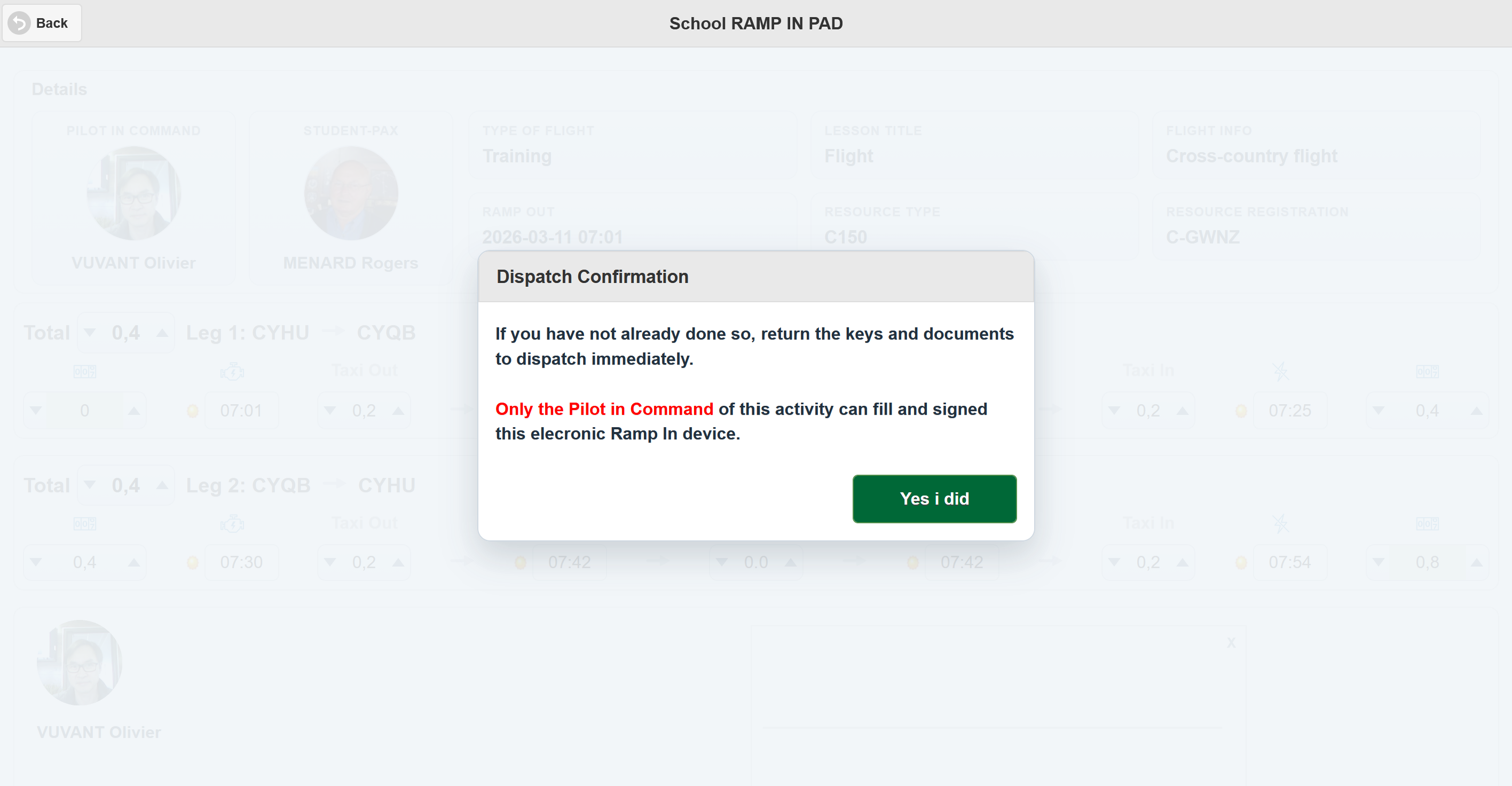
You may also see a dispatch reminder overlay asking you to confirm that keys and documents were returned. Read the reminder and tap the confirmation button so you can continue to the activity details.
Understanding each field in a leg
Each leg row follows the same left-to-right sequence.
| Field | What it means | What you normally enter or verify |
|---|---|---|
| Hobbs Out | The Hobbs reading at the start of the leg | Usually the starting meter value |
| Engine Start | The moment the engine started for that leg | Time in HH:MM |
| Taxi Out | Ground time from engine start to take-off | Decimal hours such as 0.2 |
| Take Off | The airborne departure time | Time in HH:MM |
| Flight Dur | Airborne time for that leg | Decimal hours such as 1.1 |
| Landing | The touchdown time | Time in HH:MM |
| Taxi In | Ground time from landing to engine off | Decimal hours such as 0.2 |
| Total | Full leg duration shown in the row header | Editable decimal hours with spinner arrows (0.1 step) |
| Engine Off | The moment the engine stopped for that leg | Time in HH:MM |
| Hobbs In | The Hobbs reading at the end of the leg | Usually calculated automatically |
The line title at the top of the row identifies the leg number and route. Just before that title, the Total control shows the full duration of the leg:
- Taxi Out
- plus Flight Duration
- plus Taxi In
You can change this Total directly using its spinner arrows.
Signature rules
The pilot signature is required before the page lets you finish the activity. Draw your signature in the signature box. If you want to start again, tap the small X in the top-right corner of the signature area to clear it and sign again.
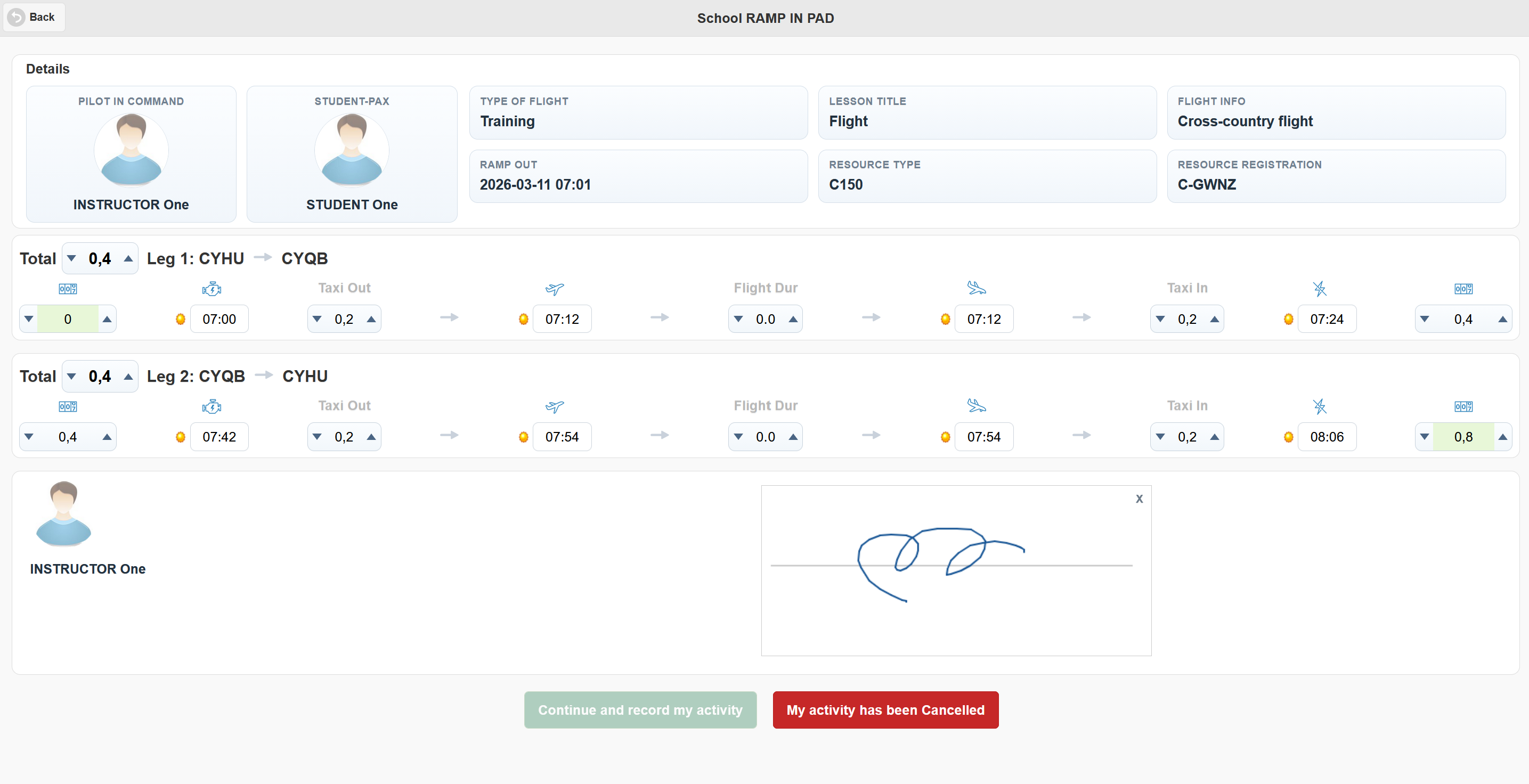
The action buttons at the bottom stay disabled until the page has enough valid information.
- Continue and record my activity becomes available only when every leg has a real flight duration greater than zero and a pilot signature is present.
- My activity has been Cancelled becomes available only when all leg flight durations are zero and a pilot signature is present.
This helps prevent recording the wrong type of outcome.
How the automatic calculations work
This is the most important part of the page. The Ramp In Pad does not treat each box as independent. Many fields are connected, so changing one value can update the others. This is intentional. The page is trying to keep a believable and complete activity record.
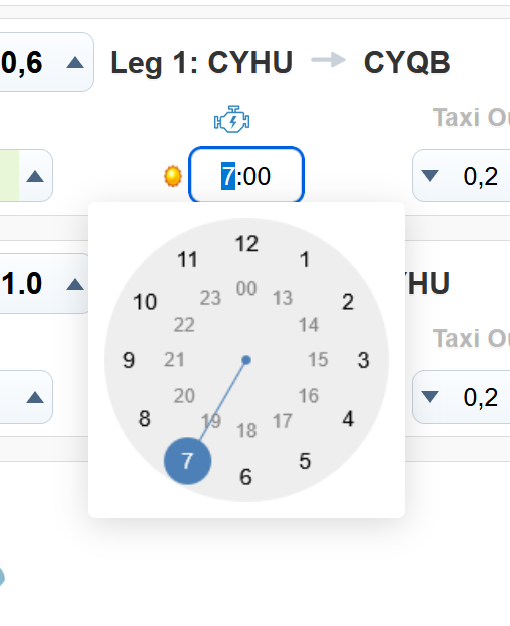
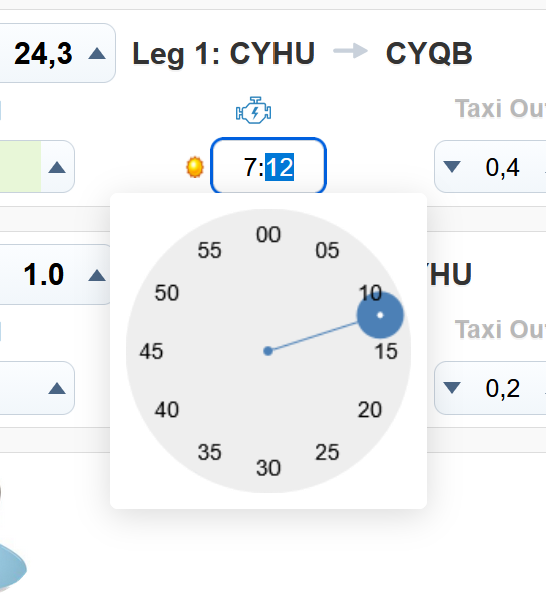
1. Time entries are rounded to 6-minute steps
When you type or pick a time, the page rounds it to the nearest 6-minute block. This matches tenth-of-an-hour style timing.
Examples:
08:01becomes08:0008:04becomes08:0609:28becomes09:30
So if a time seems to move slightly after you leave the field, that is normal behavior.
2. A leg must stay in chronological order
Inside the same row, the order must always make sense:
- Engine Start
- Take Off
- Landing
- Engine Off
The page will not keep a later event earlier than an earlier event. For example:
- Take Off cannot stay earlier than Engine Start.
- Landing cannot stay earlier than Take Off.
- Engine Off cannot stay earlier than Landing.
If needed, the page moves connected times so the order stays valid.
3. The first leg cannot start before Ramp Out
The first leg must start at or after the Ramp Out time shown in the summary. If you try to place the first engine start before Ramp Out, the page rejects the change.
This protects the overall activity record from starting before the activity officially left dispatch.
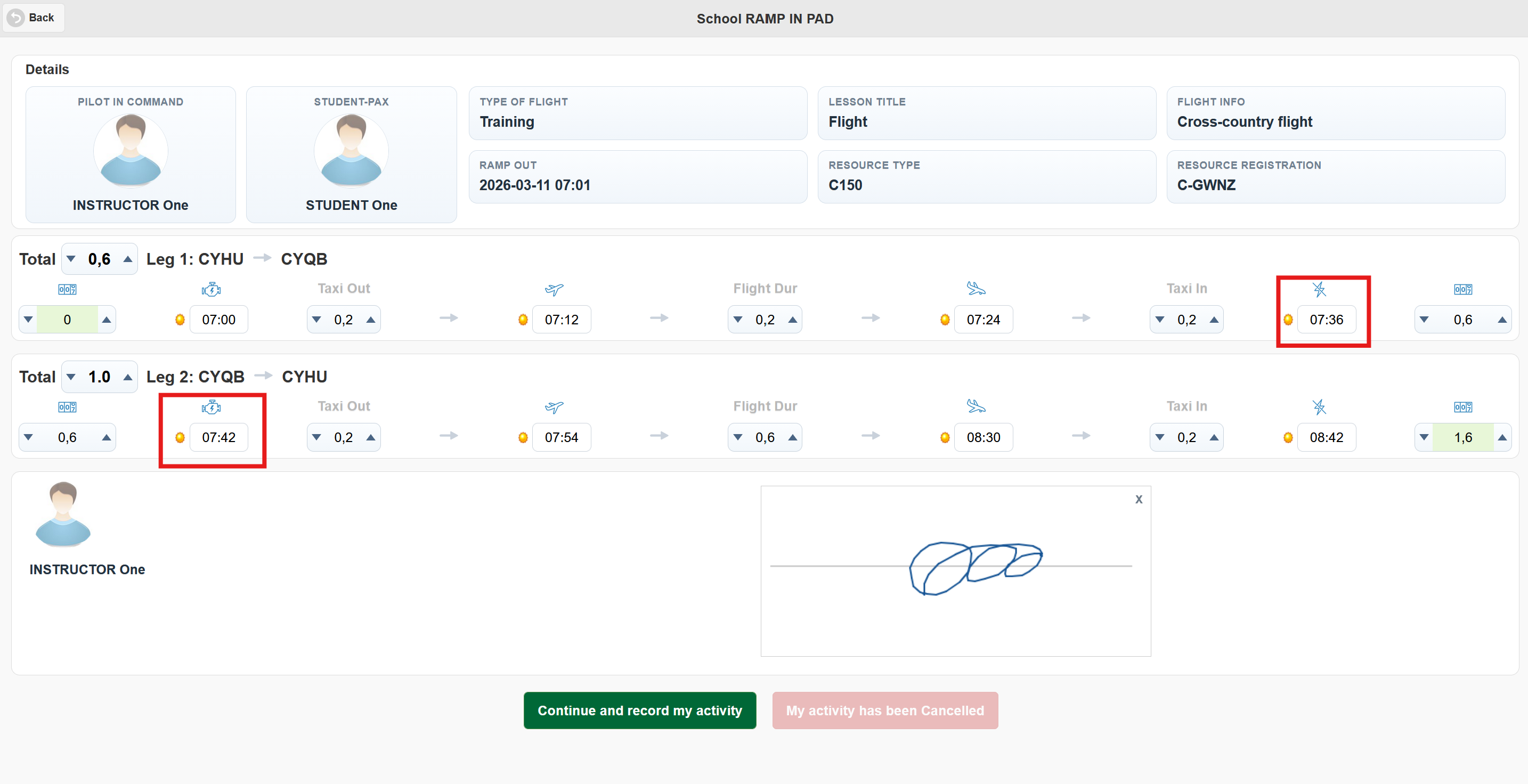
4. Every following leg must start after the previous leg ends
For multi-leg activities, the next leg cannot begin while the previous leg is still active. The rule is stricter than simple equality: the next leg must start at least 1 minute after the previous leg’s Engine Off.
In practice, if you shorten or extend an earlier leg, the rows after it may move forward automatically so the timeline remains valid.
5. The last leg cannot end in the future
The final leg in the activity must not finish later than the current time on the system. If you try to set the last leg too late, the page either adjusts the final values back or blocks the change.
This prevents a record from claiming the activity ended after “now”.
6. Changing a duration (including Total) can move the connected times
Four duration fields can drive nearby values:
- Taxi Out controls the gap between Engine Start and Take Off
- Flight Duration controls the gap between Take Off and Landing
- Taxi In controls the gap between Landing and Engine Off
- Total controls the overall leg duration and redistributes Taxi Out, Flight Duration, and Taxi In
That means:
- if you change Taxi Out, the page updates Take Off or Engine Start
- if you change Flight Duration, the page updates Landing or Take Off
- if you change Taxi In, the page updates Engine Off or Landing
- if you change Total, the page updates the three duration components, then updates times to keep all rules valid
This is helpful when you know the duration but do not want to recalculate the clock times yourself.
7. Changing a clock time recalculates the durations
The reverse is also true. If you change Engine Start, Take Off, Landing, or Engine Off, the page recalculates the matching duration fields so they remain aligned with the timeline.
For example:
- moving Take Off later increases Taxi Out, unless another rule forces a different adjustment
- moving Landing later increases Flight Duration
- moving Engine Off later increases Taxi In
This is why the duration boxes may update immediately after you change a time field.
8. Existing Taxi Out and Taxi In values are preserved when possible
If you edit another field such as Flight Duration or Landing, the page tries to keep the current Taxi Out and Taxi In values instead of unexpectedly resetting them to zero. It only changes those taxi values directly when the change makes that necessary.
This makes corrections more stable and reduces accidental damage to a row you already reviewed.
9. Default taxi values may be suggested automatically
If a leg does not already contain taxi values, the page can start with a suggested total ground time and split it into two parts:
- about half before take-off
- about half after landing
This is only a starting point. You can still correct the actual values to match the real activity.
10. Hobbs values are carried forward automatically
The page also helps keep Hobbs values coherent across multiple legs.
Important behavior:
- the first row starts from the available Hobbs Out value
- each following row uses the previous row’s Hobbs In as its new Hobbs Out
- Hobbs In is recalculated from Hobbs Out plus the total duration of the leg
So in a multi-leg activity, you usually do not need to manually re-enter the starting Hobbs for every row. Once the earlier row is correct, the later rows follow from it.
11. The total shown on each leg is editable and synchronized
The total control in each leg header is:
- Taxi Out
- plus Flight Duration
- plus Taxi In
It updates every time one of those components changes. You can also edit the Total directly using spinner arrows in 0.1 steps. When you do that, the page recalculates the duration components and updates connected times while preserving timeline rules.
12. Day and night indicators are visual hints
Each time field shows a small sun or moon icon. This is a visual indication based on civil twilight for the departure airport of that leg.
- a sun means the time is considered day
- a moon means the time is considered night
This is a helpful cue for review, but you should still verify the real recorded times.
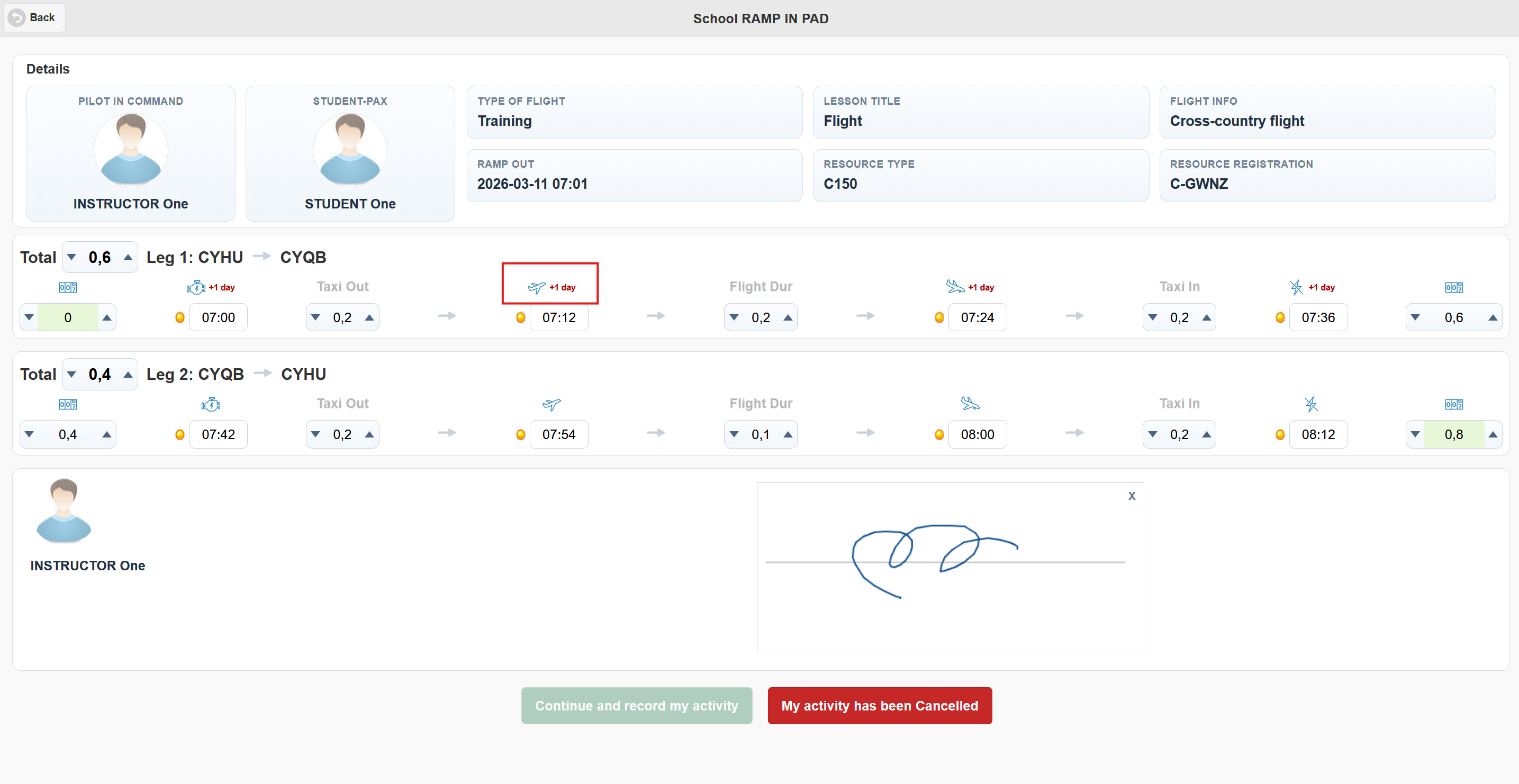
13. Crossing midnight is shown on the row
If a time moves into the next day, the page displays a +1 day indicator next to that time. If it crosses more than one day, the indicator increases accordingly.
This prevents confusion when an activity continues past midnight.
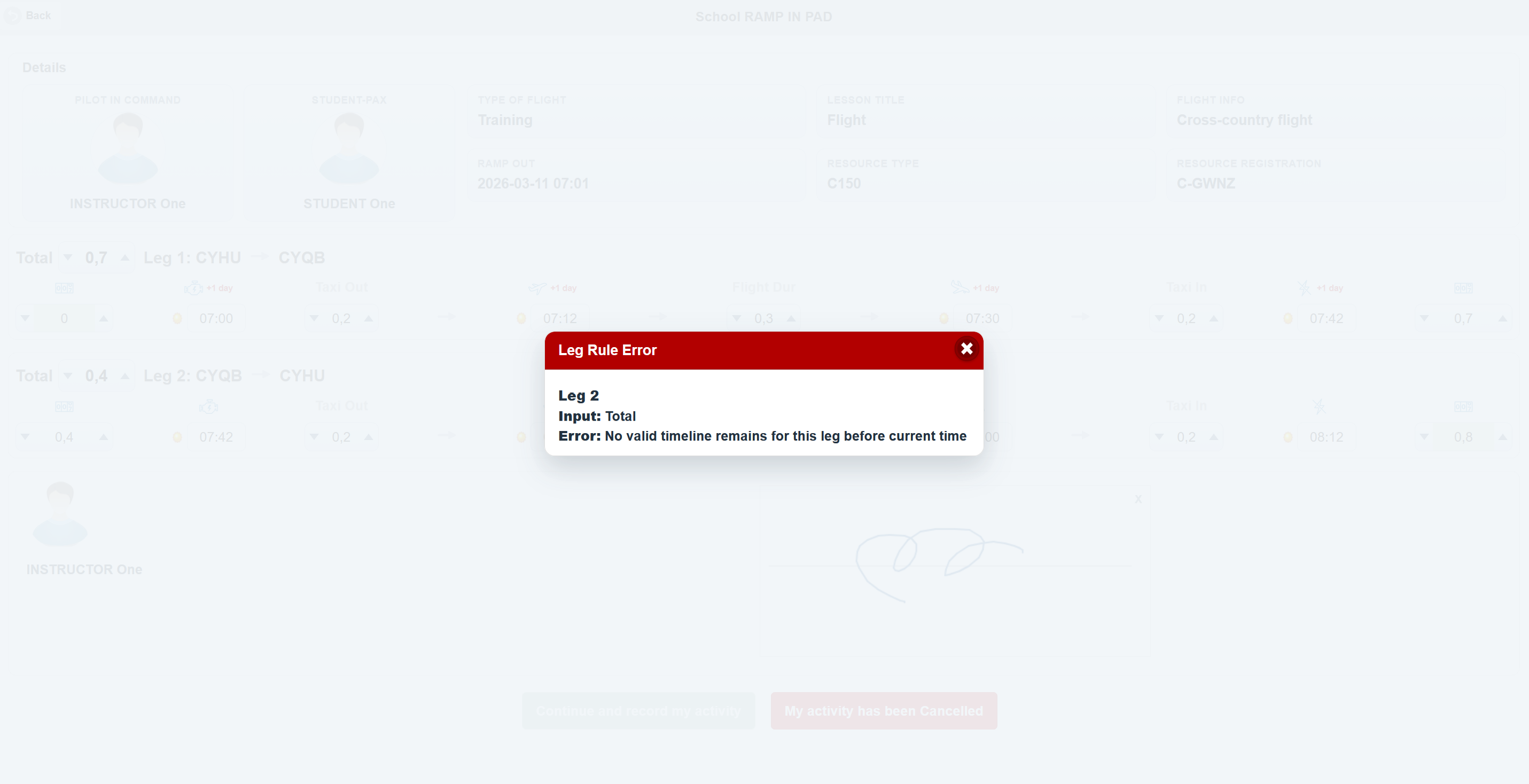
14. Impossible changes are rejected and reverted
If the page cannot keep the record valid after your edit, it restores the previous value and shows a Leg Rule Error popup. This usually happens when the new value would force an impossible timeline, such as:
- putting the first leg before Ramp Out
- placing a later leg before the previous leg has ended
- making the last leg finish in the future
- leaving no valid time window for the leg to exist
When this happens, read the popup, keep the previous valid value, and enter a different one.
How the page decides between “record” and “cancel”
The page separates completed activities from cancelled ones using flight duration.
To record a completed activity
Use Continue and record my activity when every leg has real flown time. In practical terms, each leg must have a Flight Duration greater than zero.
Typical use:
- the activity flew
- you reviewed the times
- you signed the record
- at least one real airborne segment exists on each leg
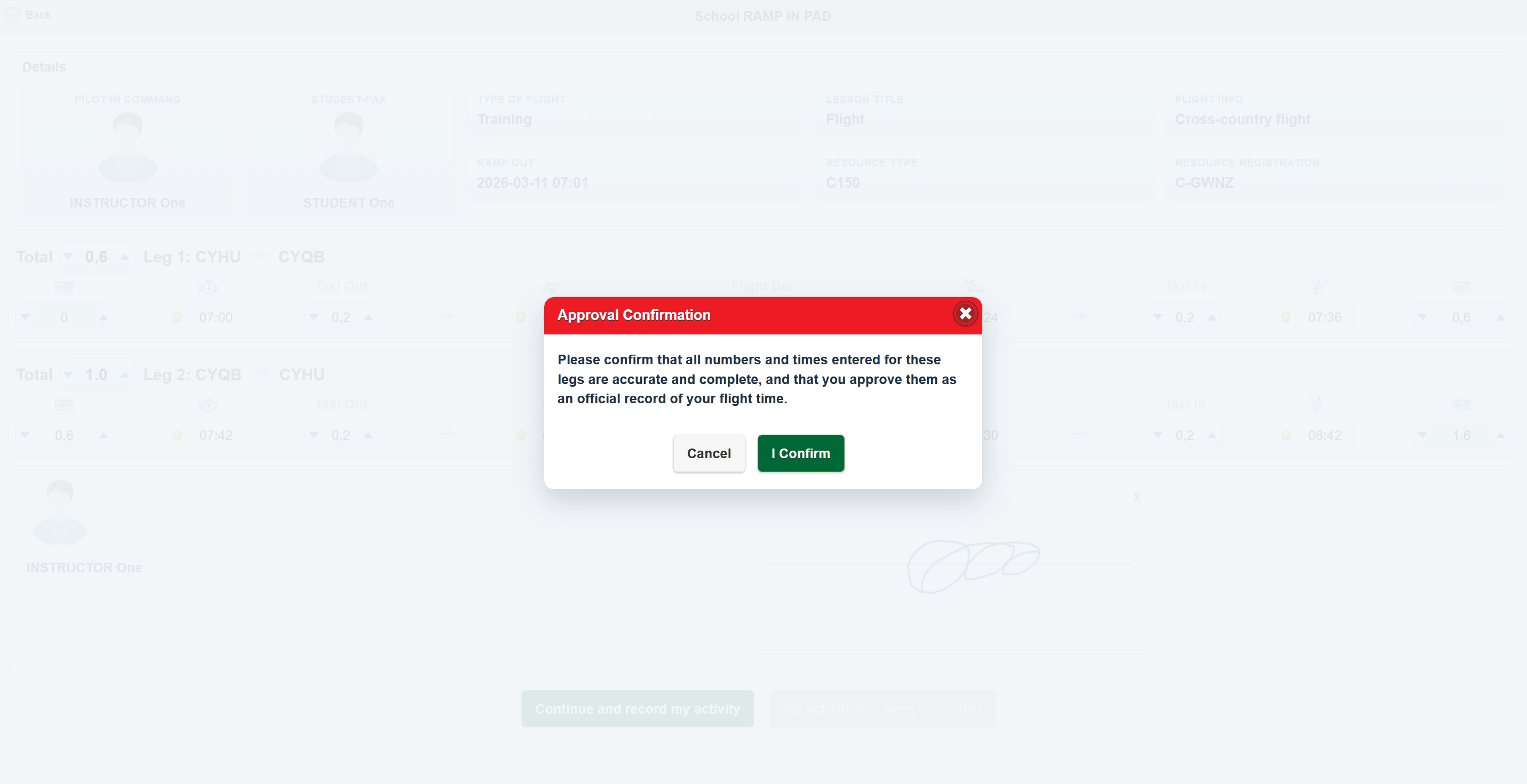
When you tap that button, the page shows an approval confirmation popup asking you to confirm that the numbers and times are accurate and complete.
To cancel a non-flown activity
Use My activity has been Cancelled when the activity did not take place. This option only becomes available when all leg flight durations are zero and a pilot signature is present.
Typical use:
- the activity was scheduled
- the pilot is acknowledging it on the device
- no actual flown time should be recorded
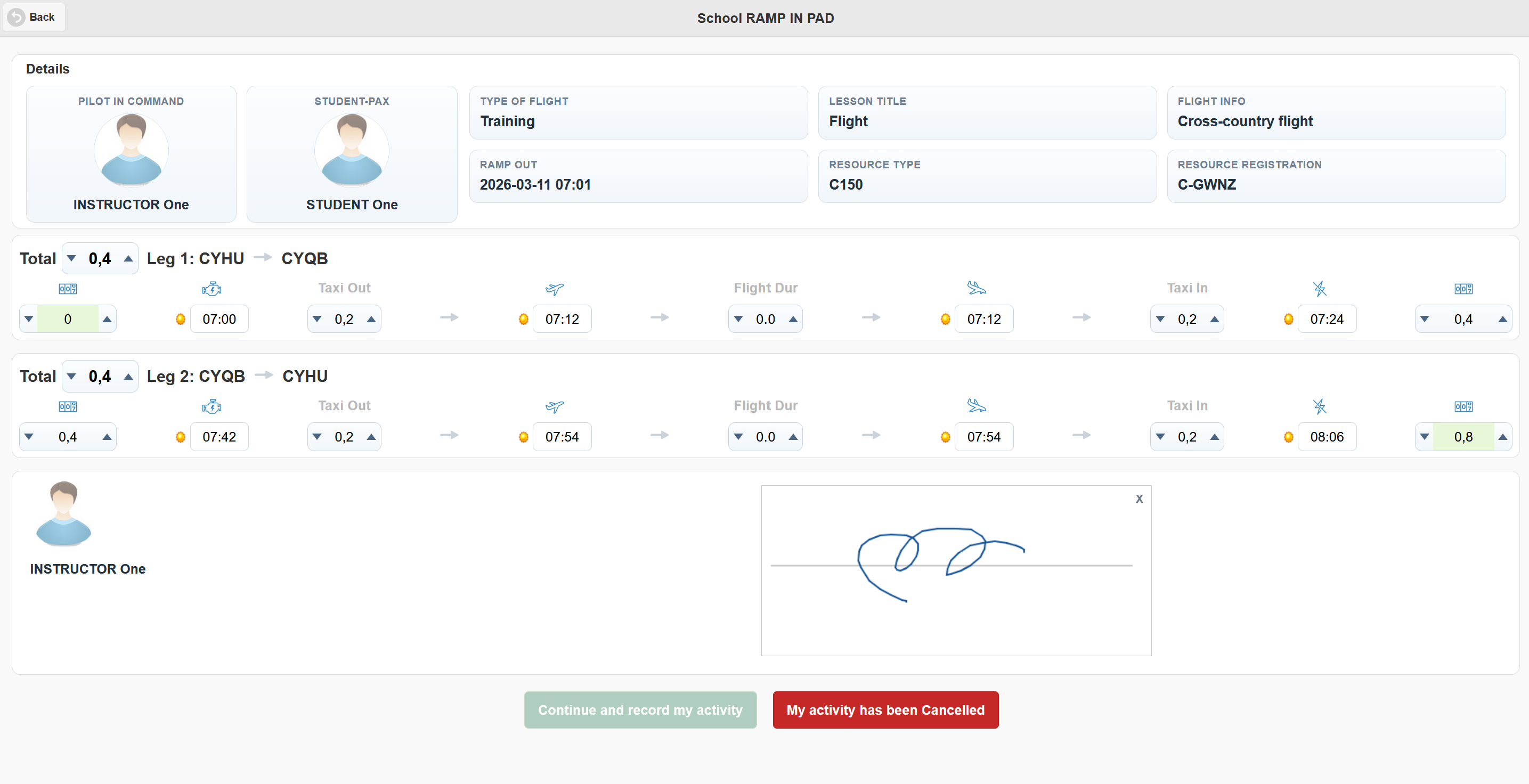
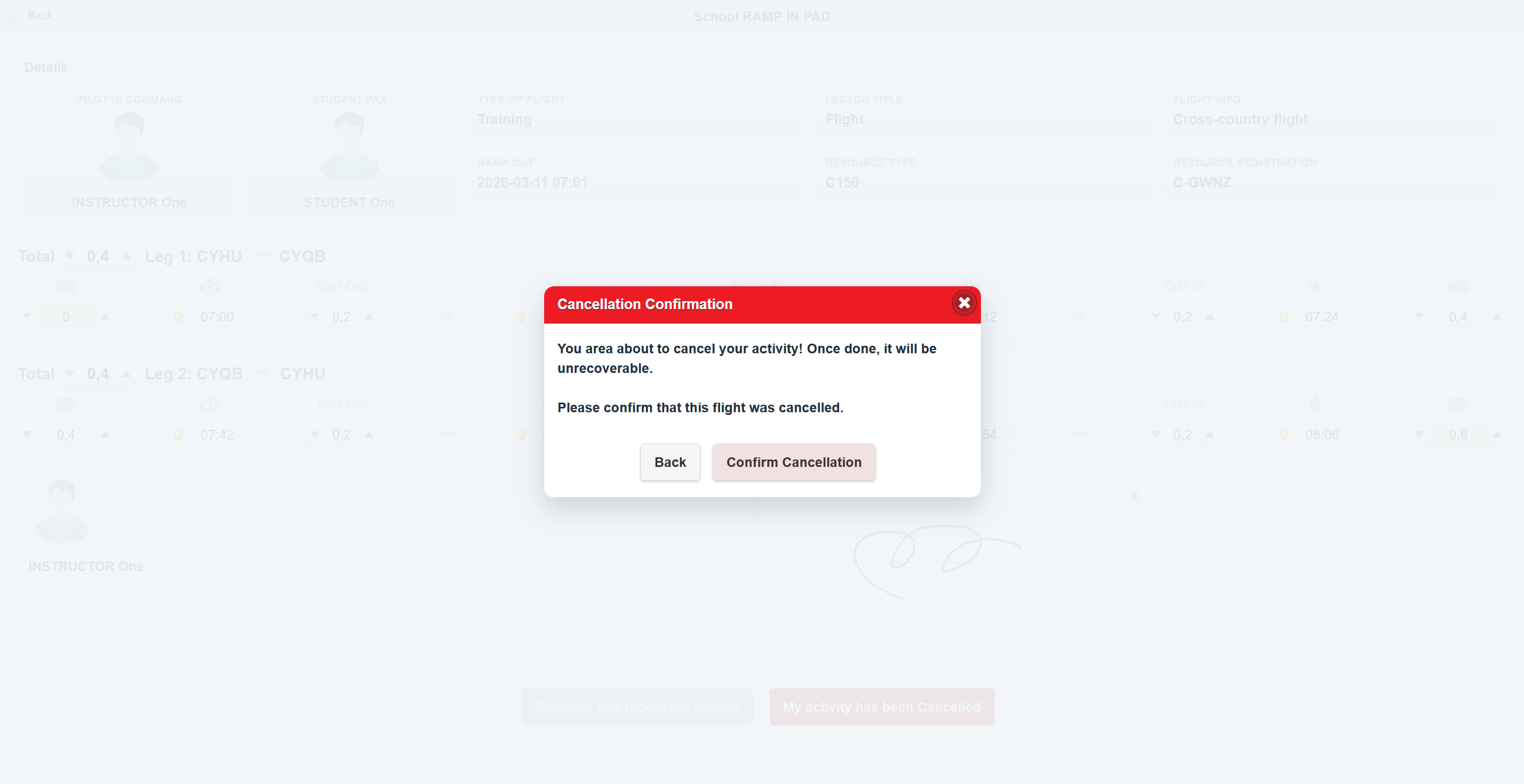
When you tap that button, the page shows a cancellation confirmation popup. The warning is clear because this action is intended to be final.
The survey step
After you confirm either the completed activity flow or the cancellation flow, the page opens a short survey screen. The questions are simple yes/no switches.
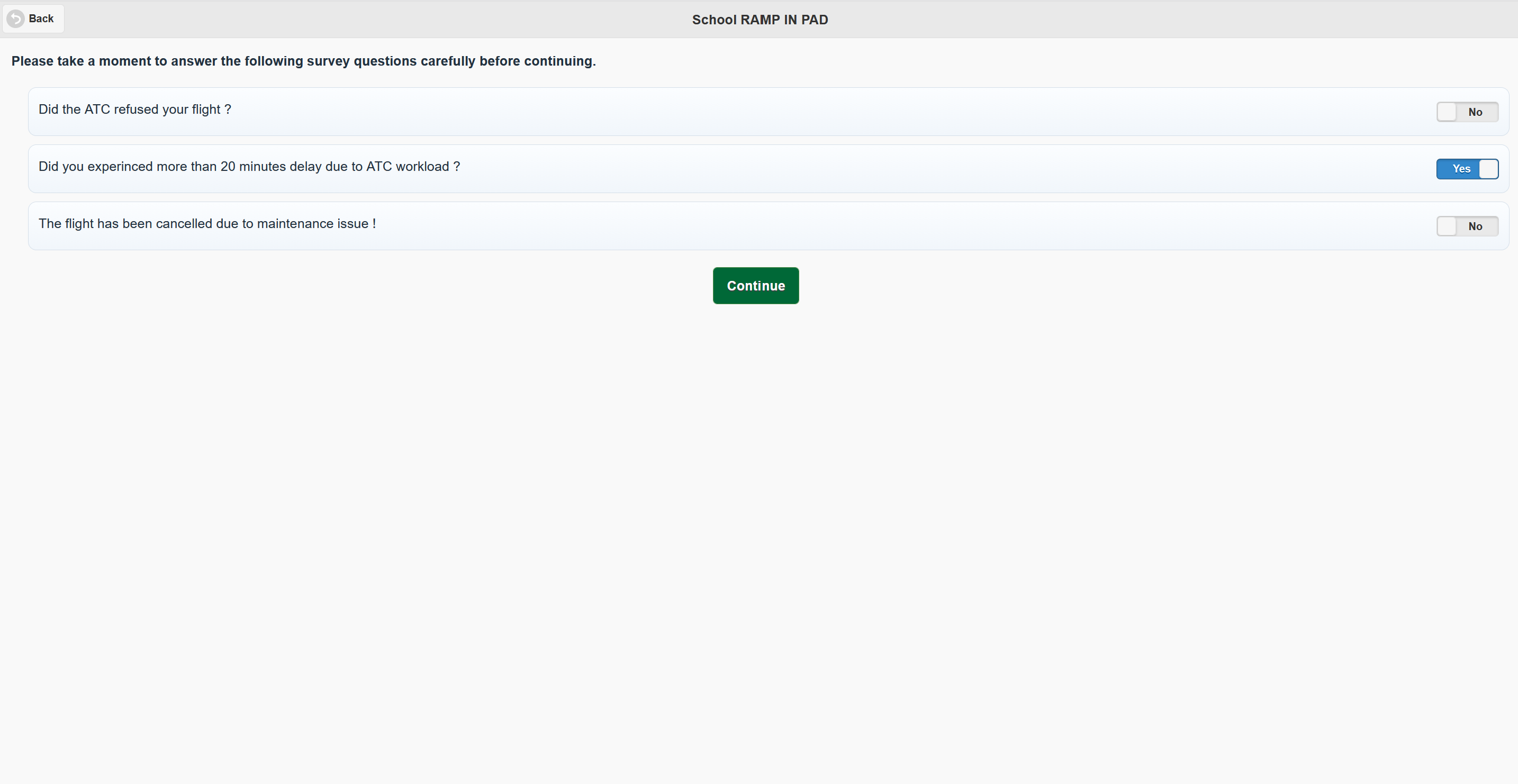
How to use it:
- Read each question.
- Switch it to Yes or No.
- Tap Continue.
If no survey questions are configured, the page shows a message and still lets you continue.
Important: if you came through the cancellation flow, the last Continue finishes the cancellation path rather than saving a normal flown activity.
Practical examples
Example 1: one normal local flight
You open a one-leg activity where departure and arrival are the same airport. The summary describes it as a local flight. You review the row, correct the take-off and landing times if needed, sign the pad, confirm the approval popup, answer the survey, and return to the list.
Example 2: two-leg activity with an adjustment on the first leg
You notice the first leg started later than expected. After changing the first leg timing, the second leg shifts forward automatically so that it still starts after the first leg ends. Hobbs values also update so the second row continues from the first.
This is normal and is one of the key reasons the page exists: it keeps the full chain coherent instead of making you rebuild every leg manually.
Example 3: cancelled activity
The activity did not fly. You leave the flight durations at zero, add the pilot signature, use My activity has been Cancelled, confirm the cancellation popup, then press Continue on the survey page to finish the cancellation flow.
Common messages and what they mean
| Message | What it means for you | What to do |
|---|---|---|
| Connection | The device is not connected or not authorized | Refresh, reconnect the device if needed, or contact flight records |
| Leg Rule Error | Your last change would make the activity timeline invalid | Keep the previous value and enter a more realistic one |
| Approval Confirmation | The page is asking you to confirm the record is final | Review once more, then confirm only if correct |
| Cancellation Confirmation | The page is asking you to confirm a non-recoverable cancellation path | Use it only if the activity truly did not fly |
| Ramp In Error | The system rejected the final submission | Read the message, return to the activity page, and correct the record if needed |
Good habits for reliable records
Use the page slowly and in sequence. It is better to review one row at a time than to jump across fields randomly.
Recommended routine:
- Open the correct activity.
- Read the summary cards.
- Review each leg from left to right.
- Check that Hobbs values look continuous across rows.
- Verify that the last leg does not extend beyond the current real time.
- Draw the signature only after the numbers are right.
- Use the correct final action: record or cancel.
If the page changes a value automatically, do not assume it is wrong. First check whether it is applying one of the timeline rules explained above. Most automatic changes are there to preserve a valid official record.
Quick reminder
The page is doing three jobs at once:
- collecting the pilot signature
- keeping the timeline believable
- preparing the final official activity record
If you remember that, most of the page behavior becomes much easier to understand.