
Published 21 February 2026, Updated 22 April 2026
This guide explains the full front-end workflow to manage a ground-class attendance sheet on mobile, starting from the mobile app home page only.
The course session has to be activated before starting attendance recording. If not activated you’ll have to activate by yourself using the app.
The electronic attendance sheet recorder is only available when using the Android or IOS full app.
For organizations that use the electronic attendance sheet option, when a lesson is configured to be linked to payroll,
the instructor must ensure that the schedule is activated no later than the scheduled time.
Failure to do so may affect the amount recorded in the instructor’s payroll. Similarly, closing a course before the scheduled end time also affects the amount of time credited toward instructor payroll.
In cases where the session started late or will finish late, the scheduled hours must be modified before closing the lesson.
Start from Schedules bar (Not activated yet)
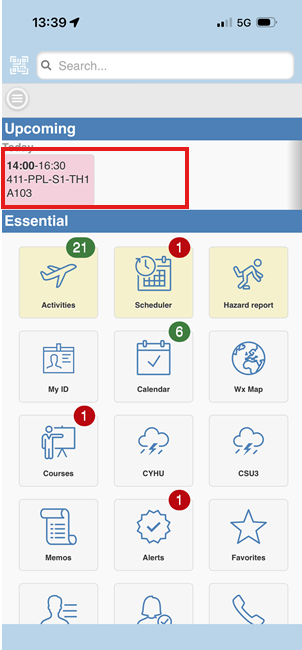
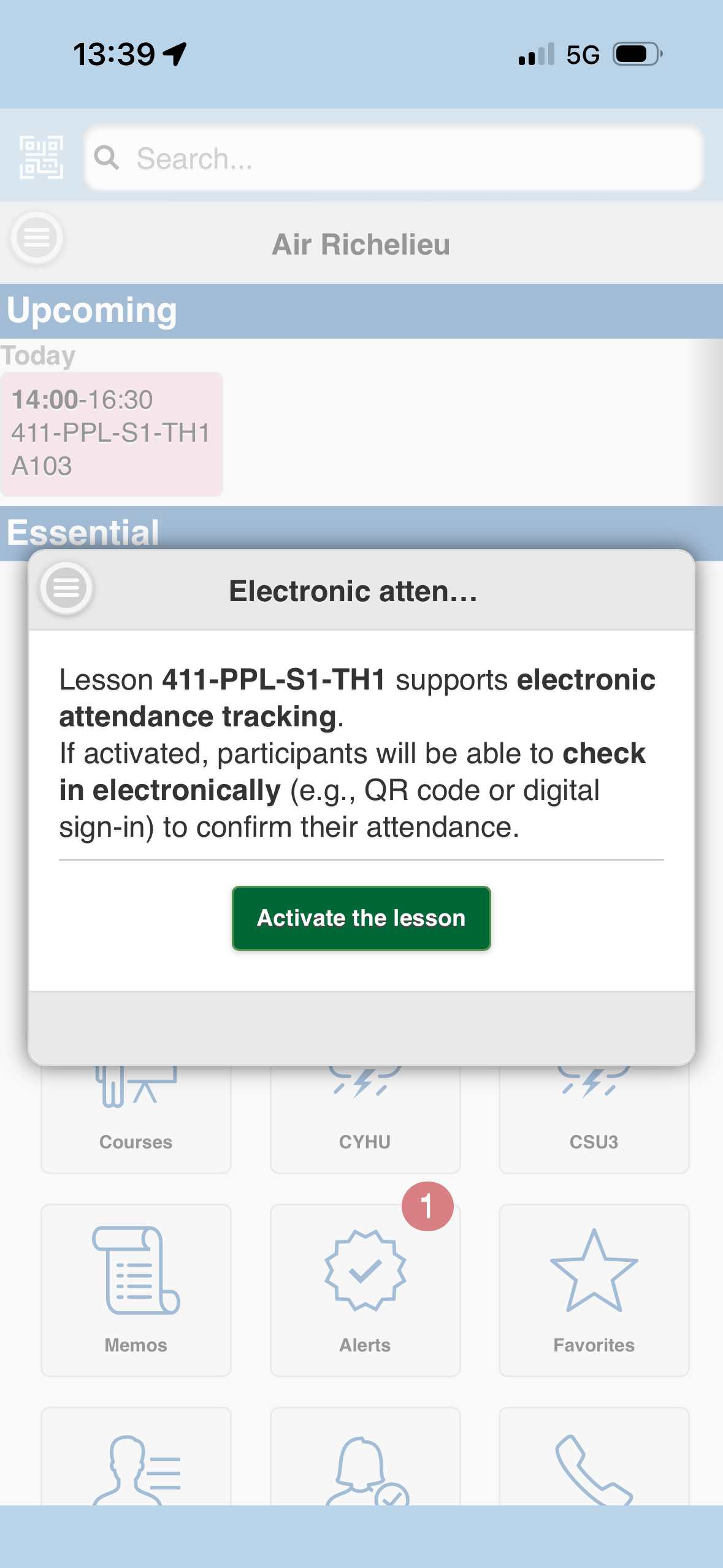
- Click on a lesson session.
- Only ‘Today‘ session will be available to be activated.
- Click on ‘Activate the lesson‘, will activate the session in the Flight daily records by transferring the schedule, set a starting date.
- You are sent to the course attendance system directly.
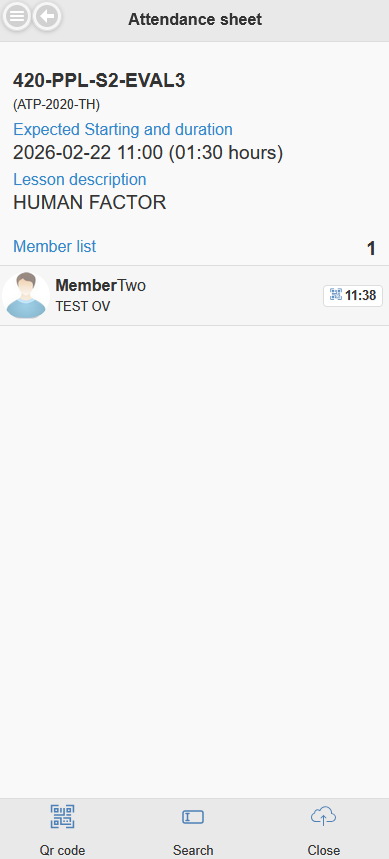
If the button “Activate the lesson” does not appear, make sure that you are assigned to provide the course and that you are duly qualified and competent.
Once activated, starting date recorded, the course has to be closed with or without attendees in order to free up the main Instructor of being locked of any other activity.
Start From Homepage if already activated
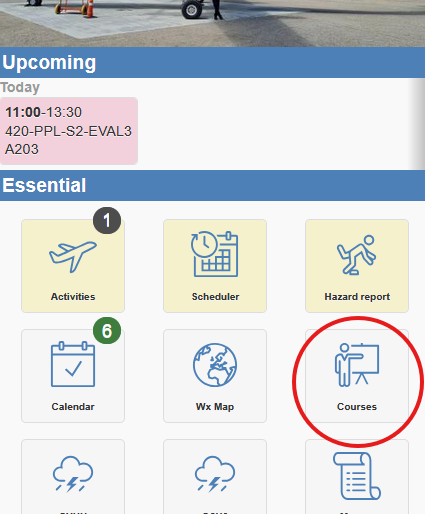
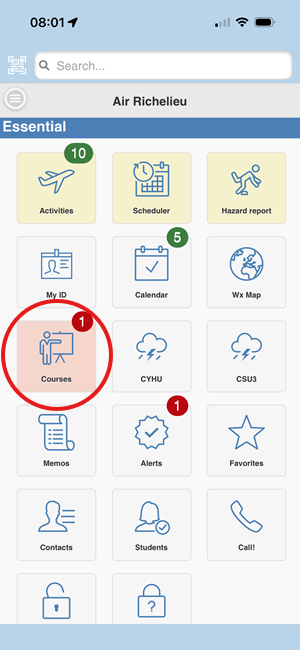
- Open the homepage.
- Tap Courses.
- You are sent to the course area where your active class cards are listed.
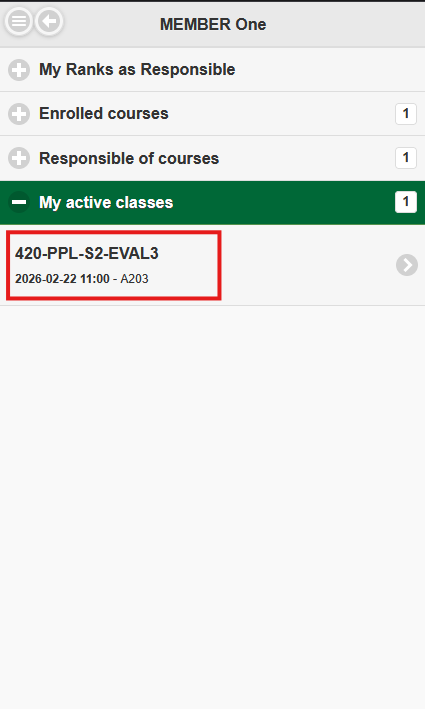
Open The Attendance Sheet
Open the class card
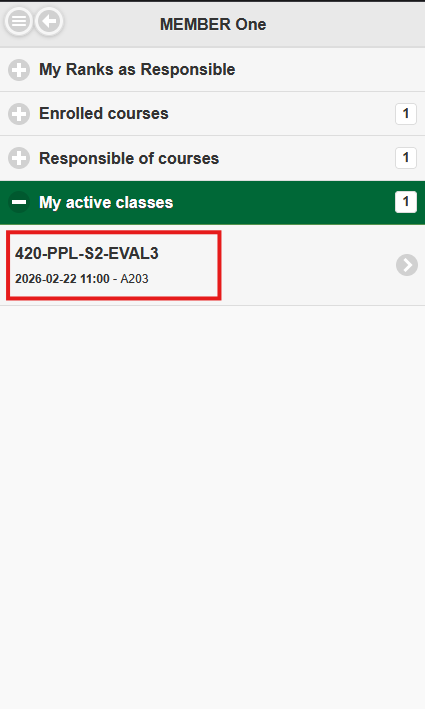
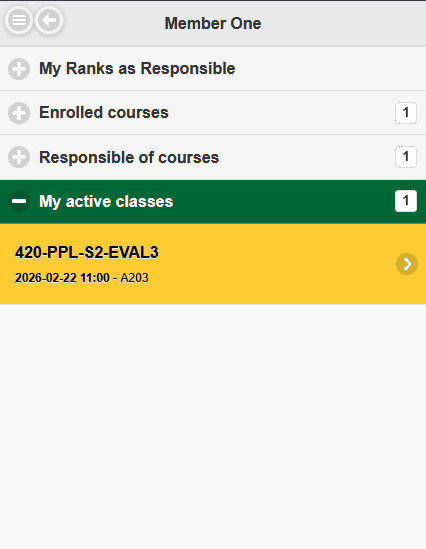
Tap an active class to open
First page behavior
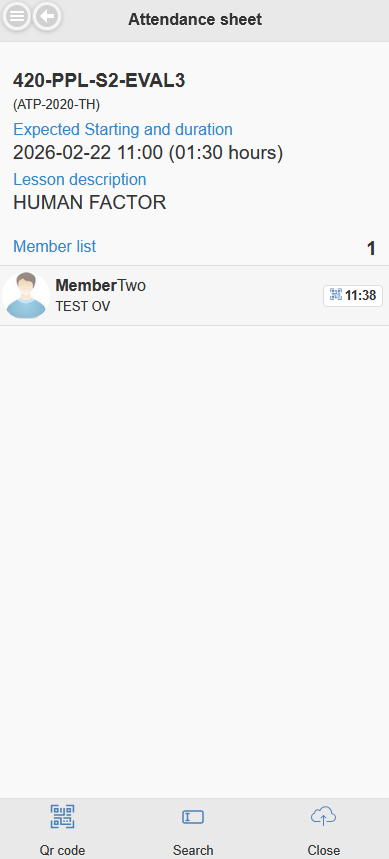
If the class is not yet opened, you will see:
- lesson title and description
- expected start and duration
- an Open the course button
When you open it, the system locks that class record against deletion until you close attendance.
Geolocation may be required before opening
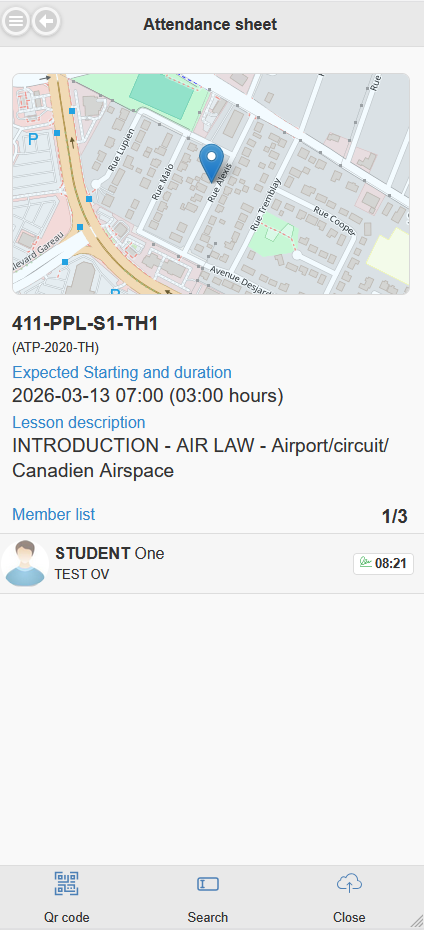
If your organization has enabled mandatory geolocation for attendance opening, the page asks for your device location as soon as you enter the attendance sheet.
What you will see on screen:
- a live map centered on your current position
- a marker showing the detected position
- a blue circle showing the GPS accuracy area
- a status message while the device is locating you
Recommended user flow:
- Allow location access when your phone or browser asks.
- Wait until the map updates your position.
- Tap Open the course.
What happens if location is not available:
- If location services are disabled, refused, or unavailable on the device, the page may send you back to Home.
- If you try to open without valid location data, the page shows a red blocking message explaining that geolocation must be enabled before opening the attendance sheet.
- If live tracking stops after the first position is found, the page can still continue with the last valid detected position.
What is saved:
- When the course opens successfully, the opening location and its accuracy are recorded with the attendance opening event.
- When registering an attendee
The system does not record location when closing a session.
Practical example: If an instructor opens the class from the parking area, the map will position there first. Once the page has a valid location, tapping Open the course records that opening point and allows attendance to continue normally.
If competency requirements block opening
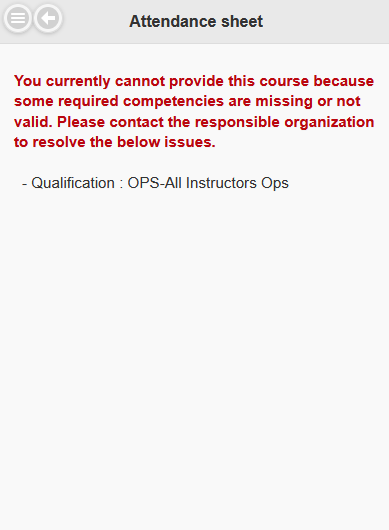
If required qualifications are missing/expired, opening is blocked and the page shows what must be fixed.
If the clock punching system is activated and you are already punched in, the system will display an error prompting you to punch out before activating the session.
Once a session is opened, as a reminder to close it, home page will highlight the ongoing session.
Add Members To The Attendance List
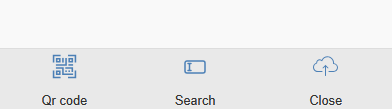
After the class is open, system shows current attendees and footer actions.
Add by QR code
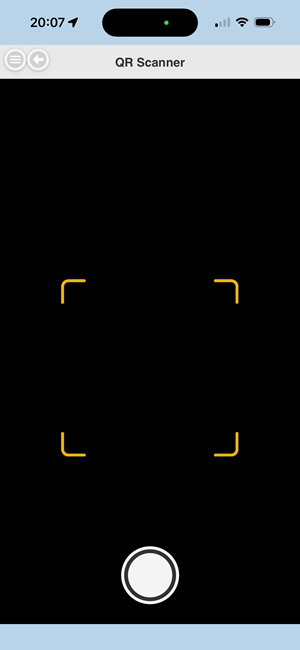
- Tap Qr code.
- Scan the member QR. The student QR code is a dynamic unique code associated with the member app open and user has to be login. This will ensure that only the owner of the app shall attend. ➜ Where the student retrieve his QR unique ID
- When centred, press on the button to take screenshot.
- On success, the member is added to attendance.
Common QR errors users may see:
- Member already added
- QR not valid for a connected member
- QR method not allowed by your organization settings
- Attendee app has closed or device has been set in idle mode. Attendee shall log again into their application to generate a new QR ID code.
Add by Search + signature
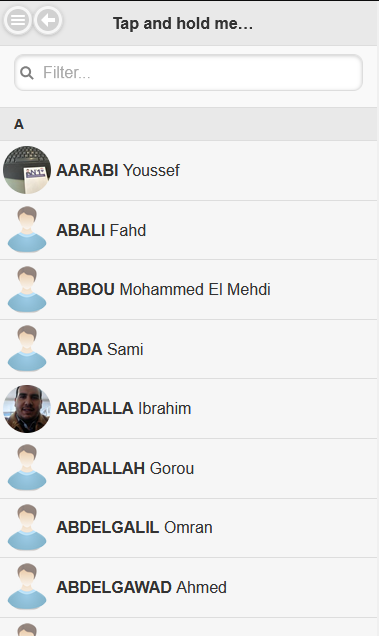
- Tap Search.
- Find the member in the contact list.
- Tap and hold the member.
- Sign on the signature pad.
- Tap Back to save and return.
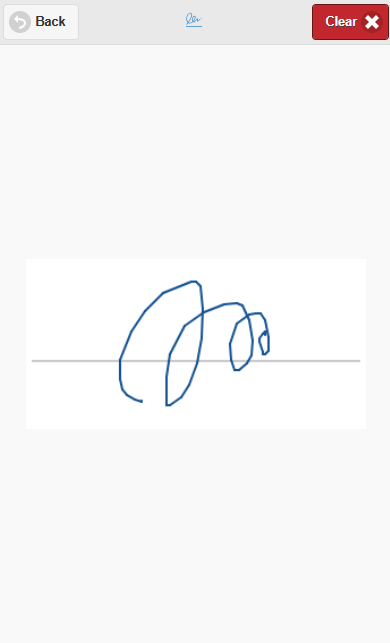
If no signature is provided, the action is rejected.
Remove a member before closing
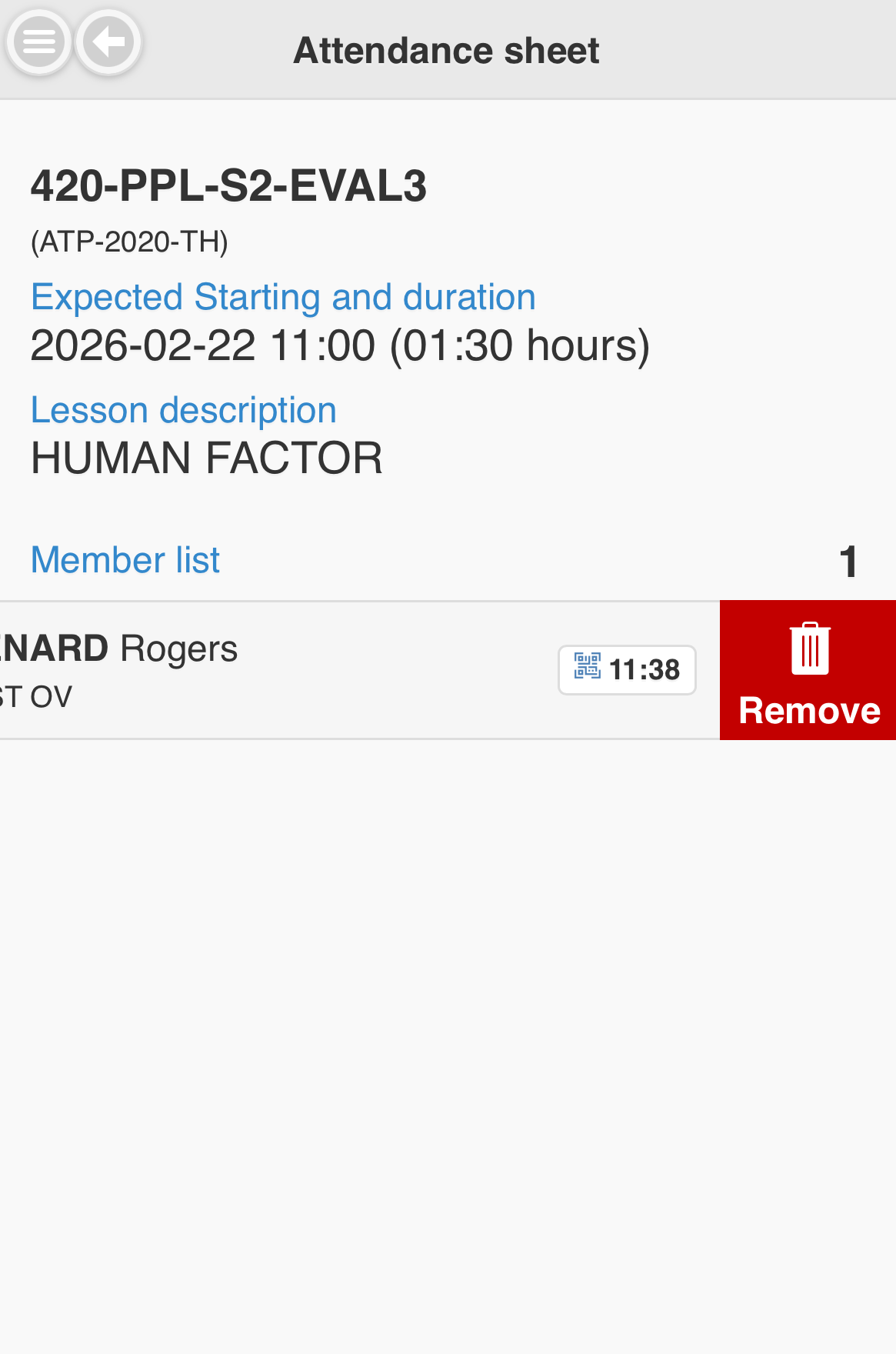
On attendees list page, swipe a member row and tap Remove.
Attendee might not get credit for the full expected scheduled duration if they are late. The organization might have set a limit, so that the attendee will get credit only for the remaining time left until the scheduled end. Calculation is based on the scheduled starting time.
Close Attendance
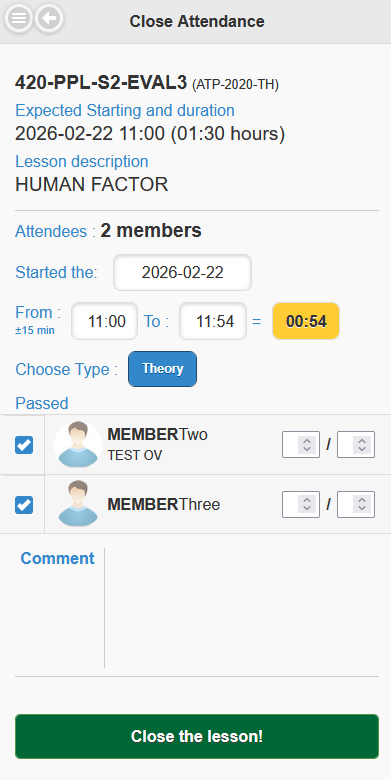
Tap Close in footer, that will open a the confirmation closing page.
You can set:
- class date (read-only on this page)
- From and To times
- computed duration
- lesson type (Theory, PGI, Studies, Exams)
- per-member pass/fail checkbox
- optional score/max score fields (when enabled for that lesson type)
- comment
Important update for time handling: When you close attendance after the lesson day has already passed, the system still treats the entered times as times for the lesson day itself. If the lesson would run past midnight, the latest allowed end time is capped at 23:59 for that lesson day.
Close without attendees
If no attendee has been added, the page now shows a dedicated button to close the lesson without any attendee.
When you tap it, a confirmation dialog explains that:
- no attendance records will be saved
- no instructor activity credit will be added
- the attendance sheet will be cancelled instead of saved as a normal completed lesson
Assign the course to another member
If you cannot provide the course, ensure that you or a responsible person reassigns the schedule to another duly qualified member so that they can access the electronic attendance recording system.
Validation Rules Before Final Close
The close action is blocked if one of these conditions is not met:
- Start time is outside the allowed window around expected start time (this option is set by administrators of the system).
- Start or end time is later than actual current time (for today).
- End time exceeds allowed expected end window (this option is set by administrators of the system).
- Duration is missing or zero.
- Lesson type is not selected.
- You use the normal close action while the attendance list is empty.
- Duration is too short (minimum 0.1 hour / 6 minutes).
- You try the special no-attendee close while attendees are already registered in the live lesson session
What Happens When You Close Successfully
When close is accepted:
- Attendance is finalized.
- The related Flight Record entry is automatically completed for this class movement.
- Present/absent data is stored from your final attendee state.
- Member training records are saved from this attendance close.
- Remaining scheduled members not saved as present are processed as no-show entries.
Special result when closing without attendees
The no-attendee button follows a different result. It does not save a normal attendance result.
Instead, the system:
- cancels the attendance sheet
- marks the live lesson session as inactive
- removes the transfer link back to the Scheduler item
This option is intended for cases where the lesson must be closed empty and no attendance/training credit should be created.
Where users see results later:
- Course and lesson follow-up pages (member training history)
- Mobile activity/record pages that show completed class movement data
Quick End-to-End Checklist
- Confirm the Scheduler item has been transferred to Flight Record.
- From home page, open Courses.
- Open your active class in attendance section.
- Open the class if not already open.
- Add members (QR or Search + signature).
- Tap Close to confirm closing.
- Enter final times, type, pass/fail, optional score, and comment.
- Tap Close the lesson!.
Troubleshooting
User-Facing (camera QR code reader)
If you cannot proceed:
- Check that the class was opened first.
- If you want a normal close, check that at least one attendee is present.
- If there are no attendees, use the special Close the lesson without any attendee button instead of the normal close button.
- If the no-attendee close is refused, check whether someone is already registered in the live attendance session.
- Check that end time is not in the future.
- Check start/end times are within allowed limits.
- For lessons reviewed after the lesson date, remember that times are still interpreted on the lesson day and cannot go past 23:59.
- If using Search mode, ensure signature was completed.
- If QR add fails, retry scan and confirm the member QR is valid.