
Published 11 February 2026, Updated 3 March 2026
Welcome. This page is for regular users who only need to clock in and clock out during the day. The system is made to be simple in daily use, even if the rules behind it are strict for payroll accuracy.
It now covers both identification methods:
- QR code scan
- Keypad login (5-digit Punch ID)
It also explains where to find and manage your personal Punch ID in your profile settings page.
Quick Start
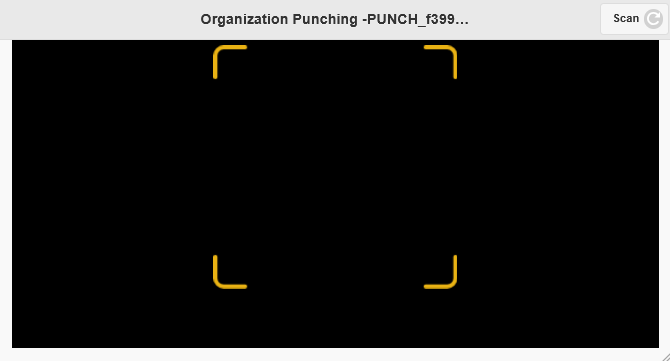
When you arrive at a punch device, open the Clock Puncher screen and allow camera access if requested. Then show your personal QR code to the camera.
If the scan is successful, the system recognizes you and shows what action is possible next.
- If you are not currently punched in, you will choose an activity and punch in.
- If you are currently punched in, you will punch out of your active activity.
Important note: You can not Punch IN if you still have any activity open in one “Daily Record, Scheduler”. The activity has to be ramp in.
Two Ways To Identify Yourself
You can identify yourself in two different ways on the punch device.
QR Code Scan
Use your personal session QR code and show it to the device camera.
Typical flow:
- Arrive on the punch screen.
- Show your personal QR code to the camera.
- Wait for your name and action cards to appear.
- Tap the correct event card to complete punch in or punch out.
Keypad Login (5-digit Punch ID)
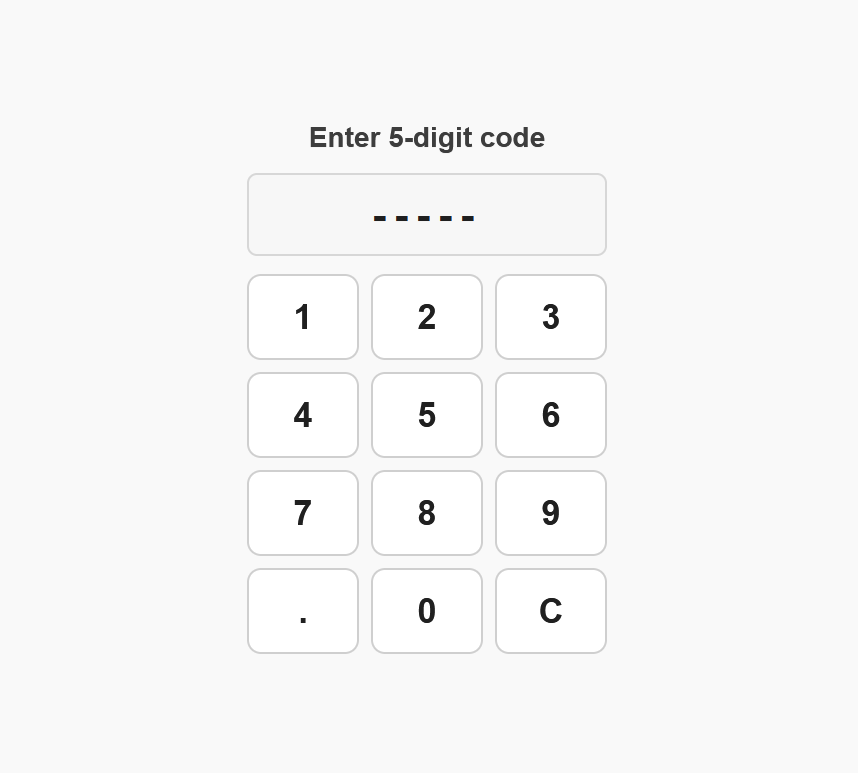
If keypad mode is enabled on your device, you can enter your 5-digit Punch ID instead of scanning.
Typical flow:
- Switch to Keyboard mode (if needed).
- Enter your 5-digit Punch ID.
- The system validates the code automatically when all 5 digits are entered.
- Your name and action cards appear.
- Tap the correct event card to complete punch in or punch out.
Important:
- Only digits 0-9 are valid.
- Use
Con the keypad to clear and re-enter. - Long pressed on the Code to see digits under.
Switching Between Scan And Keyboard Modes
Some devices provide a mode switch button in the page header.
- If you see Keyboard, tap it to move from camera scan to keypad entry.
- If you see Scan, tap it to return to camera scan mode.
If your location/device is configured for one method only, the toggle may not be available.
Using Mobile Punch In The App
Some organizations also provide a mobile punch page in the app.
Important access rule:
- This mobile punch page is restricted to selected members by administrators.
- If your account is not included in the administrator selection, this page is not available to you.
When To Use It
Use the mobile punch page when your organization allows punching directly from the app instead of using a shared punch device.
Typical Mobile Flow
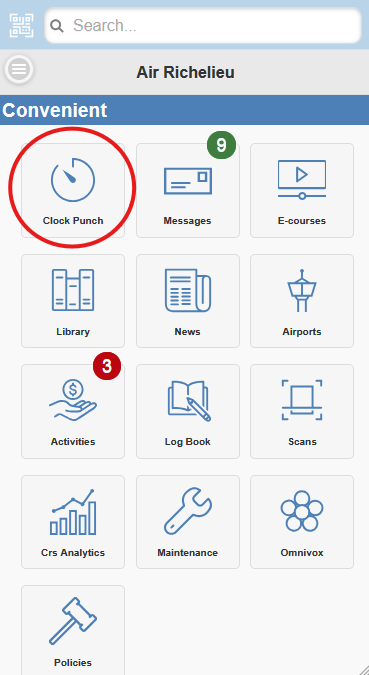
- Open the app and go to the mobile Clock Punch page.
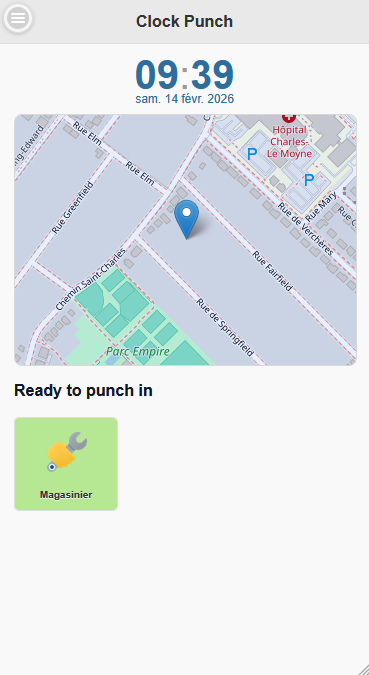
- Wait for the page to load your current date/time and your available event choices.
- Allow device location access when prompted.
- Tap the event card that matches your action (punch in or punch out).
- Confirm that the action is accepted before leaving the page.
Geolocation Requirement
The mobile punch page records geolocation from your device at punch time.
If geolocation is disabled, denied, or unavailable on your device/browser, the app will not allow punching from this page.
If The Mobile Page Is Not Available
If you cannot access this page:
- Use the regular Clock Punch method (QR or keypad) on any Physical Clock puncher device.
- Contact your administrator and ask whether your account should be enabled for app-based punch.
Where To Find And Manage Your Punch ID
You can manage your personal Punch ID in your profile page, inside your connection settings.
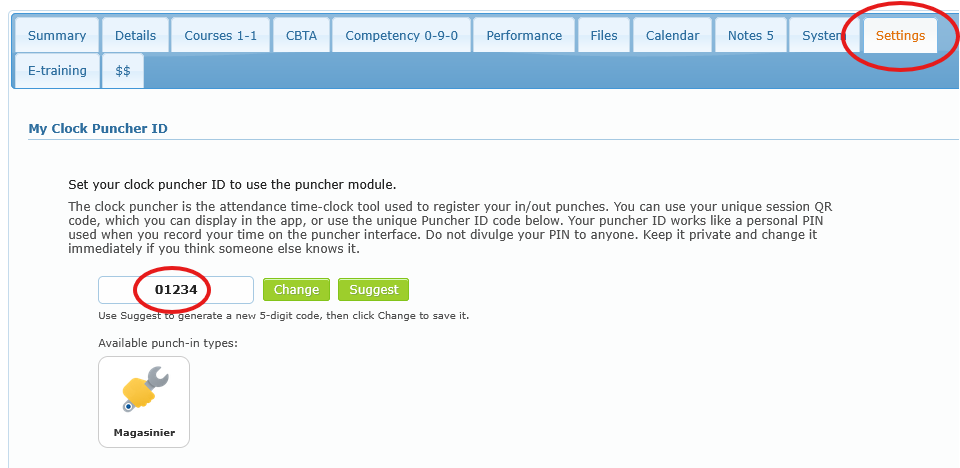
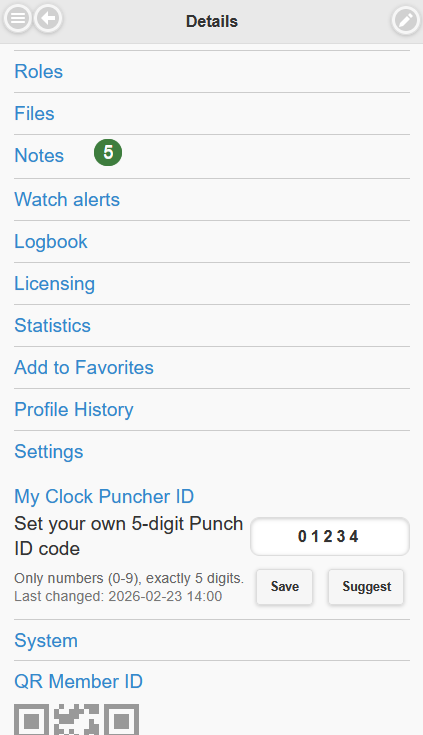
User path:
- Open your profile on one of the version of AirSupervision.
- Go to tab Settings or scroll down to Settings.
- Find the section My Clock Puncher ID.
In this section you can:
- View your current Punch ID.
- Use Suggest to generate a unique 5-digit code.
- Use Change to save your code.
Validation rules:
- Exactly 5 digits.
- Numbers only (0-9).
Security reminders shown in this section:
- Keep your Punch ID private.
- Do not share it with other users.
- If your code is old, the page may recommend changing it for security.
Normal Daily Flow
Most users follow this exact routine:
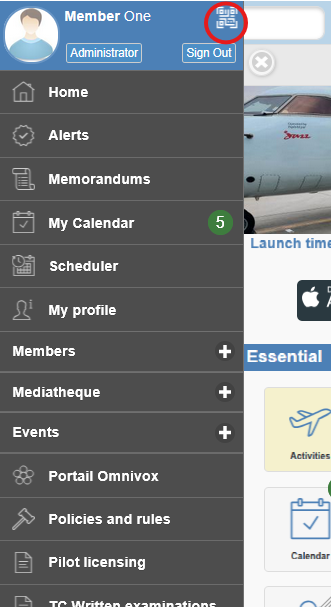
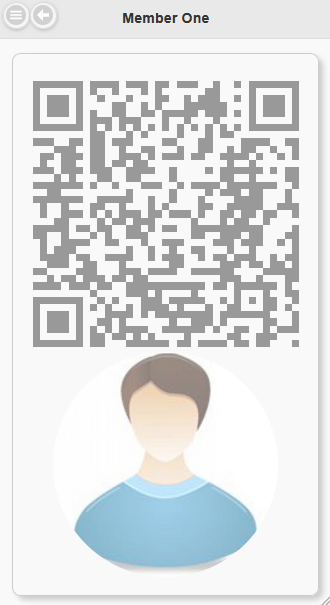
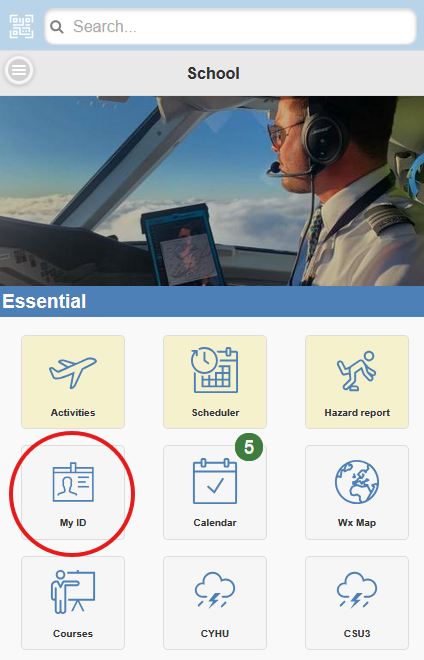
- Scan QR code using your mobile device AirSupervision app or enter you Punch ID using the keypad.
- Check your name on screen.
- Choose the activity shown.
- Confirm the action by tapping the activity card.
- Repeat later to punch out.
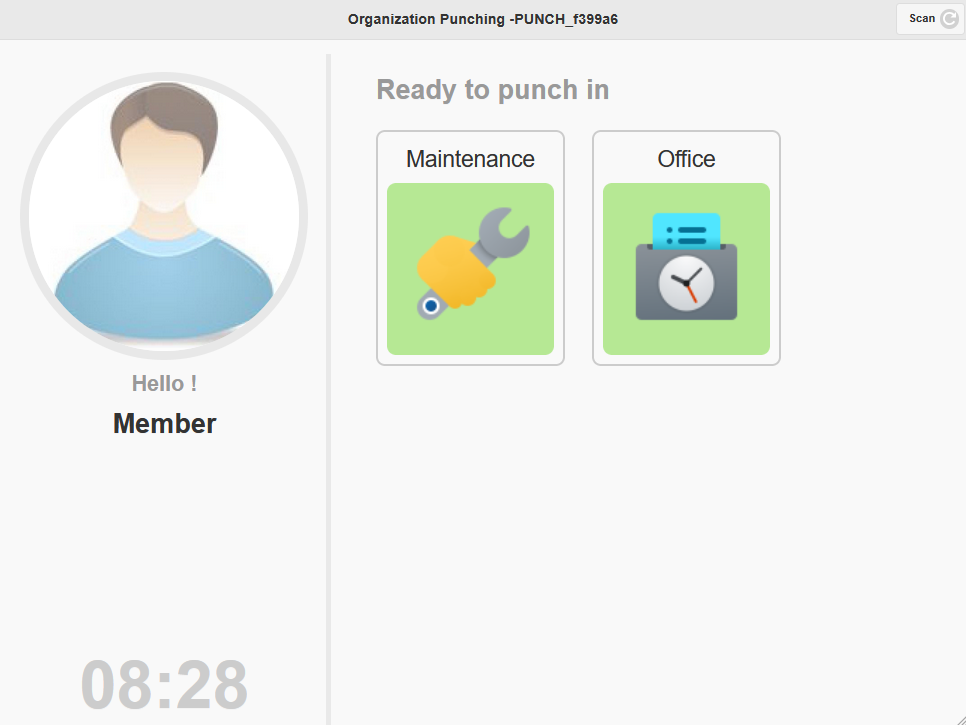
What the Screen Means
After scan, the screen can show one of two states.
The first state means you are ready to punch in. In this case, choose the activity that matches what you are starting.
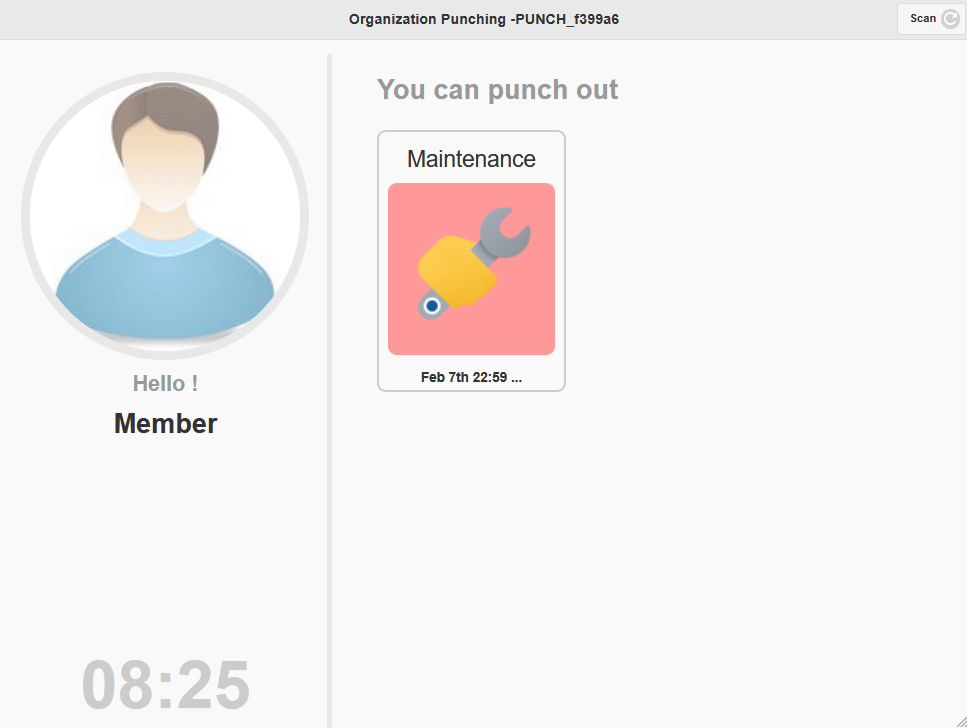
The second state means you are already active and can punch out. In this case, use the punch-out option shown on your active card.
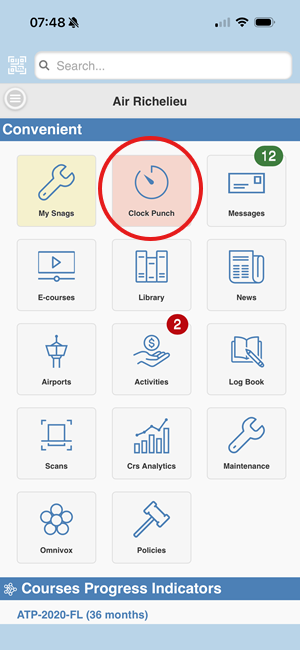
Once a Punch in is active, as a reminder to punch out, app home page will highlight the ongoing activity.
Where To Find My Punch Out Activities
You have 2 ways to review your recorded activities and punch-out history.
Displaying the Activity Sheet (Desktop version)
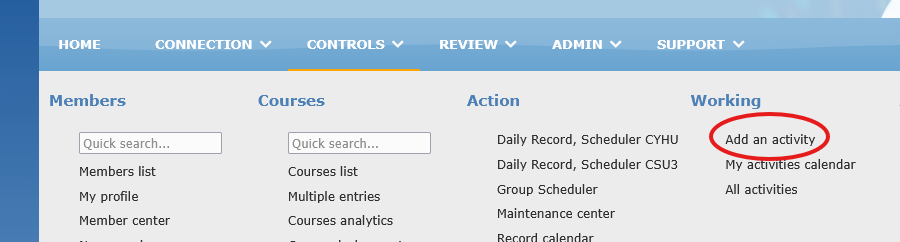
Use this view when you are working from the desktop/web interface and want a detailed activity overview.
What you can do there:
- Open your activity sheet area from the desktop interface.
- Review your activity entries by date and period.
- Check that your punch in and punch out times are present and coherent.
Best use case:
- You want a broader timeline view and detailed verification from a computer.
Activities (App home page version)
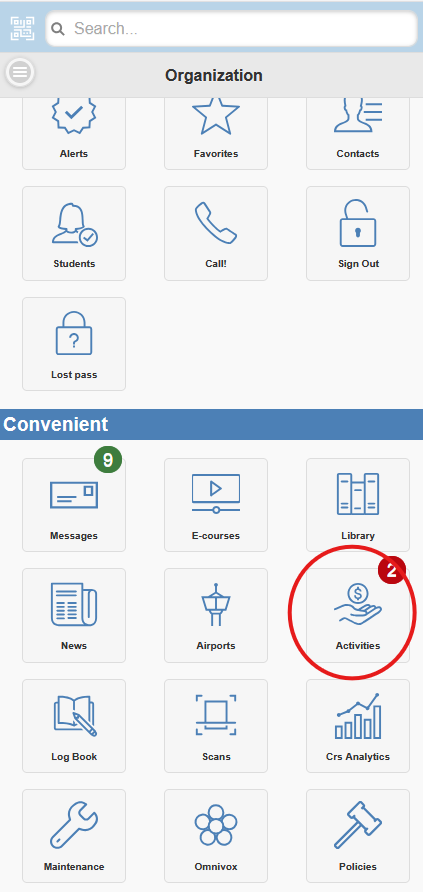
Use this view when you are on the app and want quick access to your recent activity records.
What you can do there:
- Open the app home page.
- Enter the Activities section.
- Review your latest activity entries directly from mobile.
Best use case:
- You need a fast check right after punching, without using desktop pages.
Tip: If something looks incorrect, do not add random extra punches to compensate. Report the issue to your administrator so the record can be corrected properly.
Common Rules (In normal words)
To keep records valid, the system does not allow impossible action sequences.
- You cannot punch in twice in a row without punching out.
- You cannot punch out if there is no active punch in.
- Punch out must match your currently active activity.
This is normal and protects your final worked-time totals.
Common Messages and What to Do
If you see an error, the message usually tells you what to do next.
If the device says it is not authorized, contact an admin user to register that device.
If the system says devices are locked, it means admin users temporarily paused punch devices.
If the page cannot connect, wait a moment and try again. If the issue continues, contact your admin.
If the camera is not scanning well, hold the QR code steady and use the Scan button to restart cleanly.
I forgot to Punch out and left.
If you forgot to punch out, left without punching out, or punched out at the wrong time, please contact the administrators responsible for managing the Clock Punch system for assistance.
Security Reminder (For Users)
The Clock Puncher only works on approved devices. This protects your time records and prevents unauthorized devices from punching.
Each device uses a unique fingerprint for security. After a major operating system or browser/software update, that fingerprint can change. If this happens, the device may no longer be recognized and an admin user will need to resync it before it can be used again.
Never share your Punch ID, avoid entering your code where others can observe it, change your code if you suspect exposure, report suspicious punches immediately.
Good Usage Tips
Use the same punch device behavior every day: scan, verify, tap, done. This avoids mistakes and keeps your records clean.
If you think you made a wrong punch, do not try random actions to fix it. Report it to an admin user so they can correct it properly.
Troubleshooting Checklist
If something does not work, check this quick list before contacting IT:
- Confirm you are using your own QR code or your own 5-digit Punch ID.
- If scanning, ensure camera permission is allowed.
- If keypad, verify the code is exactly 5 digits.
- Confirm you are tapping the correct event card (in vs out context).
- Retry once from the initial screen.
If still blocked, contact your local Clock Punch administrator and provide:
- your name
- approximate time of the attempt
- whether you used QR or keypad
- what message/state you saw on screen