
Published 12 October 2026, Updated 13 October 2026
The Pages design center is AirSupervision’s built-in page builder. Use it to create your organization’s own web pages inside AirSupervision: welcome pages, procedures, safety bulletins, FAQs, link portals, news, staff directories, price lists, and so on.
A page is built from blocks: a heading, a paragraph, an image, a table, a video, a button, a member card, and so on. You stack blocks in the order you want, style them, and publish the page. Members then see it from the desktop main menu, the mobile app menu, the mobile home page, or a direct link.
| You can… | Example |
|---|---|
| Build pages with blocks, no coding needed | A “Welcome new students” page with a heading, a photo, a checklist, and a contact card |
| Organize pages in groups and sub-pages | Group “Safety” → “SMS policy” → “Reporting a hazard” |
| Control who can see each page | Instructors and above only, or only members with the “Dispatcher” role |
| Add pages to the desktop and mobile menus | A “Fuel prices” link in the main menu |
| Use a review/approval workflow | A designer submits a page and an administrator publishes it |
| Add custom CSS and JavaScript (advanced) | Corporate colours, custom layout, small interactive scripts |
Who can use it?
Access is restricted. If you are not allowed, AirSupervision redirects you to the “no access” page.
| Profile | What they can do |
|---|---|
| Full system administrators (highest power level) | Open the Pages design center, edit every page, change menu settings, and publish |
| Page designers (members listed in System settings → Misc. → Page designers) | Open the Pages design center and edit the pages where they are listed as an editor (see Editable by members in Page Options) |
| Page designer administrators | Page designers who can also publish pages when approval is required, and change menu placement when that is restricted. They receive the review request e-mails |
| All other members | Cannot open the designer. They only view published pages they are allowed to see |
Note: To edit a page, a designer must be (1) a page designer in System settings and (2) listed in that page’s Editable by members list. Full system administrators can edit every page.
Two system-wide settings change how the workflow behaves:
- Publishing approval: when enabled, regular page designers cannot publish. They send the page for review and a page designer administrator publishes it.
- Menu restriction: when enabled, only page designer administrators (and full administrators) can add a page to the desktop main menu or the mobile left menu. Other designers see an information icon (ⓘ) next to these options: “Only page designer administrators can modify this option.”
Required skills
| Task | Skill needed |
|---|---|
| Write text, add images, tables, videos, buttons | Basic computer skills; no coding |
| Use Edit as HTML on a block | Basic HTML knowledge |
| Use the CSS content tab and the Classes fields | CSS knowledge (selectors, properties, responsive design) |
| Use the JS Content tab | JavaScript knowledge (and ideally jQuery) |
If you are new to HTML, CSS, or JavaScript, see the Learning resources section of the article Custom CSS and JavaScript.
Opening the Pages design center and screen layout
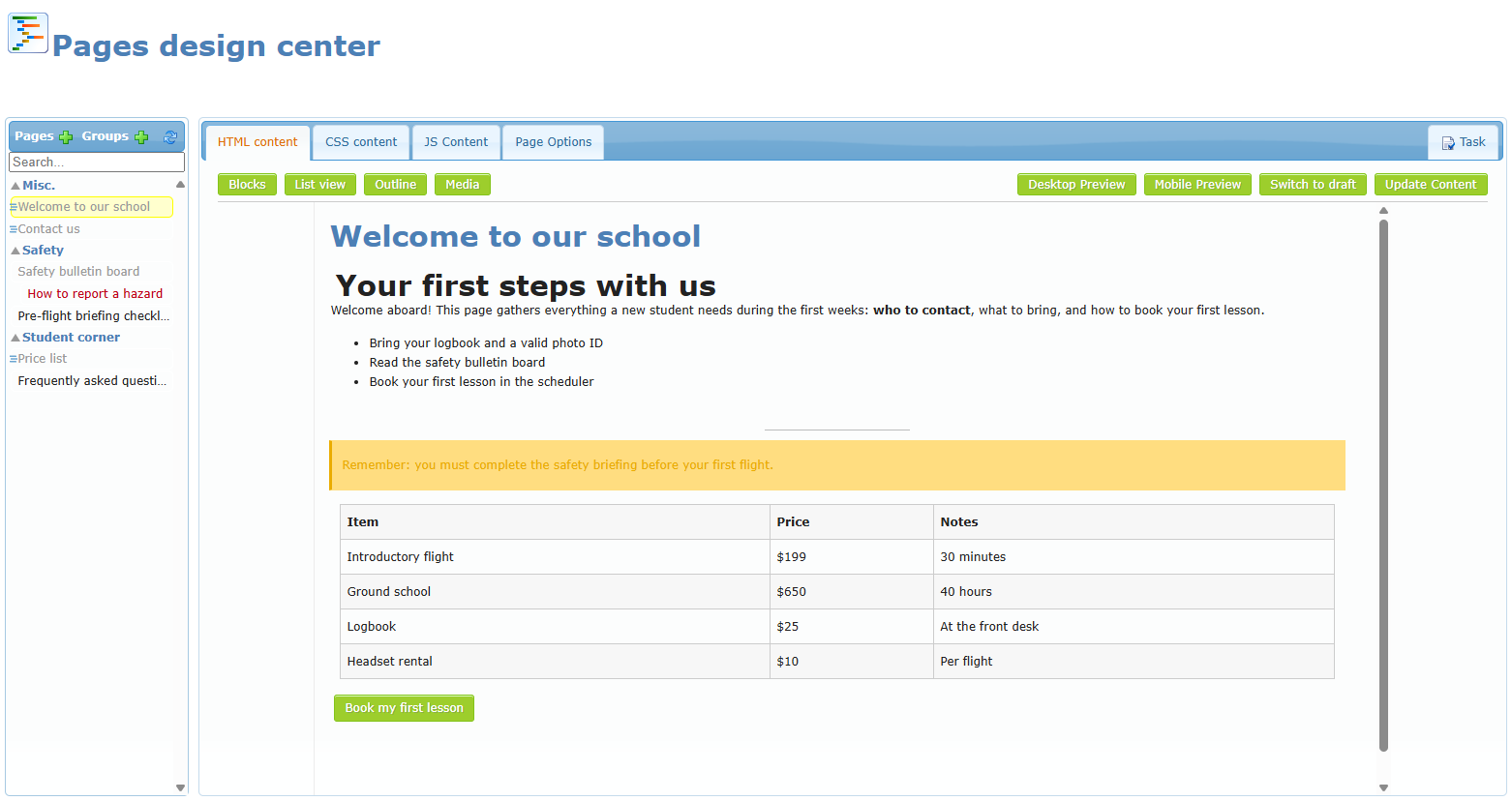
Open Pages design Center from the administration shortcuts (shortcut name “Pgs Center”). The screen title is Pages design center.
The screen has two main areas:
| Area | Contents |
|---|---|
| Left panel – Pages | The + (Create a page) icon, Groups + (Add a group), Refresh, the Search… box, and the tree of groups and pages |
| Right panel – tabs | HTML content, CSS content, JS Content, Page Options, and Task (right side) |
When no page is selected, only the HTML content tab is available and the toolbar is mostly hidden. Click a page in the list to load it and enable all tabs.