
Published 12 October 2026, Updated 12 October 2026
The left panel of the Pages design center lists every page you can manage. This article explains how to find, create, organize, duplicate, export and delete pages and groups.
The page list
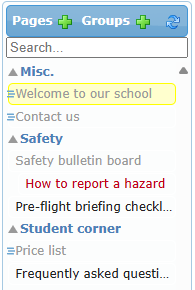
Pages are listed by group. Click a group title to expand or collapse it (the small triangle shows the state). Pages placed under another page appear indented as sub-pages.
Each page entry uses a colour to show its status:
| Colour in the list | Status | Meaning |
|---|---|---|
| Black | is draft | Work in progress. Not shown in menus |
| Red | To be reviewed | Waiting for a page designer administrator to approve it |
| Grey | is published | Live. Visible to the allowed members and shown in the menus you selected |
A small ≡ sign in front of a title means the page is placed in the desktop main menu. The page currently open is highlighted in yellow. Hover over a page to see a tooltip with its ID, title, and author.
Searching
Type words in Search… and press Enter. Clear the box and press Enter (or click Refresh) to show all pages again.
Refresh
The Refresh icon reloads the list, clears the search, and closes the current page. Save your work first.
Creating a page
- Click the + icon next to Pages (Create a page).
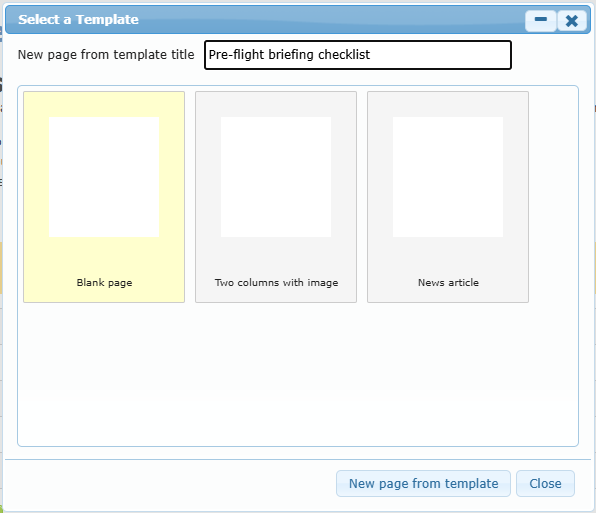
- The Select a Template dialog opens. Select Blank page or one of the saved templates (a preview thumbnail is shown).
- Type the title in New page from template title (for example, Pre-flight briefing checklist).
- Click New page from template.
The new page is created as a draft and appears in the list.
Blocking condition: you must enter a title and select a template (or Blank page). Otherwise the page is not created.
Removing a template
In the same dialog, select a template you created and click Remove template, then confirm. You can only remove your own templates. This cannot be undone.
Groups
Groups are folders that keep the list tidy. They do not affect what members see.
| Action | How |
|---|---|
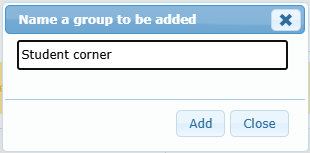
| Add a group | Click + next to Groups, type a name, then click Add |
| Rename a group | Right-click the group title → Rename group, type the new name, then click outside |
| Remove a group | Right-click the group title → Remove the group → Yes. This is safe: its pages move to the root; they are not deleted |
| Move a page to a group | Drag the page and drop it on the group title |

Sub-pages and ordering
- Make a sub-page: drag a page and drop it on another page. It becomes a child of that page and is shown indented.
- Change the order of sub-pages: right-click a sub-page → Move UP or Move DOWN. These two items only appear on sub-pages.
Page right-click menu
Right-click any page in the list:
| Menu item | What it does |
|---|---|
| Duplicate | Creates a copy of the page (content, CSS, JS, options). The message “Page duplicated!” confirms it |
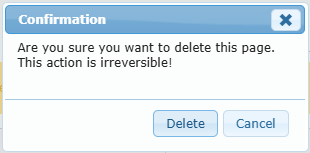
| Delete | Asks “Are you sure you want to delete this page. This action is irreversible!” and deletes the page |
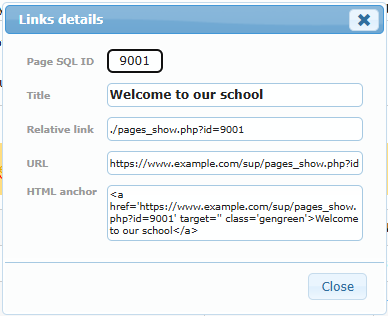
| Display links | Shows the page ID, title, relative link, full URL, and a ready-to-copy HTML link |
| Move UP / Move DOWN | Changes the order of a sub-page under its parent (only shown on sub-pages) |
| Export content | Downloads a file with the page content, CSS, JS, and main options (available on the page currently open) |
| Import into content | Loads a previously exported file into the open page (replaces content, CSS, and JS) |
| Save as template | Saves the current page as a reusable template with a thumbnail. Enter a template title, then click Add the template |
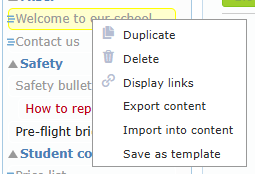
Tip: Use Export content before major changes. It is an easy offline backup that you can import again later.
Blocking conditions: you can only delete or edit pages where you are an allowed editor. If another member is editing the page, see Editing lock in the article Saving, review and publishing.