
Published 9 January 2025, Updated 7 May 2025
Due to the limitations of the main live scheduler, which is designed to display schedules for a specific day across all resources, responding to the customer inquiry regarding the next available schedule for a specific aircraft type with specific instructors is not straightforward. However, AirSupervision has incorporated a feature that enables users to identify the next availability for any resource effectively.
However this function is only available to member having their setting “Can view daily flight record and use scheduler” activated or the user is an administrator of the system.
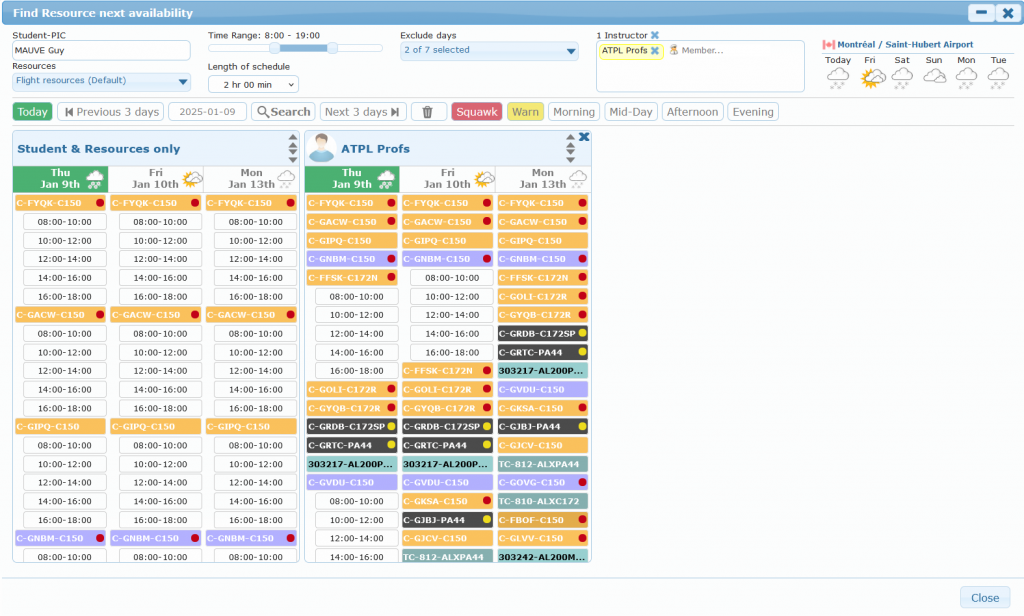
With its ease of use, “Resources avail.” will transform how reservation are scheduled.
To search for the next availability, Simply click the “Resources avail.” button. Then, enter your preferred settings and criteria. Click the “Search” button, and this feature will show all available openings that match your choices. You can then choose a time, fill in any reservation details, and complete your booking in one easy step. This process makes it easier to find a time to fly and offers a more flexible and user-friendly way to make reservations than the previous system.
Search criteria
Select “Resources” by item or by type. If none, the system will perform its calculations based on all flight resources. This is the default selection.
“Student-PIC” and “Instructor” criteria are optional. Set as empty will only search for resources availability.
“Time range” can be set as business open hours
“Length of schedule” will be the minimum length of schedule available.
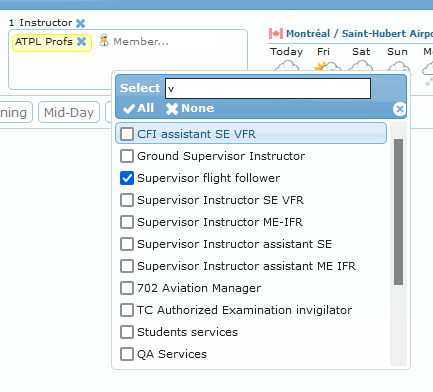
Instructor can be selected individually. But also by selecting “Roles” to retrieve matching member’s by clicking on the icon representing a pilot . When searching in the drop down box, previous selection might be checked. Click “None” to clear.
When selecting a lot of member, the system might be longer to respond. If this happens, please try to decrease number of instructors.

Criteria can be “Save criteria”, “Load criteria” or reset with “Default criteria” values.
Navigation bar

Simply click on “Search” button to retrieve available reservation as per the defined criteria
Using the navigation bar has buttons to:
- Navigate up to the previous 3 days, or to the next 3 days. The system prevents to display dates before today.
- Navigate from a specific date.
- Remove all result but keep the searching criteria.
- Display or hide resources that have been squawked or will be grounded soon.
- Display only available reservation for Morning (5AM to 11AM), Mi-Day (11AM to 1PM), Afternoon (1PM to 6PM) or Evening (6PM until midnight).
Results
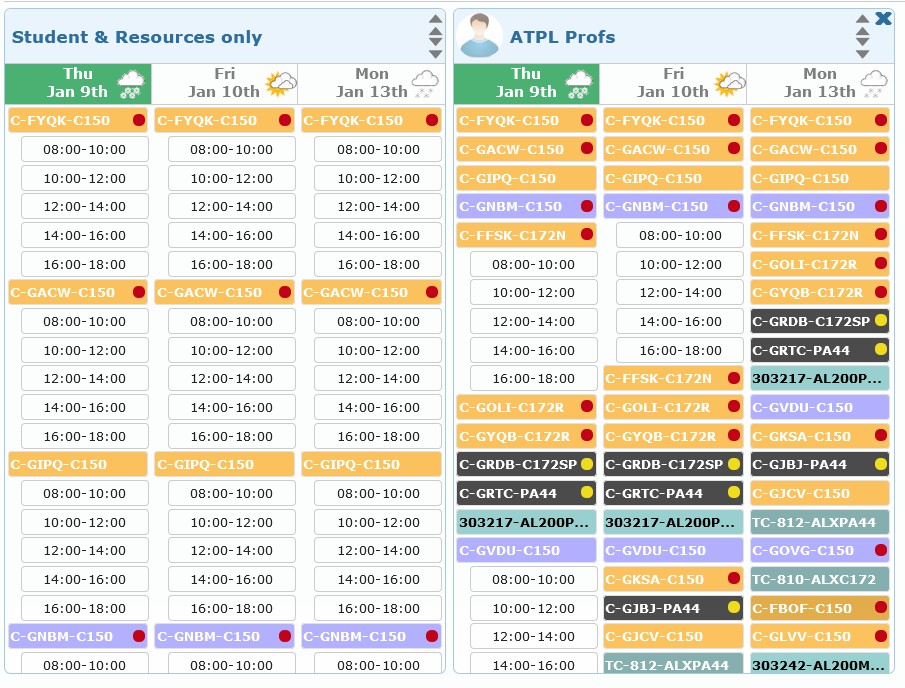
The first block will display available reservations based on resources and student availability, while each other box will also count the instructor availability.
Hovering an instructor avatar will display details and competencies, while clicking on it will scroll into view the instructor column of the live scheduler.
Selecting a reservation will open the schedule dialog box set on the desired date without the need to display the selected date on the live scheduler.
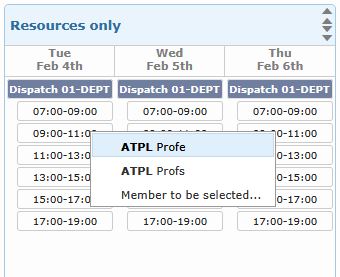
However, selecting a reservation from the “Resources” box will drop down a list of the available instructor. This will avoid scrolling horizontally a long list of selected instructors.
Hovering a date will display the Civil twilight time, while clicking will display the selected date in the live scheduler.
Clicking on resource’s title, will toggle availability schedules, while double clicking on it will display resource’s additional information.
Boxes can be shrink, closed and sorted by drag an drop. Resources item can collapse, toggle or expand at once by clicking on arrows, or collapse and expand for all boxes content when double clicked.
Anchoring the view
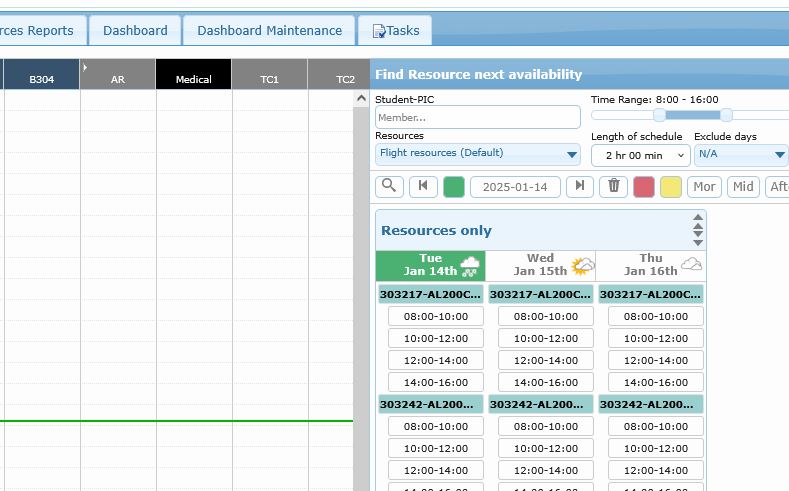
When it is useful to work with both the search dialog box and the live scheduler, switching between views may not always be practical.

The system offers a feature to address this issue. By clicking the “Anchor” button of the dialog box, you can display a split view of the module alongside the live scheduler. To return to the previous state, simply click the “Detach” button located on the top right view on the embed view.