
Published 2 March 2026, Updated 14 March 2026
Use Session Details to review one session in depth, including schedule composition, attendance capture, and closing results.
How to open:
- Right-click a session row in Attendance.
- Click Session Details.
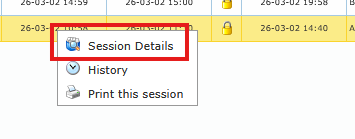
The dialog uses tabs:
- Details (always visible)
- Opening (always visible)
- Closing (visible only when the session is closed)
Details Tab – Label Reference
This tab explains what was planned in scheduler and key timing/status values for the selected session.
| Label shown in dialog | What it represents | How to read it |
|---|---|---|
| Status | Session completion + active state | Format is Open/Closed + Active/Inactive (example: Closed / Active) |
| Course / Lesson | Training course title and lesson title tied to the session | Confirms the exact training content linked to this session |
| Instructor | Instructor currently assigned to this session | Use to verify who was in charge operationally |
| Resource | Planned resource (aircraft/simulator/room/device) | Use for resource audit and mismatch checks |
| Opened / Scheduled | Session creation time + scheduled start/end time | Helps compare operational creation vs planning timeline |
| Expected duration | Planned lesson duration from lesson setup | Appears in Opened / Scheduled line when defined |
| Started / Closed | Real start timestamp + close timestamp | Confirms actual execution window and closing time |
| Duration / Students | Actual session duration + attendee count | Visible while session is still open |
| Duration / Students / Students lesson duration | Actual session duration + attendee count + per-student lesson duration value | Visible when the session is closed |
| Inactive By / Date | User who set session inactive + timestamp | Visible only for inactive sessions |
| Scheduler Primary Group | Main scheduled group(s) originally tied to the lesson slot | Baseline group planning for this session |
| Additional Group(s) | Extra group(s) attached in scheduler | Shows optional group extensions beyond primary group |
| Primary Member(s) | Main scheduled member(s) directly planned | Core planned members at scheduler level |
| Additional Member(s) | Extra member(s) manually added in scheduler | Shows ad hoc members added after initial planning |
| Scheduler Expected Member(s) | Combined expected attendees from scheduler composition | Operational reference of who should normally attend |
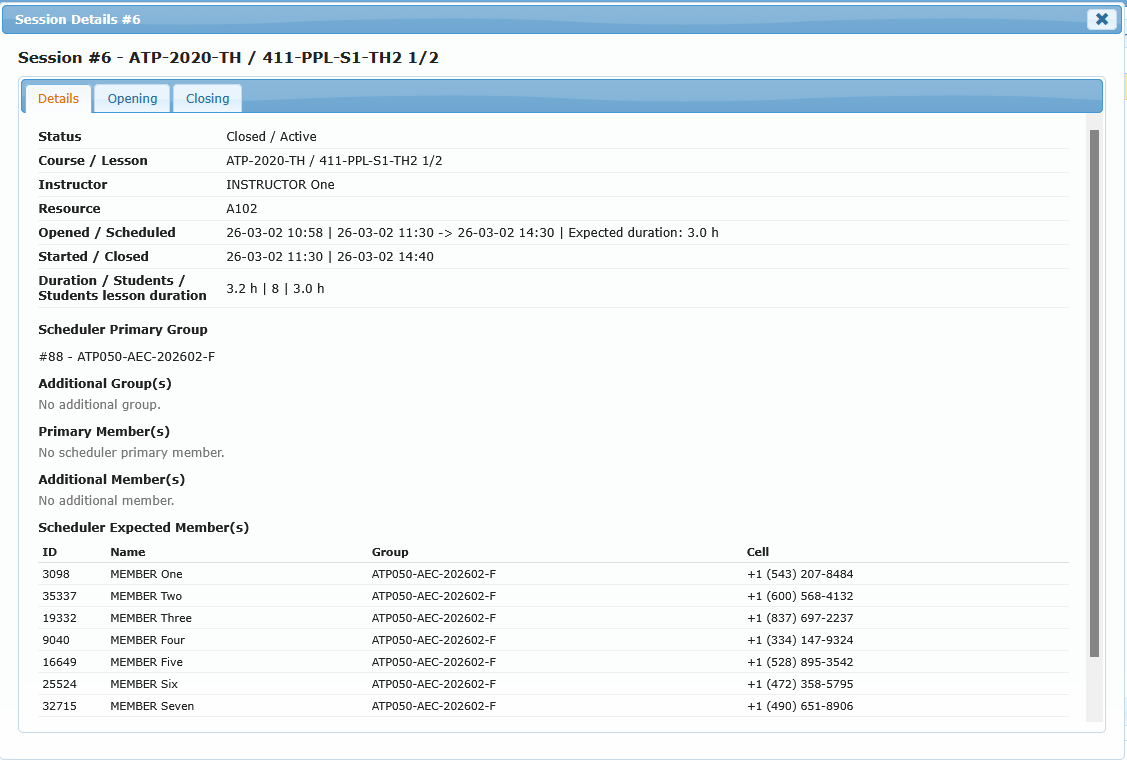
Interpretation of “No …” lines in this tab:
- No scheduler primary group.: no primary group is currently linked.
- No additional group.: no extra group was added.
- No scheduler primary member.: no direct primary members are listed.
- No additional member.: no extra individual members were added.
- No expected members from scheduler.: scheduler currently returns no expected attendees.
Opening Tab – Label Reference
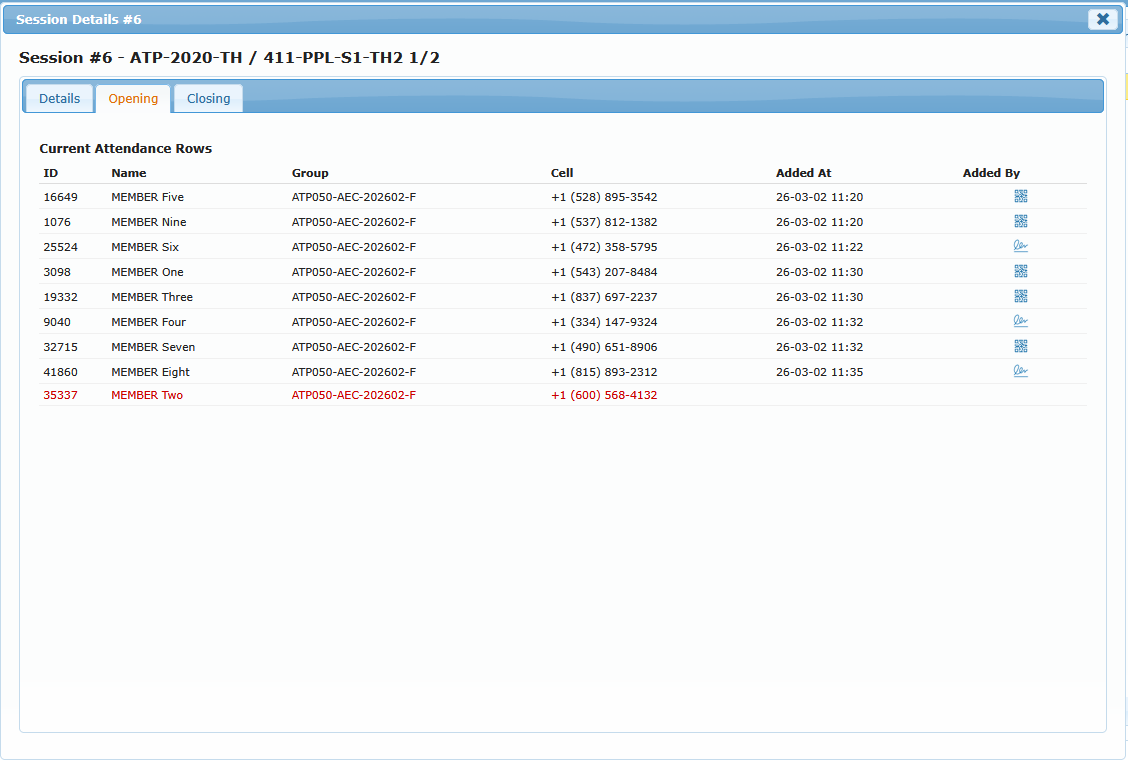
This tab shows attendance rows that currently exist in the active/opening state.
| Label shown in dialog | What it represents |
|---|---|
| Current Attendance Rows | Students currently present in session attendance rows at opening/live stage |
| ID | Student ID |
| Name | Student full name |
| Group | Student group label |
| Cell | Student mobile number |
| Added At | Time the student attendance row was added |
| Added By | Method used to register attendance row |
Added By icon meaning:
- QR icon: attendance row was added by unique QR identification scan.
- Signature/select icon: attendance row was added through select/sign flow.
Geolocation in Attendance
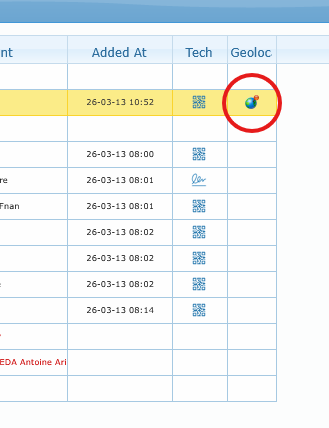
Attendance geolocation is shown only when a position was actually recorded. If no position was saved at the moment the session was opened or when the attendee was added, no map action is available for that record.
Where you can see it:
| Area | What you see | What it means |
|---|---|---|
| Attendance tree grid | A geolocation icon in the Geolocation column on attendee rows | That attendee row has a saved position |
| Session Details > Opening | A geolocation icon in the Geolocation column | The attendee row shown in details has a saved position |
| Session row right-click menu | Opening geolocation action | The session itself has an opening position saved |
How attendee geolocation works:
- In the Attendance tab, expand a session if needed.
- Look at the attendee row Geolocation column.
- If the icon is present, click it.
- A map dialog opens and centers on the saved point.
- The blue circle shows the recorded accuracy radius.
How session opening geolocation works:
- Right-click a session row.
- Use Opening geolocation.
- If the action is enabled, the map dialog opens with the session opening position.
- If the action is disabled, no opening geolocation was saved for that session.
Practical interpretation:
- Icon visible on attendee row: the attendee was added with a saved geolocation.
- No icon on attendee row: no attendee geolocation is available for that row.
- Opening geolocation enabled on session menu: the session opening position is available.
- Opening geolocation disabled: the session was opened without saved geolocation data.
- Printed attendance output does not show a geolocation column even when map data exists.
Recommended operational use:
- Use attendee geolocation when you need to verify where a specific attendance entry was captured.
- Use session opening geolocation when you need to confirm where the session itself was opened.
- Use the blue accuracy circle as an approximate capture zone, not as an exact physical boundary.
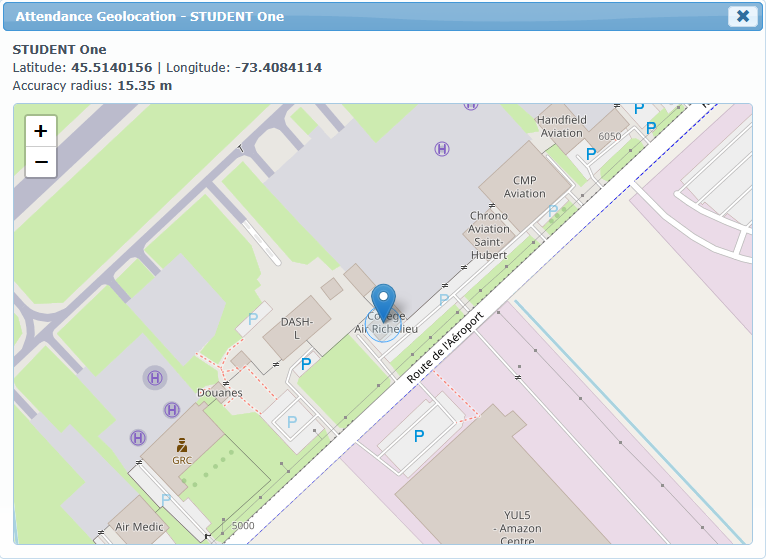
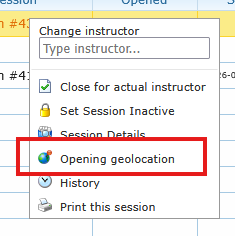
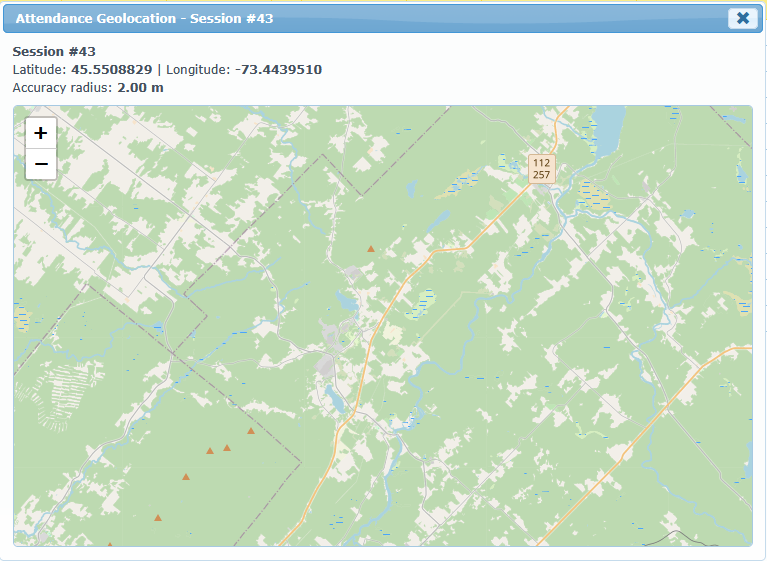
Geolocation has to be activated in system settings by administrators. This option will be mandatory for users. However it will catch values only for opening attendance sheet and for each attendee record.
Closing Tab – Label Reference
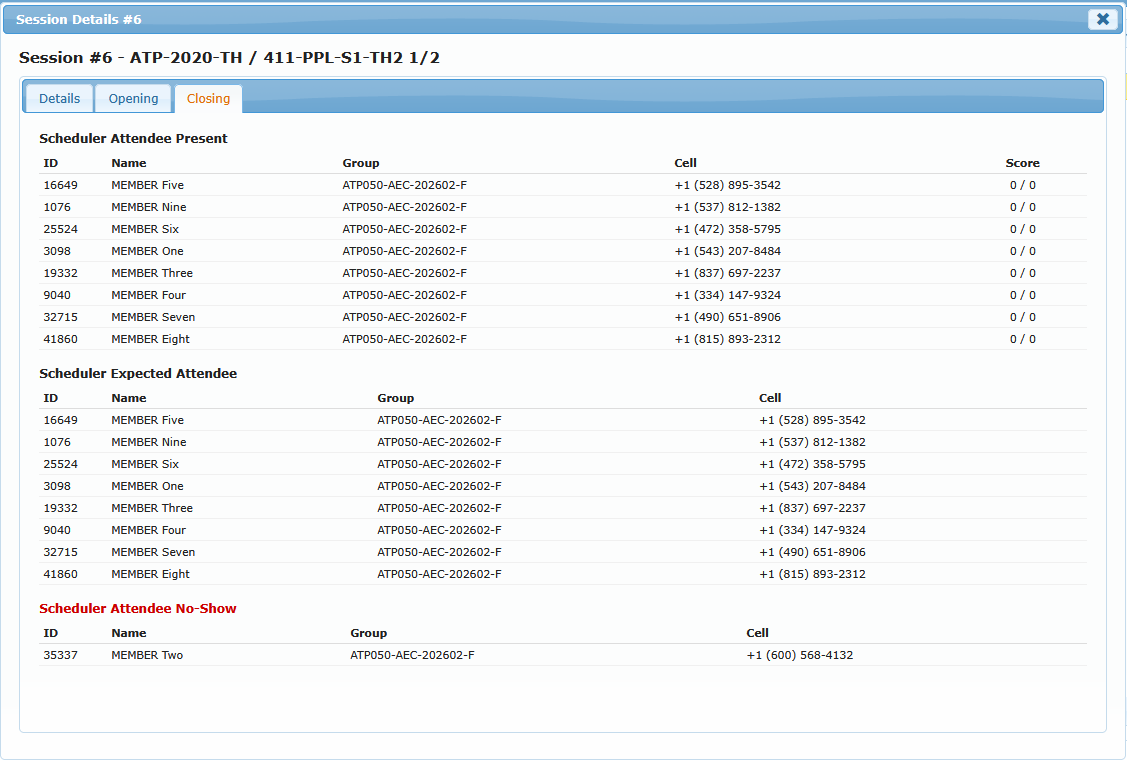
This tab appears only after session closure and separates planned-vs-real attendance outcomes.
| Label shown in dialog | What it represents |
|---|---|
| Scheduler Attendee Present | Expected attendees confirmed as present at close |
| Scheduler Expected Attendee | Expected attendees from scheduler reference list |
| Scheduler Attendee No-Show | Expected attendees marked absent/no-show at close |
| Score | Student score and maximum score (score / max) when lesson scoring is required |
Score display rule:
- Score column is shown only when the lesson requires scoring.
Operational use:
- Use Details to validate planning composition and timeline context.
- Use Opening to confirm how attendance was captured during live operation.
- Use Closing to verify final present/expected/absent status after closure.