
Published 27 February 2026, Updated 28 February 2026
The Advanced Search button is made for complex filtering when one quick filter is not enough. It lets you combine multiple conditions in one search, including grouped logic (AND/OR), then reuse that search later as a preset.

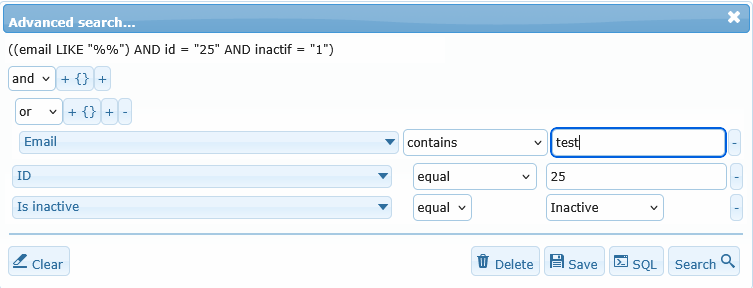
Build a multi-condition search
- Open Advanced Search.
- In the first line, choose:
- the field (for example Name, Group, Inactive, Created date, etc.)
- the comparison operator
- the value
- Add more lines if needed.
- Choose how lines are combined:
- AND: all conditions must be true
- OR: at least one condition must be true
- Click Search to apply.
You can also create grouped logic (for example one block for active members, another block for one date range) and combine those blocks with AND/OR.
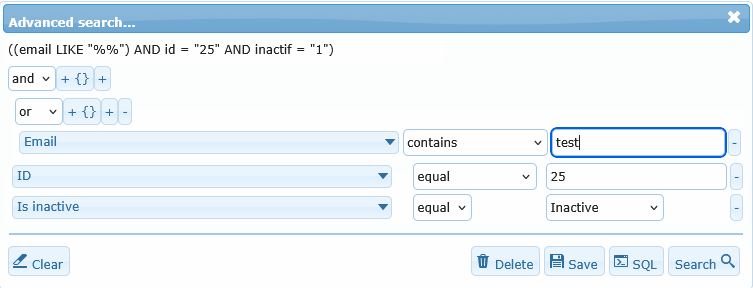
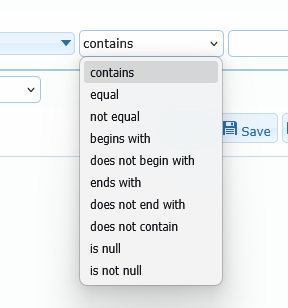
Meaning of operators you may see
The exact operators vary by field type.
For example, text fields offer text operators, while date/number fields offer range operators.
| Operator | Meaning in plain language | Typical use |
|---|---|---|
eq (equals) | Exactly matches value | Find one exact value |
ne (not equal) | Different from value | Exclude one exact value |
lt (less than) | Smaller/earlier than value | Dates before X, values below X |
le (less or equal) | Smaller than or equal to value | Up to and including a limit |
gt (greater than) | Bigger/later than value | Dates after X, values above X |
ge (greater or equal) | Bigger than or equal to value | From a threshold and above |
cn (contains) | Text includes this value | Partial name/email search |
nc (not contains) | Text does not include this value | Exclude text fragments |
bw (begins with) | Text starts with this value | Surname prefix, code prefix |
bn (does not begin with) | Text does not start with value | Exclude prefixes |
ew (ends with) | Text ends with this value | Domain endings, suffixes |
en (does not end with) | Text does not end with value | Exclude suffixes |
in (in list) | Value is in selected list | Multi-choice list filtering |
ni (not in list) | Value is not in selected list | Exclude list choices |
nu (is empty) | No value present | Missing data checks |
nn (is not empty) | Value is present | Data completion checks |
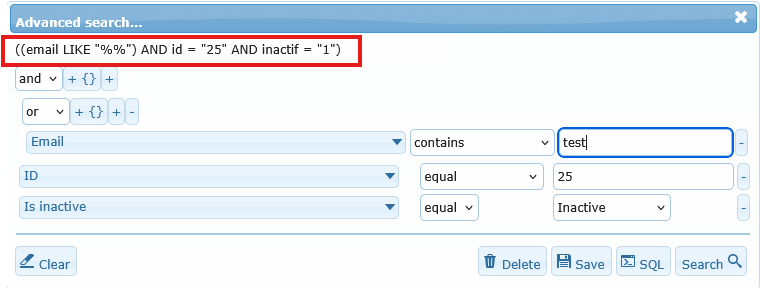
View the generated query (optional)
The dialog includes an SQL view button for advanced users who want to inspect the generated logic. You do not need this for normal daily use, but it helps confirm complex grouped filters.
Save a search as a preset (query template)
If you use the same search regularly, save it once and recall it later.
- Build your filter in Advanced Search.
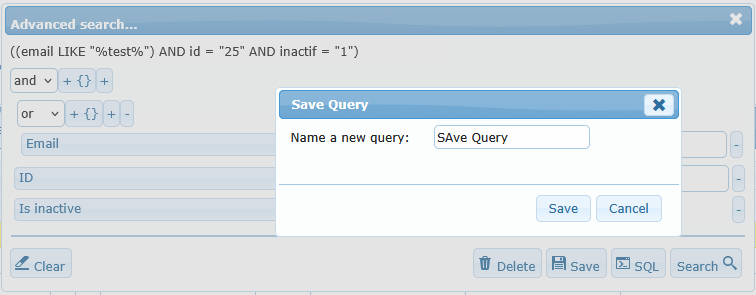
- Click Save in the left side of the Advanced Search dialog.
- Enter a preset name.
- Click Save in the popup.
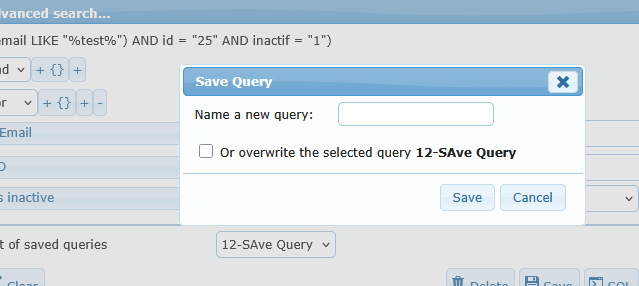
If you already selected a saved preset, you can tick the overwrite option to update that preset instead of creating a new one.
Recall and reuse a saved preset
- Open Advanced Search.
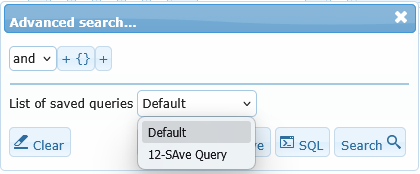
- In List of saved queries, choose the preset you want.
- Verify conditions loaded in the dialog.
- Click Search.
Saved presets are personal (linked to your account) for this page.
Delete a preset
- Open Advanced Search.
- Select the preset in List of saved queries.
- Click Delete.
- Confirm deletion.
Only custom saved presets can be deleted (not the default entry).
Reset/Clear behavior
- Clear removes conditions currently set in the Advanced Search dialog.
- If filters are already active in the grid, use the List navbar Clear all filters and refresh button to fully reset the displayed list.
